


Thunderbird subject lines in stored mails show incoming time/day at the end of the subject line

For my internal operation, I typically store the date/time of files at the beginning of the file name to help with time based sorting.
When I store incoming emails from Thunderbird, the date/time is added at the end of the file name.
Here is my question: is there a way to make Thunderbird change the sequence in the file name and put date/time at the front (preferably in a format I would want to use such as yyymmdd).
All Replies (1)
You can apply more control over file name if you use this addon extension. ImportExportTools NG https://services.addons.thunderbird.net/EN-us/thunderbird/addon/importexporttools-ng/
The easy way is to do it via Thunderbird in 'Addons & Themes' Type 'ImportExportTools Ng' in top search - it locates the addon then click on 'Download, it will ask if you want to proceed and then auto installs it in Thunderbird.
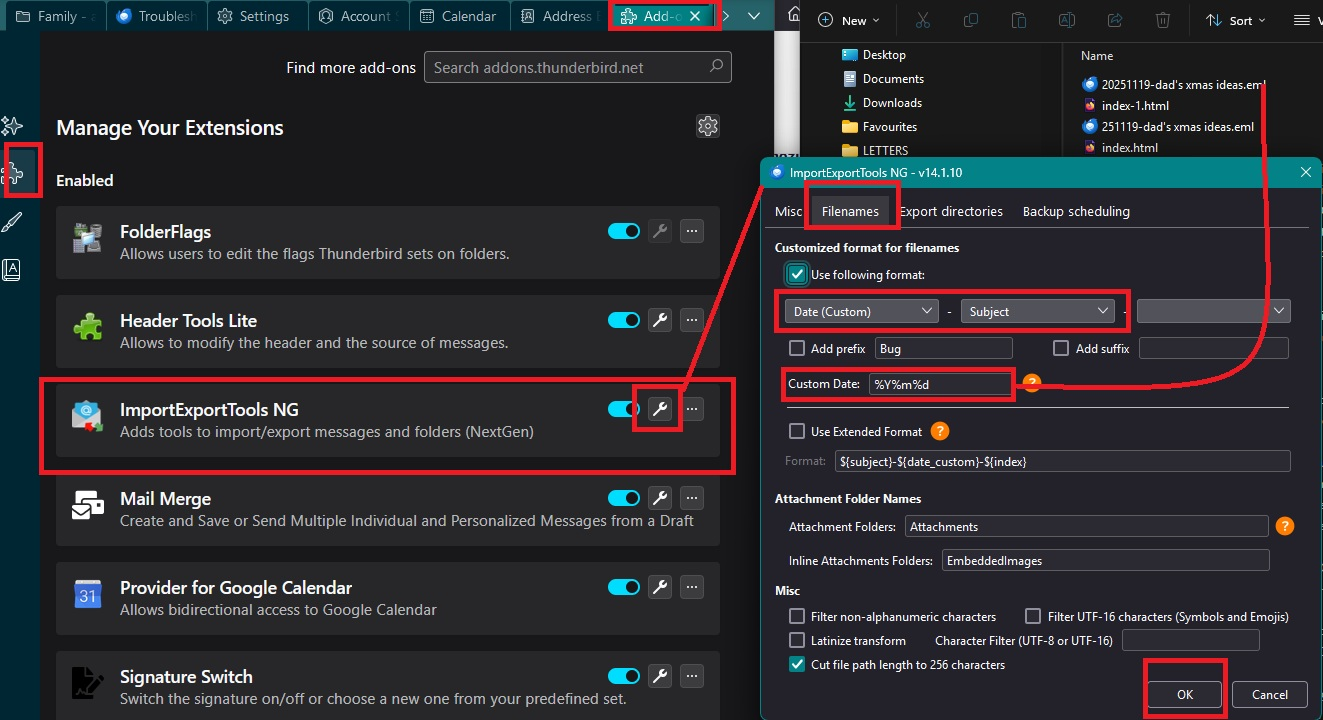
After importing addon: Makje sure it's enabled. Click on the spanner icon Select something like : Date(Custom) and Subject and leave last one blank Custom date: %Y%m%d and you will get this: 20251119 (19th Nov 2025) It does accept - so %Y-%m-%d will get 2025-11-19 example image below
To do one or a few selected emails:
- Right click on highlighted email and use 'ExportMessages as ' > 'EML Message Format' > choose an option
- Select the receiving folder on computer and click on 'Select Folder'
To export an entire folder as eml:
- Right click on folder and select :
- 'ImportExportTools NG' > 'Export all messages in folder' >'EML Message Format' > choose prefered option.
- Select the receiving folder on computer and click on 'Select Folder'
Okulungisiwe ngu Toad-Hall