


As of 6/6/2019, my computer says that Firefox is using 240 gigabytes of storage and I can't figure out why

I only noticed today that Firefox was using so much storage, so it could have been using all this storage earlier without me realizing. I've deleted everything from my downloads folder but it still says it's using the 240 gigabytes. The only add-on I have is Adblock Plus, which is obviously not using that much storage. I would just uninstall and reinstall Firefox, but 240 gigabytes is a lot and could be something important on my computer that, for some reason, is being shown as Firefox taking up 240 gigabytes. I've attached a picture to show that it really is 240 gigabytes (not megabytes). My question is why it would be showing Firefox as taking up 240 gigabytes and if it is safe to uninstall.
所有回覆 (2)
Image:
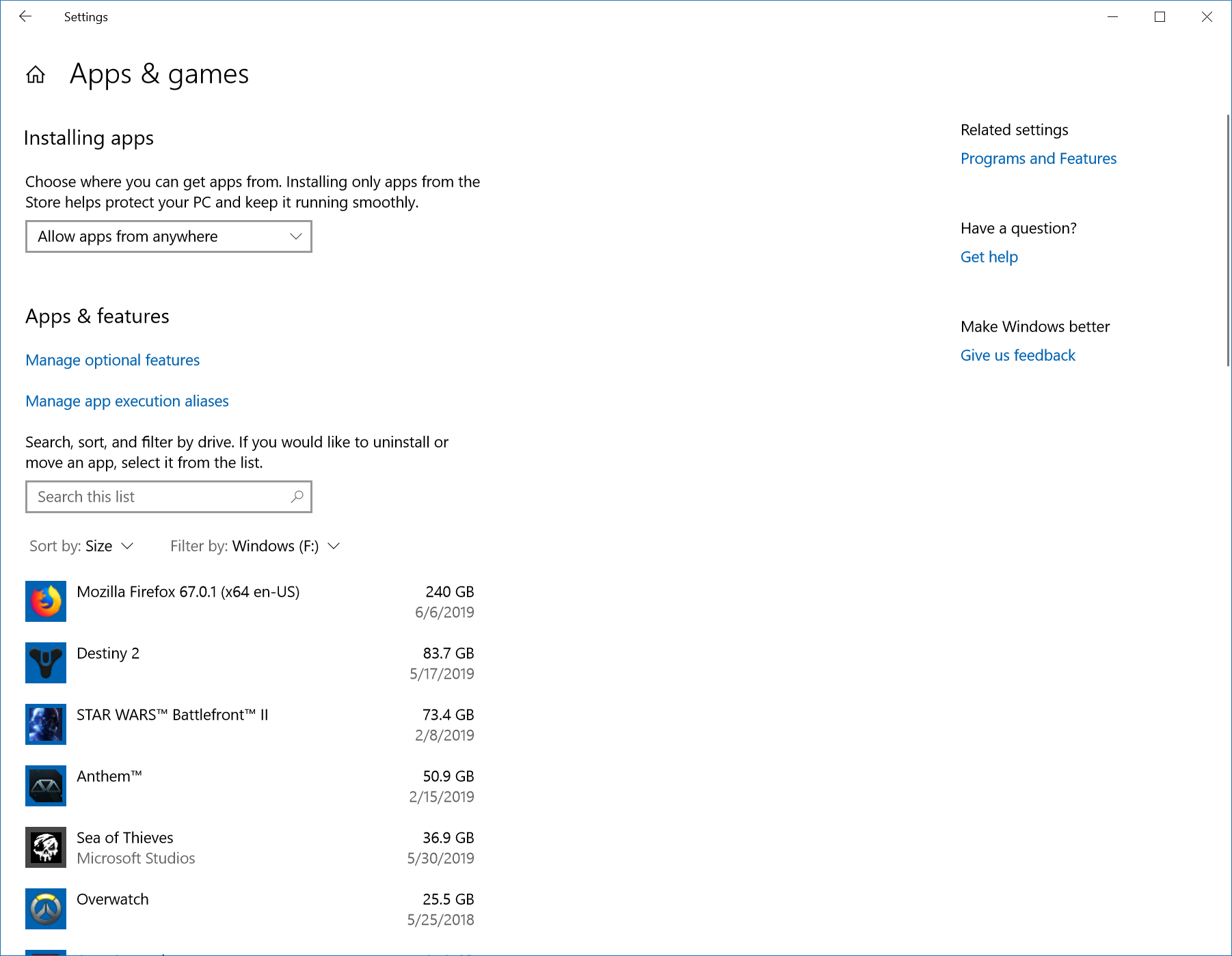
That is probably wrong and Firefox is only using one or two GB or possibly more if you have multiple profiles or have refreshed Firefox quite a few times. You can check the Firefox program folder and the two locations use profile folder as listed on the about:profiles pages.
- C:\Users\<user>\AppData\Roaming\Mozilla\Firefox\Profiles\<profile>\
- C:\Users\<user>\AppData\Local\Mozilla\Firefox\Profiles\<profile>\
You can also check if you have an "Old Firefox Data" folder on the desktop that is used to store older profiles after a refresh has created a new profile.