


why am i umable to use google sign-in on any website?
i can not log in to sites which are linked to my google accounts, its times out every time? how do i fix it?
All Replies (5)
Enhanced Tracking Protection is a collection of Firefox features that protects your privacy by blocking trackers that follow you online to collect information about your browsing habits and interests. It also includes protection against harmful scripts.
If a site seems broken, you can try turning off Enhanced Tracking Protection for that website:
- Click the shield
 icon at the left of the address bar.
- At the top of the panel, toggle off the Enhanced Tracking Protection switch
 . The site will be added to your Enhanced Tracking Protection exception list, allowing trackers on it, and the page will reload automatically.
-
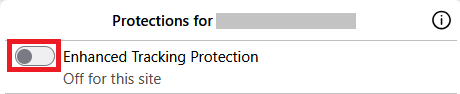
This will allow trackers to load on that website while keeping you protected on other sites. To learn more, see Enhanced Tracking Protection in Firefox for desktop.
Hello,
Try Firefox Troubleshoot Mode to see if the problem goes away. Firefox Troubleshoot Mode (previously known as Firefox Safe Mode) is a special diagnostic mode that temporarily turns off hardware acceleration, disables add-ons (extensions and themes) and resets some settings. See the Use Troubleshoot Mode in Firefox article for details.
If Firefox is open, you can restart in Firefox Troubleshoot Mode from the Help menu:
- Click the menu button
 , click Help, select Troubleshoot Mode and click Restart in the "Restart Firefox in Troubleshoot Mode?" dialog that opens.
If Firefox is not running, you can start Firefox in Troubleshoot Mode as follows:
- On Windows: Hold the Shift key when you open the Firefox desktop or Start menu shortcut.
- On Mac: Hold the option key while starting Firefox.
- On Linux: Quit Firefox, go to your Terminal and run firefox -safe-mode
(you may need to specify the Firefox installation path e.g. /usr/lib/firefox)
When the Firefox Troubleshoot Mode window appears, select "Open".
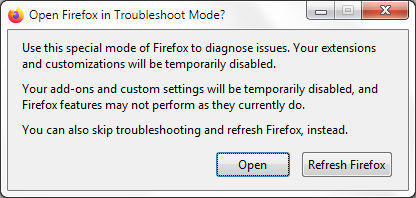
If the issue is not present in Firefox Troubleshoot Mode, your problem is probably caused by an extension, theme or hardware acceleration. Please follow the steps in the Troubleshoot extensions, themes and hardware acceleration issues to solve common Firefox problems article to find the cause.
To exit Firefox Troubleshoot Mode, just close Firefox and wait a few seconds before opening Firefox for normal use again. (If you can't exit Firefox Troubleshoot Mode, please see Firefox is stuck in Troubleshoot Mode).
When you figure out what's causing your issues, please let us know. It might help others with the same problem.
Thank you troubleshoot mode works, do i just make use of this mode going forward? i genuinely appreciate it.
I don't recommend doing so. I suggest checking your extensions or following the guide to find a good fix!