Unable to write the email to the mailbox

I've been using Thunderbird on Windows 10 since last year sometime. Currently I'm on version 151.0.1.
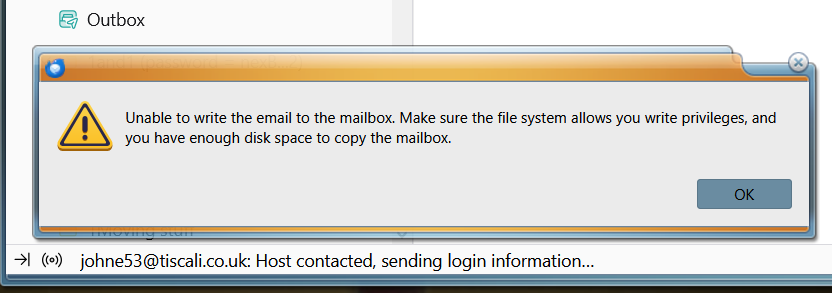
I've 4 x mailboxes here and since yesterday, 3 of them show me an unusual message when checking for emails. I tried attaching a screenshot but although the screenshot uploaded, I couldn't find a way to insert it here. But the message says Unable to write the email to the mailbox and asks me to check if I've write privileges (which I have) and to cheek the available disk space.(currently 101GB free).
The message is happening 2 or 3 times each day and lasts for about half an hour, then everything works fine again. Has anyone else seen this??
ప్రత్యుత్తరాలన్నీ (21)
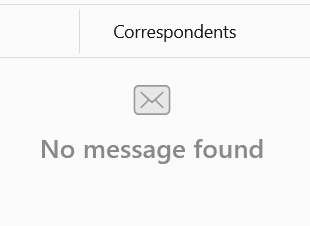
I've just realised something important. If I click Inbox for whichever account is showing that message I see a different message:-
I found another question here from someone who'd had a similar problem and the reply was to rebuild the global database so I've started the process here but I'm wondering if anyone can confirm if that's the right approach for a problem like mine?
The inability to write to the mail file, which is essentially what that error is about, usually means some other process is using the file at the time it is to be written.
So the first thing to check is the Anti-Virus. What Anti-Virus are you using? Exit Thunderbird Access the Anti-virus and make your Thunderbird profile folder exempt from scanning.
If you downloaded Thunderbird from the official website: https://www.thunderbird.net/en-US/thunderbird/all/
Then, it's likely your Thunderbird folder to exempt will be here: C://Users/username/Appdata/Roaming/Thunderbird
If you exempt that folder then it will also exempt anything it contains.
Restart Thunderbird and report on results.
Thanks Todd, It's very early days but up to now, rebuilding the global database seems to have fixed it. I'll keep the Anti-Virus possibility in mind though, in case the problem returns. I'm just using the standard Windows Virus & Threat protection here (not sure what it's called these days but it used to be called Defender).
I tried exempting my Thunderbird profile folder (in Windows Defender) and I'd previously tried rebuilding my global database but neither of them helps.
A few posts ago I showed a message I see saying No message found. Does nobody else see this? I see it regularly when clicking in Thunderbird's LH pane.(e.g. clicking the Inbox for a particular email account). If I remain with the Inbox selected, the message takes an age to go away. It only goes away quickly if I click something else and then return to the Inbox.
I'd previously been using a much earlier version of Thunderbird and never saw the message once, but since upgrading to version 151 I see it at least 5 times every day.
న johne53 చే మార్చబడినది

johne53 said
A few posts ago I showed a message I see saying No message found. Does nobody else see this? I see it regularly when clicking in Thunderbird's LH pane.(e.g. clicking the Inbox for a particular email account). If I remain with the Inbox selected, the message takes an age to go away. It only goes away quickly if I click something else and then return to the Inbox.
Try R. click that Inbox > Properties > click 'Repair folder' button, then R. click that Inbox > Compact.
That was a great tip Ed. I repaired the relevant folders last week and No message found hasn't reappeared for any of them!
One more question if you don't mind... I've a couple of old email accounts in Thunderbird which are paid accounts so I'll soon be closing them. I realise that I can enter the Settings page for each account and delete them but rather than deleting them, is there a way I can keep them locally but disable them? (e.g. for searching through old emails)
Thanks for all your help.
johne53 said
One more question if you don't mind... I've a couple of old email accounts in Thunderbird which are paid accounts so I'll soon be closing them. I realise that I can enter the Settings page for each account and delete them but rather than deleting them, is there a way I can keep them locally but disable them? (e.g. for searching through old emails)
Copy all messages from both accounts to subfolders of Local Folders. Automated disabling of accounts is in the works; doing it manually has issues. So once you've moved the messages, just delete the accounts.
Thanks again Ed.
Just a thought... depending on how long the new Automated feature takes, would this be useful as an interim solution..?
When right-clicking the top LH button called Get All New Messages Thunderbird currently lists all the email addresses it's going to check. Maybe (if the Settings for each account contained a Disable button) Thunderbird could remove that account from the above list and also under Server Settings->Server Settings it could disable all the options there (e.g. for automatically downloading new messages etc) ?
johne53 said
Thanks again Ed. Just a thought... depending on how long the new Automated feature takes, would this be useful as an interim solution..? When right-clicking the top LH button called Get All New Messages Thunderbird currently lists all the email addresses it's going to check. Maybe (if the Settings for each account contained a Disable button) Thunderbird could remove that account from the above list and also under Server Settings->Server Settings it could disable all the options there (e.g. for automatically downloading new messages etc) ?
It would, but who's going to code it? They're already working on it - see https://bugzilla.mozilla.org/show_bug.cgi?id=689067.
Meanwhile, there are things you can try:
- go to TB menu > Account Settings > Account > Server Settings and disable these options:
- Check for new messages at startup
- Check for new messages every X minutes
- Allow immediate server notification when new messages arrive
- under Spam Settings, uncheck 'Enable adaptive junk mail controls for this account'
Note that accessing any folder in the disabled account will cause a connection and message fetch from the server.
If it fails to deactivate:
- see if your address book(s) or calendar(s) are trying to make connections (https://www.reddit.com/r/Thunderbird/comments/1set3ea/comment/oeulgvj/)
- check TB menu > Help > Troubleshooting Information to see what accounts and calendars are listed there
Ed said
johne53 said
A few posts ago I showed a message I see saying No message found.Try R. click that Inbox > Properties > click 'Repair folder' button, then R. click that Inbox > Compact.
That does fix the problem Ed but I'm having to do it almost on a daily basis. Is there no way it can be fixed in the software? I'm sure I never needed to do it previously with Thunderbird.
johne53 said
Ed said
johne53 said
A few posts ago I showed a message I see saying No message found.Try R. click that Inbox > Properties > click 'Repair folder' button, then R. click that Inbox > Compact.
That does fix the problem Ed but I'm having to do it almost on a daily basis. Is there no way it can be fixed in the software? I'm sure I never needed to do it previously with Thunderbird.
Honestly, I don't know why. Profile corruption? May be best to try a new profile (https://support.mozilla.org/en-US/kb/profile-manager-create-and-remove-thunderbird-profiles).
Can you remind me how to add an image to my reply? I can upload the image okay but I can't find a way to display it in my reply.
johne53 said
Can you remind me how to add an image to my reply? I can upload the image okay but I can't find a way to display it in my reply.
Once you have an image file eg jpg
In this forum, just below the 'Post a REply' text comment box is 'Add Images' click on the 'Browse' button It opens a new window where you locate and select the image file. Click on 'Open' and it gets auto uploaded. It will display as a thumbnail image.
Okay I got it (it doesn't appear in my Preview window so I got confused). Anyway...
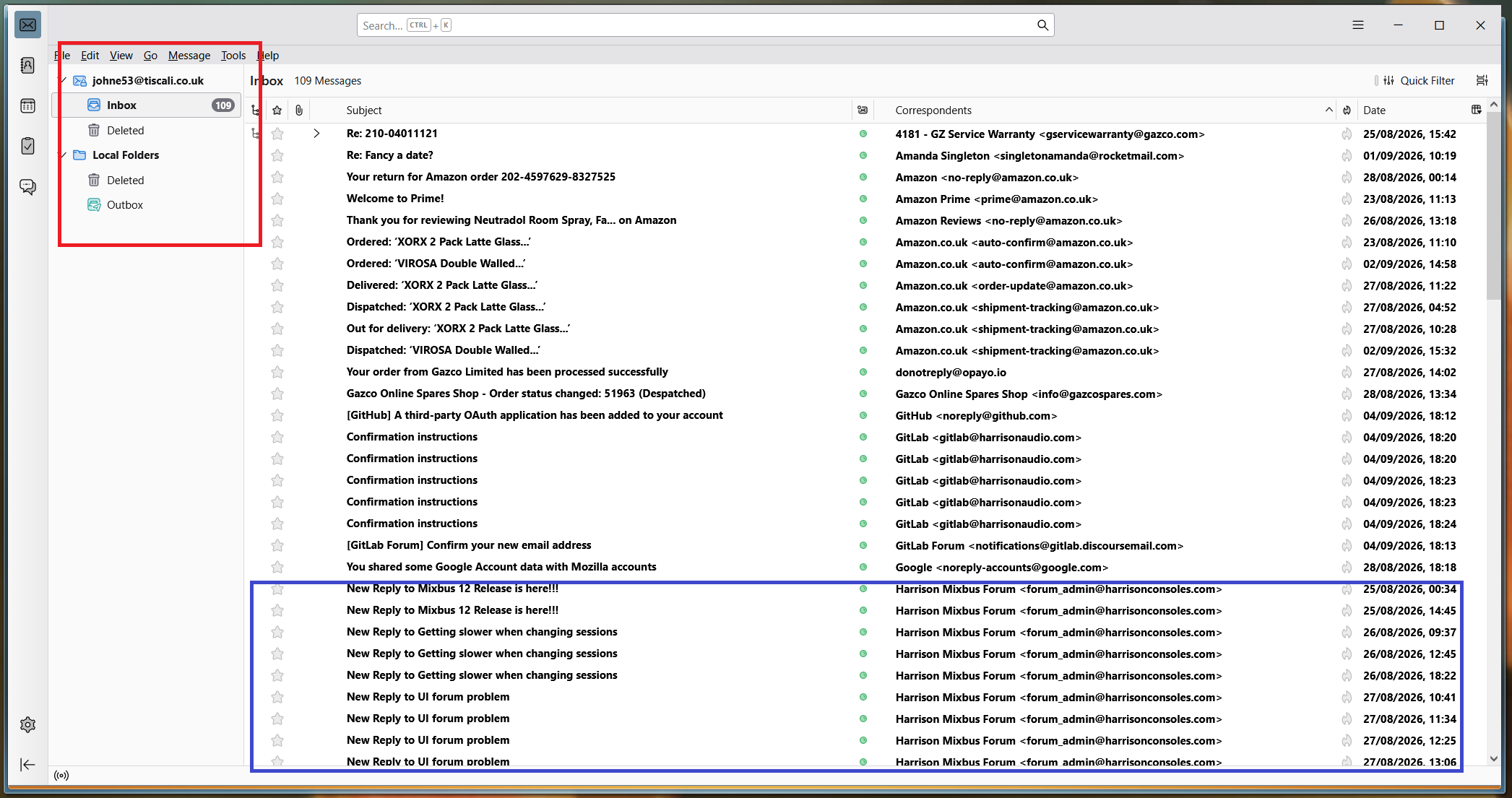
I've created a new profile but I've just got a couple of questions about the display (see attached image).
- Where the red rectangle is, I normally see more folders (Sent items and Drafts). Any idea how to get them back (or will they get created automatically, when needed?)
- Where the blue rectangle is I normally see a window displaying the contests of the selected email. I'd definitely like to get that one back!
[Edit...] I managed to get the Message pane back although the font looks very basic (like an old typewriter font). is there a way to make it look normal again? Apart from that there's just those missing folder icons (presumably they'll get created automatically?)
న johne53 చే మార్చబడినది
Another small problem came to light this morning...
My original profile was on drive G:\ (where I've got plenty of space available) but the newly created one got created on drive C:\
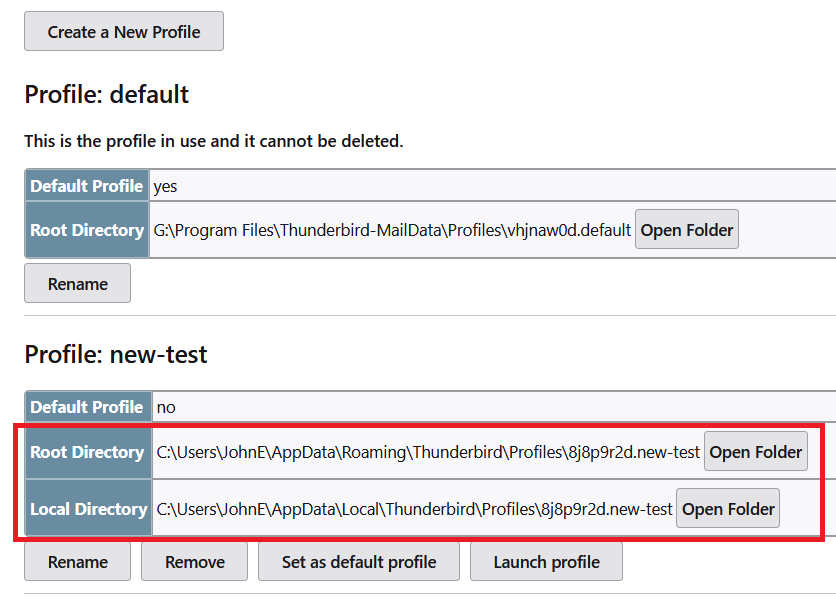
I've copied the actual Profile data to G:\ and I've edited profiles.ini to show the new location, but when I list my profiles under Help->Troubleshooting Information\about:profiles I'm still seeing the original C:\ location. What would I need to edit to make it use the one I've copied to G:\ ?
[Edit...] I figured it out (although I don't understand it!)
I'd entered the correct G:\ folder path when I edited profiles.ini but when I checked later, it'd somehow got set back to its original C:\ path. I realised that there's a line saying IsRelative=1 and I needed to change it to IsRelative=0 and that's fixed it!
న johne53 చే మార్చబడినది
re :Where the blue rectangle is I normally see a window displaying the contests of the selected email. I'd definitely like to get that one back!
You are looking for the 'Message Pane'.
- Menu app icon (3 lines) > View > Layout > select 'Message Pane'.
You may find it useful to have the 'Menu Bar' displaying.
- Menu app icon (3 lines) > View > Toolbars > select 'Menu Bar'.
re :Where the red rectangle is, I normally see more folders (Sent items and Drafts). Any idea how to get them back (or will they get created automatically, when needed?)
Have you set up an imap or pop mail account ?
If Imap, They should have displayed whatever is on server.
- Right click on mail account name in Folder Pane and select 'Subscribe'
- click on 'Refresh'
- Select the checkboxes for all folders including any subfolders.
- Click on 'OK'
If Pop Folders get created when you need them. eg: When you send an email, the 'Sent' folder should get created.
Just had a thought....
Do make sure each account is looking in the correct location because you set up to use a profile in a specific location on G: drive
Do this for all of your accounts and also the Local Folders.
- In 'Account Settings' > 'Server Settings' for the account
- Bottom right - Local Directory:,,,,,This part should be pointing to the mail account name folder
you put profile in a specific location on G:Drive - is it pointing to the correct location ? if it is wrong click on 'Browse' and select the correct mail account name folder.
న Toad-Hall చే మార్చబడినది
Hi @Toad-Hall. Thanks for all your help with this and yes, I'm using POP here rather than IMAP.
I've managed to get everything working now apart from a weird problem with fonts that I just can't seem to figure out :-(
re :[Edit...] I managed to get the Message pane back although the font looks very basic (like an old typewriter font). is there a way to make it look normal again? Apart from that there's just those missing folder icons (presumably they'll get created automatically?) I've managed to get everything working now apart from a weird problem with fonts that I just can't seem to figure out :-(
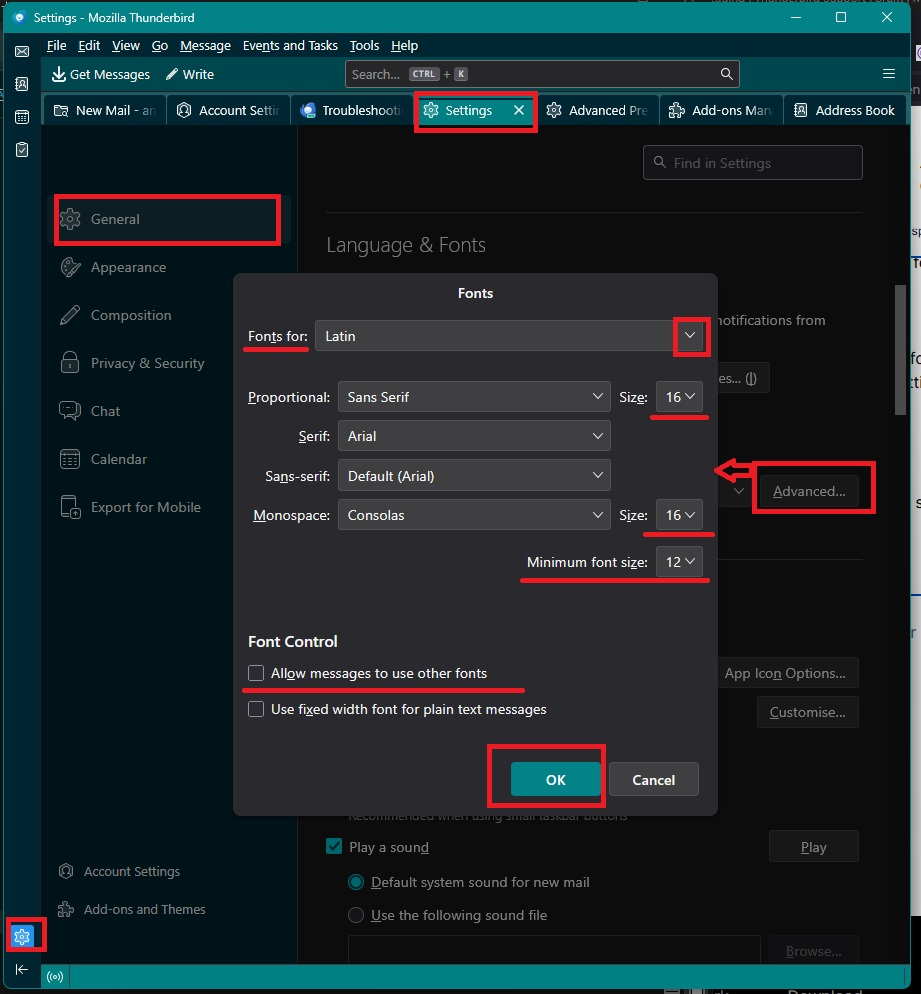
This is where you sort out the fonts
- Settings > General
- scroll down to 'Language & Fonts' section
- click on 'Advanced' button
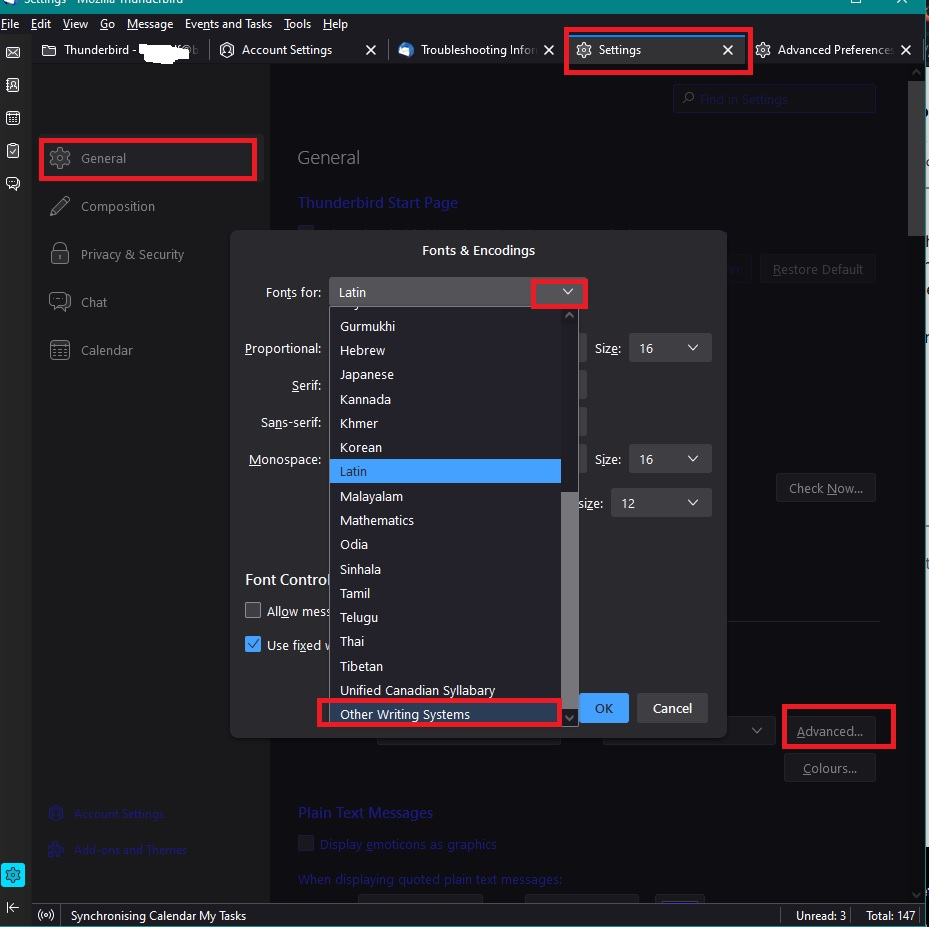
You need to set up fonts for two 'Fonts For' - 'Latin' and 'Other Writing Systems' Whatever you set up for the 'Latin', you must set identical for the 'Other Writing Systems'
Example - these are the ones I use
- Fonts for: 'Latin'
- Proportional: Sans Serif Size 16
- Serif: Cambria
- Sans-serif: Arial
- Monospace: Consolas Size 16
- Minimum font size: Size 12
- Uncheck - 'Allow messages to use other fonts'
The proportional size for font should be whatever you feel comfortable for reading. Please note that Thunderbird uses px (pixels) and not pt (points).
Minimum Font size must be less than what you set up for proportional. As a heads up, this will force all those tiny fonts you receive in emails will played larger as eg: 12px
Where is 'Other Writing systems' ? The 'Fonts for' has a drop down menu and 'Other Writing Systems' is at the bottom of the list.
Please note: whatever font size you select for 'proportional' will become your 'Medium' font setting. This is useful to know when it comes to composing emails.
- Settings > Composition
- HTML Style
- Recommend you use the default
- 'Font': Variable width and Size 'Medium'
Then when you are composing emails, you will find the font size = medium will be the 'proportional' size. If you want to use Formatting bar to increase and or decrease font size then you know it's starting from that 'medium' 'proportional' size. Please note, using these settings means it controls your view, but does not impose size on people you send to. It allows them to use whatever font size they need for their eyesight. Whatever is set up as 'Medium' on their computer will get used.
I've added images below as a guide.
The above information helps you to control your view of the incoming and outgoing emails.
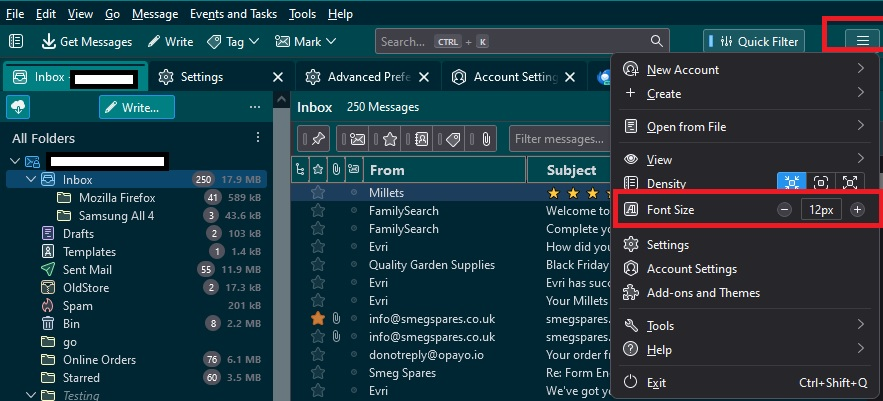
If you need to control the Font Size in the Thunderbird UI for Folder Pane, Message List etc Menu app icon (3 lines) > Font Size - example image below Whatever is displayed in the centre is the current size used - use the + and - icons to increase or decrease as required.
The benefit is this - you might like using 13px in the general UI for Font Size, but prefer to use a larger Font size eg: 16px when reading emails and composing emails.
Hope this information all about Fonts and Sizes will assist you.