


Thunderbird 140.6.0esr (64-bit) does not highlight the open message in the list

Thunderbird 140.6.0esr (64-bit) does not highlight the open message in the list. There is no indication of which message in the list I'm currently viewing, the it used to be. I like to have that instant recognition.
Все ответы (8)
and yet I hasve exactly that, a highlight of the selected message. But the colours usaed in those are directly derived from the operating system and most folk that report these types of error do not use a default operating system theme.
Check in Thunderbird themes and try the light and dark themes as opposed to the default theme which is the one that listens to the operating system for the highlight colour.
Thank you for your reply, Matt,
I'm using Thunderbird's dark theme and tried the default theme and I tried various ways to set the highlight or tag color for the title of the message in the list, but it doesn't show up, it's all black background with white font. This worked properly as recently as a week ago, I think, but it's getting pretty annoying.
Searching for "highlight" in this context brought up a lot of hits for using the highlighter tool and other unrelated posts about background colors, but essentially nothing about this particular problem.

Does the same issue happen if you restart Thunderbird via Help > Troubleshoot Mode...?
OK, that worked, now how do I find out what caused the problem with the selected message highlight?
Thank you!
If you have installed add-ons in Thunderbird one of them might be the culprit: Disable all add-ons, enable them again one by one (or two by two if there are many) and restart TB each time to verify if the issue has gone or not.
When this doesn't help restart TB in troubleshoot mode, check ✔︎ "Reset toolbars and controls" in the Troubleshoot Mode dialogue box and click "Make Changes and Restart" If the issue still persists you may have created a userChrome.css file within a chrome folder in the Thunderbird profile folder: verify by opening the profile folder via Help < Troubleshooting Information > Profile Folder > Open Folder ....
For further information about Troubleshoot Mode ( formerly "safe mode") see https://kb.mozillazine.org/Safe_Mode
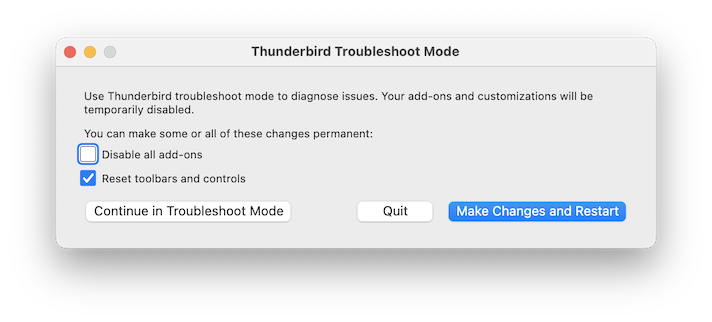
OK, I tried all that and what I'm left with is this: I can have the highlighted open message in Troubleshoot Mode or I can have any extension (turning Troubleshoot off), but not both. As soon as I go back to normal mode after following all the previous directions, I lose the highlighting. Something else is the problem.
Frank
Frank Kolwicz said
Something else is the problem.
Go to this SUMO help article https://support.mozilla.org/en-US/kb/troubleshoot-mode-thunderbird and carefully read the paragraph "The problem no longer happens in Troubleshoot Mode" This is the key to success, I cannot do it for you since I neither know whether you have installed add-ons nor which theme you're using, nor whether you have created a userChrome.css file in your TB profile.
Just a hint: restart TB in troubleshoot mode, when the "Thunderbird Troubleshoot Mode" dialogue box opens check "✔︎ Reset toolbars and controls", then "Make changes and Restart" If this doesn't help change the theme and/or disable all add-ons then re-enable them one by one and test every time whether a selected message is highlighted.
I found 3 profiles in the list and changed to the original "default" profile and things look good with the one extension I like to have.
Thank you,
Frank