


Can't Get Basic CSS Code Color Change to work?

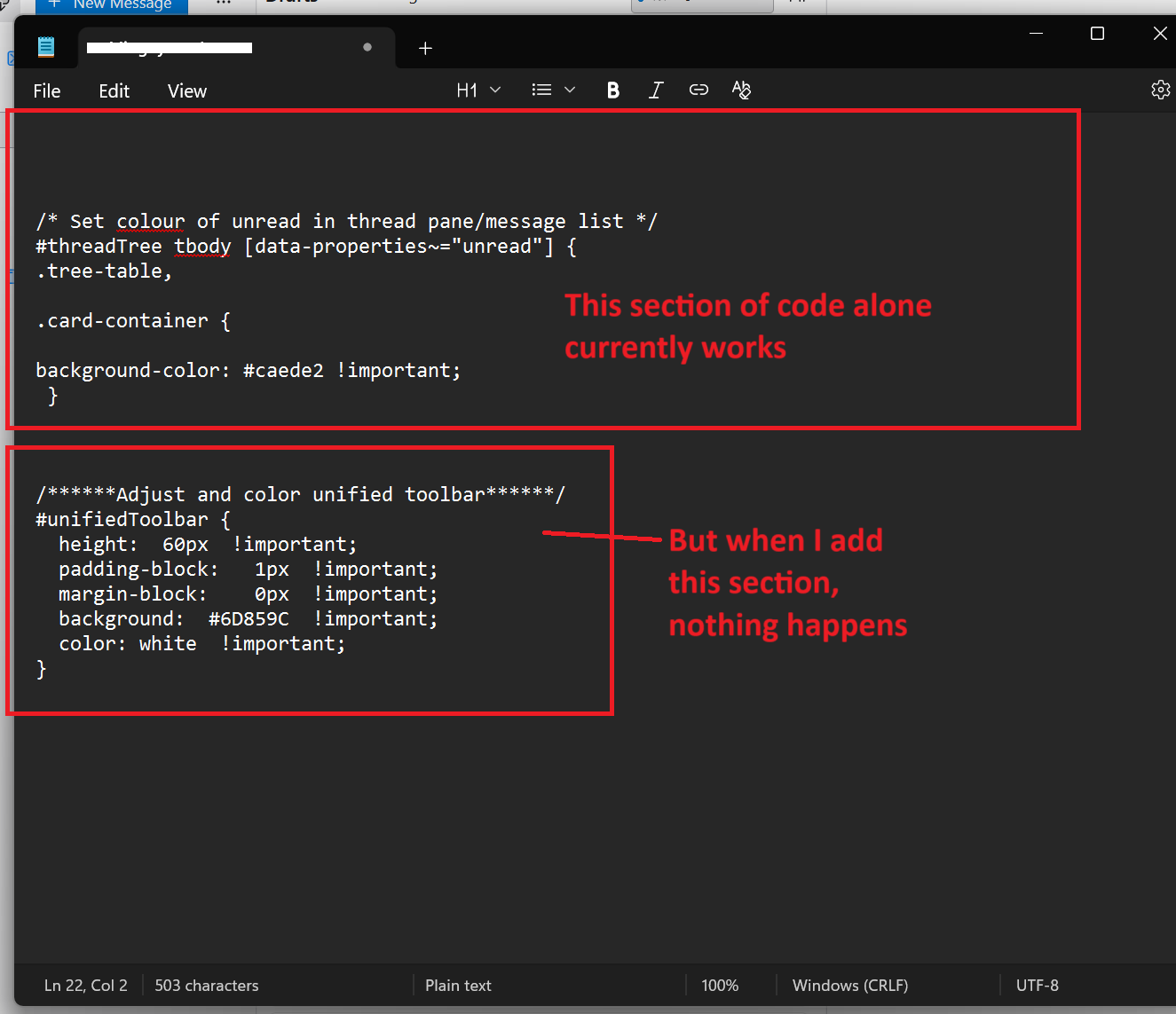
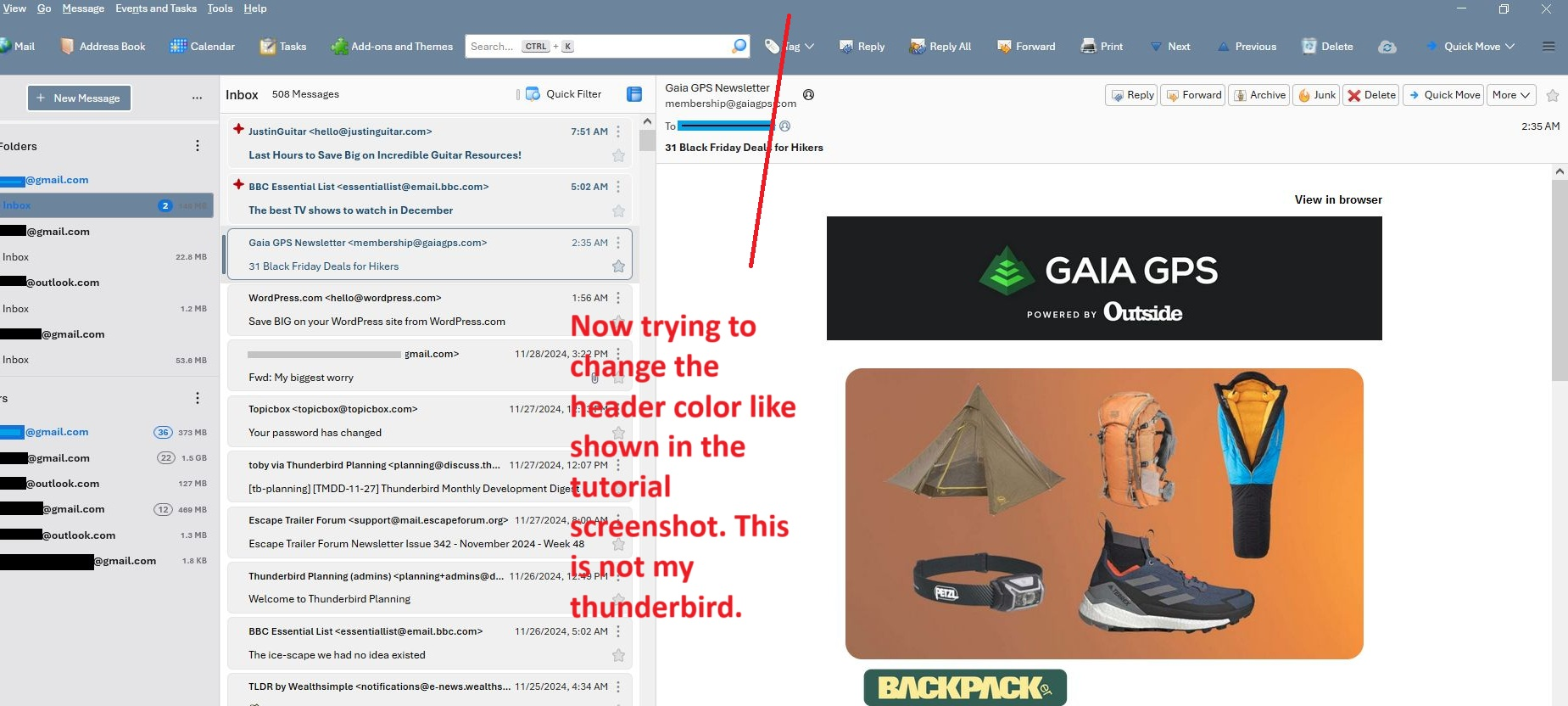
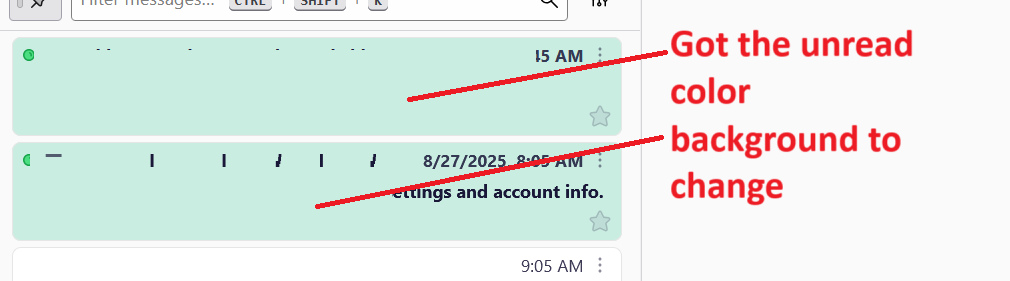
Trying to change the color of the unread background and the top header bar. Got the unread message color change to work.
But if I try to change something else, it doesnt work. I dont know how to combine these codes properly.
thunderbird 142 or latest. windows.
Выбранное решение
Folder Pane and Folder Pane Header:
#folderTree,#folderPaneHeaderBar {
  background-color: pink !important;
}
Прочитайте этот ответ в контексте
👍 0
Все ответы (12)
sfhowes said
Here is some css for the tabs:
:root {
  --tabs-toolbar-background-color: accentcolor !important;
}

.tab-background[selected=true] {
  background-color:orange !important;
}

.tab-label {
color:white !important;
}

.tab-label[selected=true] {
color:black !important;
font-weight:bolder !important;
}

.tab-line  {
  background-color:transparent !important;
}

/* tab icon & close colours */
.tab-icon-image{stroke:white !important;}

.tab-icon-image[selected=true]{stroke:black !important;}

.tab-close-button{color:white !important;}

.tab-close-button[selected=true]{color:black !important;}
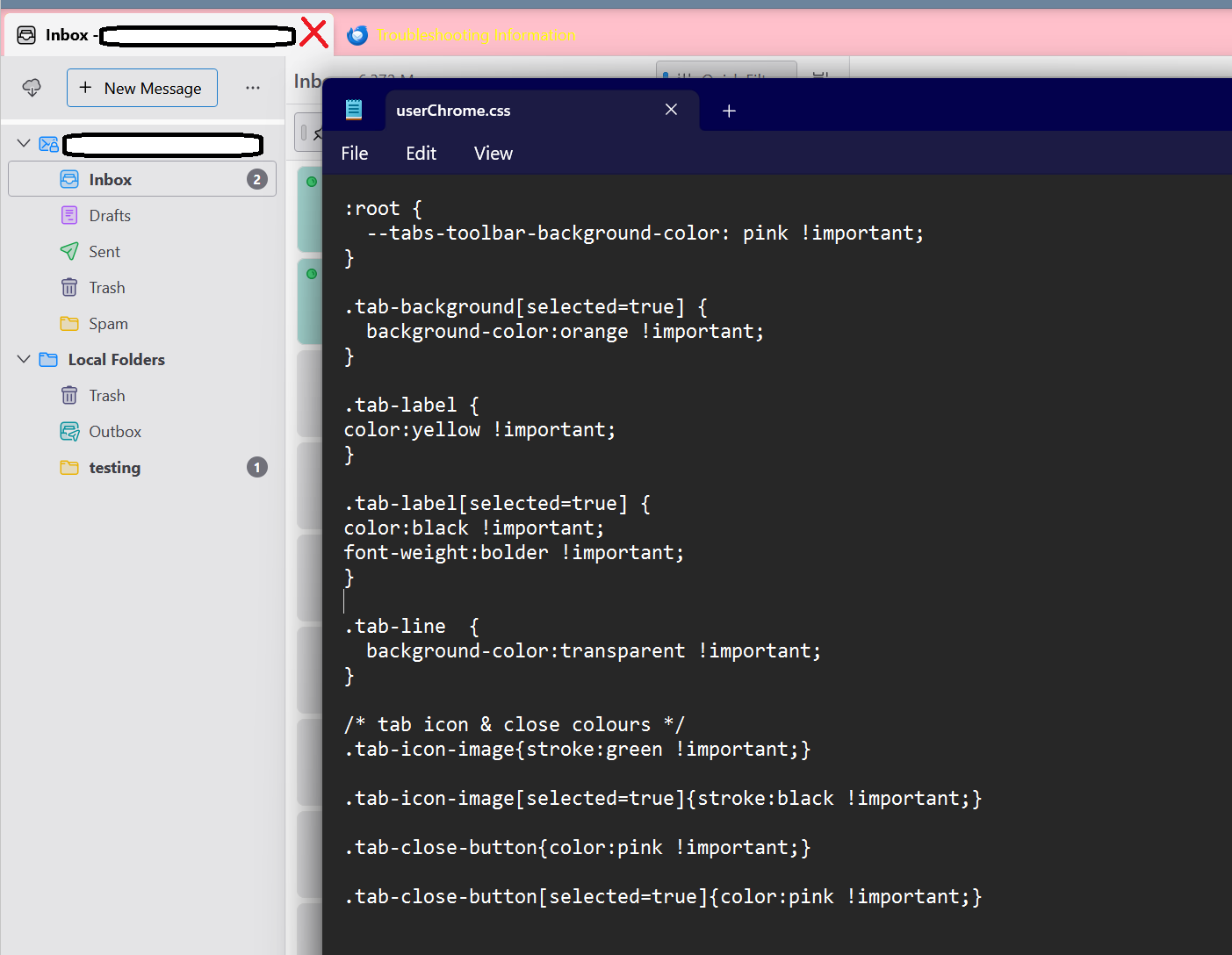
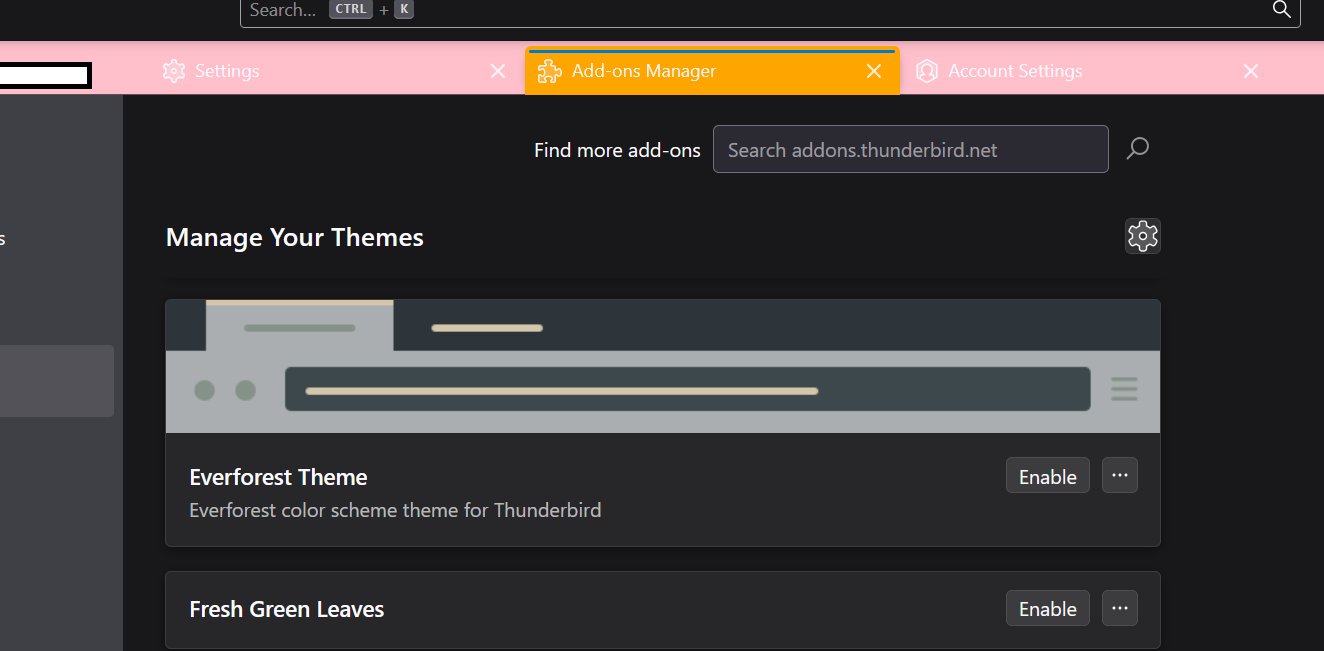
hmm This one is stubborn, so I tried all of that and changed it to pink so I Could spot it easily, but none changed the selected tab color:
see attached. in this case Inbox is the selected tab (red X in picture).
Изменено JOEY61
With this code:
.tab-background[selected=true] {
  background-color:orange !important;
}
the result is the attached picture. So I don't know why you don't see it.
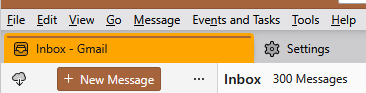
sfhowes said
With this code:.tab-background[selected=true] { background-color:orange !important; }
the result is the attached picture. So I don't know why you don't see it.
hmm I tried removing everything except that code, so nothing conflicts, and still no luck: Strange?
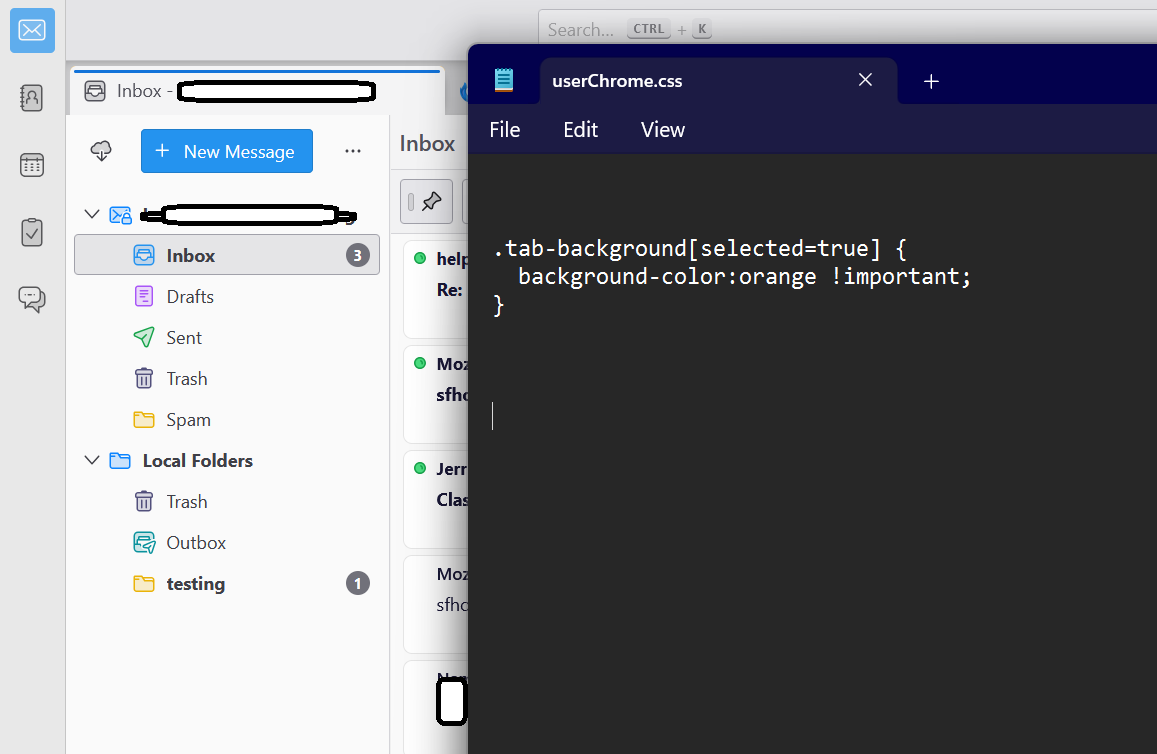
Make sure you're not running in safe/troubleshoot mode, as that will bypass userChrome.css.
sfhowes said
Make sure you're not running in safe/troubleshoot mode, as that will bypass userChrome.css.
I don't think I am, as The other codes all work, it's just that tab background one that does not work.
If you have multiple profiles with chrome folders, it's possible you edited the css file in a non-default profile, so the changes aren't visible in the default profile. This can be avoided by editing the file in the Developers Toolbox, and seeing the effects in 'real time'.
sfhowes said
If you have multiple profiles with chrome folders, it's possible you edited the css file in a non-default profile, so the changes aren't visible in the default profile. This can be avoided by editing the file in the Developers Toolbox, and seeing the effects in 'real time'.
I only have 1. It must be the right profile because when I add those other codes they immediately work, I can remove them , close Thunderbird, reopen and it works. And it's the same CSS file. It's just the tab background code that doesn't do anything.
And I access it directly from Thunderbird > help troubleshoot > open profile folder button
I found the problem, the theme! So I have the Light Them Enabled, as soon as I disable it, the orange effect shows up.
But I needed the Light theme enabled, in order to maintain a light colored (standard theme) on TB. I wanted the default TB theme.
But my windows OS is set to Dark Mode, which I want. I just dont want TB to be in dark mode. So the only solution is to enable a light theme on TB, not the default theme on TB.
so idk what the solution is now.....
Set your default Windows mode to Dark and the default app mode to Light, then set the TB theme to the System theme.
sfhowes said
Set your default Windows mode to Dark and the default app mode to Light, then set the TB theme to the System theme.
oh But I need all apps to be dark, its just thunderbird I dont want to be dark. Unfortunately its all or nothing, you cant do it app by app via windows.
If you really want to pursue this, I think the only way to have a 'light' TB in dark app mode is to set the theme to default (system) and then add css to override the dark elements. It's certainly possible, as almost every part of the interface can be modified.
sfhowes said
If you really want to pursue this, I think the only way to have a 'light' TB in dark app mode is to set the theme to default (system) and then add css to override the dark elements. It's certainly possible, as almost every part of the interface can be modified.
okay. But isn't that what I was already attempting with the CSS I was using? That overwrites it? But for some reason all the CSS works except the selected tab CSS bit, strange.