


HOW CAN i FIND OUT THE SOURCE OF AN EMAIL

On my previous email server I just had to right click an email and click on properties to find out where the email had come from I cant do this in thunderbird. Why?
Выбранное решение
We need to mend your Inbox. That help is giving you a different way to get to View Source which isn't really what you are looking for. Ctrl+u will show the message source.
But the first thing to sort out is why you can't find the "From:" column. The "From:" column satisfies my need to identify untrustworthy senders in 99.9% of cases.
View|Headers|All is another useful switch, but most of us wouldn't choose to have it switched on all the time; it fills the screen with largely unnecessary data.
The addon suggested by gnospen is interesting, but it seems to affect just the display within the message pane, and I think that you want to see it in the Inbox - and even if I'm wrong here, you should at least be able to choose whether or not to see the sender in you Inbox. It ought to be there by default.
Please post a screenshot of your Inbox. If you use Windows you should have the Clippings Tool provided by Microsoft to simplify the process.
Прочитайте этот ответ в контексте 👍 0Все ответы (20)
I give the credit to Toad-Hall. To be honest, I had not had a reason to check this info since installing Thunderbird so I had not realized there was a different process to learn. His instructions showed me how to do it and I just tried to make it a little bit simpler for you to understand.
I think all of the posts here have been helpful, but if you want to show which one actually solved the problem for you, I would say mark Toad-Hall's post as having done so
Выбранное решение
We need to mend your Inbox. That help is giving you a different way to get to View Source which isn't really what you are looking for. Ctrl+u will show the message source.
But the first thing to sort out is why you can't find the "From:" column. The "From:" column satisfies my need to identify untrustworthy senders in 99.9% of cases.
View|Headers|All is another useful switch, but most of us wouldn't choose to have it switched on all the time; it fills the screen with largely unnecessary data.
The addon suggested by gnospen is interesting, but it seems to affect just the display within the message pane, and I think that you want to see it in the Inbox - and even if I'm wrong here, you should at least be able to choose whether or not to see the sender in you Inbox. It ought to be there by default.
Please post a screenshot of your Inbox. If you use Windows you should have the Clippings Tool provided by Microsoft to simplify the process.
still working on screenshot, Abbreviations are no good to me whats Ui and as an ex soldier an OP to me means observation point.
I think I did include toad hall in my thanks how do I mark as solved?
I know how to mark as solved now.
Zenos here is my screenshot dont know if you'le get it as I marked toad hall as solved did'ent know it marked all as solved. Ihave the screenshot thought I could drag it here does'ent work.link text
tontoe0 said
still working on screenshot, Abbreviations are no good to me whats Ui and as an ex soldier an OP to me means observation point.
"Google is your friend", as they say. ;-)
"UI" is "User Interface" - the part of the program or software we can see. Windows is one of several GUIs in use; that's Graphical User Interface and summarizes the whole thing of pointing with a mouse and clicking on stuff, rather than the dark screen and green text command line where you'd see "C:\>" and not much else. We normally pronounce GUI as "gooey", but UI is normally spoken as "ewe eye".
"OP" in a forum like this means "Original Poster" and is used to make it clear what you're answering to.
The first time I posted "GIYF" to my now-wife, she read it as "Google it, you fool!" and thought I was being a bit rude. It was intended as "Google is your friend", usually used as a gentle admonition to someone who doesn't seem to have bothered trying to look it up. So it's rude either way. ;-)
RTFM is another favourite of mine. ("Read the frickin' manual!") And there's a (probably untrue) story of someone who posted "WTF" to all his new friends on Facebook, assuming it to mean "Welcome to Facebook!"
Yes, abbreviations can be unhelpful.
But no screenshot, and some of us are still wondering why you can't find "From" in your email listings.
Изменено Zenos
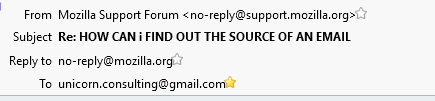
This thread leaves me to think I see different things in my mail header to everyone else.

Am I the only one that sees the email address like that in message headers?
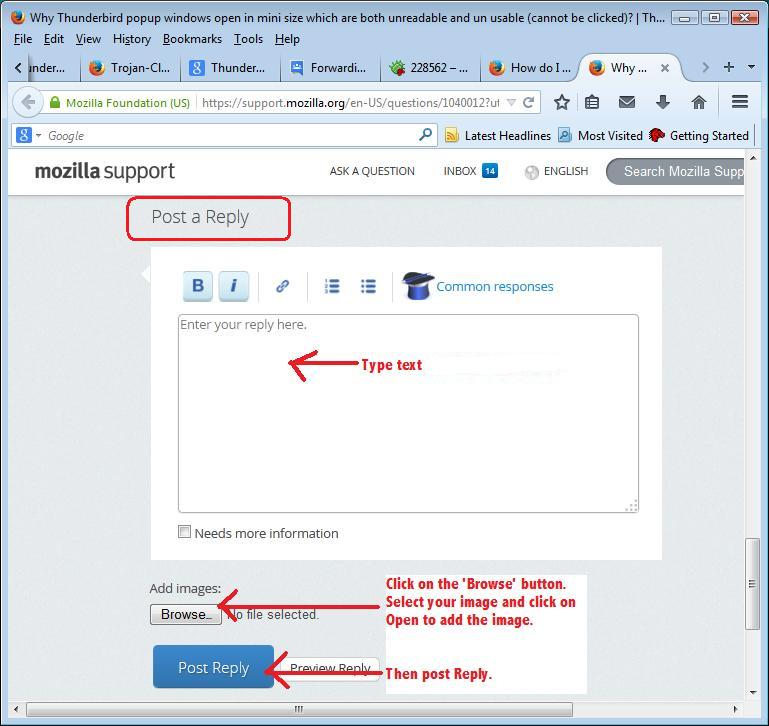
How to create and post image:
Open Thunderbird. Select folder On keyboard: Hold down 'Alt' key and press the 'Print screen' key which may be 'Prt Scr' key to get a screen shot.
Open 'Paint' program This may be under 'Start' > 'All Programs' > 'Accessories' > 'Paint' On keyboard: Hold down 'Ctrl' key and press 'V' key - this pastes the screen shot into Paint, or you could use right click and select 'paste'.
Save the file with a 'jpg extension: eg: screenshot.jpg Save it onto the desktop.
In this forum question: Type some thing like 'He's the screenshot you ask for' Below the 'Post a Reply' text box, click on 'Browse' button. Locate the screenshot.jpg file and click on Open. Image should get uploaded. Then click on 'Post Reply' button. See image.
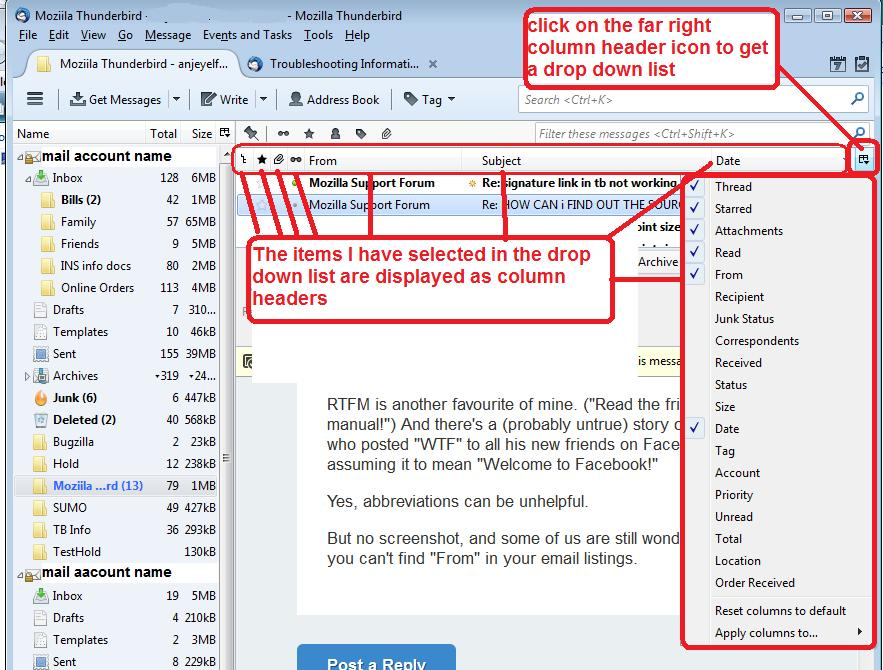
I've included an image which shows how to select to show or hide various column headers. 'From' or 'Correspondents' will show who it is from.
If you are viewing the 'Sent' or 'Drafts' folder, you may prefer 'Recipients' as you will be the 'FROM' and do not need to see it.
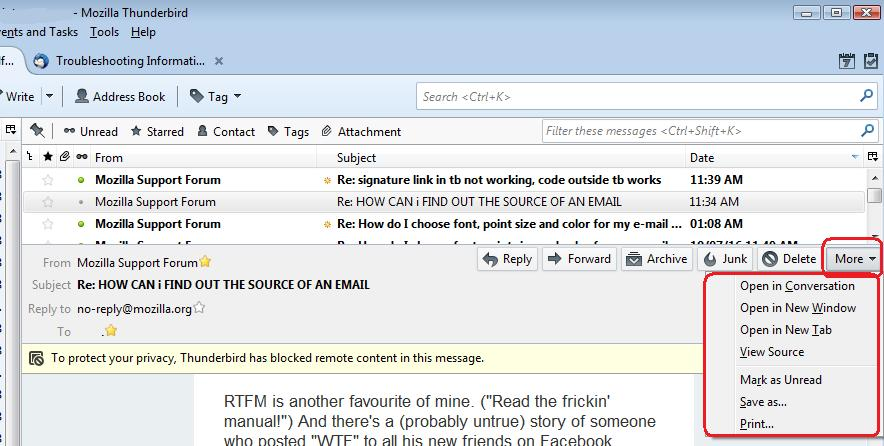
The' More' button is located to the far right of the email toolbar buttons.
Matt:
As the email Mozilla Support forum is not in your address book - not a yellow star, then it should display the email address and include a from name if the sender added it. In this case 'Mozilla support forum was added.
As I have added the from email address into my address book and I've set and chosen to use 'Display Name' which I've set as 'Mozilla Support forum', I do not see the email address. So it seems to depend upon whether it is in the address book and what is set as the Display Name.
The email address could always be incorporated in the Display Name if you wanted to see it.
I.ve managed to make a screenshot and saved it to my desktop but dont know how to move it from there to my answer here> Thanks for explaining abbreviations.
Matt said
This thread leaves me to think I see different things in my mail header to everyone else.
Indeed, which is why I think the real problem is the absence of a "From" column in the Thread Pane. We can see all that we need to see in the message itself, the OP's problem appears to be that he can't see it in his Inbox.
I think I have it here goehttps://support.cdn.mozilla.net/media/uploads/images/2016-07-11-11-07-57-911af7.pngs
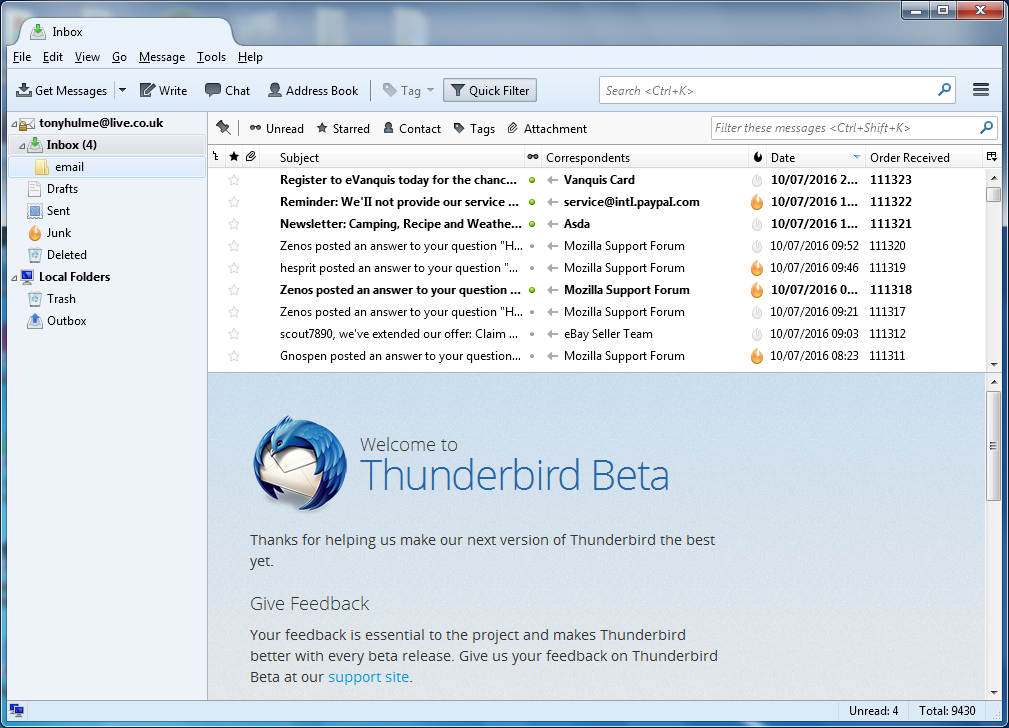
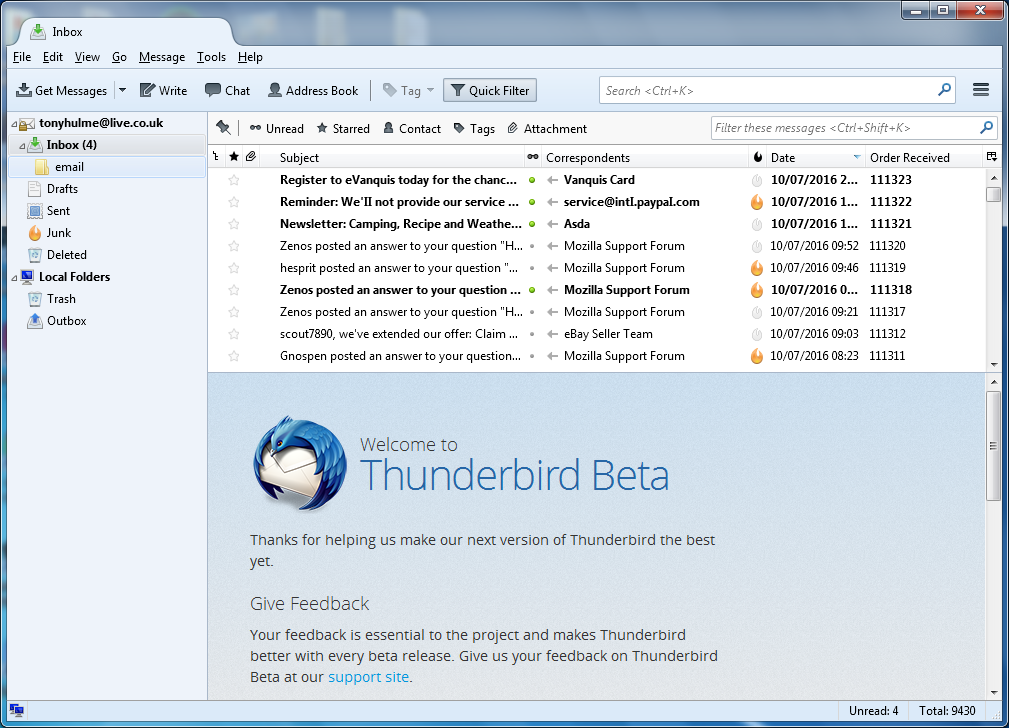
I think I managed it in my previous reply to post a screenshot, was I successful?
Yeh Matt thats it.
Congratulations. Now what is preventing you from clicking the icon on the header bar and turning the From column on? You have been given repeated instructions including pictures marked in red describing what to do.
What icon i've tried clicking on everything on the right I still have'nt got from.
I can see no instructions marked in red, its easy when you know how, the world does'ent consist of clever buggers you know.
Toad-hall has shown you what to do.
https://support.mozilla.org/en-US/questions/1130225?page=2#answer-896142
But you have a "Correspondents" column which show you the name of the other party in an email conversation. So this tells you who it's from.
If you don't like what it shows you then that's another matter. But the info you have been saying is not there appears to be right in front of you. :-(