Importing bookmarks
I'm trying to import bookmarks.
First problem: "Show all bookmarks" doesn't appear.
Second problem: I tried importing via F10, File, Import from another browser. Apparently this was successful, but the bookmarks are nowhere to be seen.
Todas as respostas (5)
Hi, typically Firefox will create a new folder named Imported Bookmarks and place that a the bottom of the Bookmarks Menu, the one you access using either:
- Bookmarks Sidebar (Ctrl+b)
- (menu bar -- F10) Bookmarks
- optional Bookmarks Menu toolbar button (
 )
)
- Library window (Ctrl+Shift+b) ( "Show All Bookmarks" )
Can you find it there?

Thank you for your replies.
There are no Imported Bookmarks in the bookmarks sidebar.
I did use those links to import bookmarks, but they refer to things that don't appear on my screen, i.e., 'Show all bookmarks.'
You said earlier:
Second problem: I tried importing via F10, File, Import from another browser. Apparently this was successful, but the bookmarks are nowhere to be seen.
Which browser are you importing from? Microsoft Edge, Google Chrome or something else? For example, the Microsoft Edge/Internet Explorer article says this:
- Your imported favorites from Microsoft Edge or from Internet Explorer will appear as a folder in your Bookmarks Toolbar and Bookmarks menu.
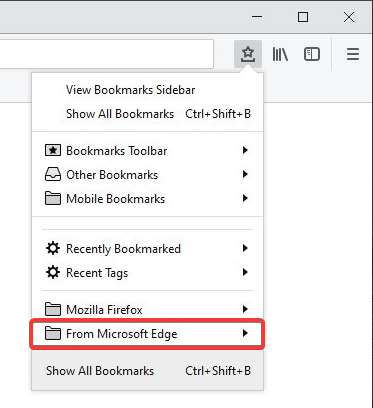
- Note: The Bookmarks Menu button
 is not shown by default. To learn how to add it to your Firefox toolbar and for more information on using bookmarks in Firefox, see Bookmarks in Firefox.
From the Google Chrome article:
Because Chrome defaults to saving bookmarks in its bookmarks toolbar, you should be able to find your imported bookmarks in a folder named From Google Chrome in the Firefox Bookmarks Toolbar.
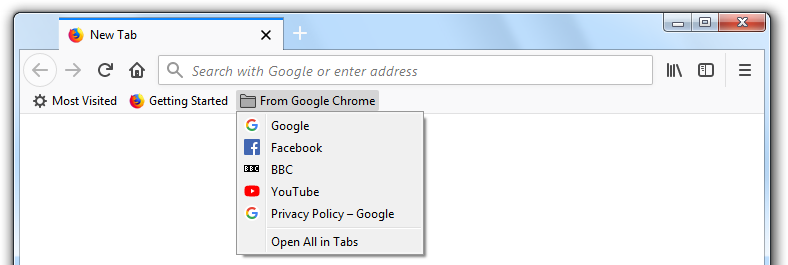
The Bookmarks Toolbar may be hidden. To show the Bookmarks Toolbar:
- Click the menu button
 and choose
  Customize….
- Click the Toolbars dropdown menu at the bottom of the screen and select Bookmarks Toolbar.
- Click the Done button.

You also said, "Show all bookmarks" doesn't appear.
- The "Show All Bookmarks" bar is at the very bottom of the bookmarks list that appears when you select the Library icon
 in the toolbar and click Bookmarks. Here is what it looks like when the Bookmarks list is very short (e.g. a new profile):
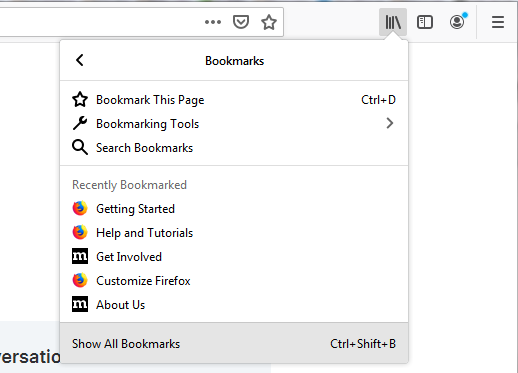
"Show all Bookmarks" opens the Library window, where you can use the [Import and Backup] button to get to "Import from Another Browser" in the drop-down menu.
Are you really still on Firefox 69?
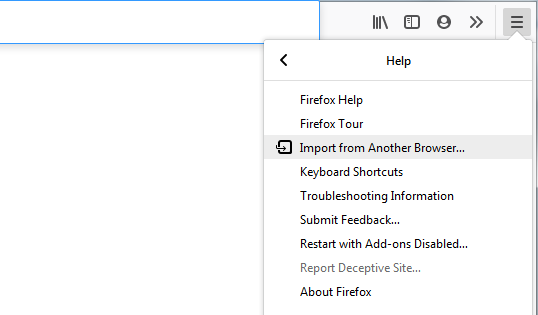
- Starting in Firefox 76 you can access "Import from Another Browser" from the Firefox menu -> Help menu: