how to change font size on Firefox home page, menu tools, etc?
How to change font size on Firefox home page, menu tools, etc?
All Replies (2)
Hi Jim,
Firefox handles web pages and its own menus separately, so there are two places to change:
For web pages, including the home page content, go to Settings → General → Language and Appearance → Fonts and colours, and increase the Size there. You can also press Ctrl and + to zoom a page in, or set a default zoom level under Settings → General → Zoom so every page opens larger.
For the menus, toolbars and other parts of the Firefox interface, Firefox follows your Windows text size. Change it in Windows Settings → Accessibility → Text size, move the slider up, and then restart Firefox so it picks up the new size.
If you only want the web pages bigger and the menus left as they are, the Fonts size and default zoom settings are the ones to use.
Hello
About user interface
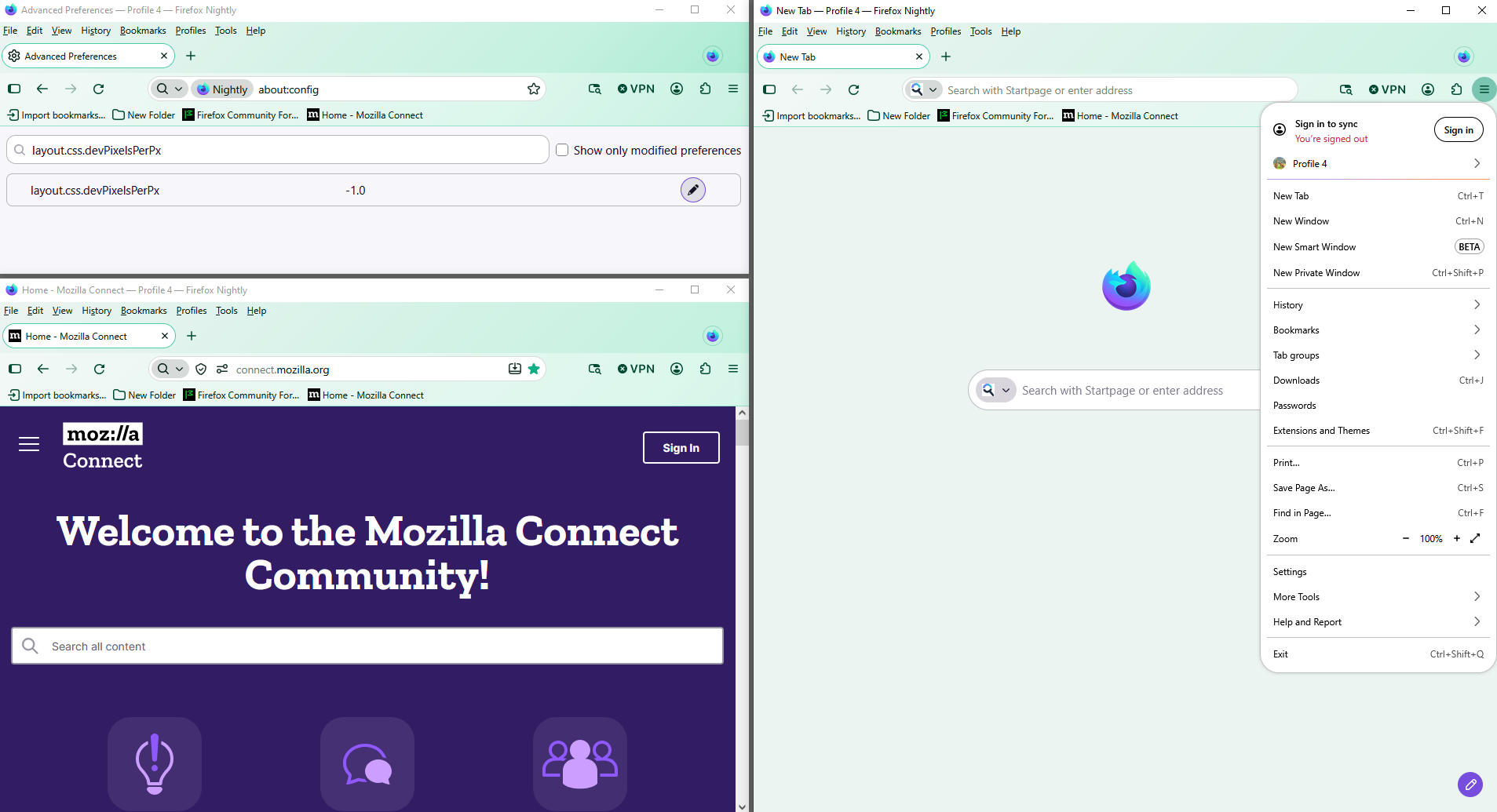
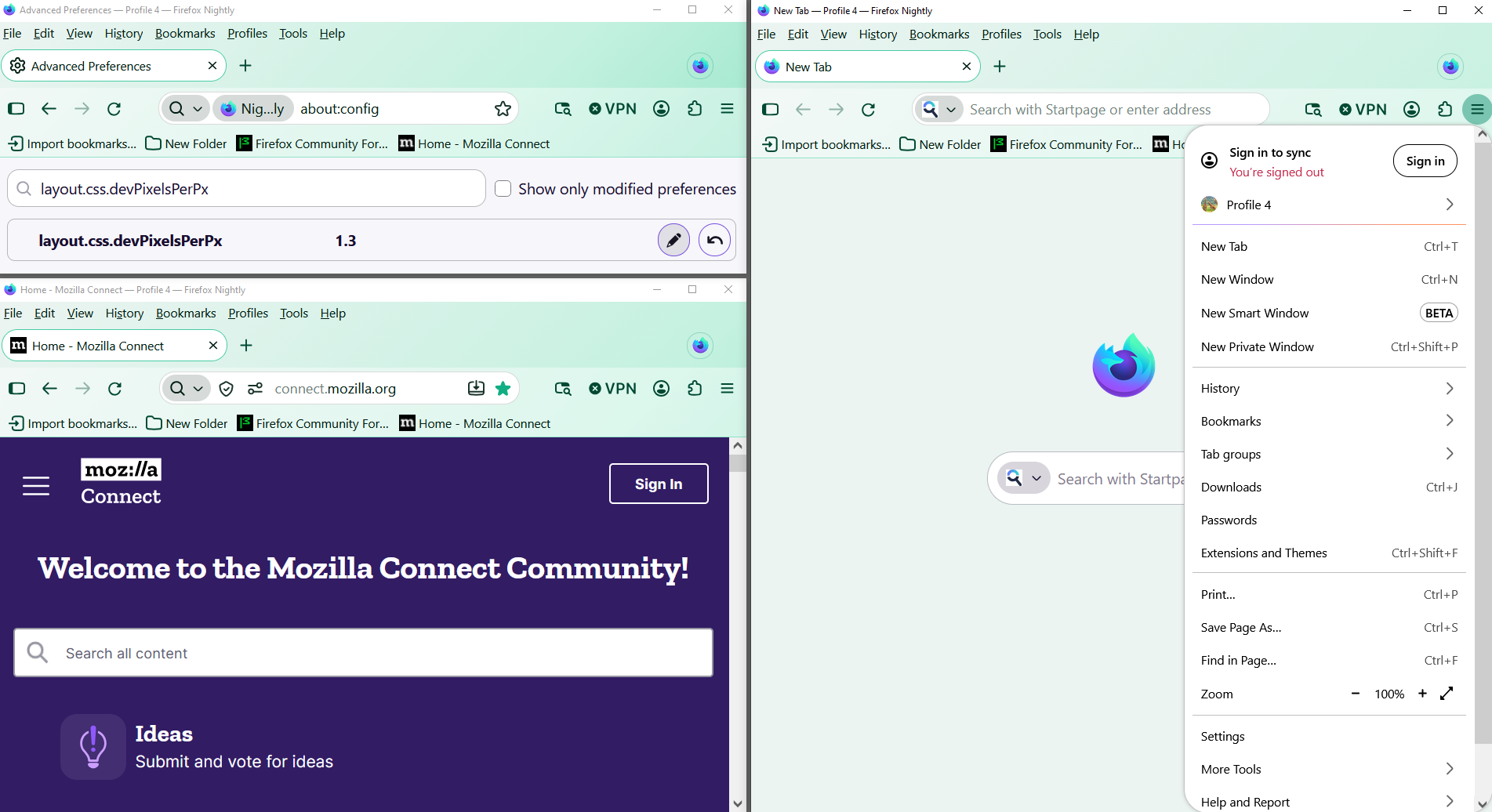
If you wish to test, the preference, layout.css.devPixelsPerPx And there's propagates also side effects on the web pages
1 - Go to configuration editor https://support.mozilla.org/en-US/kb/about-config-editor-firefox 2 - Enter a search term layout.css.devPixelsPerPx default value -1.0
A test, value, 1.3