


Import does not work

The import function does not work. I exported a Thunderbird profile in its entirety into a zip file that is only 127 megabytes when extracted. When I go to import the Thunderbird profile, I select the ZIP file, import, and it restarts, and nothing happens.
I have tried the method of going to the profile folder, manually copying the files from the extracted profile, and pasting them into the profile folder and overwriting all of the existing files, which will work for a few seconds- it briefly shows all the emails, and then they disappear. The top of the inbox indicates the correct number of emails, but no emails show up in the inbox, and when I restart Thunderbird, everything disappears.
Chosen solution
To save those messages from the account where they appear briefly and then disappear, try this:
- exit thunderbird
- in the salvaged profile, locate that account in the imapmail folder
- from there, locate the message files, such as inbox, inbox.msf, sent. sent.msf
- COPY the inbox and sent (and any other message folders (but NOT the msf files)
- PASTE them into the mail\Local Folders folder, being sure not to overwrite any files there.
- now, when you start thunderbird, those messages will be visible..
All Replies (9)
I never trust the export tool. If you post screenshot of what you have, I believe it is possible to restore individual components. Here are the basics: - select help>troubleshootinginformation - scroll to 'profile folder' and click 'open folder' - exit thunderbird - you are now in the profile. Post what you have and I will attempt to assist in placement.
Hi David, thank you for offering to assist. Attached is what I see in that folder.
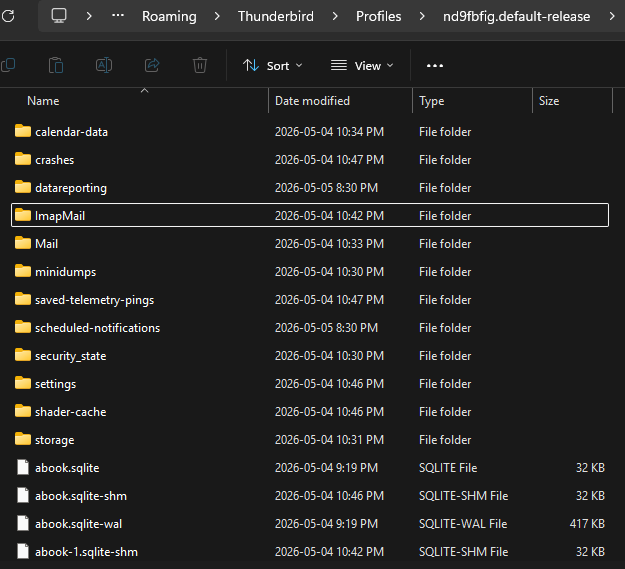
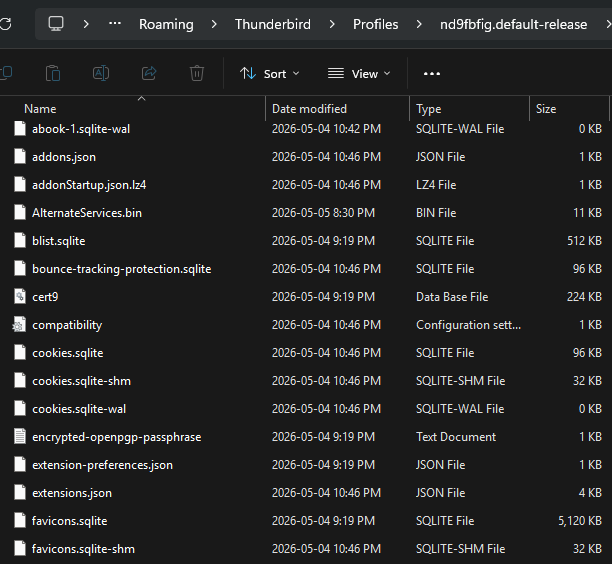
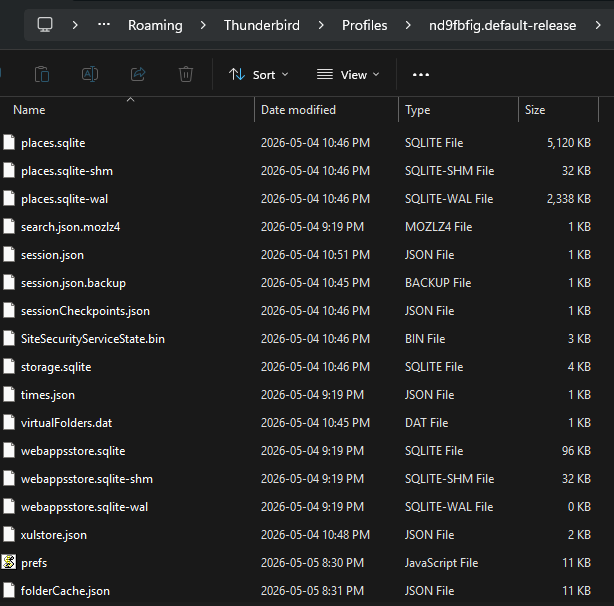
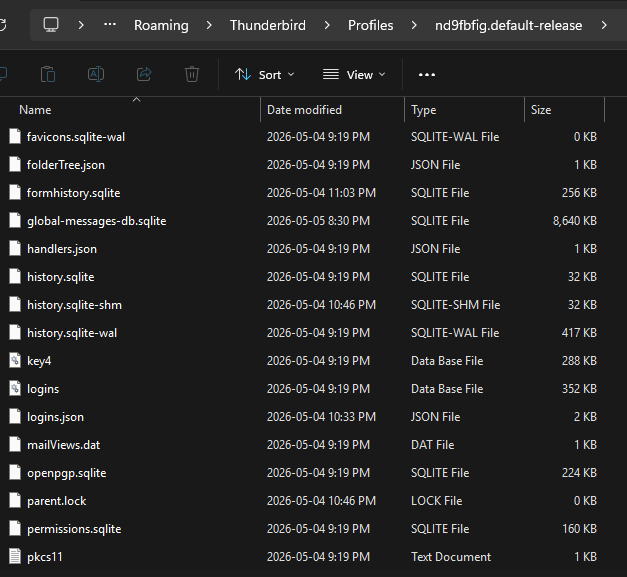
Ok. try this:
- in windows file explorer, highlight and select everything in that folder you posted screenshots of and click to COPY to cipboard
- start thunderbird
- click to help>troubleshootinginformation
- scroll to 'profile folder' and click 'open folder'
- exit thunderbird. you are now in the profile
- paste the contents you copied here
- restart thunderbird and let me know.
To confirm- are you saying I should copy the contents of the current profile folder (the one missing the emails), and paste that into the profile folder?
I did already try manually copying the contents of the backed up profile folder (the one with all the emails) and pasting that into the current profile folder, to no avail- as I described in my first post, for a few moments, it will show all the emails that I'd expect, and then they disappear.
I was referring to the profile you were attempting to import. Now, in reflection, if the messages appear briefly and then disappear, that makes me question whether that is an IMAP account that is not active. Tell me more about that account. IMAP always sync's to the server and if the server doesn't have the messages, they are automatically deleted from PC.
I'm not 100% sure. I'm using Hostinger- I had to move some email accounts from one Hostinger account to another. In order to do that, I backed up each of the email accounts, cancelled the email plan on Hostinger (which deleted the email accounts), created the same email addresses under the new Hostinger account, and then imported the backed up emails. For the first 2 accounts it worked without issue using Hostinger's native email import/export functionality, but for the third account, there were a lot of emails so the size was too big. They recommended using Thunderbird to do the import/export instead, so I downloaded Thunderbird, logged into the account, and exported the profile.
Chosen Solution
To save those messages from the account where they appear briefly and then disappear, try this:
- exit thunderbird
- in the salvaged profile, locate that account in the imapmail folder
- from there, locate the message files, such as inbox, inbox.msf, sent. sent.msf
- COPY the inbox and sent (and any other message folders (but NOT the msf files)
- PASTE them into the mail\Local Folders folder, being sure not to overwrite any files there.
- now, when you start thunderbird, those messages will be visible..