


How do I troubleshoot TBird asking for a password that disappears when I go into troubleshooting mode?

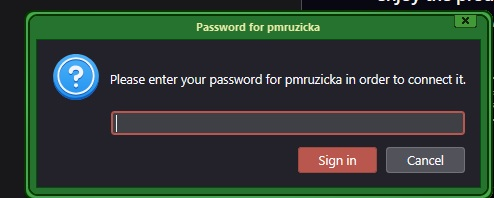
I need help. How do I troubleshoot TBird asking for a password that disappears when I go into troubleshooting mode? In other words, I can enter anything in for the password, or dismiss/close the pop up box, and nothing is effected by it. I still get all me email for all accounts. The only thing at the top of the box is a user name (pmruzicka). At this point, I have deleted the accounts that used that user name, including all info for the outgoing servers (even tho this password request pops up at TBird start). I have Disabled ALL extensions one at a time and the pop up still happens. I have set TBird to default them,e - pop up still there. I have unchecked the hardware acceleration box - pop up still there. I have no clue what else I could do at this point. I do NOT have a Primary password set. Can someone please help me figure this out? Getting tired of having to click off that pw box every time I start TBird. Thanks. Also, this has been happening through the last few updates of TBird.
Chosen Solution
I started digging around and found some Facebook Chat account that said it needed a password to connect. It was in there from 2014. Since I never use this function, I just deleted the Facebook Chat account and - guess what - fixed the problem. No more password pop up box! Weird how something I never really remember using suddenly had an issue. I must have added this all those years ago and just totally forgot about it. Thanks for the help and leading me to the fix.
To reiterate, I found a Facebook Chat account from 2014, deleted it and the password pop up box no longer appears.
All Replies (19)
....At this point, I have deleted the accounts that used that user name, including all info for the outgoing servers (even tho this password request pops up at TBird start).
Open the Thunderbird calendar tab and verify if there is a leftover calendar for this account.
No clue how I would do that. I'm pretty sure my calendars are all from Google since that is all I ever use. Or used.
Click the calendar icon in the left sidebar.
Your calendars are listed in the left side of the calendar tab.
Click the three dots to the right of each calendar for available actions - unsubscribe ones you don't need.
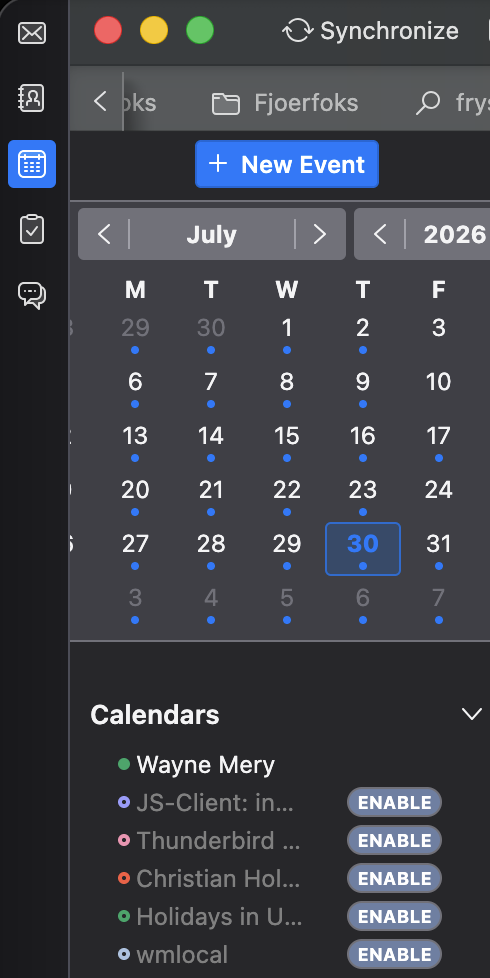
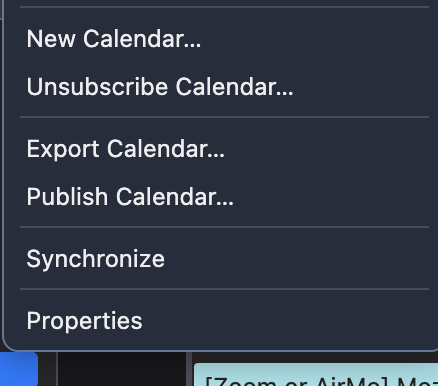
This does not help. I want the calendars listed. They are all associated with my email address that has nothing to do with what is popping up on the password box. And as I said, it does not matter whether I click the Close button or enter a random password, the box closes and nothing is effected.

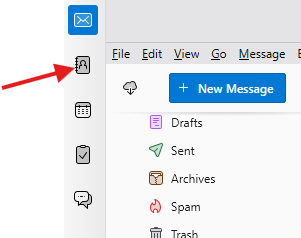
Did you verify in Address Books to see if there is any Network Address Book related to that user ? ( the second Icon on the far left side of Thunderbird )
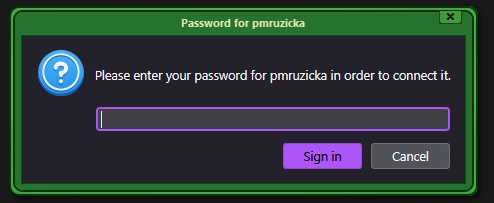
Can you repost a screen shot of the entire popup screen, not only the portion of password, that could identify where does that popup come from .
I attached the WHOLE pop up. Like I said, I removed all email accounts associated with pmruzicka to no avail. The only thing that stopped the pop up was to start troubleshooting mode.
I do not see an address book associated with anything pmruzicka, but what exactly would I be looking for. I just checked Properties...
@Paul, since we didn't yet find a solution and out of despair I propose to try the following action: • start (or restart) Thunderbird in trouble shoot mode • when the dialogue box shown in my attached image opens check ☒ Reset toolbars and controls • and click on "Make Changes and Restart"
If the invasive password box does not popup, quit Thunderbird. Then restart Thunderbird and report if the popup has come back.
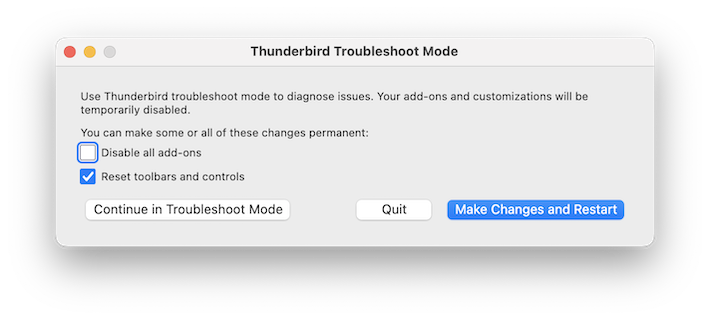
Popup still there.
I can't understand: the popup box is not displayed in trouble shoot mode, but we cannot identify the cause for popping up in normal mode. In troubleshoot mode https://kb.mozillazine.org/Safe_Mode
Safe Mode temporarily affects the following:
   • All extensions are disabled.
   • The default theme is used, without a persona.
   • The Just-in-time (JIT) JavaScript compiler is disabled.
   • The userChrome.css and userContent.css files are ignored.
   • The default toolbar layout is used.
   • Hardware acceleration is disabled.
Safe Mode has no effect on the following:
   • The status of plugins is not affected.
   • Custom preferences are not affected.
Modified by Mapenzi
I followed the directions by restarting and then disabling one extension at a time like the instructions gave. So it really does not make sense to me either. I am going to try progressively disabling the extensions again to see if I screwed that up somehow. At this point, it is worth a shot.
Modified by Paul M Ruzicka
Just went through the disable one at a time scenario again. Same result. The pop is gone under Troubleshooting Mode, and pops up after ever extension is disabled. Something else must be getting turned off when in Troubleshoot Mode, don't you think?
It has to be an account, which could be any of the following: ldap, caldav, carddav, imap, pop, smtp, chat.
Also, post your list of installed addons.
So here is the part I do not understand: in troubleshooting mode, all the accounts are working. I can send and retrieve email - no pop up. The calendars seem to be fine also with all of the ones I have subscribed to listed. I do not, nor have I ever used the Chat function. This is absolutely confusing. Id there a Mozilla expert out there that can help figure this out?
I am attaching a list of the extensions:
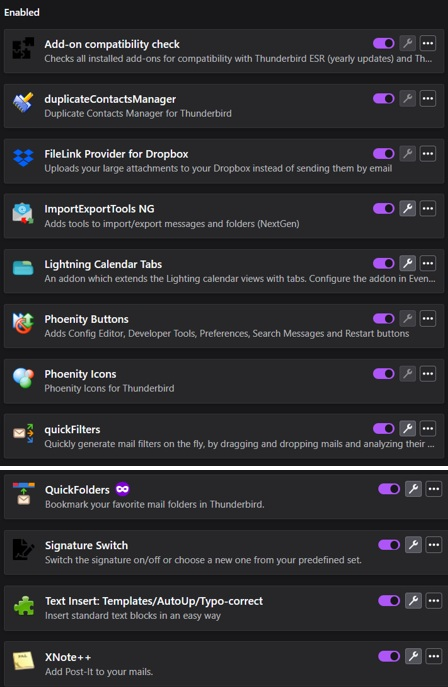
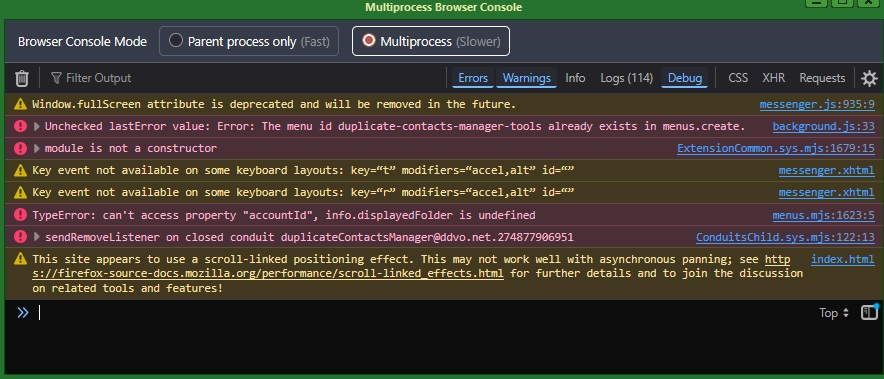
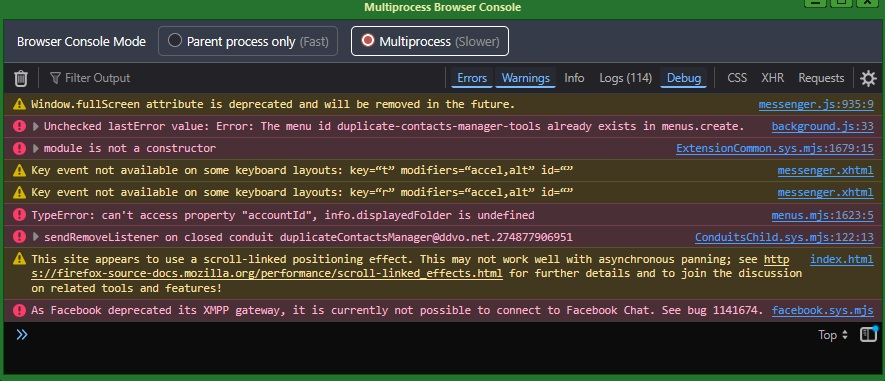
There are many active Thunderbird experts in this forum, and I guess that some of them would have intervened if they knew the solution. Since the calendar feature has been integrated in Thunderbird I have never seen a problem like yours. One more test: next time you start TB in 'normal' mode and that nasty box pops up, go to Tools > Developer Tools > Error Console Maybe we can get a hint...
Might actually have something here... I am attaching the console window BEFORE I close the password box, and a second window AFTER I close the box. The last line came up about the Facebook Chat (again something I never used, at least not that I remember - I have been using TBird for decades). So is there some way to check that and fix. I would not even know where to look.
Chosen Solution
I started digging around and found some Facebook Chat account that said it needed a password to connect. It was in there from 2014. Since I never use this function, I just deleted the Facebook Chat account and - guess what - fixed the problem. No more password pop up box! Weird how something I never really remember using suddenly had an issue. I must have added this all those years ago and just totally forgot about it. Thanks for the help and leading me to the fix.
To reiterate, I found a Facebook Chat account from 2014, deleted it and the password pop up box no longer appears.
Thanks for your feedback. Where did you find this forgotten Chat account? In your Account Settings?
I clicked on the Chats button and the windows had a message that I needed to enter a password to connect to the Facebook Chat account. I think there was a Delete button at the top, so I clicked it and closed out TBird, reopened and found there was no pop up...
Thank you!