


Odd message in Settings: "Thunderbird is being managed by your organization."

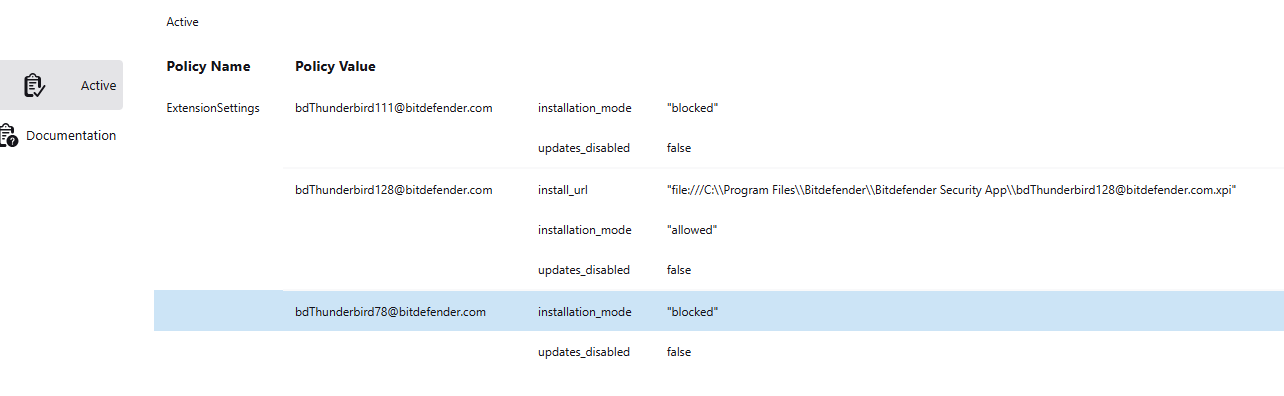
Just what it says in the summary. I went to settings to check/change something, and found this new (I think) message in colour at the top of the page. I have no idea what it means, as I am not part of any organization. The statement is a link, and when I click on it, it takes me to the page shown in the image What if anything, does this mean? Do I need to do anything about it?.
All Replies (3)
It is seeing your email address domain as bitdefender, so my guess it that it assumes you are a bitdefender employee. Is your email address tied to bitdefender? Thank you
My email address is a standard one of username@gmail.com. I have bitdefender installed to protect my computer, but other than that I and my computer have zero connection to it.

You may have the Bitdefender Toolbar add-on installed. To remove it:
- open the Extensions Manager and if it's there, uninstall it > restart TB - check to see if it's still uninstalled - if it is gone and the message is still there, close TB and delete a registry key: - open the registry editor from an elevated command prompt:
- close TB
- open 'Run' (WinKey+R)
- type cmd in the 'Open' box
- press the Ctrl + Shift + Enter keys
- type regedit > Enter
Then
Navigate to HKEY_LOCAL_MACHINE\SOFTWARE\Policies - double-click 'Policies' on the left to open the key - R. click 'Thunderbird' > Delete - close the registry editor - restart TB
If you don't have the BD Toolbar installed but have set BD to scan email, disable scanning and delete the registry key mentioned above.