


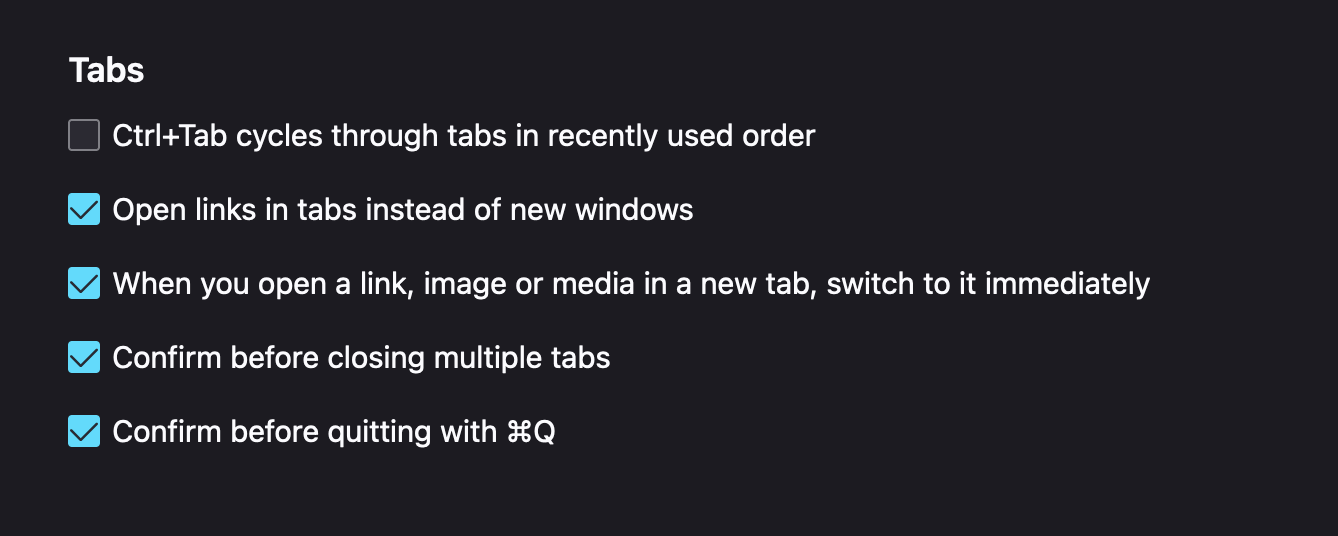
"Open links in tabs instead of new windows" not working

I have "Open links in tabs instead of new windows" selected but links are still opening in the same tab. I understand not all websites support opening links in new tabs, but links that are from the search results used to always open in new tabs and now it's not working for some reason.
すべての返信 (5)
"Open links in tabs instead of new windows" only applies to links that specify a target window and those can be diverted to a new tab. For links opened via JavaScript (onclick handler) there is a separate pref named browser.link.open_newwindow.restriction that isn't affected by this setting.
Normal Links:
- browser.link.open_newwindow
1:current tab; 2:new window; 3:new tab;
JavaScript Links:
- browser.link.open_newwindow.restriction
0:divert always; 1:divert never; 2:divert no features - browser.link.open_newwindow.override.external (see browser.link.open_newwindow)
I understand, but this happens with every single link from the list of search results. It didn’t used to happen. It used to open all links in new tabs and now it doesn’t open any.
For search results an the Google website there is a setting on the Google Settings page.
thanks. I use DuckDuckGo, but I found the setting in the search engine. I didn't know there were 2 places that I had to turn it on. It must have reset after an update.
Such a setting is stored in a PREF cookie, so if you do not keep this cookie then you lose those settings and need to redo them again.
Detail like websites remembering you is stored in cookies, so make sure you aren't clearing important cookies.
You can use these steps to make a website recognize and remember you.
- create a cookie allow exception with the proper protocol (https:// or http://) to make a website remember you
You can check that you aren't clearing important cookies.
- using "Delete cookies and site data when Firefox is closed" to clear cookies keeps cookies with an allow exception
in 102+ version toggling this setting makes changes to the "Clear history when Firefox closes" settings and those settings prevail - using "Clear history when Firefox closes" in Firefox 102+ honors exceptions and keeps cookies with an allow exception, previous versions removed all cookies
Make sure to keep the "Site settings".
- clearing "Site settings" clears exceptions for cookies, images, pop-up windows, and software installation and exceptions for passwords and other website specific data
- Settings -> Privacy & Security
Cookies and Site Data: "Manage Exceptions" - Settings -> Privacy & Security
Firefox will: "Use custom settings for history":
[X] "Clear history when Firefox closes" -> Settings