


Installing Firefox having ESR already installed

I've been using Firefox ESR for some years. Now I would like to know the best way to use and try the "normal" version of Firefox. Can I install it without uninstall ESR? Or must I do a clean install of Firefox after getting rid of ESR? If this is the case, what must I do to keep my profile, bookmarks, etc?
選ばれた解決策
For more information on a custom installation of Firefox, so you can install the current release into a separate, new program folder, see Custom installation of Firefox on Windows.
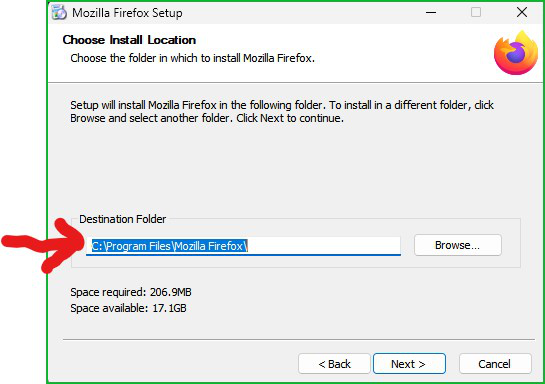
For example, you would first download the full, offline installer "Firefox Setup<version> .exe" file from https://www.mozilla.org/en-US/firefox/all/#product-desktop-release and save it. If Firefox ESR is installed in the C:\Program Files\Mozilla Firefox folder, you can create a new folder named Firefox in the Program Files folder and then, when you run the installer, select "Custom" as the Setup Type and choose C:\Program Files\Firefox\ as the Destination Folder. This will automatically create a new profile folder, since Firefox now uses dedicated profiles for each installation. You can then sync the new profile using the same Firefox account or copy over your important data.
この回答をすべて読む 👍 1すべての返信 (5)

Just verify the path by choosing custom install and make sure you're not installing over your other version. I would make a new directory and maybe call it "Current". see screenshot
この投稿は jonzn4SUSE により に変更されました
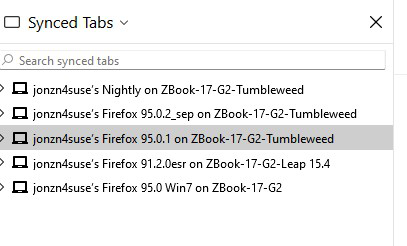
You can use the Sync option to copy your data from ESR to the current version.
https://support.mozilla.org/en-US/kb/how-do-i-set-sync-my-computer
この投稿は jonzn4SUSE により に変更されました
Yes, but... Until now, whenever I reinstalled ESR on another computer or other Windows installation, I first used the "Sync now" option on My account, then i copied the Profile from the User folder. I could also made a backup of the bookmarks (json extension, I think...). I also took a note of the addons and other stuff. The last time I made this was last September when I reinstalled Windows 10. So, if I want to install the "normal" Firefox, should I use this same process? Will it work, being different versions of the browser?
Just verify that the path for the current Firefox version install is not in the same directory as you ESR. After the install, just use sync to get your data in the current version. Sync will see the different version of Firefox as a different device.
この投稿は jonzn4SUSE により に変更されました

選ばれた解決策
For more information on a custom installation of Firefox, so you can install the current release into a separate, new program folder, see Custom installation of Firefox on Windows.
For example, you would first download the full, offline installer "Firefox Setup<version> .exe" file from https://www.mozilla.org/en-US/firefox/all/#product-desktop-release and save it. If Firefox ESR is installed in the C:\Program Files\Mozilla Firefox folder, you can create a new folder named Firefox in the Program Files folder and then, when you run the installer, select "Custom" as the Setup Type and choose C:\Program Files\Firefox\ as the Destination Folder. This will automatically create a new profile folder, since Firefox now uses dedicated profiles for each installation. You can then sync the new profile using the same Firefox account or copy over your important data.