


Cannot change color of tabs

Firefox - Add Colored tabs
I had Firefox version 81 and after installing version 82 in a new install on a new hard drive, I cannot change the color of my tabs anymore. I should see white tabs for the current tab but no longer when I added my userChrome.css file. I see instead a thin blue color strip along the top of the tab and the rest is grey. This shows up without any userChrome.css file.
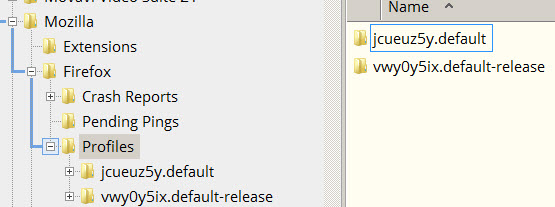
In Firefox address field type: about:support It shows my Profile. vwy0y5ix.default-release I also have under the Profile folder this: jcueuz5y.default
I put the userChrome.css file here in my Chrome folder: C:\Users\David\AppData\Roaming\Mozilla\Firefox\Profiles\vwy0y5ix.default-release
What it contains: /* USE THIS ONE. It works in version 65 https://github.com/Aris-t2/CustomCSSforFx/releases/tag/2.3.4
- /
@import "./css/tabs/tabs_below_navigation_toolbar_fx65.css"; /**/ /* <-- tabs not on top - Fx65+ - Windows/Linux */
/* Colored tab */ .tab-background:not([selected]) {
background-color: #E3E0DB !important;
}
.tab-background[selected="true"] {
background-color: white!important;
}
/*** Sidebar Color / Font Size Formatting ***/ /* 14px black text */ .sidebar-placesTree treechildren::-moz-tree-cell-text {
 font-size: 14px !important;
 color: #000 !important;
} /* Pale blue background on hover or selected */ .sidebar-placesTree treechildren::-moz-tree-row(hover), .sidebar-placesTree treechildren::-moz-tree-row(selected) {
background-color: #bdf !important;
}
/* Main Toolbar */
- nav-bar {
font-size: 14px !important;

この投稿は davidhelp により に変更されました
すべての返信 (6)
The issue is fixed. The userChrome.css file is not detected automatically. You have to do the following steps. From Firefox 69 and higher it will no longer look for this file automatically. You need to tell it to look. Here's how: In a new tab, type or paste about:config in the address bar and press Enter In the search box above the list, type or paste:
userprof
Double-click on: toolkit.legacyUserProfileCustomizations.stylesheets
Change preference from false to true. Close Firefox then re-open. I now have the colored tab.
この投稿は davidhelp により に変更されました
Thunderbird email program You do the same for Thunderbird. From the top you go to Tools> Options> scroll all the way down on the right side and click on "Config Editor"
File name is the same too: userChrome.css C:\Users\ "your name" \AppData\Roaming\Thunderbird\Profiles\"Your profile name" 736m2uer.default-release\Chrome
You create a folder and call it Chrome and copy the userChrome.css file to it. In the search box above the list, type or paste:
userprof Double-click the: toolkit.legacyUserProfileCustomizations.stylesheets Change preference from false to true. Close Thunderbird then re-open. Here is the userChrome.css contents:
@namespace url("http://www.mozilla.org/keymaster/gatekeeper/there.is.only.xul"); /* set default namespace to XUL */ /* horizontal grid lines */
- threadTree treechildren::-moz-tree-row() {
border-bottom: 1px dotted grey !important; } /* vertical grid lines */
- threadTree treechildren::-moz-tree-column() {
border-right: 1px dotted grey !important; } /*
- Make all the default font sizes 15px:
*/
- { font-size: 15px !important; }
この投稿は davidhelp により に変更されました
Removed a post.
この投稿は davidhelp により に変更されました
Removed a post.
この投稿は davidhelp により に変更されました
For Thunderbird you can right click on the folders> Properties> Icon Color to add any color to a folder. I wish I could make it a solid color for the folder instead of just an outline.
What changes to the look of the folders: https://scottiestech.info/2020/09/22/thunderbird-78-change-is-in-the-air-but-dont-panic/
What is new in Thunderbird: https://support.mozilla.org/en-US/kb/new-thunderbird-78
Some answers. https://support.mozilla.org/en-US/questions/1297896
この投稿は davidhelp により に変更されました
For Thunderbird. Brings back the old better looking icons!
Phoenity Icons 3.0b8 extension
https://addons.thunderbird.net/en-US/thunderbird/addon/phoenity-icons/