


Had to uninstall FF -- screen seized by a red hacker. Using Chrome, no problem. How to use FF again??

FF seized by some hacker -- screen showing red and hostaging message. Turned off computer, turned on and tried again. Same result. Uninstalled FF. Using Chrome now, no problem, but I prefer FF. What to do?
Solusi terpilih
Try Firefox Safe Mode to see if the problem goes away. Firefox Safe Mode is a troubleshooting mode that temporarily turns off hardware acceleration, resets some settings, and disables add-ons (extensions and themes).
If Firefox is open, you can restart in Firefox Safe Mode from the Help menu:
- Click the menu button
 , click Help
  and select Restart with Add-ons Disabled.
If Firefox is not running, you can start Firefox in Safe Mode as follows:
- On Windows: Hold the Shift key when you open the Firefox desktop or Start menu shortcut.
- On Mac: Hold the option key while starting Firefox.
- On Linux: Quit Firefox, go to your Terminal and run firefox -safe-mode
(you may need to specify the Firefox installation path e.g. /usr/lib/firefox)
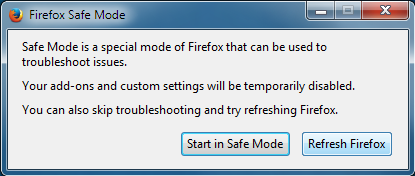
When the Firefox Safe Mode window appears, select "Start in Safe Mode".
If the issue is not present in Firefox Safe Mode, your problem is probably caused by an extension, theme, or hardware acceleration. Please follow the steps in the Troubleshoot extensions, themes and hardware acceleration issues to solve common Firefox problems article to find the cause.
To exit Firefox Safe Mode, just close Firefox and wait a few seconds before opening Firefox for normal use again.
When you figure out what's causing your issues, please let us know. It might help others with the same problem.
Sometimes a problem with Firefox may be a result of malware installed on your computer, that you may not be aware of.
You can try these free programs to scan for malware, which work with your existing antivirus software:
- Microsoft Safety Scanner
- MalwareBytes' Anti-Malware
- Anti-Rootkit Utility - TDSSKiller
- AdwCleaner (for more info, see this alternate AdwCleaner download page)
- Hitman Pro
- ESET Online Scanner
Microsoft Security Essentials is a good permanent antivirus for Windows 7/Vista if you don't already have one. Windows 8/10 have antivirus protection built-in.
Further information can be found in the Troubleshoot Firefox issues caused by malware article.
Baca jawaban ini dalam konteks 👍 1Semua Balasan (2)
Solusi Terpilih
Try Firefox Safe Mode to see if the problem goes away. Firefox Safe Mode is a troubleshooting mode that temporarily turns off hardware acceleration, resets some settings, and disables add-ons (extensions and themes).
If Firefox is open, you can restart in Firefox Safe Mode from the Help menu:
- Click the menu button , click Help and select Restart with Add-ons Disabled.
If Firefox is not running, you can start Firefox in Safe Mode as follows:
- On Windows: Hold the Shift key when you open the Firefox desktop or Start menu shortcut.
- On Mac: Hold the option key while starting Firefox.
- On Linux: Quit Firefox, go to your Terminal and run firefox -safe-mode
(you may need to specify the Firefox installation path e.g. /usr/lib/firefox)
When the Firefox Safe Mode window appears, select "Start in Safe Mode".
If the issue is not present in Firefox Safe Mode, your problem is probably caused by an extension, theme, or hardware acceleration. Please follow the steps in the Troubleshoot extensions, themes and hardware acceleration issues to solve common Firefox problems article to find the cause.
To exit Firefox Safe Mode, just close Firefox and wait a few seconds before opening Firefox for normal use again.
When you figure out what's causing your issues, please let us know. It might help others with the same problem.
Sometimes a problem with Firefox may be a result of malware installed on your computer, that you may not be aware of.
You can try these free programs to scan for malware, which work with your existing antivirus software:
- Microsoft Safety Scanner
- MalwareBytes' Anti-Malware
- Anti-Rootkit Utility - TDSSKiller
- AdwCleaner (for more info, see this alternate AdwCleaner download page)
- Hitman Pro
- ESET Online Scanner
Microsoft Security Essentials is a good permanent antivirus for Windows 7/Vista if you don't already have one. Windows 8/10 have antivirus protection built-in.
Further information can be found in the Troubleshoot Firefox issues caused by malware article.
Use the Profile Manager to create and try a profile.