


How do i remove the default visit link from awesome bar?

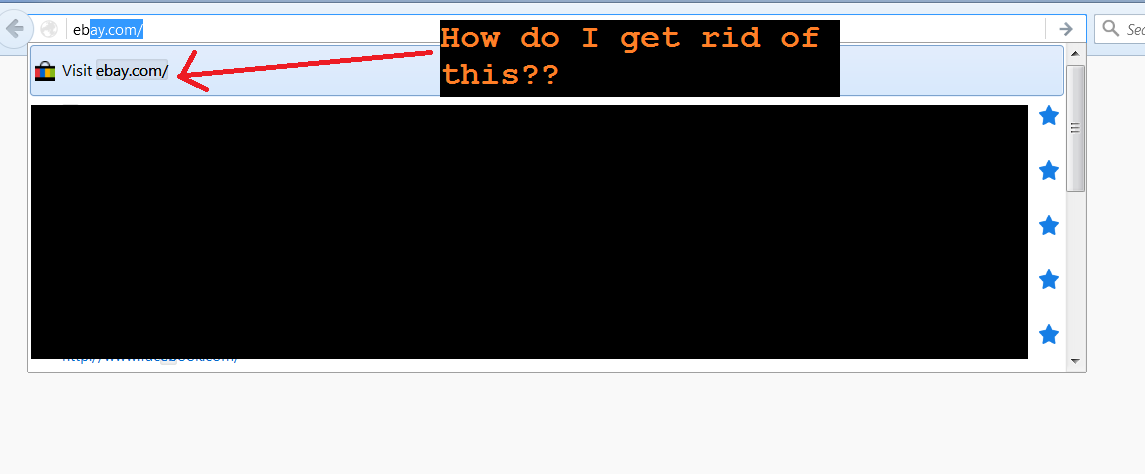
I just upgraded to firefox v43.0.1 and the awesome bar has started including this "Visit <URL>" link every time I start typing in some letters. It's driving me nuts. The only thing I want it to show is my starred (i.e. bookmarked) items. This "Visit <URL>" just started showing up immediately after I upgraded today.
The only thing I have turned on in Tools>Options>Privacy>Location Bar is "Bookmarks" which is how it's always been. Why is it now showing this "Visit <URL>" in the dropdown and how do I get rid of it?
Solusi terpilih
That's a new feature in Firefox 43. To turn it off do this:
- Go to about:config in Firefox
- Click the I'll be careful button
- Locate the browser.urlbar.unifiedcomplete boolean
- Change the value to false
Note: You may need to restart Firefox for the changes to take effect.
Baca jawaban ini dalam konteks 👍 3Semua Balasan (3)
For some reason the screenshot didn't attach the first time. Trying again...
Solusi Terpilih
That's a new feature in Firefox 43. To turn it off do this:
- Go to about:config in Firefox
- Click the I'll be careful button
- Locate the browser.urlbar.unifiedcomplete boolean
- Change the value to false
Note: You may need to restart Firefox for the changes to take effect.
THANK YOU THANK YOU THANK YOU !