


My Antivirus deleted my TB profile

Hi everyone,
My antivirus as quarantined 2 files from my TB profile:
- d:\internet profiles\thunderbird\profiles\z3rq1w7t.default\prefs.js
- d:\internet profiles\thunderbird\profiles\z3rq1w7t.default\virtualfolders.dat
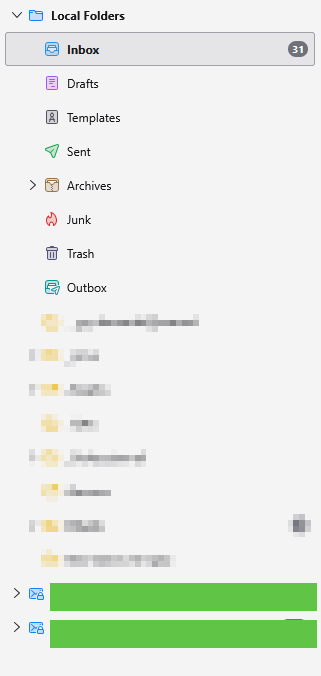
I asked the antivirus to restore them, but the damage is done. TB has lost track of everything I’d stored over the years, including my email accounts, emails, preferences, etc. It’s like a fresh install.
But I can see that my profile still contains about 5 bg of data. So everything’s there, but it seems it no longer knows how to access it.
As you can see, my profile isn’t buried in the depths of Windows; it’s on my D drive. Perhaps I just need to ‘reconnect’ TB to the correct profile, but I don’t know how to do that anymore…
Any help would be greatly appreciated.
Thanks in advance. Guy
Wubrane rozrisanje
I asked ChatGPT to look for the info in Mozilla websites. It found the solution :
Steps for each POP account
Steps for each blue POP account 1. Open Account Settings. Official path: Tools > Account Settings. 2. In the left-hand column, select the relevant POP account, then open Server Settings. 3. Under Message Storage, click Advanced. 4. Select: Inbox for different account Then choose: Global Inbox (Local Folders) 5. Also check: Include this server when getting new mail 6. Click OK. 7. Repeat these steps for each POP account. 8. Restart Thunderbird. After restarting, the POP accounts configured this way should no longer appear as separate folder trees in the left-hand pane. Their incoming messages should go to Local Folders > Inbox.
For each POP account, also check: Account Settings > Copies & Folders Set the Sent, Drafts, Templates, and Archives folders to Local Folders if you want to restore your previous setup:
Sent → Sent on Local Folders Drafts → Drafts on Local Folders Templates → Templates on Local Folders Archives → Archives on Local Folders
Then go to: Account Settings > Junk Settings Check that junk mail is sent to Junk on Local Folders, if that was your previous setup.
To move Local Folders to the top :
The cleanest method is to reorder the accounts in Account Settings:
Right-click an account in the left-hand pane. Click Settings / Account Settings. In the left-hand column of the settings window, select Local Folders. Hold down Shift. Drag Local Folders to the top of the list. Restart Thunderbird if the order does not change immediately.
This method is mentioned in Mozilla Support answers: account reordering is done in Account Settings by dragging the accounts, sometimes while holding down Shift.
Wšě wotmołwy (5)
Here is my suggestion:
- save the existing profile, as the message folders are still intact.
- create a new profile and set up the accounts
- since you appear familiar with Windows File Explorer, locate the mail folder and the mail\Local Folders folder on the old profile. look for message folders (which appear in sets, such as inbox, inbox.msf, sent, sent.msf. COPY all such files, ignoring the msf ones, to the mail\Local Folders folder of the new profile.
david said
Here is my suggestion:
- save the existing profile, as the message folders are still intact.
- create a new profile and set up the accounts
- since you appear familiar with Windows File Explorer, locate the mail folder and the mail\Local Folders folder on the old profile. look for message folders (which appear in sets, such as inbox, inbox.msf, sent, sent.msf. COPY all such files, ignoring the msf ones, to the mail\Local Folders folder of the new profile.
Hi David,
I didn’t follow your instructions literally, but thanks to you, I’ve almost recovered all my emails.
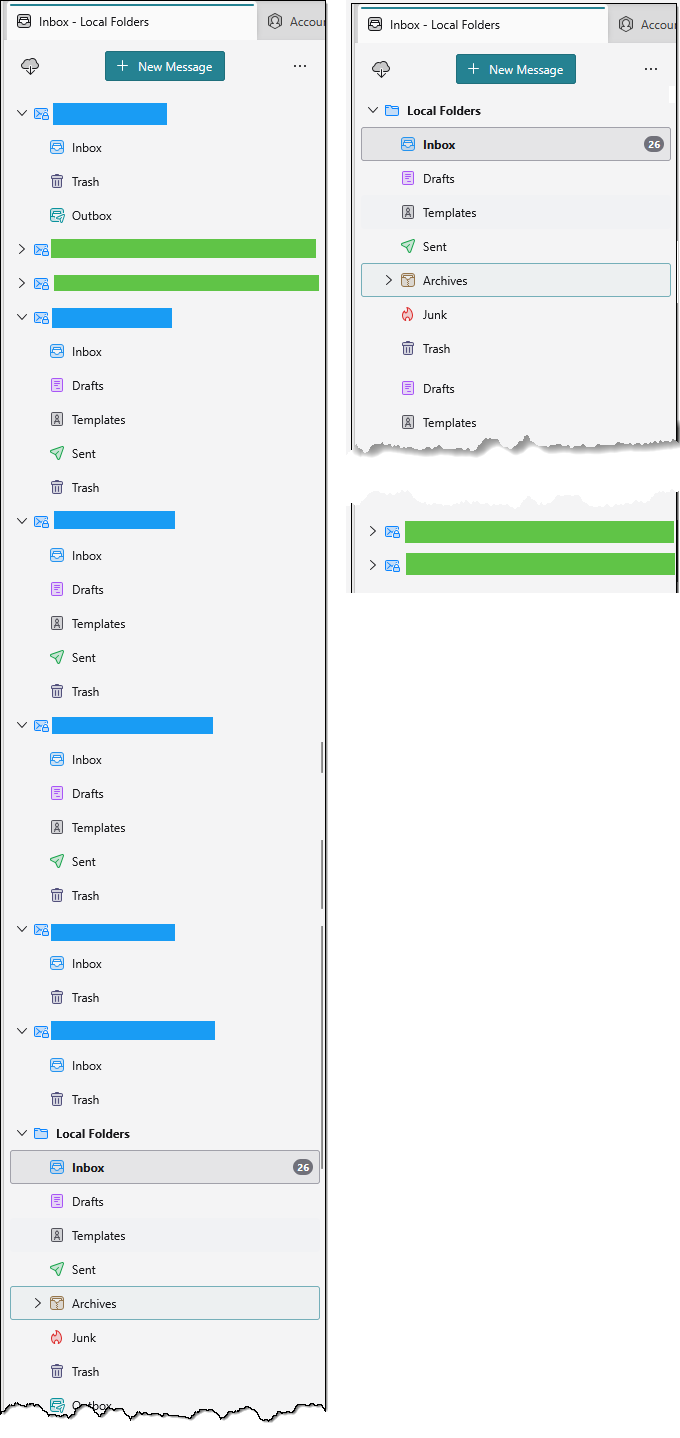
I’ve reconfigured all my email accounts one by one, redirecting them to their original folder (in D:) in the ‘Server Settings’ tab. However, as you can see in the attached screenshot, on the left, I now have lots of folders, whereas previously all my POP accounts (in blue) were in the local folders, and only my two iMap accounts were managed separately.
Do you have any idea how I might achieve this, and also how to move the local folders back to the top of the list?
Many thanks Guy
I am not well-versed on POP, but it is common for all accounts to be in either imapmail or mail folder. The Local Folders folder is always (from my experience) at the bottom. Have you tried unified folders? That would simplify the folder pane, showing only inbox, sent, trash for all the accounts.

I now have lots of folders, whereas previously all my POP accounts (in blue) were in the local folders
Sounds like you used global inbox. https://support.mozilla.org/kb/unify-your-pop-email-accounts-global-inbox
Wubrane rozrisanje
I asked ChatGPT to look for the info in Mozilla websites. It found the solution :
Steps for each POP account
Steps for each blue POP account 1. Open Account Settings. Official path: Tools > Account Settings. 2. In the left-hand column, select the relevant POP account, then open Server Settings. 3. Under Message Storage, click Advanced. 4. Select: Inbox for different account Then choose: Global Inbox (Local Folders) 5. Also check: Include this server when getting new mail 6. Click OK. 7. Repeat these steps for each POP account. 8. Restart Thunderbird. After restarting, the POP accounts configured this way should no longer appear as separate folder trees in the left-hand pane. Their incoming messages should go to Local Folders > Inbox.
For each POP account, also check: Account Settings > Copies & Folders Set the Sent, Drafts, Templates, and Archives folders to Local Folders if you want to restore your previous setup:
Sent → Sent on Local Folders Drafts → Drafts on Local Folders Templates → Templates on Local Folders Archives → Archives on Local Folders
Then go to: Account Settings > Junk Settings Check that junk mail is sent to Junk on Local Folders, if that was your previous setup.
To move Local Folders to the top :
The cleanest method is to reorder the accounts in Account Settings:
Right-click an account in the left-hand pane. Click Settings / Account Settings. In the left-hand column of the settings window, select Local Folders. Hold down Shift. Drag Local Folders to the top of the list. Restart Thunderbird if the order does not change immediately.
This method is mentioned in Mozilla Support answers: account reordering is done in Account Settings by dragging the accounts, sometimes while holding down Shift.