


how to add composition toolbar on v. 145.0 (64-bit)

11-25-2025
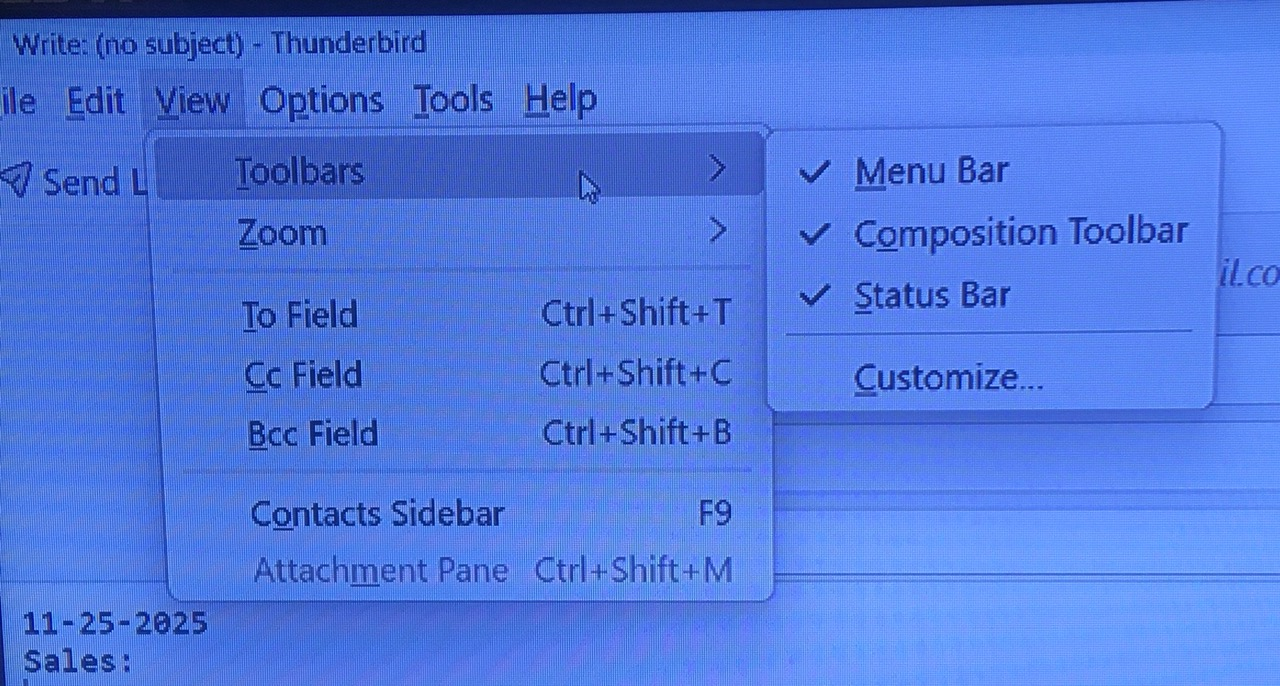
- I am currently using Thunderbird 145.0 (64-bit) and have no option to show the formatting tool bar as I do when using 115.3.1 (64-bit).
- Please provide a path to allow for what I am not getting.
Regards, M.
Svi odgovori (3)
11-25-2025 The title should be "how to add format toolbar on v. 145.0 (64-bit)

On the message list pane, R. click the toolbar > Customize > click the 'Restore default' button bottom right corner. After that, you should have the choice to enable the Formatting Bar in the compose window.

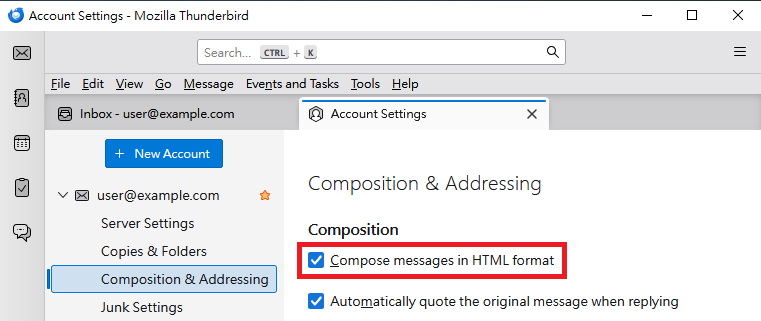
Please ensure you compose your email in HTML format.
The folllowing steps might be helpful:
1. Click hamburger button (three-horizontal-bar icon) in the upper right corner. > "Account Settings" > Click the account you want to configure. > "Composition & Addressing" > "Composition" section > Tick "Compose messages in HTML format".
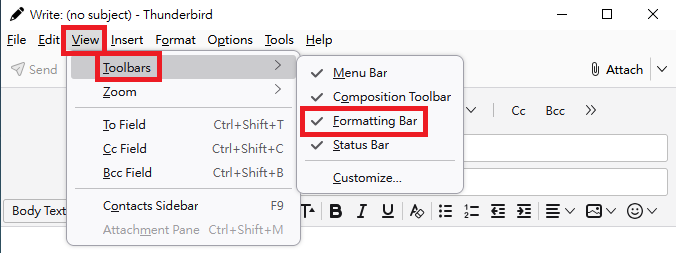
2. Now click "+ New Message" to open the composition window. > Click "View" in the menu bar. > "Toolbars" > Tick "Formatting Bar".
Please see the attached images.
Izmjenjeno od Yu5tiqX9og