


deleted messages

I allowed Thunderbird to compact my files after I got tired of seeing the prompts for it, now all my messages are apparently gone for one account, in over 12 different sub folders. How do I get these back’ for ‘Thunderbird’ ? VERY IMPORTANT! version 144.0.1 (64 bit)
This is the second time I have lost emails with Thunderbird.
IT WILL NOT HAPPEN AGAIN, I AM DONE WITH THIS CRAP!
Svi odgovori (8)
That sounds more than frustrating, but please remember, using capitals implies you are shouting at the very people you are asking for help and they did not cause the problem you are experiencing.
It is important to compact folders on a regular basis as it cleans up traces of old previously deleted or moved emails. If you do not do this then files become significantly larger then you expect and the risk of file corruption is increased. Ideally a manual compaction on Inbox, Spam and Drafts should be done after deleting a load of emails or moving a load of emails. Corruption can also occur if you allow Anti-Virus products access to scanning your profile folders. Any file that gets opened may be scanned and if it does not like anything in that file - it can cause havoc.
It is exceptionally unusual to lose all emails in all folders in an account. So let's try to find out what's going on and what is currently stored in profile.
Please supply some information so we can understand your setup.
Q: What OS do you use ? Windows 11, MAC, Linux ? Q: Did you get the installation/download of Thunderbird from the official Thunderbird website or did you get it from the Windows app store or somewhere else ?
Q: What Anti-Virus do you use and is it allowed to scan all folders? That means it also scans any file on computer that gets opened and scan any file that gets downloaded etc?
Q: Are you talking about an IMAP or POP account? Q: Can you still see all the folders and subfolders in the effected account ? OR are they also missing ? Q: If you can see the folders - do they look like they are using an italic font ?
Check what is on server: Please logon to your webmail account via a browser. Q: Can you still see all the emails on the server?
Now to find out what is stored in the Profile folders... In Thunderbird
- Help > Troubleshooting Information
- Under 'Application Basics' - about half way down is 'Profile Folder' - click on 'Open Folder' button
A new window opens showing the contents of you 'profile name' folder.
If you are talking about a POP account:
- Select the 'Mail' folder to see contents
- Select the name of the pop account folder to see contents.
If you are talking about an IMAP account:
- Select the 'ImapMail' folder to see contents
- Select the name of the imap account folder to see contents.
Make sure the View is showing Details, so everything is in columns. Make sure you have the Name, Modified Date, Type and Size columns
Post images showing all the information you see. Make sure you include the directory path, so I know where you are looking. You might need to post/ upload several images. They must be image files eg: .jpg If you see folders with a .sbd extension, then select the folder and post image which shows it's contents.
I'm now following this question, so will look out for your response. Please note, you may also get others who may try to assist as well.
hello, I am using Windows 11,Been using Thunderbird for several years now probably got it from their website, using Windows defender and McAfee The account is my g mail, so IMAP all folders are still there but are empty, no italics. the server is empty as well.
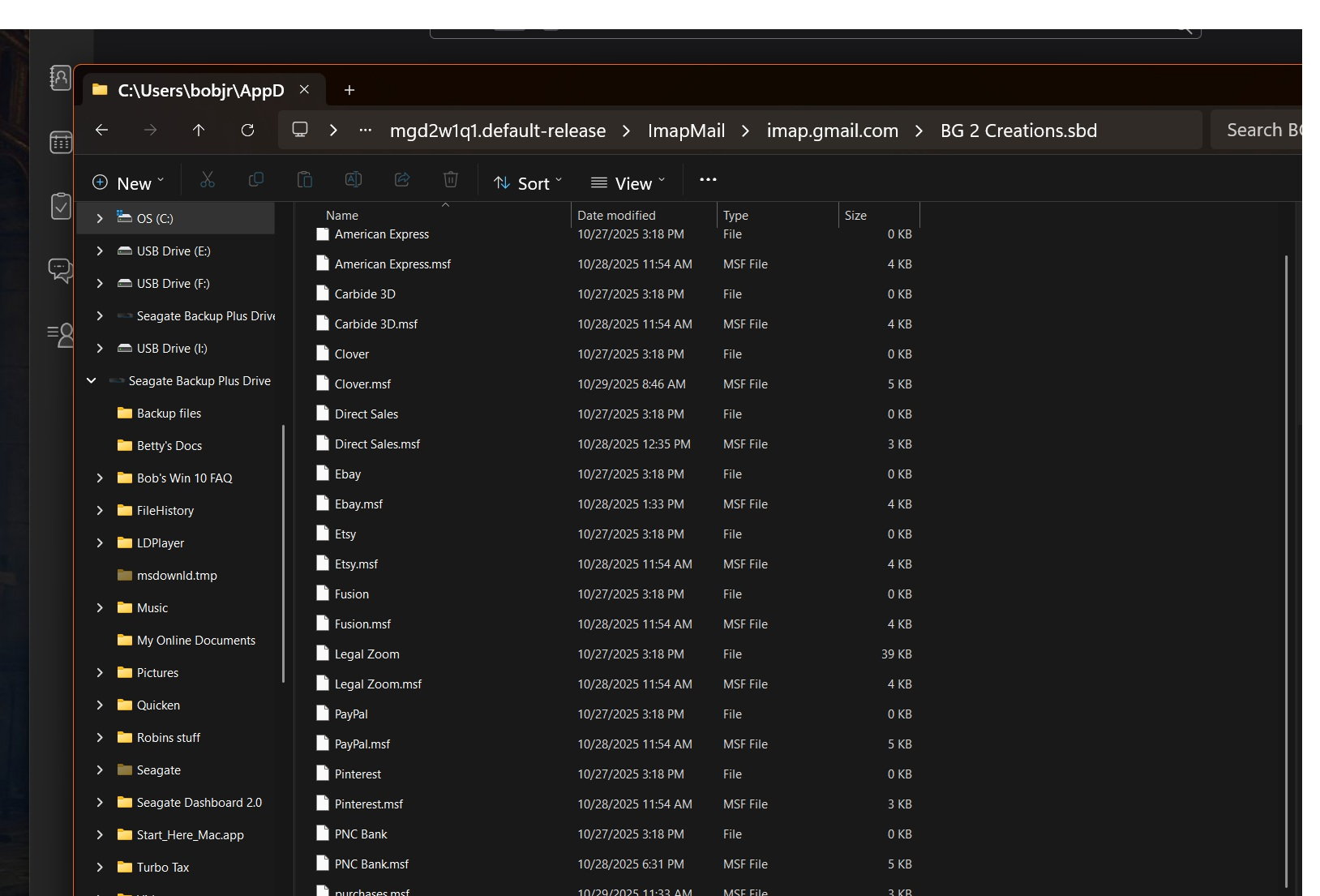
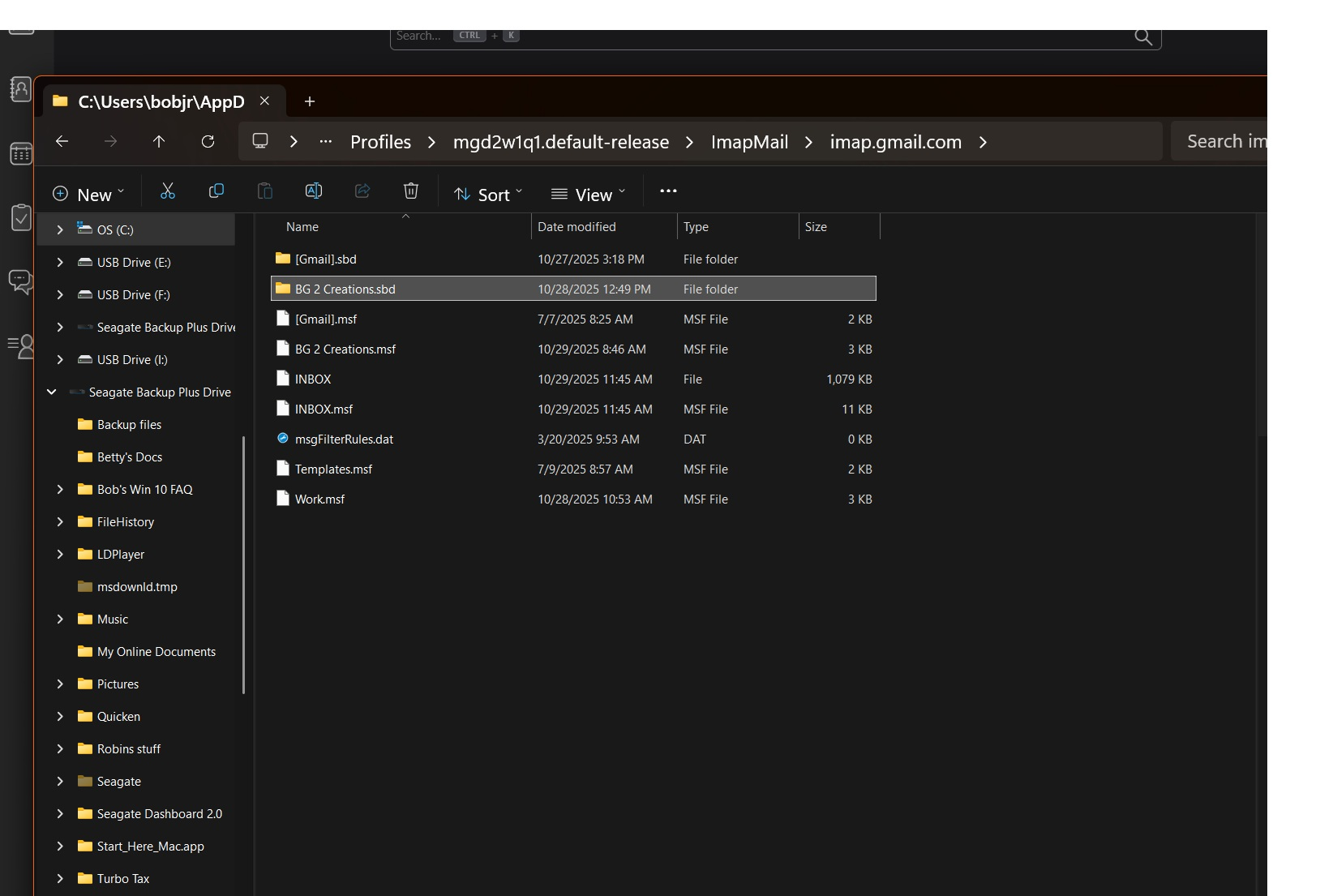
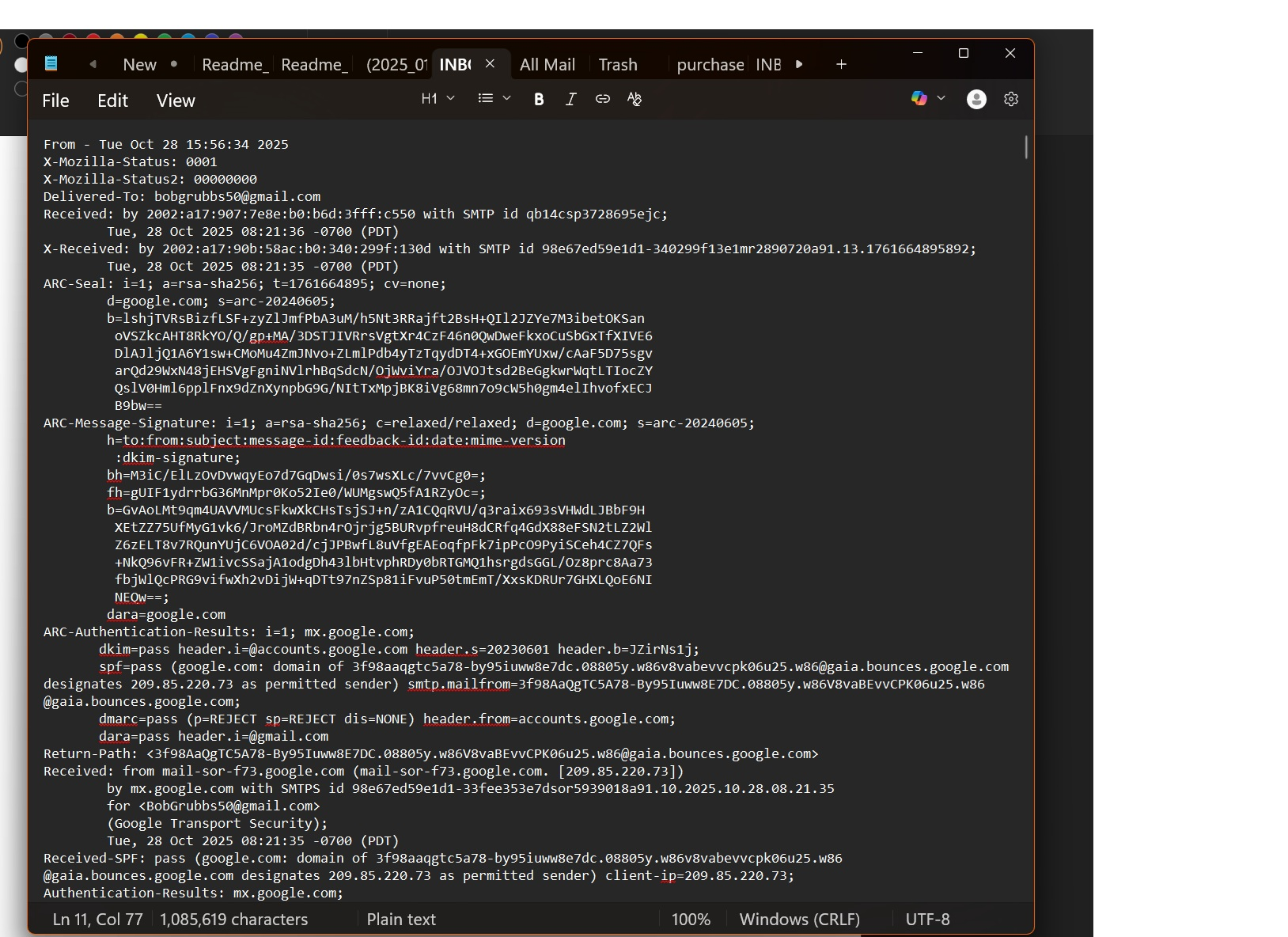
According to the images you supplied: Do Not start Thunderbird.
You have emails in the 'Inbox' (no extension) mbox file - advise you get a copy of that file and put it on desktop. Then rename it to 'Gmail Inbox'
In Profile folder 'mgd2w1q1.default-release' Click on 'Mail' folder Click on 'Local Folders' folder to see contents. Put the copied renamed 'Gmail Inbox' file into 'Local Folders' folder.
The 'BG 2 Creations.sbd' folder has a lot of subfolders and I can see that you have a lot of empty mbox files.
re :the server is empty as well. In gmail webmail account: Do you mean the Inbox is empty as well ? Did you check 'All Mail' - is that empty as well ?
You need to find out what can be recovered via gmail webmail.
The only things in those two folders have come in since the problem happened. I have done the following;
Profile folder 'mgd2w1q1.default-release' Click on 'Mail' folder Click on 'Local Folders' folder to see contents. Put the copied renamed 'Gmail Inbox' file into 'Local Folders' folder
If messages had been deleted by Thunderbird then they would have been put into the gmail TRash and they would be recoverable.
If messages had just had all the 'labels' removed then they would still be in the gmail webmail 'All Mail' folder. In this case you can logon to see webmail account, select the 'All Mail' folder, select all emails and choose to move to Inbox which reapplies the Inbox label, so in Thunderbird they should all reappear in gmail Inbox.
re :Put the copied renamed 'Gmail Inbox' file into 'Local Folders' folder I advised you to do that just in case the gmail 'Inbox' synchronised with an empty 'Inbox' on server. It's an attemept to save whatever was in that file. When you start Thunderbird, those emails in that file should become visible in the Local Folders 'Gmail Inbox' folder.
If the webmail account 'All Mail' folder is empty then emails do not exist - in which case do you have any backups of profile which you had previously created?
Have you accessed the Anti-Virus and set up an exemption to stop the AV from scanning the Thunderbird profile ?

Hi
I did the same as Thunderbird advised the me to compact my emails and now some very important company emails regarding banking links which only came in recently have gone ! This is most destressing as I love the lay out of thunderbird and was sing it's praises yesterday because of it great lay out.
The folders are still there on thunderbird but empty, they are not there on the outlook browser at all- I have searched both on thunderbird, the outlook browser and on my outlook app on my laptop - all emails are gone !!!
Please help I really need to revise this compacting thing thunderbird has done as I don't knwo what other emails have now gone -
Please forgive my frustration but it should really have been warned that emails could disappear be deleted if you do a compact on the system. I want to cry.......I thought I had found a platform I could use without worry but now I am going for a long walk as this really could be disastrous for me :( .
Please explain what compacting actual does and, can I get my emails back :(
I have gone into my profile as one of your guys says and it looks like the emails are there but I need to re-instate them in my email box how do I do that
jennifergriffin199 said
Hi I did the same as Thunderbird advised the me to compact my emails and now some very important company emails regarding banking links which only came in recently have gone ! This is most destressing as I love the lay out of thunderbird and was sing it's praises yesterday because of it great lay out. The folders are still there on thunderbird but empty, they are not there on the outlook browser at all- I have searched both on thunderbird, the outlook browser and on my outlook app on my laptop - all emails are gone !!!
If you are using an IMAP account, you subscribe to see the folders that exist on the server. It sounds like that is working. All imap folders synchronise with server folders to display whatever emails are on server. If there are no emails in server folders then Thunderbird imap folders cannot display what does not exist.
Please help I really need to revise this compacting thing thunderbird has done as I don't knwo what other emails have now gone - Please forgive my frustration but it should really have been warned that emails could disappear be deleted if you do a compact on the system. I want to cry.......I thought I had found a platform I could use without worry but now I am going for a long walk as this really could be disastrous for me :( . Please explain what compacting actual does and, can I get my emails back :(
Compacting: Background info: When you download emails into eg: the Inbox, those emails get written to an mbox text file, one after the other in the order downloaded. Imagine it like a single text document where each paragraph is an email organised with the oldest at the top.
When you delete or move an email out of Inbox into another folder, the email in 'Inbox' gets 'marked as deleted'. So, back to the imagined senario, it's like you have put a red strike through an unwanted paragraph. After a while, it can get messy with so many red striked paragraphs and needs a tidy up.
'Compacting is the maintenance tool that does the following.' It creates a new file, then it reads the 'Inbox' file and looks for all the good wanted emails that do not have a 'marked as deleted' setting. It then copies all those good emails over to the new file ignoring anything 'marked as deleted'. Finally, it deletes the old messy Inbox file and saves the new file with all good emails as the 'Inbox'.
So back to the senario - all the red strike through paragraphs are ignored as they are not wanted when copying data. The new Inbox file is tidy, much smaller in size, so saving on space and it's less prone to corruption.
Compacting does not delete emails, the emails it ignores during compacting process have already been deleted or moved out of the Inbox.
What could have caused a deletion of wanted emails: Here are some possible instances where it may occur. 1. If you created a POP account on another email client on same computer or another computer or phone, but forgot to set up a setting to 'Keep copies of messages on server', then upon download to a Pop account, those emails may be automatically deleted off the server. Then the Imap account in Thunderbird cannot see any emails.
Or if you had another Imap account on another device or a mail account on phone or accessed server directly via webmail account and deleted emails, then they would be deleted off the server and therefore not visible in Imap account in Thunderbird.
2. Anti-Virus intervened and caused a problem: Most people have settings that allow their Anti-Virus to auto scan files when they are opened or during a computer scan check or even scan downloaded emails. If it scans your Thunderbird profile folders and files, there might be an auto-fix set up. Unfortunately, no Anti-Virus understands that a single mbox text file contains more than one email. If it finds anything it does not like and does an auto fix then you are likely to lose everything in that file.
It is strongly advised that you access the Anti-Virus and set up an exemption to not scan anything in the Thunderbird profile folders. If you do want to continue scanning them never allow any fix, auto or manual. So it's not really worth scaning in the first place.
Please note that when ever you select to view an email, a file gets opened, whenever an email needs to be downloaded or moved etc etc, a file gets opened. Sometimes Thunderbird may have a not responding temporary action because the Anti-Virus has intervened the process.
3. Computer crashed or was shut down abruptly before files were closed.
4. Files were already corrupted, due to Anti-Virus or a lack of maintenance etc. Thus meaning it was not possible to detect the start and end of a 'marked as deleted' email.
Recovery is possible if you have a backup. Emails/mbox files would need to be imported into the 'Local Folders' account first and then they can be manually uploaded back onto the server by copying emails in small batches into the relevant imap folder.