How to update icon and menus???

Hi
So I started up just now and when I started firefox it asked me what profile I wanted to use. I have only ever used one profile but I do believe there are some default ones as I seem to remember seeing multiple ones when I did some customizing awhile back.
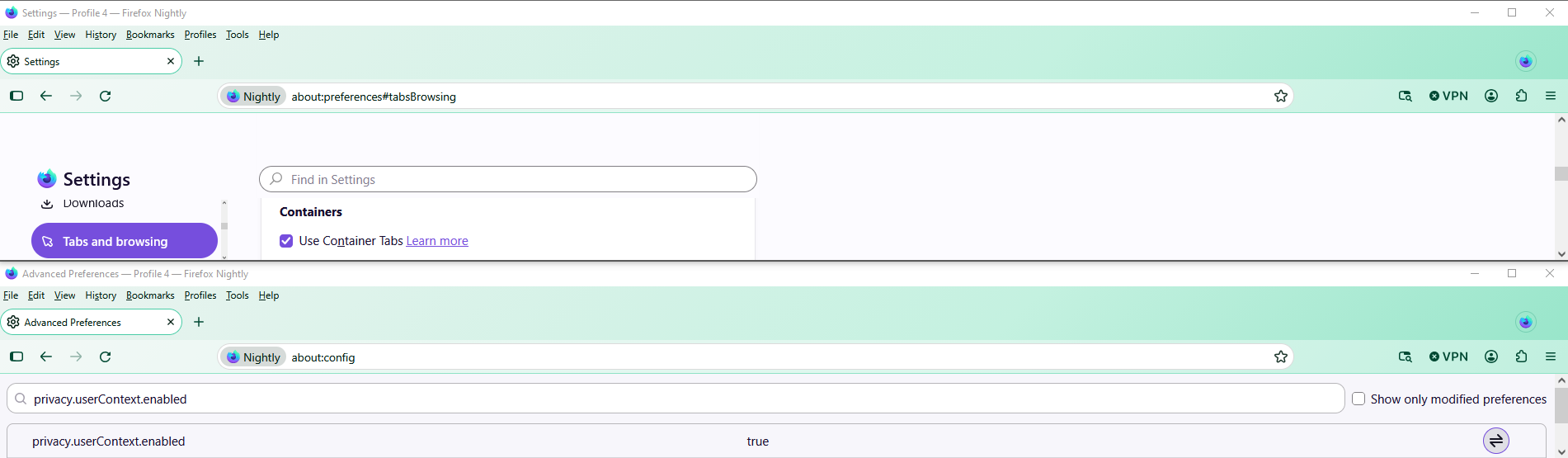
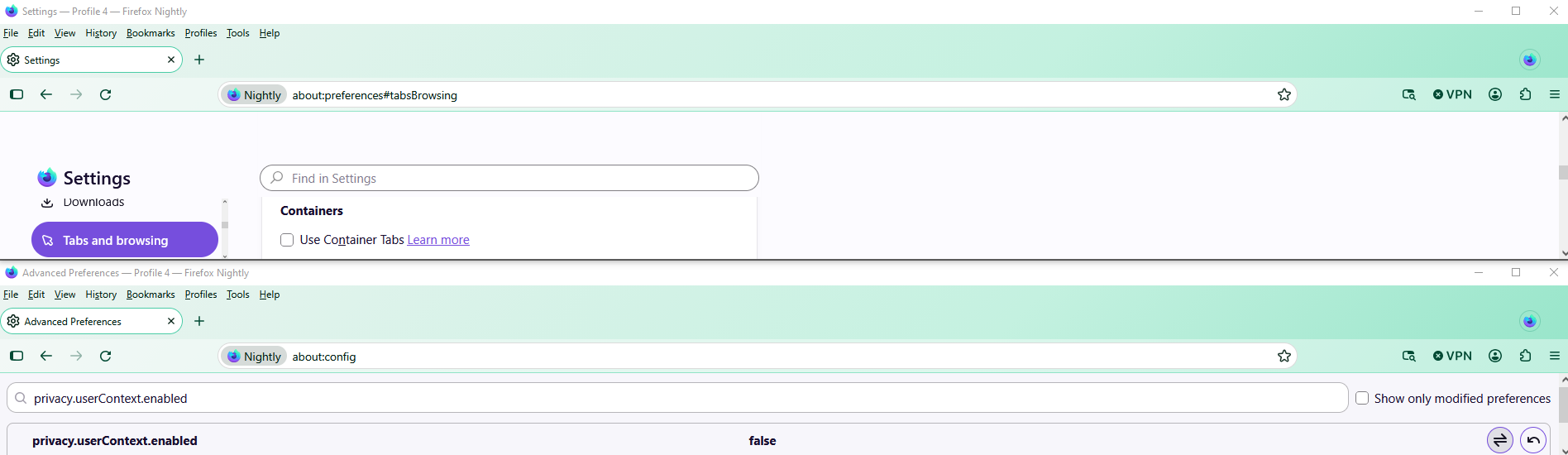
Anyways I chose the one I always use and it loaded fine but I noticed in my task bar that the icon now shows a small profile icon.
I want the firefox icon there but I DO NOT want the profile icon on top of the icon as so many icons will pop up showing how many alerts you have and such and I DO NOT need a useless alert on the icon telling me which profile I am using.
I posted a screen shot of what my icon now looks like where as this morning before an apparent update it just showed the normal firefox icon.
So is there a way to remove that profile icon from the firefox icon?
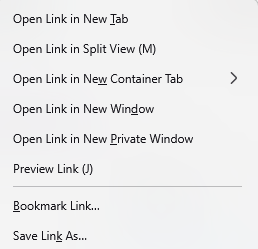
Also I have noticed on my right click menu where I can select to open in a new tab and such it has also added grouping features to group tags. Is there a way to remove these unwanted options as I DO NOT want to group my tabs and it's annoying when I accidentally click that option instead of the new tab option. So for this is there a way to remove certain menu items that I do not need or want? I also added a screen shot for that menu question as well
Thanks!

Chosen Solution
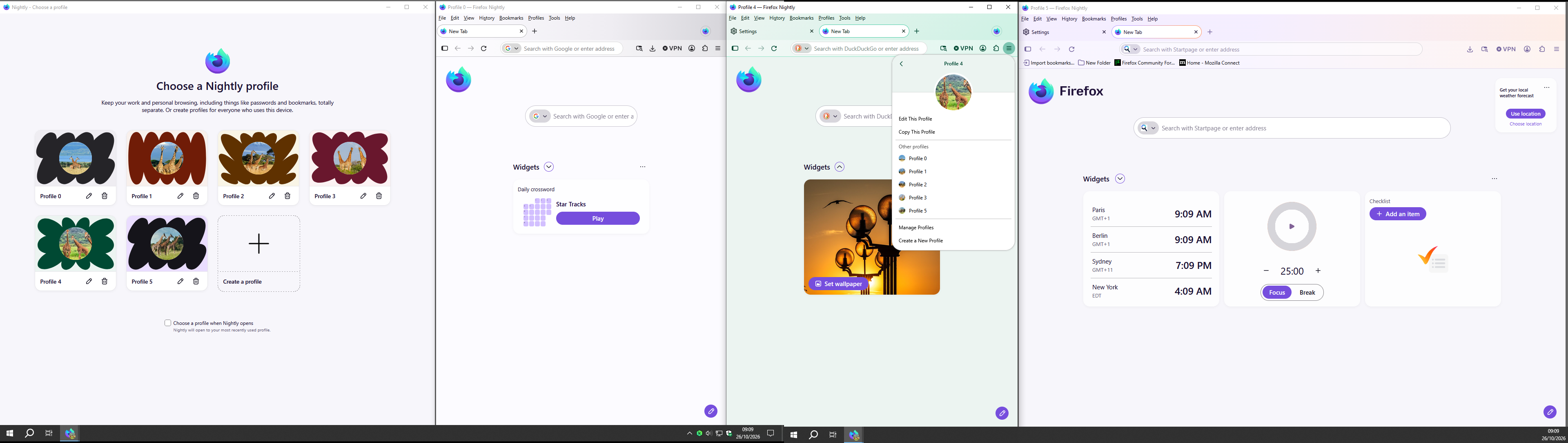
The profile badge disappears when it's your only profile, i.e. after removing the others, presumably unused(?) ones. After you inspect the other profiles to verify there's no data you need to access in there, and delete those extra profiles, the badge should disappear.
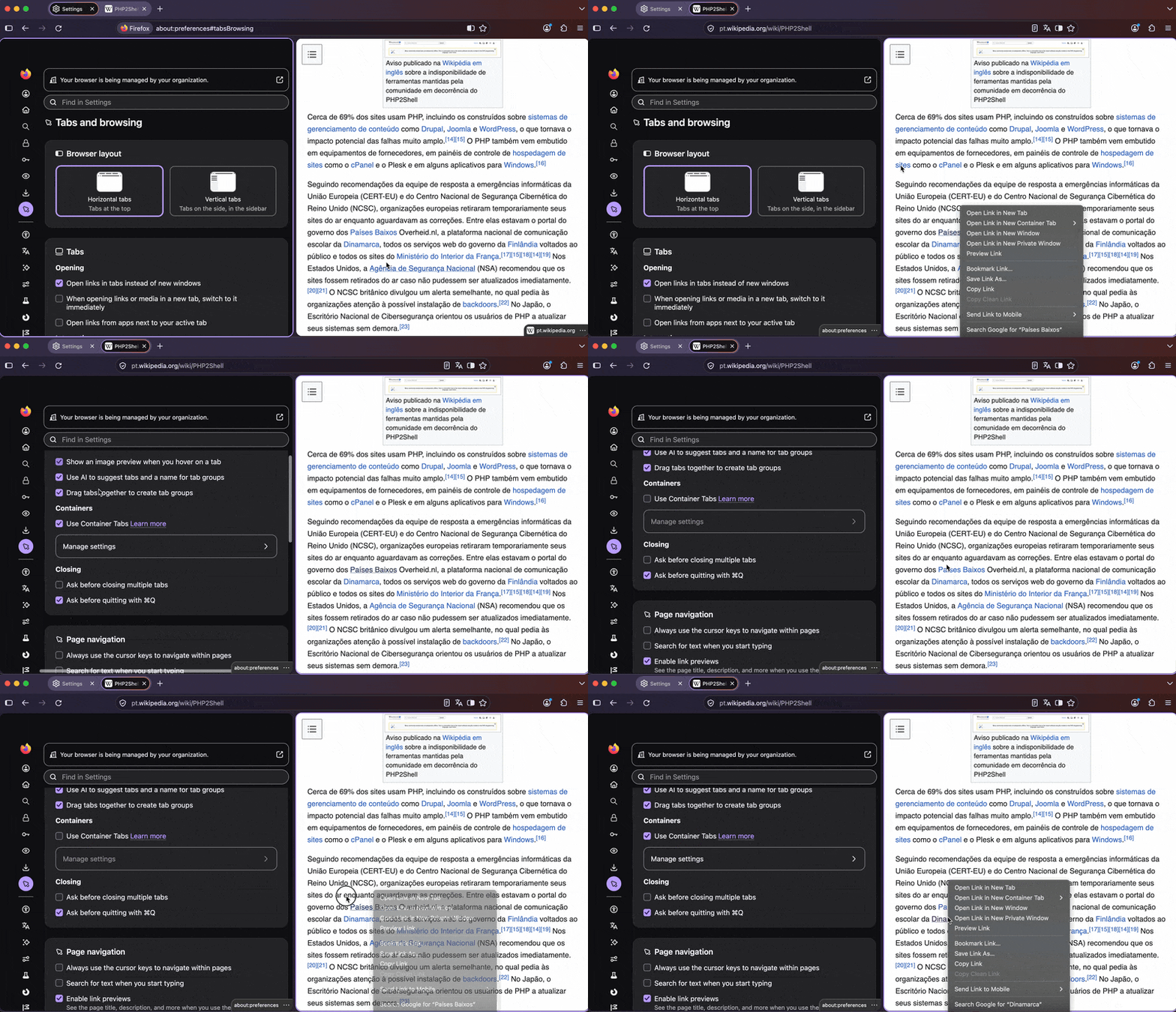
The context menu you've attached is for Containers functionality. You can just disable the whole "Use container tabs" feature in settings and the menu items will disappear as well:
All Replies (15)
Bonjour
About Manage Firefox profiles https://support.mozilla.org/en-US/kb/profile-management
About use Firefox containers https://support.mozilla.org/en-US/kb/how-use-firefox-containers
About Tab groups in Firefox, if it's your question too. https://support.mozilla.org/en-US/kb/tab-groups
If it is your desire to never using, for information purposes The preference, about:config, browser.tabs.groups.enabled https://connect.mozilla.org/t5/ideas/disable-grouping-by-default/idc-p/106732/highlight/true#M56219
Manage Firefox profiles https://support.mozilla.org/en-US/kb/profile-management
Chosen Solution
The profile badge disappears when it's your only profile, i.e. after removing the others, presumably unused(?) ones. After you inspect the other profiles to verify there's no data you need to access in there, and delete those extra profiles, the badge should disappear.
The context menu you've attached is for Containers functionality. You can just disable the whole "Use container tabs" feature in settings and the menu items will disappear as well:
(other e.g.) Split View in Firefox https://support.mozilla.org/en-US/kb/split-view-firefox https://connect.mozilla.org/t5/ideas/move-menu-item-open-link-in-new-window-below-after-the-open-link/idi-p/141548 - https://connect.mozilla.org/t5/discussions/suggestions-for-splitview/m-p/139136/highlight/true#M56499
About use Firefox containers Nevertheless, if you want use, Open in a New Container Tab
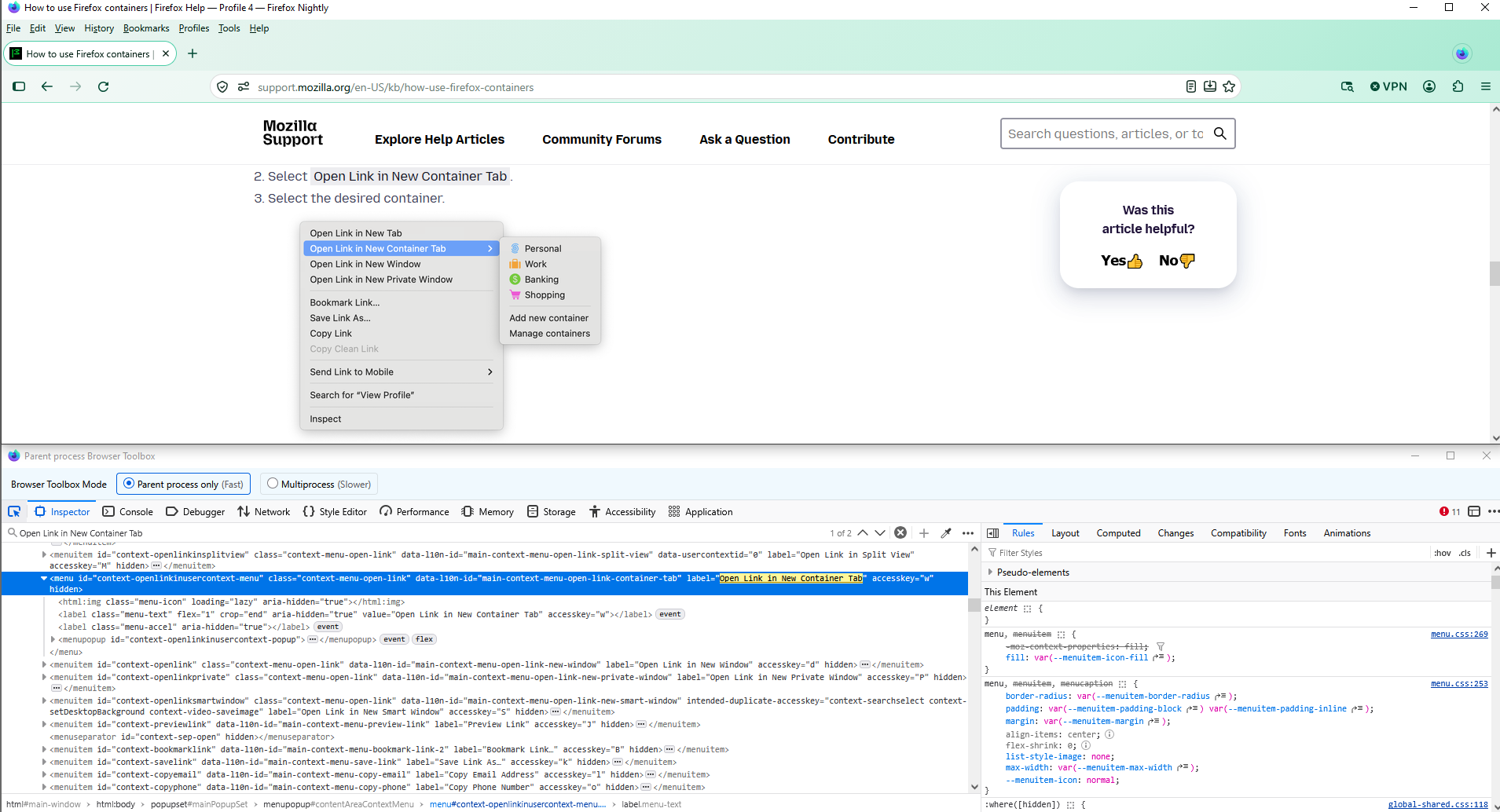
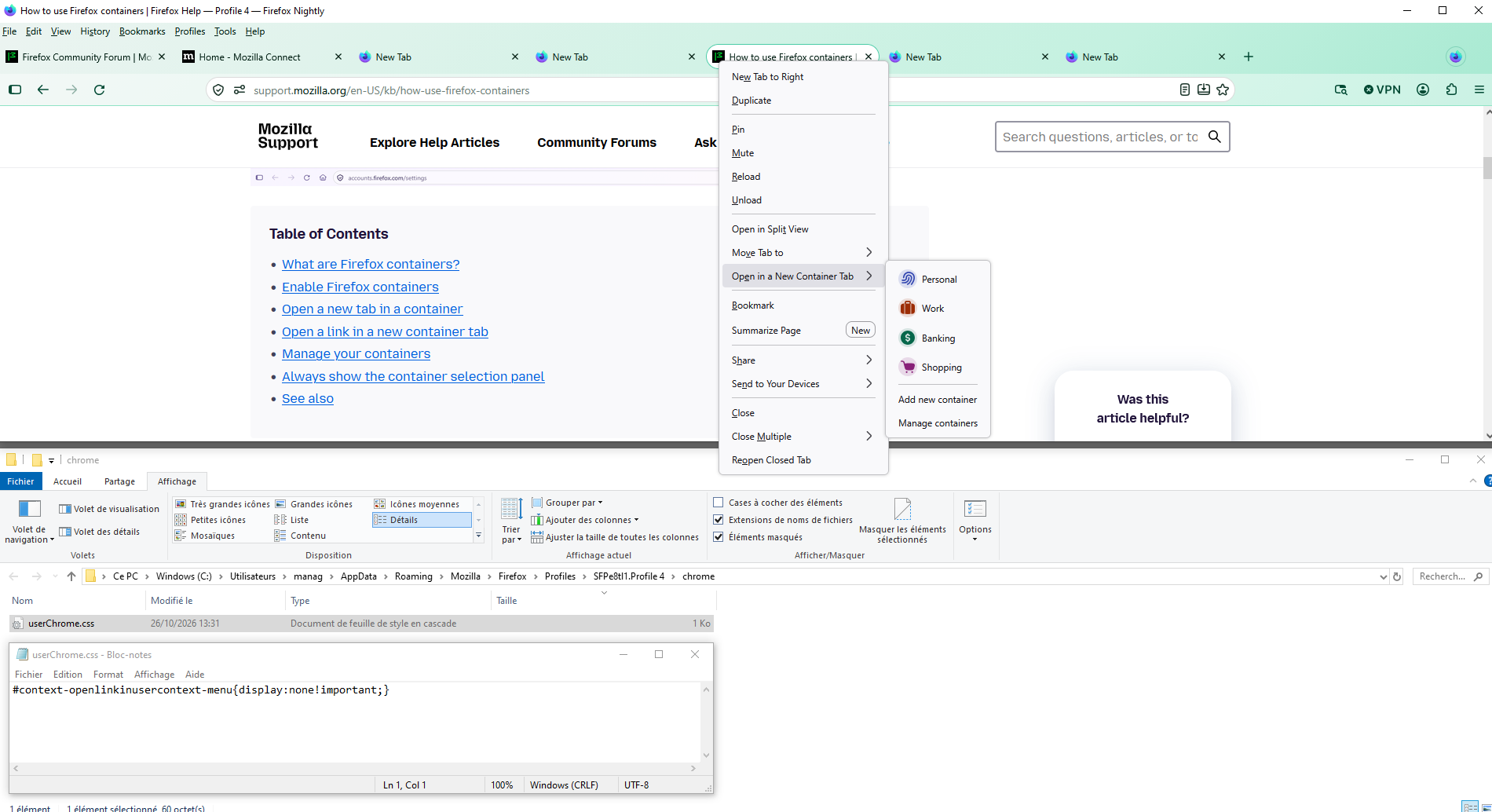
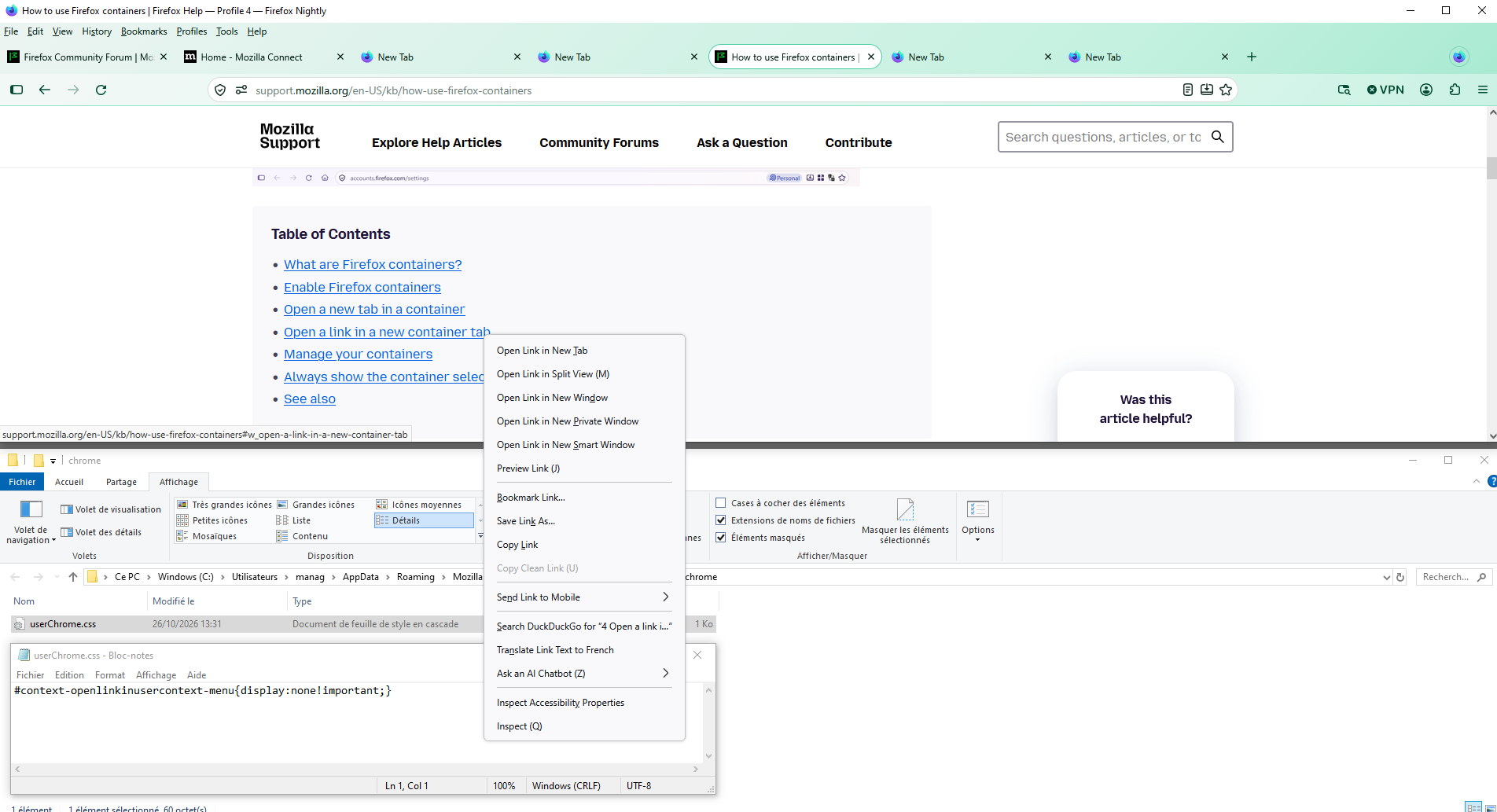
You can hide, Open Link in New Container Tab, with the help of userChrome.css
#context-openlinkinusercontext-menu{display:none!important;}
Just to see
Modified by Agent virtuel
Agent virtuel said
(other e.g.) Split View in Firefox https://support.mozilla.org/en-US/kb/split-view-firefox https://connect.mozilla.org/t5/ideas/move-menu-item-open-link-in-new-window-below-after-the-open-link/idi-p/141548 - https://connect.mozilla.org/t5/discussions/suggestions-for-splitview/m-p/139136/highlight/true#M56499 About use Firefox containers Nevertheless, if you want use, Open in a New Container Tab You can hide, Open Link in New Container Tab, with the help of userChrome.css#context-openlinkinusercontext-menu{display:none!important;}Just to see
JBR above your reply mentioned there is actually a setting in FF to disable that so can turn that off in settings.
jbr said
The profile badge disappears when it's your only profile, i.e. after removing the others, presumably unused(?) ones. After you inspect the other profiles to verify there's no data you need to access in there, and delete those extra profiles, the badge should disappear. The context menu you've attached is for Containers functionality. You can just disable the whole "Use container tabs" feature in settings and the menu items will disappear as well:
So I got the container one removed is there also a way to remove the SPLIT VIEW option as I don't need that either. I know agent was suggesting a CSS fix for the container so perhaps if no setting this might be an option for the SPLIT VIEW option?
OK I got the profile icon removed as well even though I deleted the other 2 profile folders I had to also go into the Profile Manager and there was still one more profile there as well that once deleted removed the icon from the FF icon.
So only question remaining is the split view option mentioned above
Modified by scottish2
Bonsoir
Split View in Firefox https://support.mozilla.org/en-US/kb/split-view-firefox This discussion thread https://connect.mozilla.org/t5/discussions/split-tab-is-annoying/td-p/126488
Nevertheless, if you want use, Split View
You can hide, Open Link in Split View, with the help of userChrome.css
#context-openlinkinsplitview{display:none!important;}
With the help of userChrome.css You can hide, Open Link in New Container Tab and Open Link in Split View
#context-openlinkinusercontext-menu{display:none!important;}
#context-openlinkinsplitview{display:none!important;}
Bonjour
If it is your desire to never using Split View 1 - Go to configuration editor https://support.mozilla.org/en-US/kb/about-config-editor-firefox 2 - Enter a search term browser.tabs.splitView.enabled You can double-click on the preference to set the value to false
A space for users to give product feedback https://support.mozilla.org/en-US/kb/what-mozilla-connect
You can submit a idea to include this option into the user interface
Modified by Agent virtuel
Agent virtuel said
Bonjour If it is your desire to never using Split View 1 - Go to configuration editor https://support.mozilla.org/en-US/kb/about-config-editor-firefox 2 - Enter a search term browser.tabs.splitView.enabled You can double-click on the preference to set the value to false A space for users to give product feedback https://support.mozilla.org/en-US/kb/what-mozilla-connect You can submit a idea to include this option into the user interface
Thanks that got rid of that part as well so all is back to normal!
About, use Firefox containers https://support.mozilla.org/en-US/kb/how-use-firefox-containers Enable Firefox containers Click the menu button and select Settings. In the Tabs and browsing page, scroll down to the Tabs section. Make sure the box next to Use Container Tabs is checked.
About, browser.tabs.splitView.enabled. You can submit a idea to include this option, the choose of user, into the user interface.
Mozilla Connect Ideas https://connect.mozilla.org/t5/ideas/idb-p/ideas
Submit an idea https://connect.mozilla.org/t5/forums/postpage/board-id/ideas
Modified by Agent virtuel
(e.g.) Tab groups in Firefox https://support.mozilla.org/en-US/kb/tab-groups https://connect.mozilla.org/t5/discussions/seeking-your-feedback-on-tab-groups/m-p/120395/highlight/true#M47167 https://bugzilla.mozilla.org/show_bug.cgi?id=2005628, the preference: browser.tabs.dragDrop.createGroup.enabled https://connect.mozilla.org/t5/discussions/seeking-your-feedback-on-tab-groups/m-p/123316/highlight/true#M48500 Firefox 150.0 https://www.firefox.com/en-US/firefox/150.0/releasenotes Changed If you prefer creating tab groups from the context menu, you can now turn off drag-and-drop group creation in Settings > Tabs > Drag tabs to create tab groups.
Drag tabs together to create tab groups
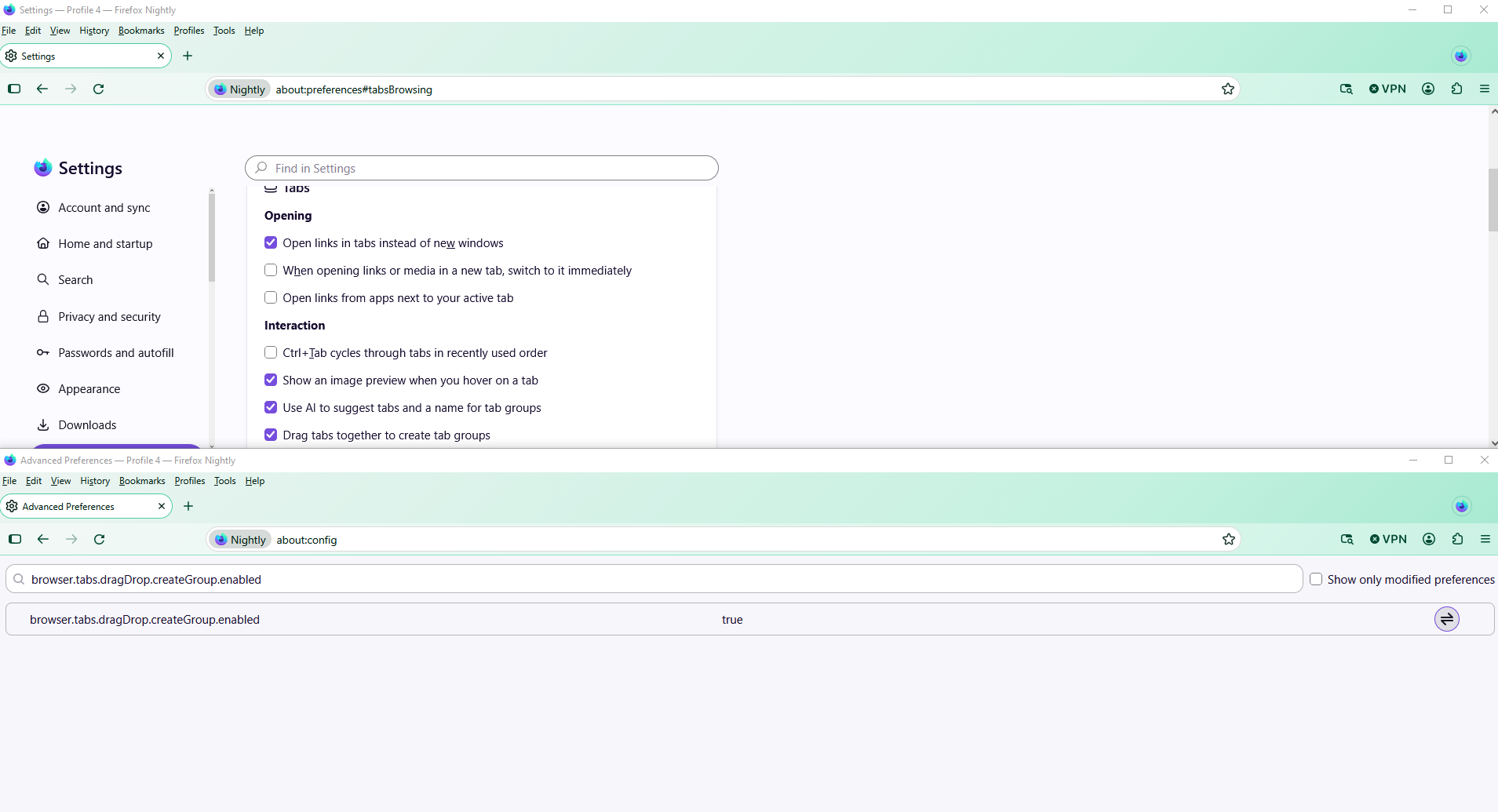
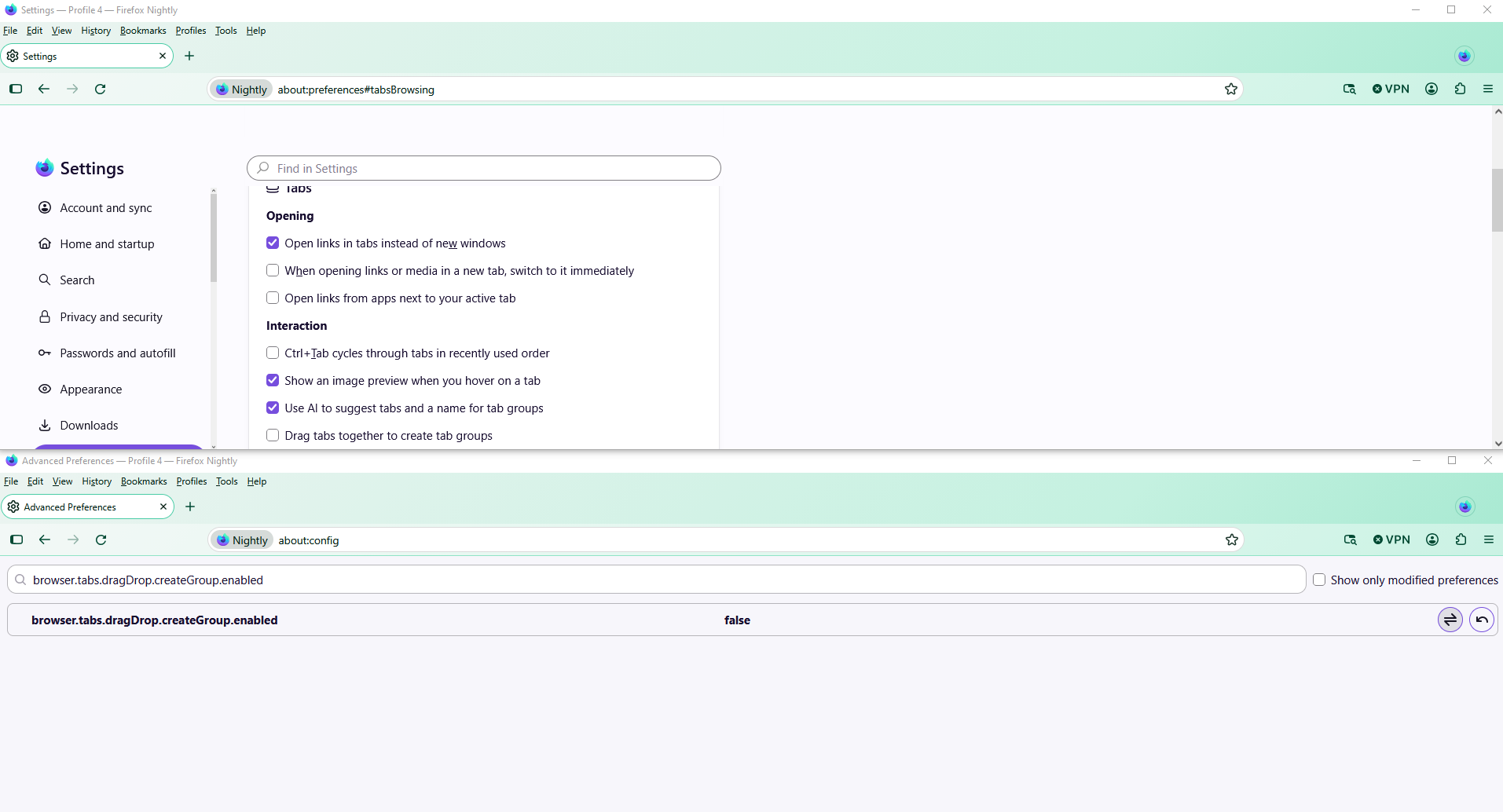
Modified by Agent virtuel
(e.g.) privacy.userContext.enabled