


When starting Thunderbird, the status line shows logging in to server but loops; no errors, Thunderbird is 'locked out' waiitng/spinning.

The system was working fine. The next day, when starting Thunderbird (TB, the status line shows logging in to server but loops; no errors or messages, Thunderbird is 'locked out' spinning. I see the normal INBOX page, but logging in never completes. NO CHANGES were made to TB accounts or settings. I have re-installed TB, re-booted, but no change. I cannot check/change any of the accounts or do any further 'debugging' because TB is spinning. The server login is fine because Webmail can be used. Internet connection is fine, because browser works. 1. How can I stop TB from trying to login at start up? 2. What could/would cause this behaviour?
Any suggestions much appreciated.
All Replies (23)

Does that also happen if you start TB in Troubleshoot mode?
A few things to try, even in Troubleshoot mode if you have to. Do one at a time and test:
R. click Inbox > Properties > click 'Repair folder' button, then R. click Inbox > Compact
Clear cache:
- press Ctrl-Shift-Delete
- set 'Time range...' to 'Everything'
- untick all items except 'Cache'
- clear, then restart TB
Clear Startup cache:
- TB menu > Help > Troubleshooting information > click 'Clear startup cache' button on the right
Rename a program file:
- TB menu > Help > Troubleshooting Information
- under the Application Basics section next to Profile Folder, click 'Open Folder'
- close TB
- rename addonStartup.json.lz4 to addonStartup.json.lzx
- restart TB
Change proxy settings:
- TB menu > search for proxy > click 'Settings' button > try the other settings
Ed: Thanks for your reply.
The actual message (and as far as TB gets) is:
<user e-mail: host contacted, sending login information"' < em> </user>
followed by a small-ish blue spinning circle.
Per your suggestions, TB did come up in Troubleshoot mode (via SHIFT key method), but then went into the discussed state (above message, spinning circle) so I was not able to try anything else.
This (to me) sounds like 'we' need a way to get TB in control, bypassing the login sequence; it would appear Troubleshoot mode does not allow that.
My guess is some file, related to the login process, is corrupted and needs to be re-created/replaced.
Again, the connection to the server is fine (Webmail) works so it's (to me) definitely a TB issue. Also again, I see the normal INBOX page and local folders list, but logging in never completes.
Any further suggestions, or help much appreciated.
Ed: My previous reply was 'edited'; the TB message line is:
user e-mail id: Host contacted; sending login information
There's no way to prevent TB from trying to log in when opening. I agree there might be some corruption, so try a new profile - https://support.mozilla.org/en-US/kb/profile-manager-create-and-remove-thunderbird-profiles.
Ed: Wow! More than I EVER wanted to know about profiles and TB internals! What I've done: - used Profile Manager to create a new profile, cleverly called 'Al' - TB has successfully re-started, connected and downloaded ALL the server messages using the 'Al' profile. So far, so good. However, switching back to the original 'default' profile has the same issue - looping trying to log into the server.
So - how do I proceed? luckily, I have a TB profile backup from a week or so ago when TB was logging in as expected. If I wanted to 'reload' that profile, would the 'import' function work while profile Al is being used? Then, presuming that works, would I use Profile Manger to switch to the (old) 'default' profile? What happens to the new messages (from last week or so, when this issue started)? Will they be 'picked up' as NEW from the server?
I read about COPYing information from one profile to another "Recovering information from an old profile" but that was specific to FireFox! Can I (and if so how) selectively copy from an old TB profile to another profile?
I'm confused as to how to proceed; I want the old profile settings, but NOT the login problem, whatever it was AND I want it to JUST pick up server mail from the date the problem started. Any further comments, suggestions or recommendations much appreciated - as is your help until now! Thanks.
astratford said
Ed: So - how do I proceed? luckily, I have a TB profile backup from a week or so ago when TB was logging in as expected. Close TB > copy the contents of the profile backup folder > paste it into the not-working profile folder > restart TB. If that works, you can just delete the AI profile.
Ed: Sorry the delay.. life getting in the way of being productive!? Status: I finally have what I think is the default profile from the backup. In the User/AppData/Roming/Thunderbird/Profiles directory is just ONE file per profile. I see: 2rdt445x.default gpsqti12.Al (Obviously (to me) is the 'Al' profile I created is the 2nd one.) However... That .default file is 5.67GB, pretty well the size of the entire messages, settings and profile backup! I was expecting to see a very small 'profile', copy that and re-start TB. Per your last reply, are you suggesting I copy the entire 5.67GB from the backup? Won't that replace EVERYTHING? (ie. messages, settings)
I was also originally planning to rename the 'not working' profile with .OLD but not sure I can afford the extra 5.67GB on the Win 10 system. Plan B will be to move the bad one to a memory stick, delete, then copy in the backup version with the same name to the Profiles directory.
I'm just very nervous about making thing worse (not sure how they could be?!) and wanted reassurance from you that my thinking and plan will work.
Any further reply appreciated - again!
"Per your last reply, are you suggesting I copy the entire 5.67GB from the backup? Won't that replace EVERYTHING? (ie. messages, settings)"
Yes and yes. If you don't want old Inbox/subfolder emails, delete them from the server via the web.
"I want the old profile settings, but NOT the login problem, whatever it was AND I want it to JUST pick up server mail from the date the problem started."
You can't restore settings only. This is the first step just to see if the login problem is solved. If it is, and you don't want any emails that you stored in Local Folders, delete them. If the login problem isn't solved, you'll have to use the new profile you created or create another new one.
Thanks for your previous comments.
Status: - I renamed (supposedly bad) profile, appending ".BAD" - the backed up (supposedly good) profile was copied to the TB Profiles foder I could see it in the Profile Manger; all looked good. However, upon TB startup, the login issue did not happen, BUT no local folders, etc. were seen - as if it were a new account; no 'activity' trying to login to server, download e-mails, etc. - just a very plain page.
I think/hope I've done all the right things, but using the backed up profile has 'corrected' the login issue (no spinning), but nothing else (accounts, local folders, etc.) is there!
Is there any value, once in this latest version of TB, to try an IMPORT from the backed up .ZIP file or would that (probably?) re-introduce the login spinning problem?
As always, anything further is appreciated.
You didn't do what I suggested above: Close TB > copy the contents of the profile backup folder > paste it into the not-working profile folder > restart TB.
Ed:
I had TB closed, the copied the backed up profile folder. Was I supposed to copy each file of the backed up one into the not working one (rather than renaming), then restart TB? I didn't try it (anxiety of making things worse), but won't there be duplicates? If so, do I REPLACE the not working versions? If so, why isn't that the same as renaming the entire folder and using the backed up one?
Sorry for being so dense, but I must be missing something and am trying to NOT destroy anything (that's why I just renamed the not working one).
Further clarification & comments much appreciated.
astratford said
Ed: Was I supposed to copy each file of the backed up one into the not working one (rather than renaming), then restart TB?
Yes. Rename bad profile to the original name first. If it works, remove gpsqti12.Al.
See entry from 6/24/26 7:18AM above. I did the copy of many files to the 'bad' profile, did TB restart and got the same result: no problem logging in, but no local folders, no INBOX, no Accounts (that I could see), etc.
Can/should the many Profile files be done 'piece meal'?
I certainly appreciate your patience and help thus far, and the login issue does not happen, but now there is effectively NOTHING in TB.
What else, if anything, can you suggest to further determine where this 'new' issue is? (missing folders, messages, etc.)
Thanks.
Try the same procedure, copying the backup files into the gpsqti12.Al profile.
Ed: I did as you've suggested and things seem to be worse, or at least more confusing (to me).
1. When I thought I had the Profiles as I wanted (tried BOTH my backup ,ZIP versions), and started TB, I got an error box: "Profile cannot be loaded. It may be missing or inaccessible." each time. I thought perhaps it was a sharing issue (I had FF (File Finder) AND command prompt windows open, but that didn't seem to change anything when I closed them. Q1: What could be causing this error?
2. When I look at the profile choices (by starting Thunderbird with "-p"), I see 2: default Al but when I use File Finder (FF) and look at the Thunderbird Profiles folder, I see 4: 2rdt566x (original profile) 2rd566x.xxx (test version) default (original gpsqti12.Al but with copied profile information) gpsqti12.Al.BACKUP (renamed original .Al profile).
Q2: If I have 2 profiles: 2rdt566x 2rdt566x.default which will be used? Q3: How does TB 'recognize' what should be considered a profile?
After some 'experimenting', I can get back to a profile that logins in OK, but still does NOT have Local folders (and their stored messages), the settings seem 'off', and the only Account is the one I established.
Q4: Is there any way to 'extract', from the un-ZIPed TB EXPORT, to get any of the 'pieces I want? (Local folders & messages, settings, etc.) Obviously, the folders & messages would be the most important.
Q5: Is there anything else you can suggest to check or try to further result my issue? (e.g. send you the .ZIP file - just hoping)
FYI, I did try to IMPORT from the ,ZIP backups. It failed with message that file was greater than 2G so can't be processed (so I extracted manually). Q6: Why would TB create a file for EXPORTING that it can't use for IMPORTing??
Again - thanks a lot for your continued patience and further help and suggestions.
astratford said
"Profile cannot be loaded. It may be missing or inaccessible." each time. Q1: What could be causing this error? Q2: If I have 2 profiles: 2rdt566x 2rdt566x.default which will be used? Q3: How does TB 'recognize' what should be considered a profile? Q4: Is there any way to 'extract', from the un-ZIPed TB EXPORT, to get any of the 'pieces I want? (Local folders & messages, settings, etc.) Q5: Is there anything else you can suggest to check or try to further result my issue? Q6: Why would TB create a file for EXPORTING that it can't use for IMPORTing??
1. Corruption.
2. The one you choose.
3. By the files that are in it.
6. You should have seen a warning about file size when you exported it.
4, 5. At this point, use the profile with the one working account and add the other accounts to it. Then for each account, extract Local Folders from the backup and paste them into the appropriate profile. Local Folders are located in the profile folder/Mail folder. e.g., for account A, you'd open backup profile folder A/Mail > copy Local Folders > paste into account A profile folder/Mail. You'll just have to redo settings.
Ed: (comments on your replies to my queries)
1. Corruption. Both profiles were working previous versions of the 'login failure' profile; so I'm unclear how they would get corrupted, just as I was how the working profile got corrupted!?
2. The one you choose. An original profile was called 'default' and I saw '.default' appended to others. How/were did I choose one? Was it the last one 'selected' in the Profile Manager?
3. By the files that are in it. Can you advise what specific files TB looks for?
6. You should have seen a warning about file size when you exported it. Yes, it was a warning that I should do it manually. I allowed it to proceed to create the >2GB .ZIP file, so ASSUMED it would IMPORT. (I know: ass-u-me)
4, 5. At this point, use the profile with the one working account and add the other accounts to it. Then for each account, extract Local Folders from the backup and paste them into the appropriate profile. Local Folders are located in the profile folder/Mail folder. e.g., for account A, you'd open backup profile folder A/Mail > copy Local Folders > paste into account A profile folder/Mail. You'll just have to redo settings.
Wow! 1. I would have to re-define other accounts? Best I know, there was only one. 2. I haven't looked, but understand your 'local folder' comments - thanks. 3. So the account settings AREN'T backed up as part of the EXPORT? 4. How/where do I find the Local Folder contents' (ie. messages)? What would I do with them if I found them? Are the messages recognizable by Local Folder name? Can the messages be cut from backup and pasted to folder, once it's established?)
I understand the need for proprietary information, but could/should the format & content of the TB Profiles, which would define the EXPORTed (.ZIP) Profile format, be defined and available someplace?
Once again, your comments and explanations are invaluable, so thanks VERY MUCH.
astratford said
Wow! 1. I would have to re-define other accounts? Best I know, there was only one. 2. I haven't looked, but understand your 'local folder' comments - thanks. 3. So the account settings AREN'T backed up as part of the EXPORT? 4. How/where do I find the Local Folder contents' (ie. messages)? What would I do with them if I found them? Are the messages recognizable by Local Folder name? Can the messages be cut from backup and pasted to folder, once it's established?) I understand the need for proprietary information, but could/should the format & content of the TB Profiles, which would define the EXPORTed (.ZIP) Profile format, be defined and available someplace? Once again, your comments and explanations are invaluable, so thanks VERY MUCH.
1. I thought you had more than one account.
3. They are, but replacing the contents of the working profile with the contents of you backup profile didn't work.
4. On the working account in TB, you should see Local Folders in the Folder pane. It probably contains only Trash, Outbox, and Spam.
In your backup profile folder, there should be a Local Folders in the Mail folder. That should have all your messages. Copy the contents of that folder to the working profile's Mail/Local Folders.
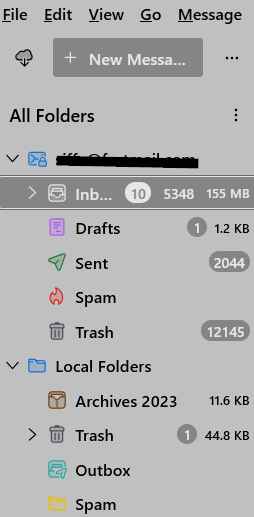
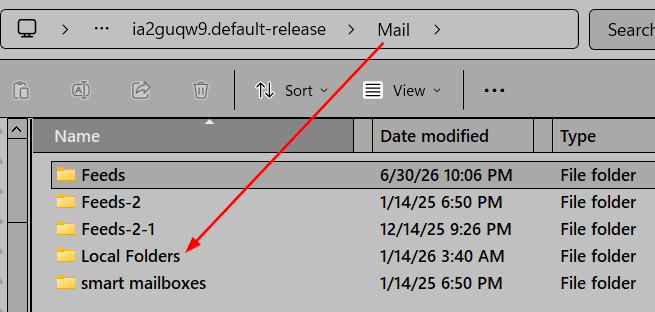
Ed: You typed: In your backup profile folder, there should be a Local Folders in the Mail folder. That should have all your messages. Copy the contents of that folder to the working profile's Mail/Local Folders.
I see the folders and contents in the profile backup AND the same list in the TB Profile that is used; I have confirmed this by starting with other profiles. I have done the above and are certain the list of Local Folders is in the right place, BUT the list (and contents) do NOT show when TB is started. What could I be missing?
P.S. 'We' are making some progress, so please don't give up on me now.
astratford said
Ed: You typed: In your backup profile folder, there should be a Local Folders in the Mail folder. That should have all your messages. Copy the contents of that folder to the working profile's Mail/Local Folders. I see the folders and contents in the profile backup AND the same list in the TB Profile that is used; I have confirmed this by starting with other profiles. I have done the above and are certain the list of Local Folders is in the right place, BUT the list (and contents) do NOT show when TB is started. What could I be missing? P.S. 'We' are making some progress, so please don't give up on me now.
Go to TB menu > Account Settings > account > Server Settings > Message Storage and see if Local Directory is pointing to the right (current?) profile. If it is not, browse to and choose the right profile.