


Can not sign in to Gmail via Oauth "Allow"

I've followed Thunderbird setup according to "Automatic Conversion of Google mail accounts to OAuth 2.0 Authentication" (https://support.mozilla.org/en-US/kb/automatic-conversion-google-mail-accounts-oauth20) The failure is described in my initial post below:
Mozilla Support - Signin, and use of Thunderbird https://support.mozilla.org/en-US/questions/1484529#answer-1729438
LarryGad post (Reply to Ashley LambertonQuestion owner): I get the same screenshot Ashley posted above. But...clicking Allow doesn't download my Gmail messages. And clicking the link, Account Permissions, just produces a blank window. An idiosyncrasy is I'm the domain administrator for a "Free Legacy Edition of G Suite for personal use".
This paragraph may not be relevant to the above issue. I did stumble across the Account settings link (https://myaccount.google.com/general-light?pli=1) which contains the line: 'Connected accounts View and manage your accounts from other services' Clicking the 'View ...' link goes to https://profiles.google.com/connectedaccounts and displays the message: "404. That’s an error. The requested URL was not found on this server. That’s all we know." Highlighting the 'View ...' link shows https://profiles.google.com/connectedaccounts?authuser=0
Thanks in advance.
Modified by Wayne Mery
Chosen solution
Searched Support specifically for Windows 7 issues and found Toad-Hall's Chosen Solution for Meadowlark13 in https://support.mozilla.org/mk/questions/1376290, i.e.,
Menu app icon > More Troubleshooting Information Under 'Application Basics' - Profile Folder - click on 'Open Folder' This opens a new window showing the contents of your current in use profile name folder. Exit Thunderbird now - this is important. (I overlooked this, but didn’t matter.) ... Look for the following files and delete them. • cert8.db - obselete file (from 2014) • key3.db - obselete file (from 2014) • pkcs11.txt (Not present in TB 115.18.0 • secmod.db - obselete file (from 2014) • session.json • xulstore.json
Restarted Thunderbird and Emails from Gmail loaded directly.
Read this answer in context 👍 0All Replies (11)

I've followed Thunderbird setup according to "Automatic Conversion of Google mail accounts to OAuth 2.0 Authentication"
Did you turn on cookies as mentioned in the article?
When I 'Check if the proper authentication tokens have been saved', the Saved Logins box has no entries.
I presume the next statement, 'If account authentication was set to OAuth2 and OAuth login was not successful' doesn't apply since there are 'imap' or 'smtp' entries.
What else can I check?
PS...Yes I turned on Cookies and I specifically Allowed https://accounts.google.com in the Exceptions box, even though I'd already Allowed All Third Party Cookies.
check your username in account settings is correct.
BTW, what is the error message you receive. I do not see an actual explicit statement as to the error message, just several general statements that things are not working.
In your initial posting you stated you had the same issue as that poster, if that is the case fill in the form and click allow. That was his problem, he did not want to do that. I assume you have a similar issue, but I really do not see you describe anywhere what it is or how you got the this point. Is this your first use of Thunderbird for instance? or are you trying to fix something that broke?
I don't receive any error messages. I see the same screen as Ashley posted. But, clicking Allow does not result in any activity from Gmail to Thunderbird. After a couple minutes, I get a message the POP server has timed out. Clicking Account Permission only produces an empty window. I don't get any Sign In display as I've seen in other discussion threads discussing this Oauth problem.
I followed the suggestions mentioned in the 'Automatic Conversion...'as I noted in my initial post above. It states there should be an oauth entry in the Saved Login screens. It is never populated. I presume there's supposed to a transmission back from Gmail Workspace that puts an entry there.
Note the comment in my initial post: 'An idiosyncrasy is I'm the domain administrator for a "Free Legacy Edition of G Suite for personal use".' Google Workspace administrators shut me out of an older version of Microsoft Outlook a couple weeks ago. I've downloaded Thunderbird with its Oauth2 capability to recover my Email functionality.
Last night I sent a note to Google Workspace Support about this problem. No reply back received this morning.
Started Thunderbird, clicked Allow, and POP server timed out as described above. Restarted Thunderbird in Troubleshoot Mode as suggested in another Oauth discussion thread to check Config Settings as noted there. Unexpectedly (to me anyway), the Credentials screen popped up and I clicked Allow. Then, over 100 Emails from my Gmail account loaded. Checked Saved Logins and Oauth entry was present. (A couple days ago when I found the Troubleshoot info, no Emails downloaded.)
Restarted Thunderbird with Troubleshoot off. Clicked Allow on the credentials screen. POP server timed out evidently because Gmail was not talking back.
Turned Troubleshoot Mode back on and restarted. I didn't see any Credentials screen, so I clicked the Get Massages 'cloud'. A message popped up at the bottom of the Thunderbird screen saying 'No New Messages'.
Thanks again for feedback.
Checked Config preferences: 'network.http.windows-sso.enabled' set to false. Should it be true?
Tried true. No joy.
larrygad said
I don't receive any error messages. I see the same screen as Ashley posted. But, clicking Allow does not result in any activity from Gmail to Thunderbird.
How about posting your screen instead of insisting it is the same as something else!
If you mean this
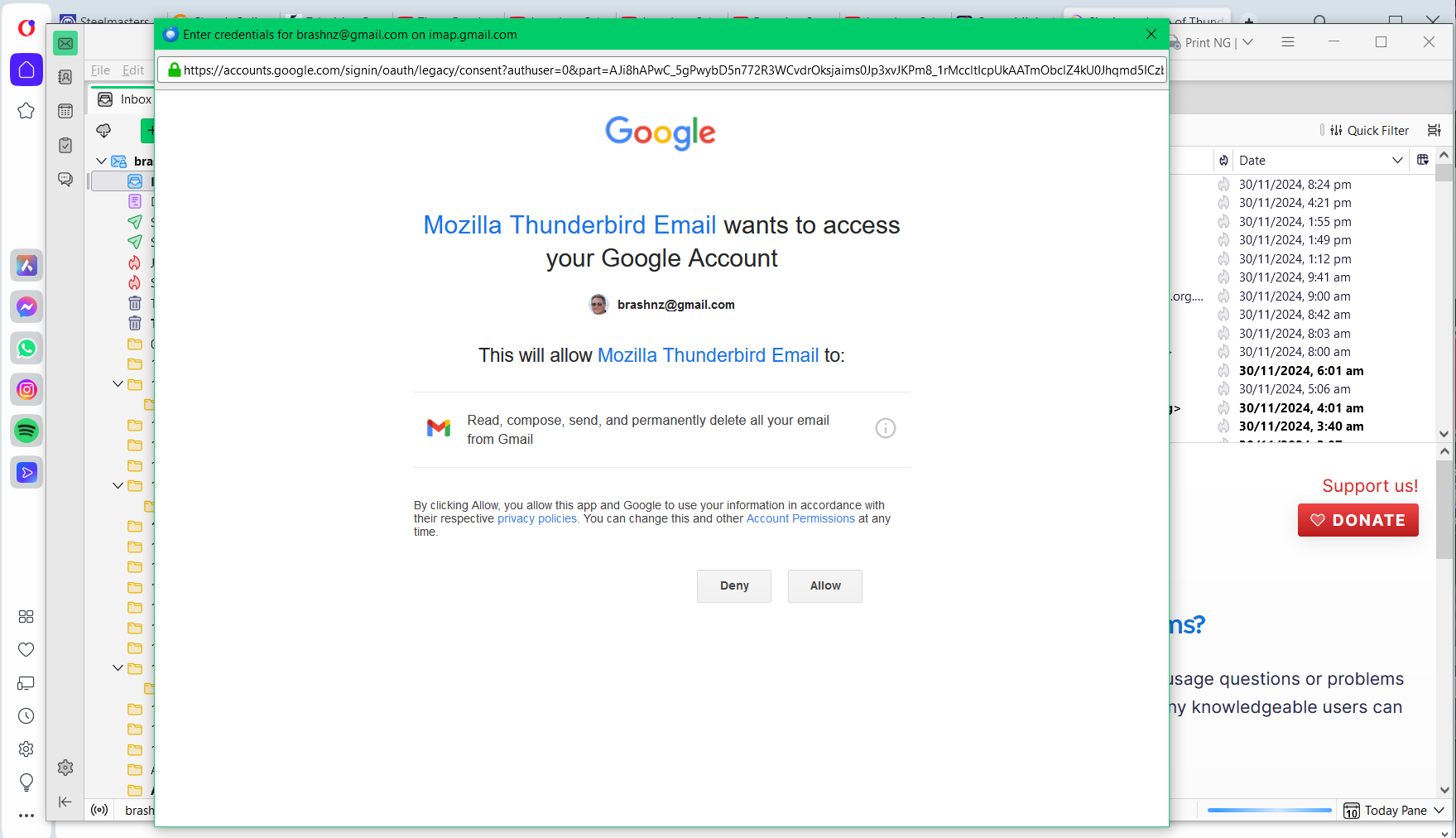
The URL will not be the same. But regardless of attemts to get to the bottom of exactly what screens you see, the issue is most likely your antivirus product or it's software firewall or even your VPN. All of those things cause issues for Gmail users. Especially the VPN part these days. VPN's are rarely set up with email and anti hacking safe guards such as Google use in mind.
The authentication flow for oauth is susceptible to locally installed web servers and development environments and antivirus products that think the localhost is theirs to block. Once about 20 or 30 years ago malware used localhost to send mail as an SMTP server. SOme products are still carrying on as if spam was still an issue from malware. It is not. Ransomware, hacking and stollen identities is the items of risk today, not some 30 years old malware sending penis enlergement emails that get blocked at point of receipt because the sender fails reverse DNS lookups, DMARK, DKM,SPF etc.
You are asking folks that have no issues to help you figure out what is unique about your setup, without actually saying what your setup is.
larrygad said
Checked Config preferences: 'network.http.windows-sso.enabled' set to false. Should it be true?
What does it even do? I will google it. According to https://support.mozilla.org/en-US/kb/windows-sso something irrelevant to Thunderbird.
larrygad said
Last night I sent a note to Google Workspace Support about this problem. No reply back received this morning. Started Thunderbird, clicked Allow, and POP server timed out as described above.
The completion of the oAuth authentication flow and the pop server timing out are only vaguely related. If you have no oAuth token it will time out after about 5 minutes because Thunderbird can not respond to the request for the token. But timeout can occur for many other reasons, including having the port blocked by a firewall.
Restarted Thunderbird in Troubleshoot Mode as suggested in another Oauth discussion thread to check Config Settings as noted there. Unexpectedly (to me anyway), the Credentials screen popped up and I clicked Allow. Then, over 100 Emails from my Gmail account loaded. Checked Saved Logins and Oauth entry was present. (A couple days ago when I found the Troubleshoot info, no Emails downloaded.) Restarted Thunderbird with Troubleshoot off. Clicked Allow on the credentials screen. POP server timed out evidently because Gmail was not talking back.
And we are back to interference for an addon, or more likely some code injected by your antivirus program. Because there should be no request for further authentication when you return from troubleshooting mode. Do you have an exception in your antivirus program for Thunderbird profile folder. It sounds to me like something is blocking the saving of the password file when the program exists. Something I have come to expect from these antivirus products that think every file write has to have their permission.
Turned Troubleshoot Mode back on and restarted. I didn't see any Credentials screen, so I clicked the Get Massages 'cloud'. A message popped up at the bottom of the Thunderbird screen saying 'No New Messages'. Thanks again for feedback.
Yep, so it works in troubleshooting mode. I have no idea what your expectations are, but having completed the authentication flow you will have an oAuth token in the password manager and unless you have a VPN or something else that triggers Google you may not be asked for any sort of credential of a very long time. It is over 12 months since I authorized anything. Google related in Thunderbird.
I would suggest you start by reviewing the addons installed in the Thunderbird addon manager. Try disabling them all next time you start Thunderbird in troubleshooting mode and restarting and see if it still works. If it does the path to determine what is the issue is simply to eliminate which is causing the issue by enabling them one at a time until it stops working again.
That does not exclude injected code from the antivirus. They make grand claims sometimes about scam and spam management. This is often done by injecting an addon into the running Thunderbird instance. Just as malware does really, ignoring Thunderbirds interfaces and permissions. Troubleshooting mode disables the addon interface so the antivirus is the next thing to turn off if it is not an addon.
Apologies for taking so much time and space learning to navigate Support. My IT support son suggested potential issues with my OS, Windows 7 Professional. A search turned up the query by '7rzf5yg7dd' (https://support.mozilla.org/en-US/questions/1501308) and the reply with information requested.
Since the Pastebin has been decommissioned, is there another place to send the Troubleshooting Information? The initial entries are: Name Thunderbird Version 115.18.0 User Agent Mozilla/5.0 (Windows NT 6.1; Win64; x64; rv:115.0) Gecko/20100101 Thunderbird/115.18.0 OS Windows_NT 6.1 7601
Thunderbird does work as expected in Thunderbird troubleshooting mode. Oauth info stored in Saved Logins. URL: oauth://accounts.google.com (https://mail.google.com/ https://www.googleapis.com/auth/carddav https://www.googleapis.com/auth/calendar)
Thunderbird does NOT work as expected with Windows 7 OS started in safe mode with Networking.
In Normal mode, the Saved Logins box is empty. No Oauth information is stored.
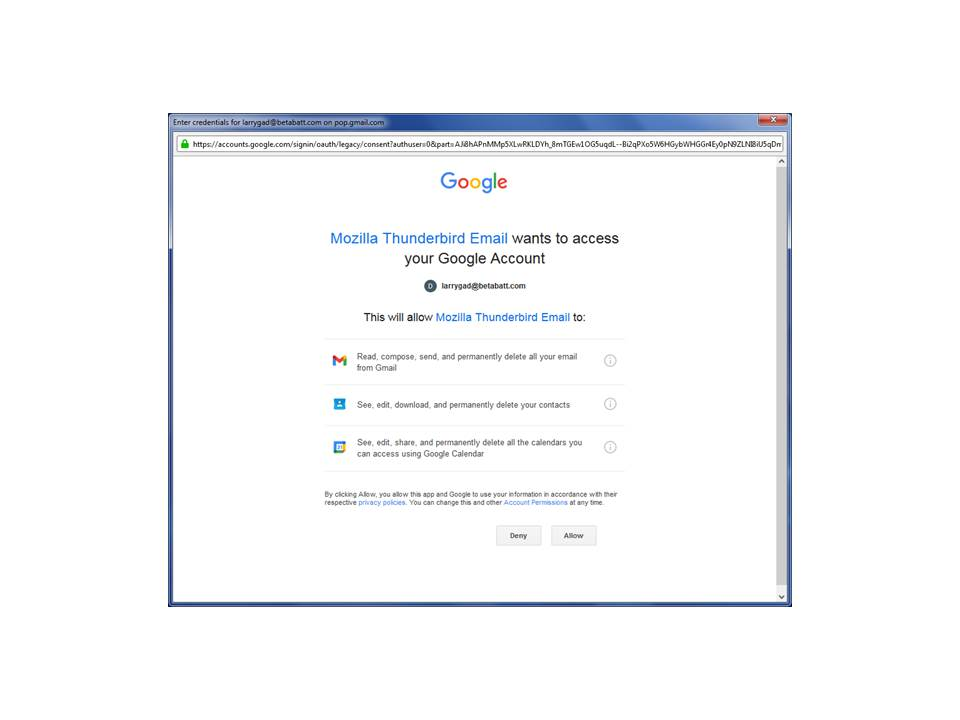
An image of the Credentials screen is attached. As described previously, clicking Allow produces nothing, and clicking Account Permissions brings up a blank screen.
Chosen Solution
Searched Support specifically for Windows 7 issues and found Toad-Hall's Chosen Solution for Meadowlark13 in https://support.mozilla.org/mk/questions/1376290, i.e.,
Menu app icon > More Troubleshooting Information Under 'Application Basics' - Profile Folder - click on 'Open Folder' This opens a new window showing the contents of your current in use profile name folder. Exit Thunderbird now - this is important. (I overlooked this, but didn’t matter.) ... Look for the following files and delete them. • cert8.db - obselete file (from 2014) • key3.db - obselete file (from 2014) • pkcs11.txt (Not present in TB 115.18.0 • secmod.db - obselete file (from 2014) • session.json • xulstore.json
Restarted Thunderbird and Emails from Gmail loaded directly.