


Is there any way to restore emails deleted from trash

All emails in my trash folder disappeared. I do not know if this is due to something I did, or some other reason. Is there any way to restore the deleted emails?
Chosen solution
Good idea. In fact, I suggest rightclick each and COPY to another folder. Whenever I am trying to fix stuff, I like to COPY to prevent total destruction. Let me know how it goes.
Ler a resposta no contexto 👍 0All Replies (20)
They're probably gone. BUT, you can verify.
- click help>troubleshootinginformation
- scroll to 'profile folder' and click 'open folder'
- if IMAP file, click the imapmail folder. If POP, click the mail folder
- now click the account folder where you should see such as inbox, inbox.msf, sent, sent.msf, junk, jun.msf, etc. Is there a file named Trash? There is likely one named Trash.msf, but you're looking for one named Trash.
- if you find it, rightclick and open in a simple text editor, such as Notepad. If there is no Trash file, then the trans was somehow emptied. Let me know if you found the Trash folder and we can proceed from there.
Thanks for the response. followed your directions to "mail folder." that presented me with 4 entries: local folders; mail.zianet.com; mail.zianet-1.com, & -2.com. Where did I go wrong?
You did nothing wrong. Can you post a screenshot of that folder? I presume this is a POP account. Can you also go to account settings pane, then the server settings pane for the account, and do a screenshot there that shows the bottom row, titled 'local directory'? (Or post the exact text that appears there? Thank you.
Thanks again. Local Directory c:\users\sj\appdata\roaming\thunderbird\profiles\ddcd7875.default-release\mail\mail.zianet-1.com
If you still need the screenshot for the 4 folders, I'll try to do it, but I have not yet mastered that.
Okay. Do you have one account? or Three?
To do a screenshot, I will assume you are unfamiliar with doing that. Here are suggested steps:
- there is a free utility that does screenshots at https://www.reasyze.com/ called sniptool. my favorite is also free and is at
https://portableapps.com/apps/graphics_pictures/fscportable either one works
- once installed
- start the utility
- switch windows screen to the thunerbird screen to capture
- now click to the utility and click the button to capture rectangle. That will open over the thunderbird screen when you can drag mouse around desired area and click ok
- then save the image. When responding to this post, use the 'Browse' button at bottom to attach the image.
I am asking the folder at c:\users\sj\appdata\roaming\thunderbird\profiles\ddcd7875.default-release\mail\mail.zianet-1.com
there are 3 accounts. The account names JUDITHS is the one. The other 2 do not have problems with Trash.
When I tried to get back to the mail folder (after profile folder >open folder) there was not a folder labeled "mail folder" I know it was there before.
Try again: - help>troubleshootinginformation - click to 'profile folder' and click 'open folder' - the mail folder is there because your accounts are there. Sometimes the folders do not appear in alphabetic order and you have look carefully for it.
yes, I found the mail folder. But I am having trouble with the screenshot. I downloaded Portableapps. I should know this - but how do I start the utility?
okay. the portable apps is a compressed program. That is, place it in a directory where would want to keep it. When you execute it the first time, it 'unzips' all the components. If you're familiar with zip and unzip, there's nothing to it. Once you have it installed, just click the EXE file to start it. A small menu program appears on the screen. Then, click the the thunderbird screen and then click the third icon from the left on the capture software. That button captures a rectacular region of screen. Drag mouse around arwa and click when done. The places the capture in the utility. You can then save it. As an aside, not needed here, but once there, you can click the edit button to add an arrow or text to a capture. with a little practice, it's quite handy. :)
I appreciate everything you have attempted to help me. But, despite your instructions, and on line instructions for windows 11 Clipboard, I cannot seem to master it. Unless there is something else to try, I will assume that my deleted Trash emails are not recoverable.
My sincere apologies. I let myself get focused on screenshots instead of the actual problem. Try this: - click help>troubleshootinginformation - scroll to 'profile folder' and click 'open folder' - click the mail folder and then the mail.zianet-1.com folder - locate common folders such as inbox, inbox.msf, sent, sent.msf - see if there is a trash folder there. not trash.msf, but simply trash - if there is one, is the size greater than 0? If so, it may have your missing messages. Let me know and I'll advise next steps. If there is no trash file, then all is lost.
An aside, optional, if interested: On screenshots, ok, I advised the more complex one, completely forgetting that I've been using it for ten years and had forgotten the learning curve. So, if interested, download the simple one at https://www.reasyze.com/ called sniptool.
Thanks. There is a "trash" file with 946 KB, modified 4/18/26. There are 6 emails currently in the trash folder.
Great. Does that mean you were able to restore them? Are you seeing this in Thunderbird, or in File Explorer?
Thunderbird. The 6 emails in trash were added after all the emails disappeared. Would 946 KB be more than enough to contain what were probably about 10 emails + the 6 currently there? How do I restore them (if they exist)?
Ok, try this
- Assuming you are at the folder where the trash file is, EXIT thunderbird if it is running:
- Open the file "trash" with Notepad or a similar text editor. - you probably need to highlight the file, rightclick and select 'open with' and select notepad
- Locate the line before your email text that reads "X-Mozilla-Status: 000X" (where 'X' is any character other than 0). Change the number to four zeros (″0000"). Use Edit>find in Notepad to search for next occurrence of 'x-mozilla-status"' and repeat. Keep doing that until you have changed all messages to the 0000 status. Save the document and exit Notepad.) - see attached screenshot for example of how it looks.)
- now, COPY the trash file to the Mail\Local Folders folder and rename to something other than trash.
- restart thunderbird and the messages should appear.
Let me know how it goes. This technique works with other folders, but I've never tried it with the Trash folder.
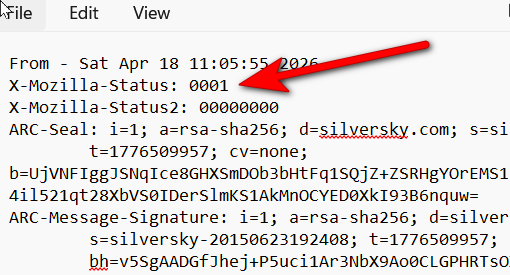
I am about ready to give that a try. But before I do, would it make sense to move the 6 emails currently in the trash folder to another folder, and then see how many KBs are left in Trash?
Chosen Solution
Good idea. In fact, I suggest rightclick each and COPY to another folder. Whenever I am trying to fix stuff, I like to COPY to prevent total destruction. Let me know how it goes.
Does "exit" Thunderbird mean "close" it, or just go to my Firefox screen (i.e., leave TBird). Either way, should I open the trash file in Notepad before exiting or leaving TBird? With Thunderbird active, I was able to open the trash file with Notepad, and found the X-Mozilla.Status 0009. But then I chickened out of continuing because I was not sure of the TBird close or exit. Also, even though I moved all 6 emails currently in trash to another folder, the KBs stayed the same.
I prefer to exit out of thunderbird because it also has the folder open. Exiting it ensures the file is available 100% for you.