


Moving thunderbird data from windows 10 to linux mx

Hate to be a problem, but I have tried several step by step guides to do this and none of them even came close to working...
I'm trying to get away form windows and have settled on Linux MX I need to move my Thunderbird email data to MX....sounds simple and it may be, but none of the methods I have tried have worked... Would appreciate any help... Regards,
William
Chosen solution
HI Toad-Hall again...
Good news I tried again to follow your instructions on transferring my email to the Linux version from windows and IT WORKED!!!!! Today is my birthday (85) and it is the perfect gift...thank you so much... Marking it closed...
Regards,
William
Ler a resposta no contexto 👍 0All Replies (6)
It is important that whatever version was used in Windows OS eg: 78.10.1 is exactly the same version you must use in Linux. If this is not possible and the Windows version is newer than the Linux version then after copying relevant files and folders you need to start thunderbird using the Profile Manager and allow downgrade instruction. Access the Terminal and type in: thunderbird -P --allow-downgrade Then select profile and click on 'start Thunderbird'
The default location where Thunderbird stores profile on Windows 10 is: C://Users/User Name/Appdata/Roaming/Thunderbird/Profiles/<profile name> folder
The default location where Thunderbird stores them on Linux is:
~/.thunderbird/<Profile name>/
However, if you're using a third party build from Debian or Ubuntu, those builds store your profile folder here:
~/.mozilla-thunderbird/<Profile name>/
You have to be very careful with names. There is a 'Profiles' folder (not that one) and there are profile folders usually called something like this: 1324abd6.default
On Linux, launch TB in whatever profile is the current default, then Help/Troubleshooting, Profile Folder, Open Directory, to open the current profile folder. This can also be done from Help/Troubleshooting, about:profiles, which lists all registered profiles. Close TB, delete the contents of the Linux profile folder, copy in/paste the contents of the Windows profile folder and then delete the pkcs11.txt file.
Then start Thunderbird - remember you may need to use the allow downgrade as previousy explained if the Windows version was new eg: 78.10.1 and Linux is older eg: 78.10.0
If you move your profile between dissimilar operating systems (Windows to Mac OS X for example) the path names in the prefs.js file may have the wrong syntax.
eg: Windows - a pref may say something like this: "C:\\Users\\User Account name\\AppData\\Roaming\\Thunderbird\\Profiles\\abc12345.default\\Mail\\Local Folders"); But that location does not exist in MAC or Linux
If there is a problem displaying emails, you can update the information stored in the prefs.js file by using the "Browse" button for the local directory in each mail account 'Account Settings' > 'Server Setting's And also Local Folders: Account Settings > Local Folders to specify the correct local directory.
Toad-Hall
Really appreciate your prompt reply, I am not much of a technical person (maybe just an old one) so the level of detail is helpful. I will certainly follow your instructions as soon as time allows... I am the sole caretaker for my wife who has Alzheimer's, and sometimes she keeps me a little busy. I am really kind of perked about leaving Windows behind, they have sort of taken advantage of their situation and allowed windows to become a sort of self perpetuating mess and seem uninterested in cleaning it up...
So far the transition has been pretty painless except for this email thing...
Best Regards,
William
Hi Toad-Hall...
Got an opportunity to give it a try and this basically what happened ( not what we expected)...
Did not have any problem finding the Profile folders... When I copied the contents of the Windows profile folder to the Linux (MX) profile folder, everything seemed to work ok but I did not find the pkcs11.txt file to delete....
everything else in your instructions also seemed to work as you suggested but, each time I tried to run thunderbird I only got the window that asks you to create an account...
Bummer!
If it is most likely operator error here, but I would be glad to go further if you have any suggestions...
Regards,
William
Chosen Solution
HI Toad-Hall again...
Good news I tried again to follow your instructions on transferring my email to the Linux version from windows and IT WORKED!!!!! Today is my birthday (85) and it is the perfect gift...thank you so much... Marking it closed...
Regards,
William
What version of Thunderbird is being used on the Windows OS? What version of Thunderbird is being used on the Linux Mx ?
I've added a bit more info, so you double check - note: Thunderbird not running when copy pasting data is very important.
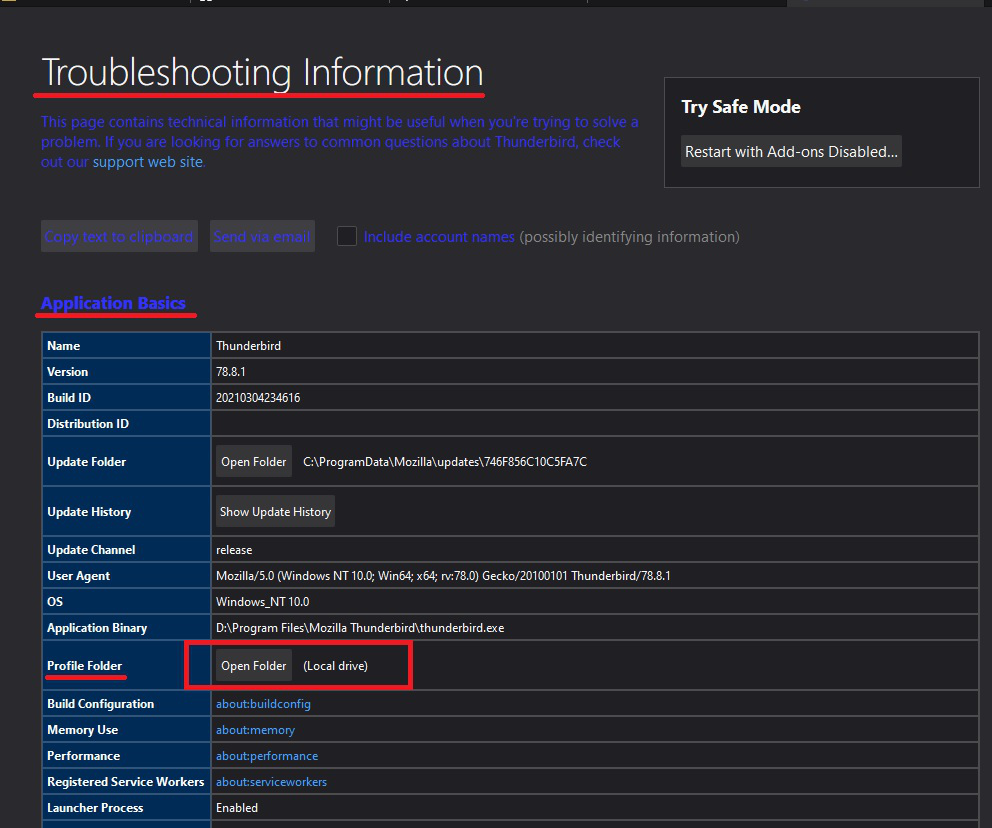
On Windows, launch TB in whatever profile is the current default, then Help/Troubleshooting, Profile Folder - click on 'Open Folder', to open the current profile folder. See first image below. This can also be done from Help/Troubleshooting, about:profiles, which lists all registered profiles. You will see all the contents of that profile name folder.
Now Exit Thunderbird - this is important.
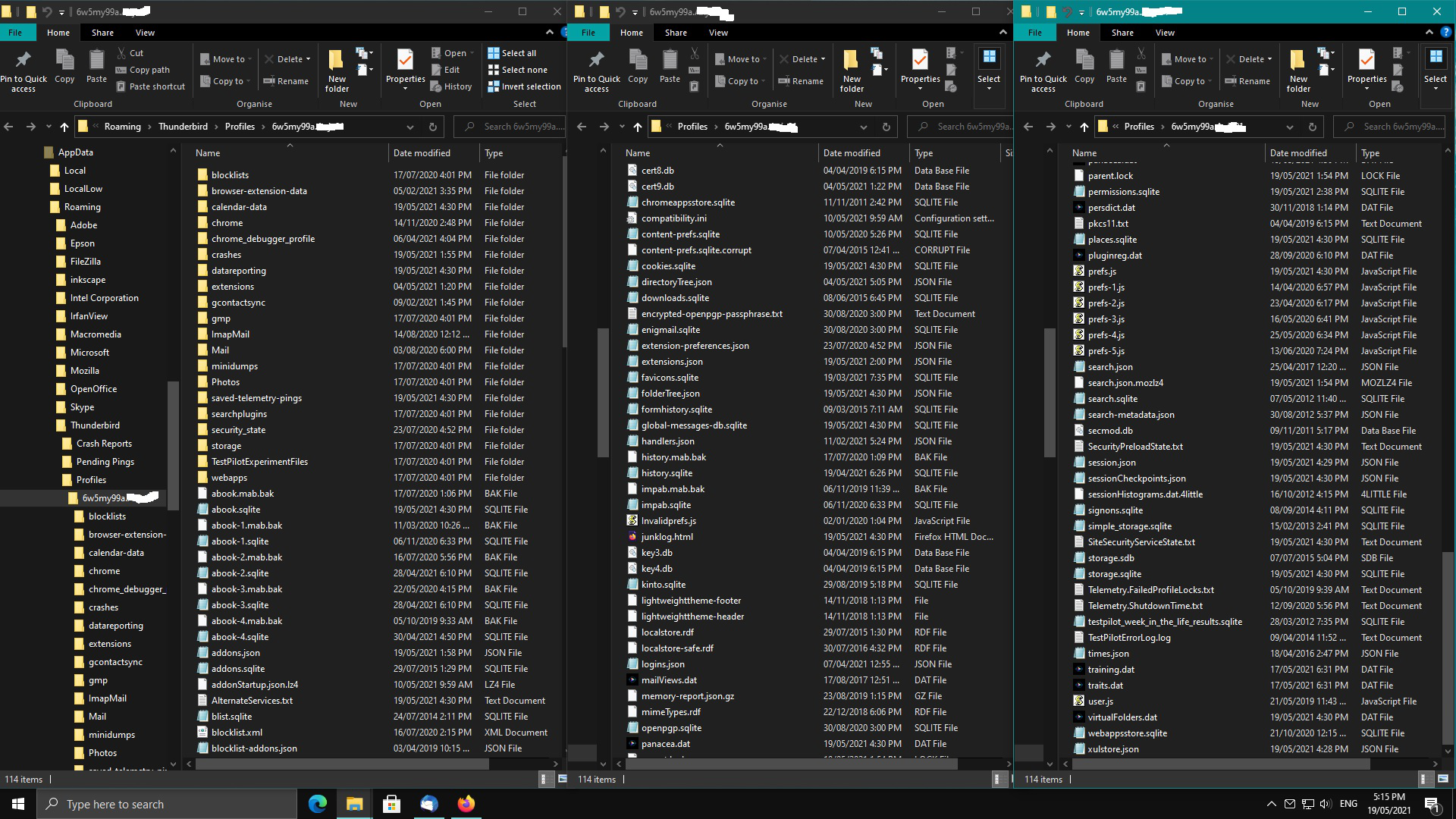
When you copied all contents - all files and folders located in the profile name folder from Windows OS did they look like the example image below. These are all the files and folders you needed to copy. Image had to be three sections to show everything :) On far right - four down - you will see the location of pkcs11.txt file. I have everything sorted in name order.
On Linux, launch TB in whatever profile is the current default, then Help/Troubleshooting, Profile Folder - click on 'Open Directory', to open the current profile folder. This can also be done from Help/Troubleshooting, about:profiles, which lists all registered profiles.
You will see all the contents of that profile name folder. Now Exit Thunderbird - this is important.
delete the contents of the Linux profile name folder, copy in/paste the contents of the Windows profile folder and then delete the 'pkcs11.txt' file.
Assuming both Windows OS Thunderbird version is exactly the same as the Linux Thunderbird version - Start Thunderbird.
If the Linux TB version is older than Windows TB version you would need to use the special info I mentioned about starting from the terminal with the special command.
Happy Birthday :) I just posted the above hoping it might help when I then noticed you had already had another go. Good to hear all is now OK.