


Google Maps suddenly displaying black
Beginning today, when I go to Google Maps, it displays correctly for a few seconds, then blacks out, and displays as in the image attached:
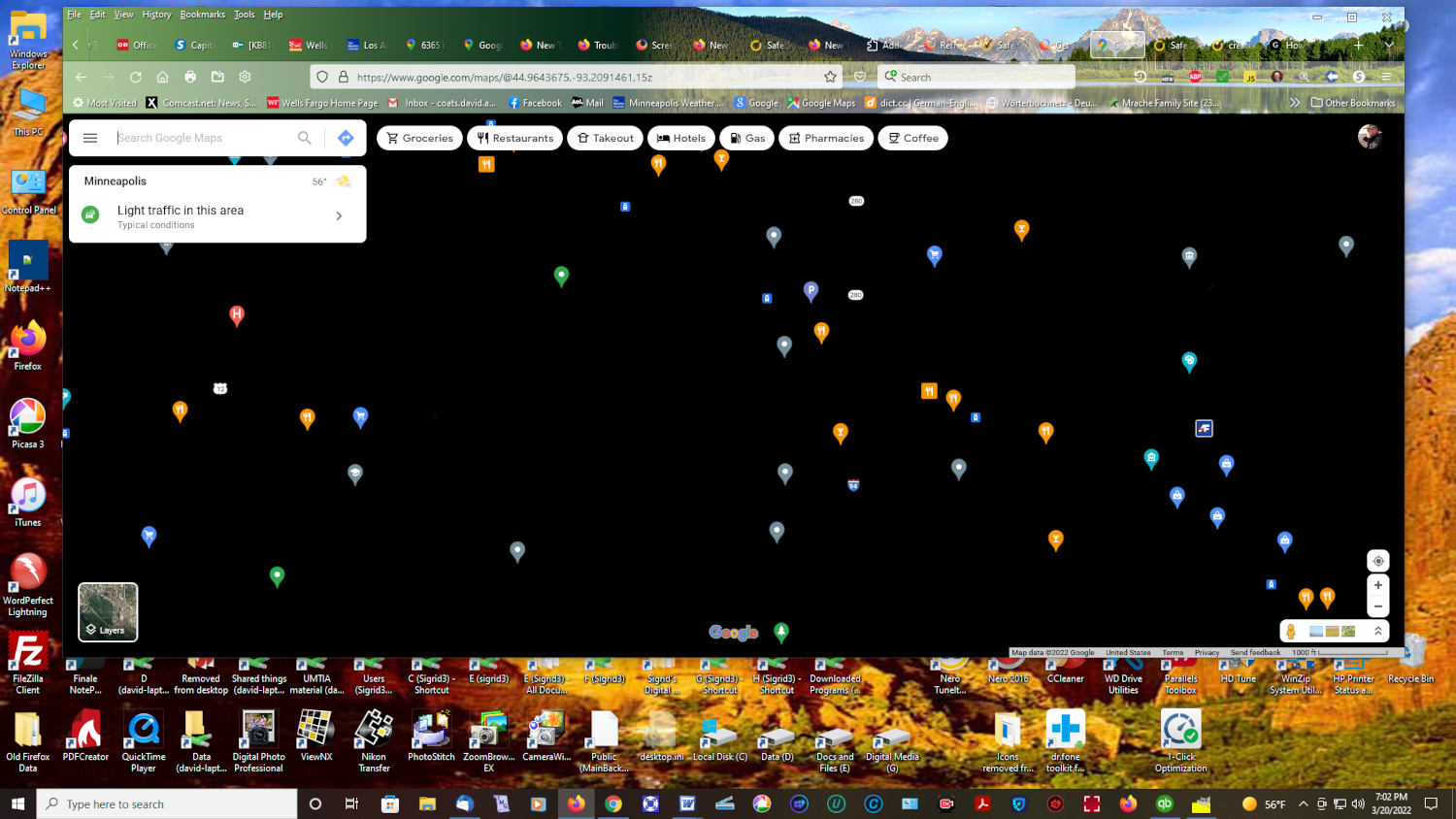
Alle antwurden (3)
Keazen oplossing
If you use extensions ("3-bar" menu button or Tools -> Add-ons -> Extensions) that can block content (Adblock Plus, NoScript, DuckDuckGo PE, Disconnect, Ghostery, Privacy Badger, uBlock Origin) always make sure such extensions do not block content.
- make sure your extensions and filters are updated to the latest version
- https://support.mozilla.org/en-US/kb/troubleshoot-extensions-themes-to-fix-problems
You can try these steps in case of issues with webpages:
You can reload webpage(s) and bypass the cache to refresh possibly outdated or corrupted files.
- hold down the Shift key and left-click the Reload button
- press "Ctrl + F5" or press "Ctrl + Shift + R" (Windows,Linux)
- press "Command + Shift + R" (Mac)
Clear the Cache and remove the Cookies for websites that cause problems via the "3-bar" Firefox menu button (Settings).
"Remove the Cookies" for websites that cause problems:
- Settings -> Privacy & Security
Cookies and Site Data: "Manage Data"
"Clear the Cache":
- Settings -> Privacy & Security
Cookies and Site Data -> Clear Data -> [X] Cached Web Content -> Clear
- https://support.mozilla.org/en-US/kb/clear-cookies-and-site-data-firefox
- https://support.mozilla.org/en-US/kb/how-clear-firefox-cache
Start Firefox in Troubleshoot Mode to check if one of the extensions ("3-bar" menu button or Tools -> Add-ons -> Extensions) or if hardware acceleration or userChrome.css is causing the problem.
- switch to the DEFAULT theme: "3-bar" menu button or Tools -> Add-ons -> Themes
- do NOT click the "Refresh Firefox" button on the Troubleshoot Mode start window
Thank you so much! Ctrl+F5 did the trick. David

In my case, it was the hardware acceleration causing the problem, and it's not obvious where to turn that off, so I'll add that to find hardware acceleration:
1) Go to burger menu->settings->general. 2) Under the "Performance" section, uncheck "Use recommended performance settings"
Those steps will reveal the option to use hardware acceleration, which you can then uncheck.