


"Restore session" restored tabs from 6 months ago and deleted all recent history since that point, assuming it to be an update issue

Firefox prompted me to update, I hit download, my entire PC froze, I restarted the computer, when I opened firefox again and hit "restore session" it restored a session that I had opened months ago. When I checked my history, everything after that older session had been deleted. All of my history from the past few months has been deleted. I tried a few different solutions from trying to research the problem, nothing so far has worked. The only thing I have found is a session restore error saying "could not decompress file", but I could not find the file it was attempting to decompress. This is the error message I found.
1785894397652 SessionStore ERROR NotReadableError when reading session file: recovery: NotReadableError: Could not read `C:\Users\ansen\AppData\Roaming\Mozilla\Firefox\Profiles\xpnhovd6.default-release\sessionstore-backups\recovery.jsonlz4': could not decompress file: invalid LZ4 header: wrong magic number: `00 00 00 00 00 00 00 00 00 00 00 00' (NS_ERROR_FILE_CORRUPTED) No traceback available 1785894397756 SessionStore ERROR NotReadableError when reading session file: recoveryBackup: NotReadableError: Could not read `C:\Users\ansen\AppData\Roaming\Mozilla\Firefox\Profiles\xpnhovd6.default-release\sessionstore-backups\recovery.baklz4': could not decompress file: invalid LZ4 header: wrong magic number: `00 00 00 00 00 00 00 00 00 00 00 00' (NS_ERROR_FILE_CORRUPTED) No traceback available
Any help is greatly appreciated. I'm one of those people that tends to have way too many tabs open at once due to poor memory, and losing months of tabs and progress is a huge setback. I'm very desperate to get the history and tabs back.
All Replies (5)
If Firefox starts up after an update without your recent settings, check whether your data is available in a different profile:
Inside Firefox, type or paste about:profiles in the address bar and press Enter/Return to load it. The About Profiles page will open. This page should list at least one profile and could list many.
The profile that Firefox is currently using will show:
This is the profile in use and it cannot be deleted.
Please do not delete anything here; don't use any Remove buttons.
Do you have another profile named default or default-longnumber listed on this page? If so, you can check whether it is the one you were using recently by clicking its Launch profile in new browser button.
If it isn't what you want, simply close that new window.
If it IS what you want, click the Set as default profile button for that profile on the about:profiles page. Firefox will use it automatically at the next startup.
For more information see Recover user data missing after Firefox update or reinstall.
Note: If your bookmarks are not available in another Firefox profile, see Recover lost or missing Bookmarks for other solutions.
I found this in my research to fix the problem, and I already checked the profiles as well as the files in the Firefox folder, which is how I found the error message. There is only one profile listed, the one currently in use which does not have the missing history.
Two things here — Windows manage the roaming profiles in kinda opaque way, so not sure if they can get changed ("corrupted"?) somewhere between sessions/logons.
What's more puzzling is the time stamp. Your post from Aug 04 definitely couldn't have found a file at 1785894397652 which is 2026-08-05 01:46:38 UTC — almost half a day in the future.
Isn't it possible your computer or server clock went out of sync, or timezones got mixed up badly? I can imagine all kinds of system issues running things in the future.
However, unless Windows did ugly things to your profile folder, there are session backups being taken quite regularly. How does your Profile folder look like? How many "….default" or "….default–*" profiles are there, with sizes and time stamps, and inside these, how do the files and folders esp. around "session*" look like? (with time stamps and file sizes ideally), e.g.:
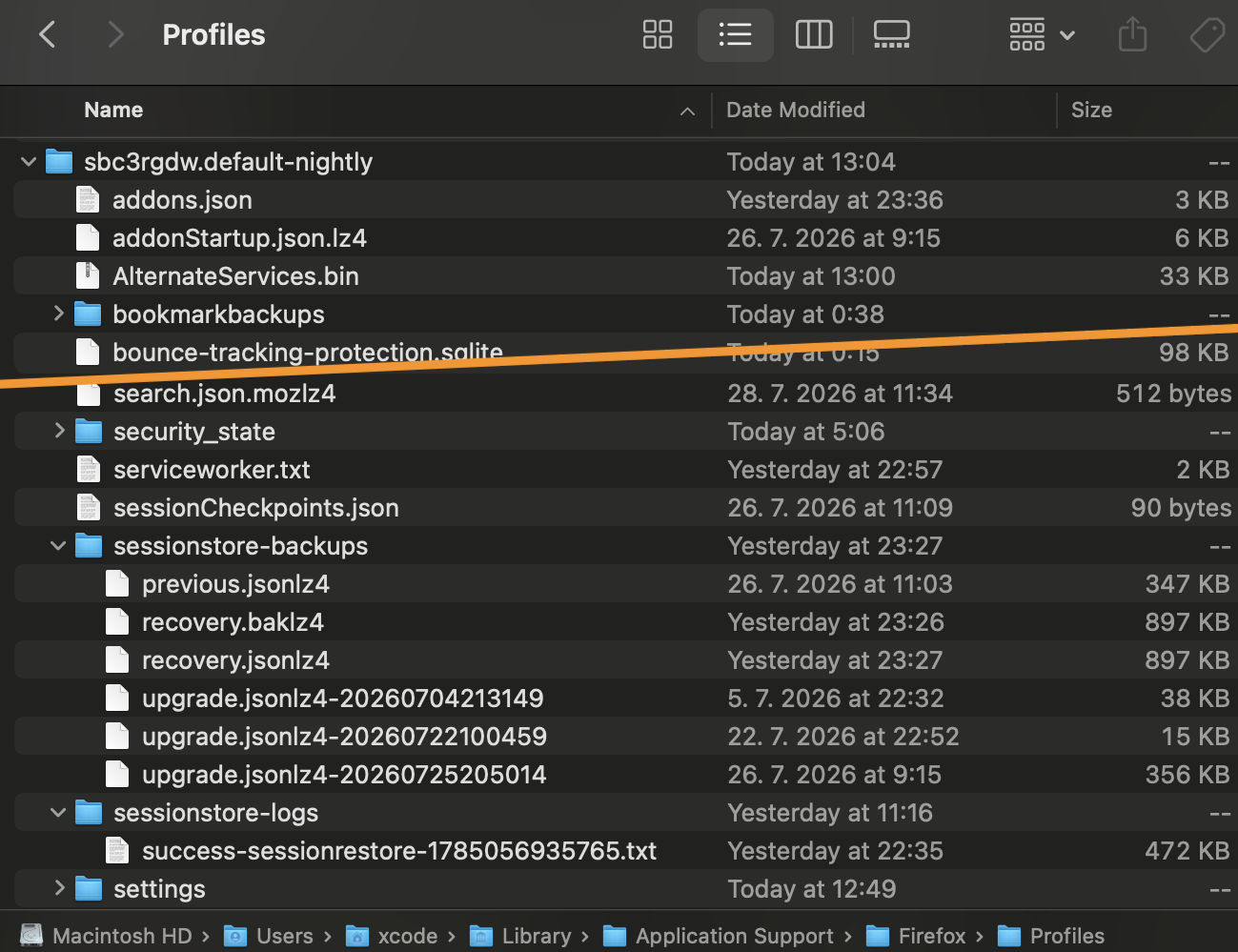
Modified by jbr
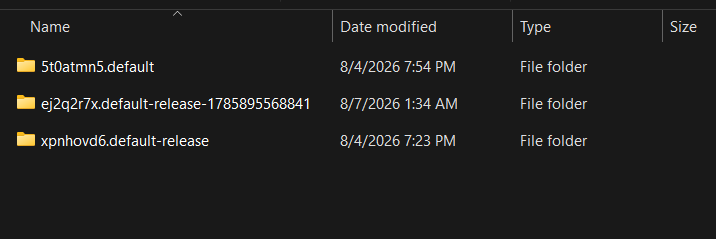
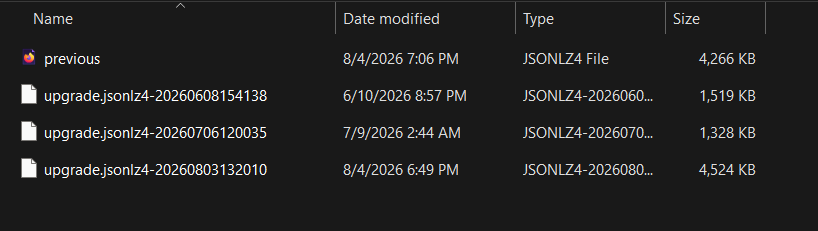
So interestingly looking at the profiles through firefox only shows one, but looking in the firefox folder brought up three, which are in the first screenshot. The second screenshot has these 4 files in the "sessionstore-backups" folder in xpnhovd6.default-release profile. Opening the "sessionstore-logs" in that profile shows the session restore error text document that I talked about earlier. I do not appear to be able to open any of these sessions through firefox or the file manager, though I could also just be missing something.
Looking at the names of the files and comparing it to the profiles on the about:profile page it would appear that it deleted the "xpnhovd6" one even though its still in the files. The other profile with the "default-release" is the one currently in use, could I potentially swap to the other profile, delete this one and rename the other one to try and let it access the other default-release file?
Basically your plan is the right way. Just a few notes first. Please DO BACK UP the whole Profiles folder ideally including any *.ini files adjacent to it — to have a state to revert back to if need be.
Generally to pick an older sessionstore, you can use any of the JSON snapshots available, "previous", "recovery" or "upgrade" ones if you think they contain the necessary data (based on file size and time stamp) — you basically take that file that seems the most recent, yet perhaps big enough to not be empty, back up the "previous" in the destination folder where you want to copy it, and put it there as the new "previous", all while Firefox is not running, and the next time it would read that file to restore. But in your case re–attaching the profile could be better option per se.
If you create a new empty profile e.g. from about:profiles you can then shut down Firefox and copy the whole contents of your original default–release into the new one, you can follow the guide: Manually back up and restore Firefox profile data — you should see not just the last session restored after launching it again, but also all your history, credentials, preferences etc. like in the original one.