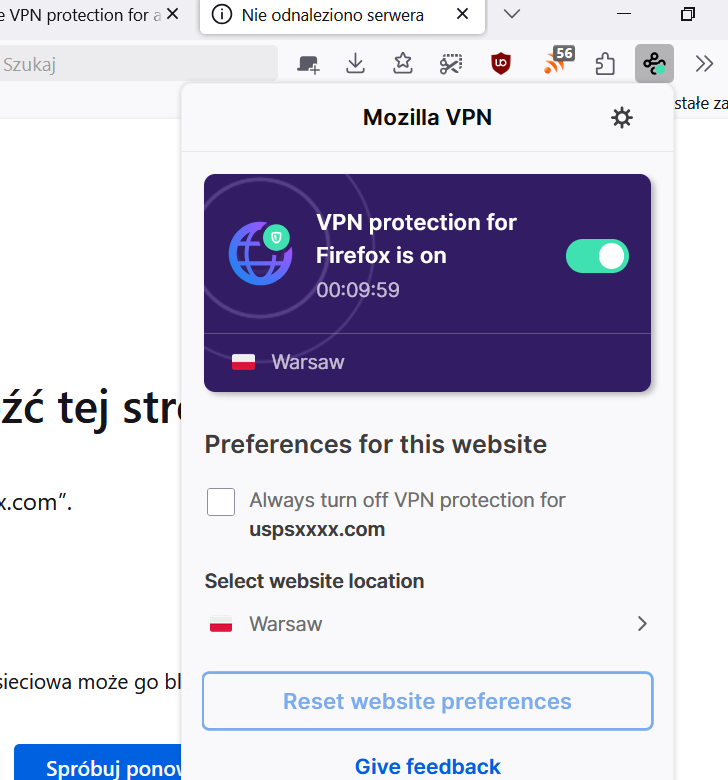
Disable VPN protection for a specific website

I don't believe the instructions are entirely sufficient when attempting to disable VPN protection for a website. Here are the instructions you provide:
To disable VPN protection for a specific website, follow these steps:
   1. Navigate to the website where you want to disable the VPN protection.
   2. In the top right corner of your Mozilla Firefox browser, locate and open the Mozilla VPN extension icon.
For Step 1 above, the instruction says navigate to the website, in this case it isUSPS.com (United States Postal Service). There are 2 cases:
 a) Mozilla VPN is ON, I cannot get to USPS.com and Firefox gives me this message:
    "Hmm. We’re having trouble finding that site.  We can’t connect to the server at usps.com."
 b) Mozilla VPN is OFF, I am able to get to USPS.com
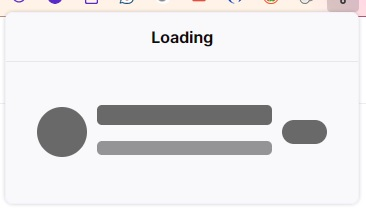
     However, when executing Step 2, above, by clicking on the Mozilla VPN extension icon, the only result I receive is a blinking uploaded image (see below) and nothing more.
Obviously, the procedure does not take into account the situation of having the VPN ON and trying to get to a website that disallows access when the location is masked, such as usps.com.
What's the fix?
I don't believe the instructions are entirely sufficient when attempting to disable VPN protection for a website. Here are the instructions you provide:
To disable VPN protection for a specific website, follow these steps:
1. Navigate to the website where you want to disable the VPN protection.
2. In the top right corner of your Mozilla Firefox browser, locate and open the Mozilla VPN extension icon.
For Step 1 above, the instruction says navigate to the website, in this case it is''USPS.com'' (United States Postal Service). There are 2 cases:
a) Mozilla VPN is ON, I cannot get to USPS.com and Firefox gives me this message:
"Hmm. We’re having trouble finding that site. We can’t connect to the server at usps.com."
b) Mozilla VPN is OFF, I am able to get to USPS.com
However, when executing Step 2, above, by clicking on the Mozilla VPN extension icon, the only result I receive is a blinking uploaded image (see below) and nothing more.
Obviously, the procedure does not take into account the situation of having the VPN ON and trying to get to a website that disallows access when the location is masked, such as usps.com.
What's the fix?
Όλες οι απαντήσεις (1)
I can't reproduce this issue. Even with unresolved address, I still can edit website settings in addon.