


Following a recent update, Firefox will no longer access Google (or any web page via Google.) I get the following error message: Your connection is not secure

I'm getting this message for any website and basically can not use Firefox at all :
Your connection is not secure
The owner of www.youtube.com has configured their website improperly. To protect your information from being stolen, Firefox has not connected to this website.
This site uses HTTP Strict Transport Security (HSTS) to specify that Firefox may only connect to it securely. As a result, it is not possible to add an exception for this certificate.
Learn more…
Report errors like this to help Mozilla identify and block malicious sites
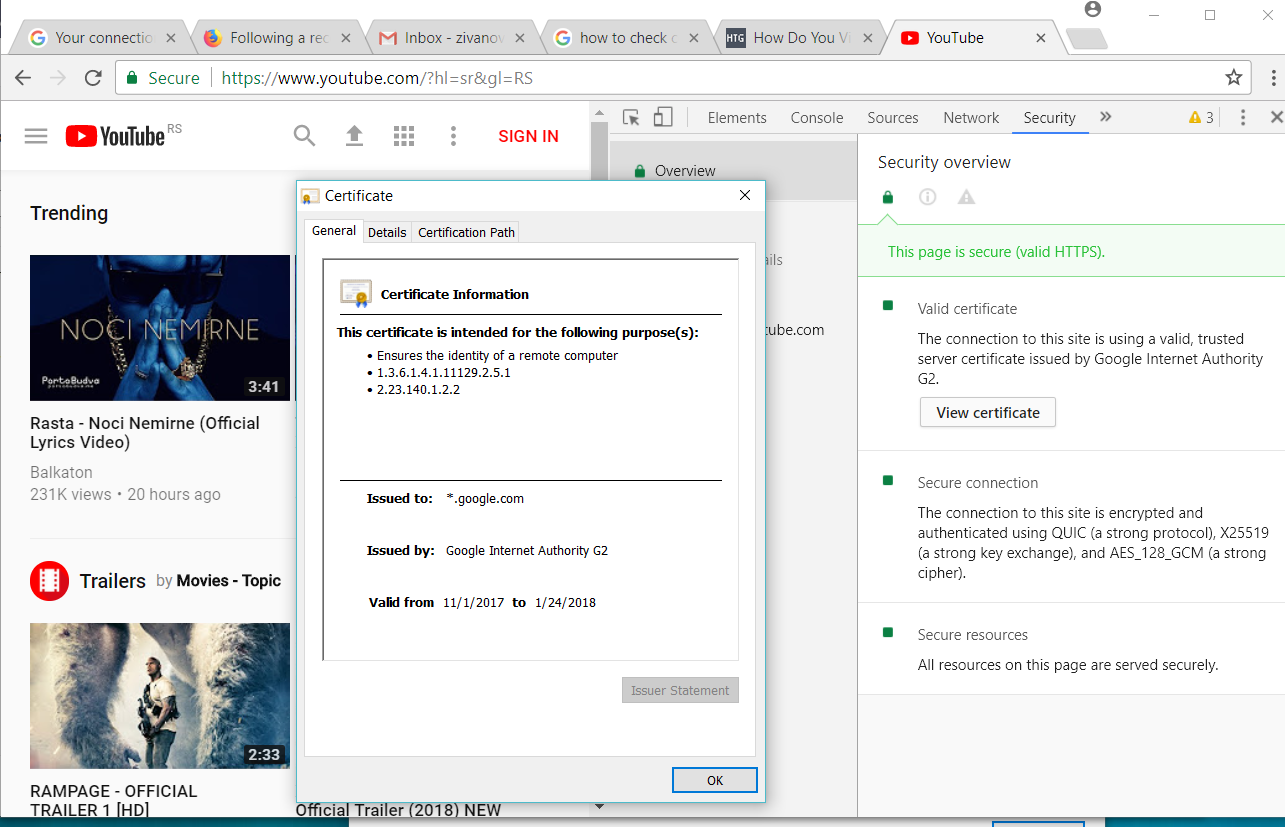
When i look at certificate it shows me this:
Now how can i disable this AtomPark Software, i just can't track it down
Όλες οι απαντήσεις (20)
screen shot
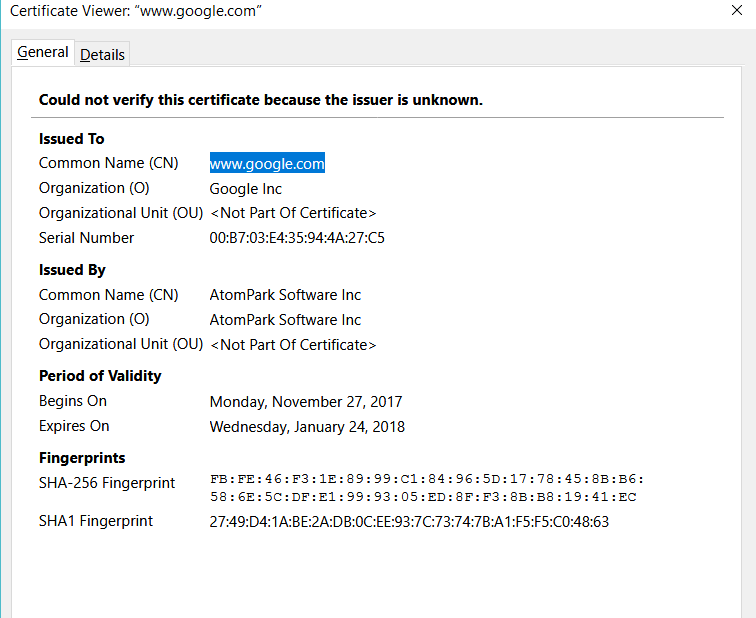
That's really strange. Is the problem only on Google or does it affect a lot of HTTPS sites? Do you recall installing any software recently?
This is a general clean-up methodology:
(1) Open the Windows Control Panel, Uninstall a Program.
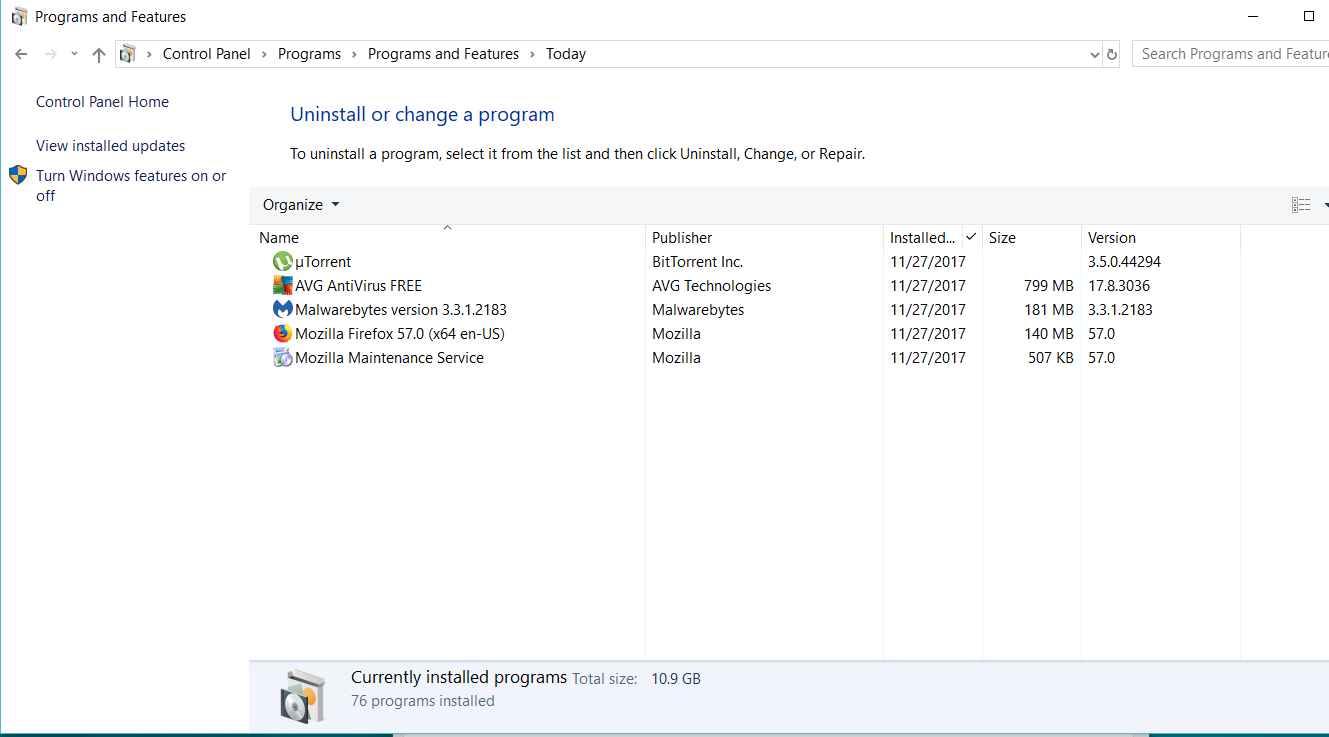
After the list loads, click the "Installed on" column heading to group the infections, I mean, additions, by date. This can help in smoking out undisclosed bundle items that snuck in with some software you agreed to install. Be suspicious of everything you do not recognize/remember, as malware often uses important or innocent sounding names to discourage you from removing it.
Take out as much trash as possible here. If you're not sure, feel free to post program names or a screenshot of the list.
(2) Open Firefox's Add-ons page using either:
- Ctrl+Shift+a (Mac: Command+Shift+a)
- "3-bar" menu button (or Tools menu) > Add-ons
- in the Windows "Run" dialog, type or paste
firefox.exe "about:addons"
In the left column, click Extensions. Then, if in doubt, disable (or Remove, if possible) unrecognized and unwanted extensions. All extensions are optional; the troublemaker might not be obvious from its name.
Before Firefox 57, a link sometimes would appear above at least one disabled extension to restart Firefox to make the change effective. You can complete your work on the tab and click one of the links as the last step. In Firefox 57, disabling should be immediate, but you may need to reload pages to notice any change.
Any improvement?
(3) You can search for remaining issues with the scanning/cleaning tools listed in this support article: Troubleshoot Firefox issues caused by malware. These on-demand scanners are free and take considerable time to run. If they finish quickly and especially if they require payment, you may have a serious infection. I suggest the specialized forums listed in the article in that case.
Hopefully that will flush anything on your system and in your Firefox that could be a problem.
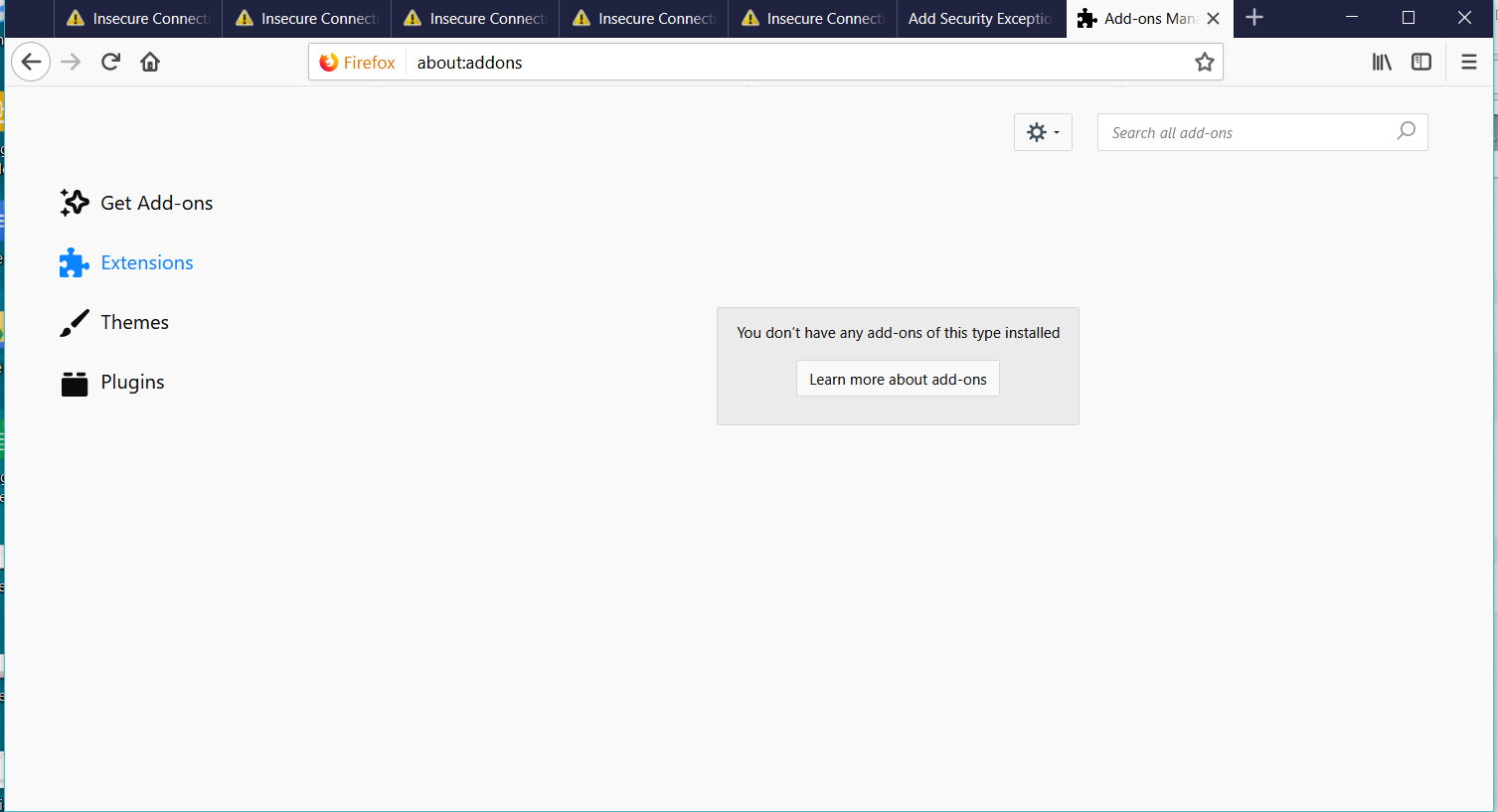
I can't find anything suspicious, and I already scanned the system with CCleaner, Malwarebytes, and AVG, and I do not have any addons or extensions on firefox
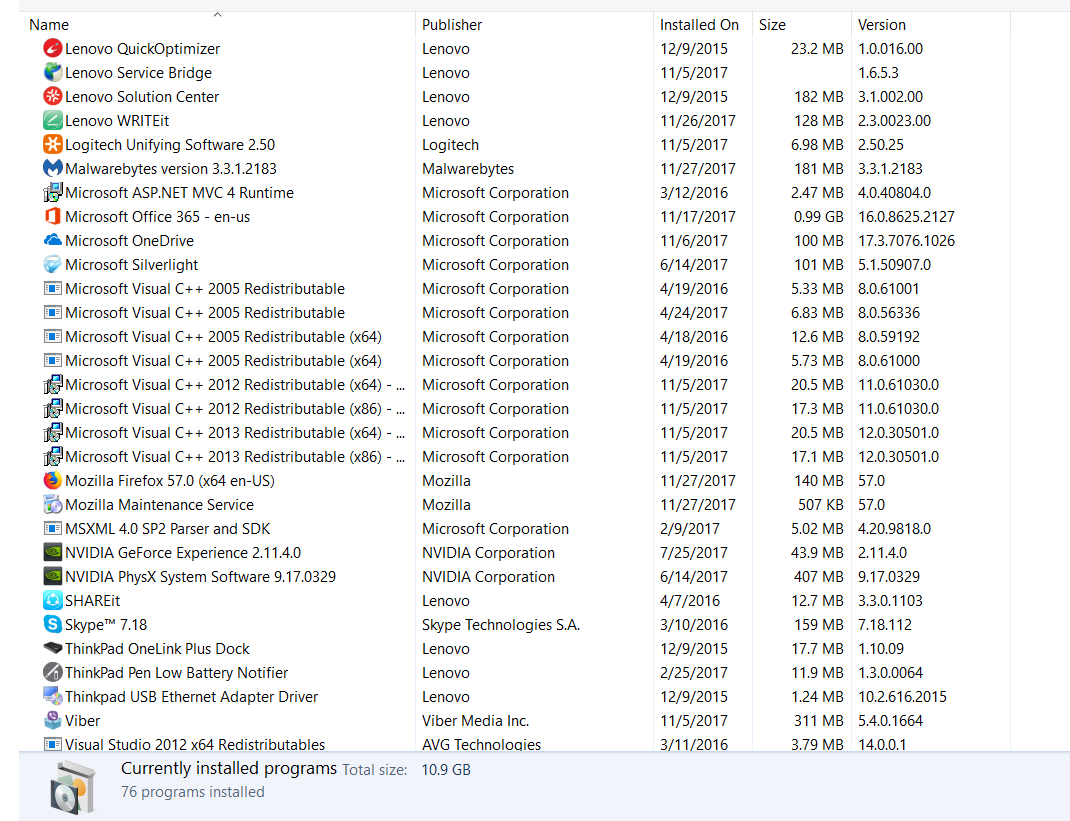
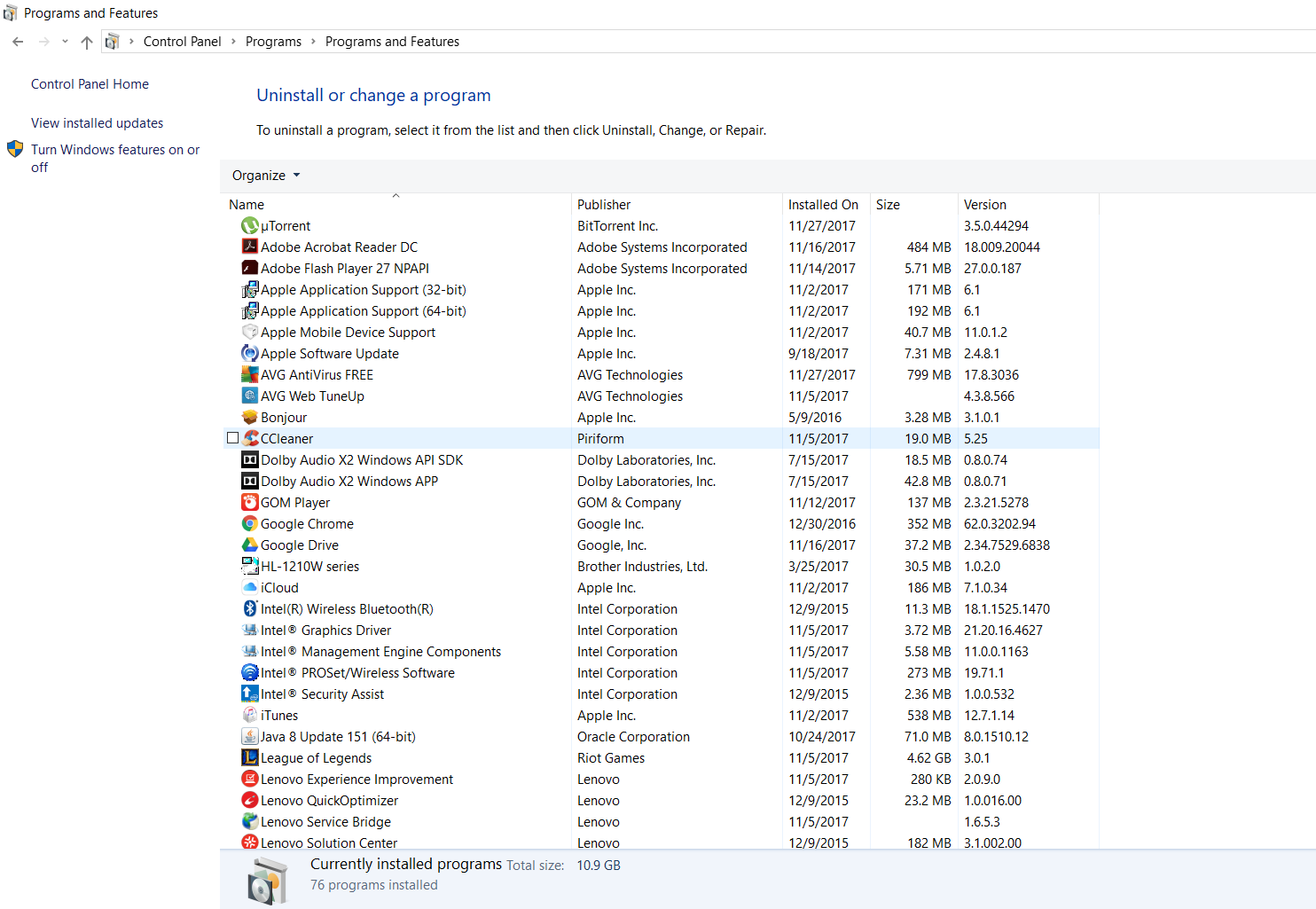
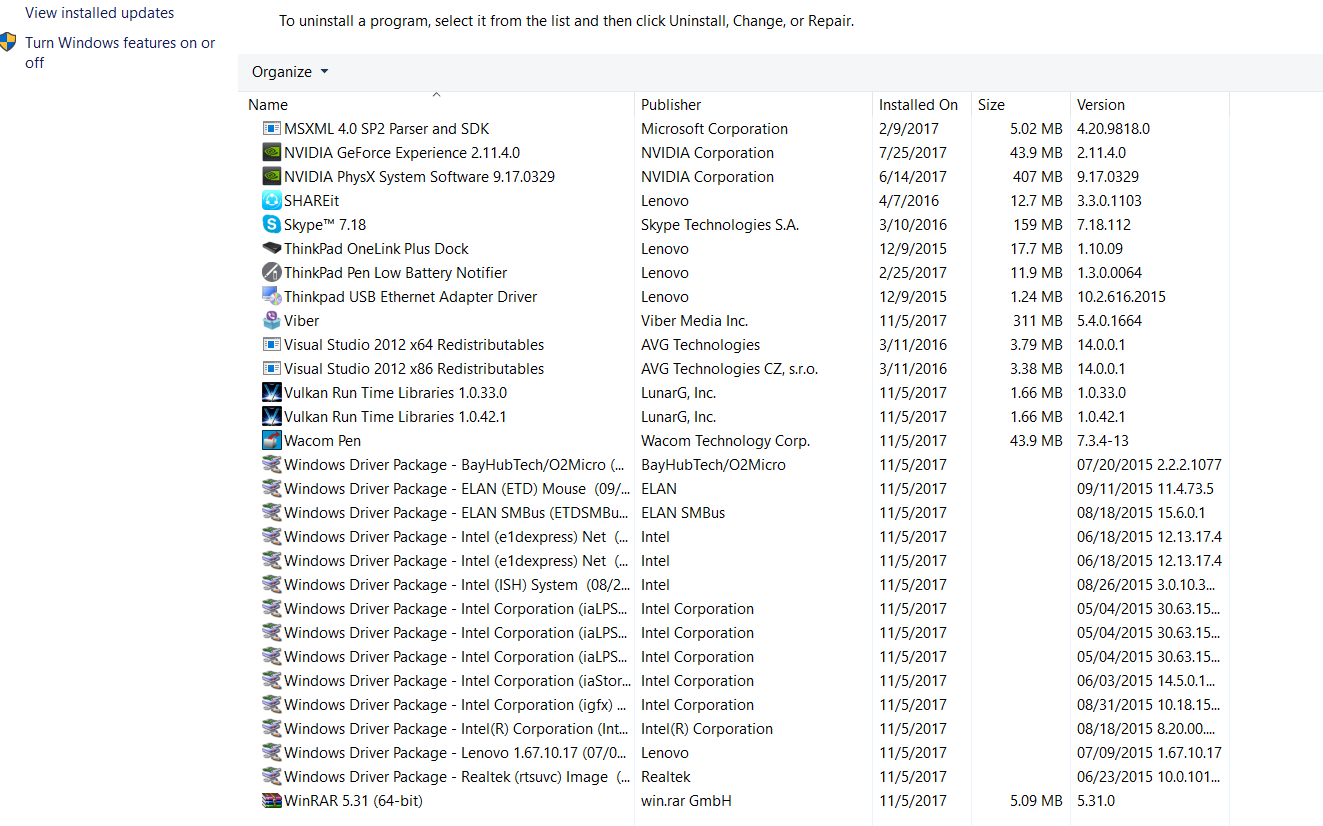
It affects all the sites, i can't access nothing from mozilla. And no new programs installed recently.
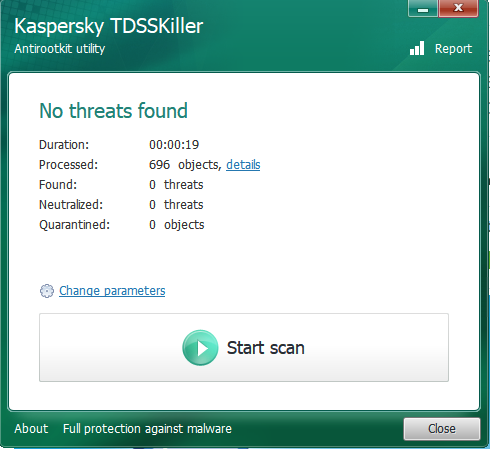
Here is the tds results i just ran
Here is the tabs with multiple various sites, and extensions tab
Ivan986 said
I can't find anything suspicious, and I already scanned the system with CCleaner, Malwarebytes, and AVG, and I do not have any addons or extensions on firefox
Three screens! This is why I suggest sorting by the "Installed on" column!
If AtomPark doesn't have software on your system, and there aren't any other programs installed in recent days that could modify how your Firefox connects, could you check Firefox's internal connection setting:
- Windows: "3-bar" menu button (or Tools menu) > Options
- Mac: "3-bar" menu button (or Firefox menu) > Preferences
- Linux: "3-bar" menu button (or Edit menu) > Preferences
- Any system: type or paste about:preferences into the address bar and press Enter/Return to load it
Firefox 56-58: In the search box at the top of the page on the right side, type proxy and Firefox should filter to the "Settings" button, which you can click.
Firefox 38-55: In the left column, click Advanced. Then on the right side, with the "Network" mini-tab active, click the "Settings" button.
In All Versions: The default of "Use system proxy settings" piggybacks on your Windows/IE "LAN" setting. "Auto-detect" can lead to a flaky connection. You may want to try "No proxy".
Any difference?
Same happening with no proxy, and i couldn't find "Installed on" column!
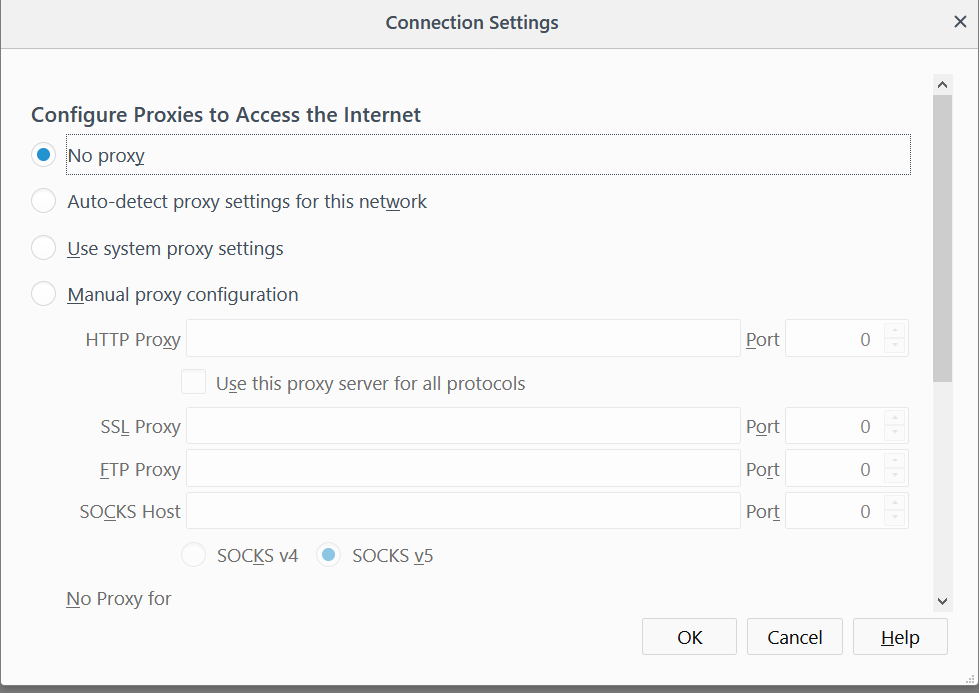
And this is all disabled as well
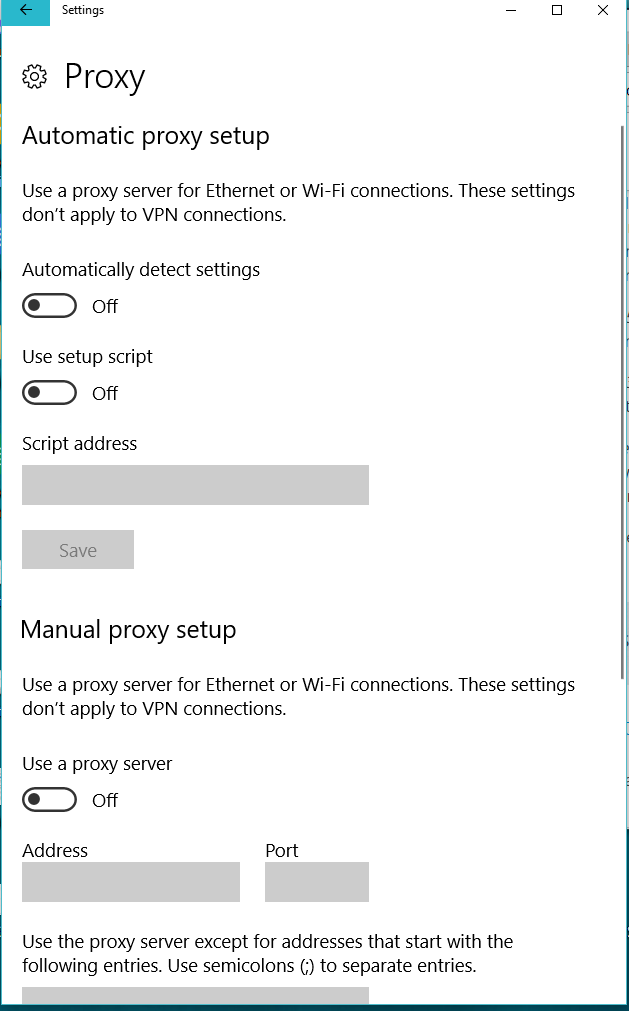
"Installed on" is the third column in the Uninstall a Program dialog.
If you compare the certificate for YouTube in Chrome, does it look any different? That might have moved from the toolbar drop-panel to the Developer Tools (F12).
In chrome it looks ok
And these are installed today apparently
Could you remove and reinstall Firefox 57:
Clean Reinstall
We use this name, but it's not about removing your settings, it's about making sure the program files are clean (no inconsistent or alien code files). As described below, this process does not disturb your existing settings. It's not essential to uninstall Firefox, but you can if you like, saying No to any request about removing personal data.
It only takes a few minutes.
(A) Download a fresh installer for Firefox to a convenient location:
https://www.mozilla.org/firefox/all/
(B) Exit out of Firefox (if applicable).
(C) Using Windows Explorer/My Computer, rename the program folder as follows (you might have one or both):
C:\Program Files (x86)\Mozilla Firefox =to=> C:\Program Files (x86)\OldFirefox
C:\Program Files\Mozilla Firefox =to=> C:\Program Files\OldFirefox
(D) Run the installer you downloaded in step (A). It should automatically connect to your existing settings.
Any improvement?
Did it and it's the same, i did not have C:\Program Files\Mozilla Firefox , only had x86 and did rename it, installed firefox again, launched it but it's still the same. It's so frustrating.
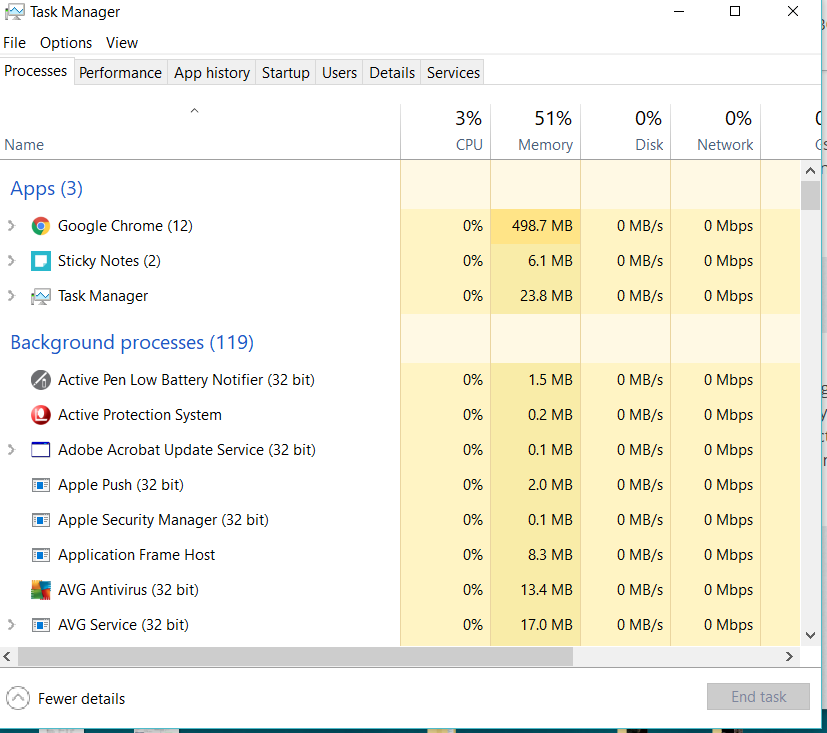
If uTorrent or any program for downloading/recording/sharing videos is running, can you shut it down to see if that makes any difference? There might be an entry on the Windows Task Bar in the section with icons near the clock (sometimes called the Notification Area or System Tray).
Everything is closed already and it is still the same.
Do Edge and IE behave more like Chrome or more like Firefox? I'm having trouble figuring out where the diversion is occurring.
More like Chrome, but I just reseted my network settings and it fixed the issue, now all is working fine, opening all web sites normally. Finally
Ivan986 said
More like Chrome, but I just reseted my network settings and it fixed the issue, now all is working fine, opening all web sites normally. Finally
Thank you for reporting back!

comment deleted
Τροποποιήθηκε στις από τον/την SueWitch