


how to stop ctrl-v from modifying UI

I am trying to stop Ctrl-V from modifying the UI. When someone types Ctrl-V the field becomes 0 or blank. The fields that are a problem are Read Only fields, so they should never change.
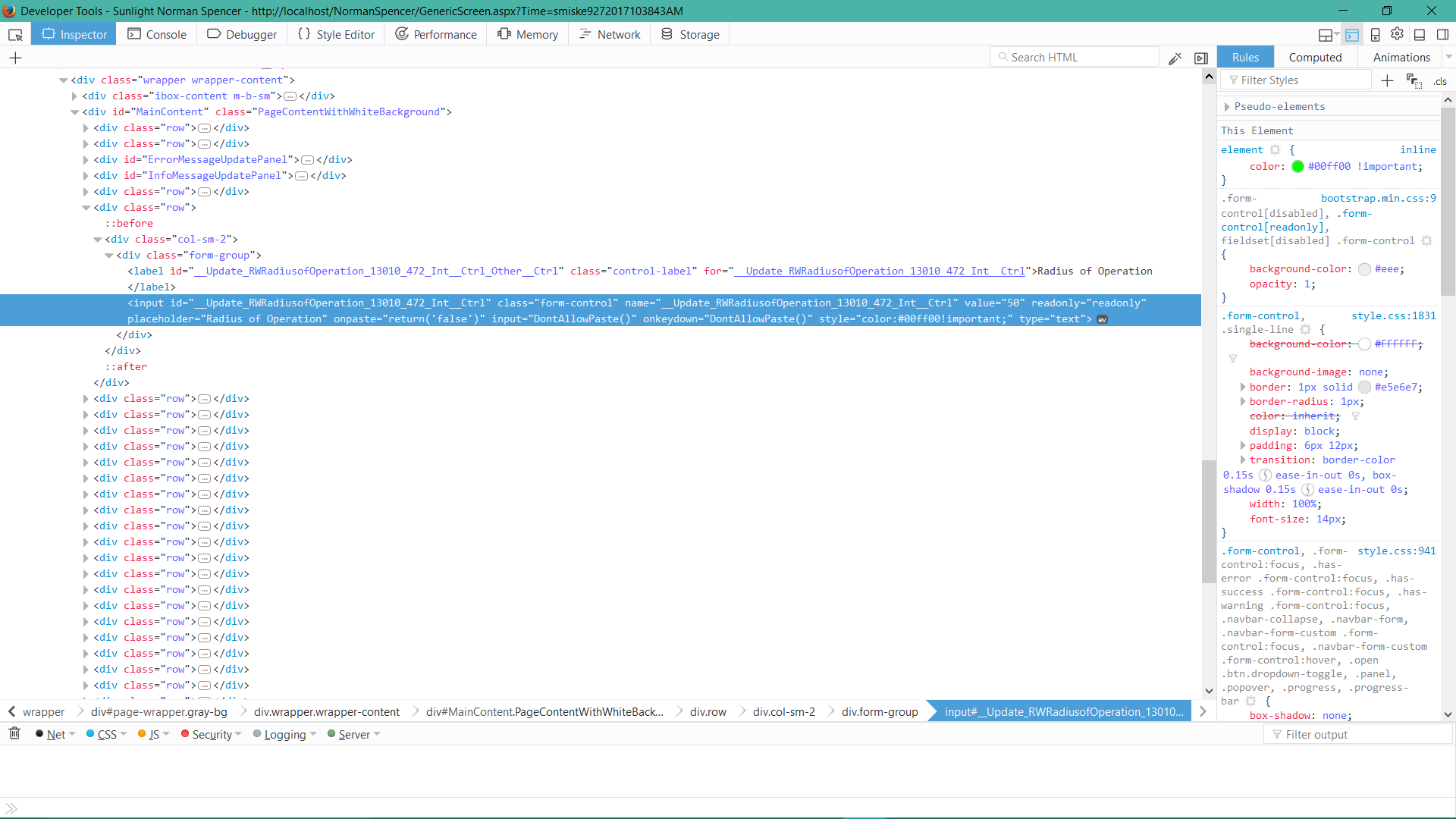
<input name="__Update_RWRadiusofOperation_13010_472_Int__Ctrl" value="50" readonly="readonly" id="__Update_RWRadiusofOperation_13010_472_Int__Ctrl" placeholder="Radius of Operation" onpaste="return('false')" input="DontAllowPaste()" onkeydown="DontAllowPaste()" class="form-control" style="color:#00ff00!important;" type="text">
Dontallowpaste() return false;
the above code is from after I have pressed Ctrl-V the screen shows 0, but above it shows 50
Επιλεγμένη λύση
I have tried so many different things based on what I have googled and I am not sure why this didn't originally work for chrome, but this now works across all the browsers that run under windows
TextControl.Style.Add("color", "#00ff00!important") TextControl.Attributes.Add("onkeydown", "return(false)")
Όλες οι απαντήσεις (4)
I get the desired results in Firefox if I set dom.event.clipboardevents.enabled = false. Is there a way to programmatically set something on each object or does it really need to be at the browser level or can you fix Firefox not to have this behavior of modifying the value with invalid info.
That's puzzling because readonly should be all you need. What else is going on in the page that might be bypassing readonly? Can you post a stripped down test case that demonstrates the problem?
Also, I don't think this makes sense:
onpaste="return('false')"
unless you have other code that looks for the text false.
For testing, you could try:
onpaste="console.log('Paste intercepted'); return false;"
smiske said
<input name="__Update_RWRadiusofOperation_13010_472_Int__Ctrl" value="50" readonly="readonly" id="__Update_RWRadiusofOperation_13010_472_Int__Ctrl" placeholder="Radius of Operation" onpaste="return('false')" input="DontAllowPaste()" onkeydown="DontAllowPaste()" class="form-control" style="color:#00ff00!important;" type="text">
Also, I don't think "input" is a valid attribute in the "input" tag. Please test without it in case that is confusing Firefox.
Επιλεγμένη λύση
I have tried so many different things based on what I have googled and I am not sure why this didn't originally work for chrome, but this now works across all the browsers that run under windows
TextControl.Style.Add("color", "#00ff00!important") TextControl.Attributes.Add("onkeydown", "return(false)")