


problems transfering thunderbird profile to new PC

I have been trying to move my emails from an old (win10) PC to a new Win11 PC for two days now and still having problems. Can you please help with any ideas to solve my difficulty?
I have used the instructions and video on this link to the letter. https://support.mozilla.org/en-US/kb/moving-thunderbird-data-to-a-new-computer
The old PC is running win 10 pro 64-bit - thunderbird is version 146.0.1 (64-bit) My current profile is 5.3GB
The new PC is running win 11 pro 64-bit - thunderbird is version 146.0.1 (64-bit)
I have used the exact method shown in the video to copy the thunderbird folder in the roaming folder on the new PC. (C:\Users\beeni\AppData\Roaming\Thunderbird)
and then copied the thunderbird folder in the local folder as the instructions below the video in the link as I am copying profiles from win 10 to win 11. (C:\Users\beeni\AppData\Local\Thunderbird)
My username is different on the two PC's - is this important?
I'm using IMAP for new emails so only concerned about copying the emails from the local folders on the new PC.
Is there something I'm missing, can check or a method to copy the emails from the local inbox folder sections at a time to keep a zip export below 2gb?
Thank you for reading and helping
Dave
Wšykne wótegrona (6)
The appdata\local is not part of the solution and may even be part of the problem. I never use it and never advise it.
Here are same steps as in your link, but maybe simpler:
- ensure thunderbird is NOT running on old machine
- enter %appdata% in search window on task bar and press Enter key
- this should open windows file explorer in Appdata\roaming folder
- highlight the Thunderbird folder and copy to external media
- ensure thunderbird is installed on second computer, started once and NOT running
- enter %appdata% in search window on task bar and press Enter key
- you should be in Appdata\roaming folder , copy&paste the exported Thunderbird folder there. This may prompt to overwrite an existing folder of same name. allow it
# start thunderbird and all should be there
Please post results
Hi David, thank you for the very quick reply.
I tried your method and still have the problem.
In summary I -
- uninstalled thunderbird
- Deleted the 2 thunderbird folders leftover from the previous attempt
- re-installed thunderbird using a std install and allowed thunderbird to start but didn't create a email account / address.
- closed thunderbird
- copied the profile into the appdata/roaming folder
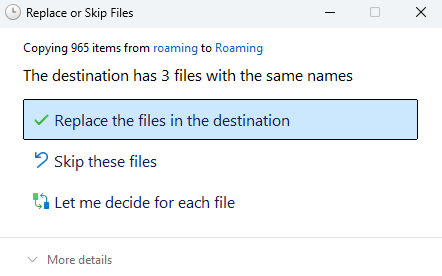
- replaced the files in the destination folder
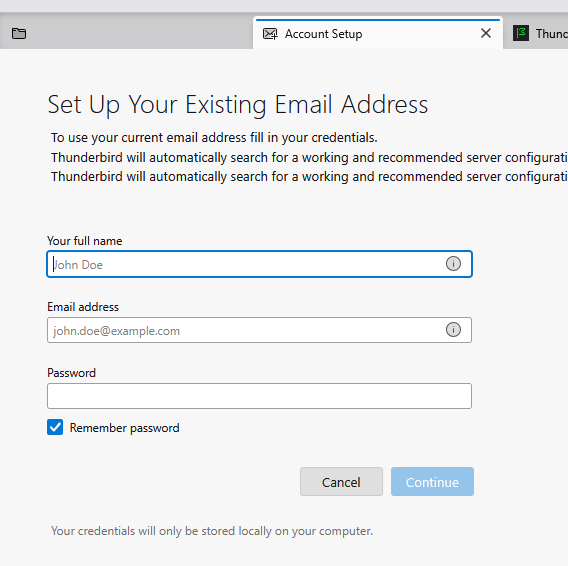
- restarted thunderbird - but only got the "setup email window"
Is there anything else I can check or try? Am I doing something stupid?
Many thanks
Dave
Try this: - - bypass the new setup - click help>troubleshootinginformation - scroll to 'profile folder' and click 'open folder' - exit thunderbird - you are now in the profile. look in imapmail folder to see if your IMAP account is there. That should confirm that thunder is using your profile as the default. - now, back up one folder to the profile root. if there is a compatibility.ini file, delete it and restart thunderbird and report status.
- if your IMAP folder was NOT THERE, then do this: - restart thunderbird and click help>troubleshootinginformation again - this time, scroll to 'profiles' and click 'about:profiles' - your profile should be there and inactive. see if you can launch it and report status.
David, thank you, your a life saver. Wish I had poster here on Monday rather than searching for a solution.
There was no IMAP folder in my current profile (there is an IMAP folder on my old PC)
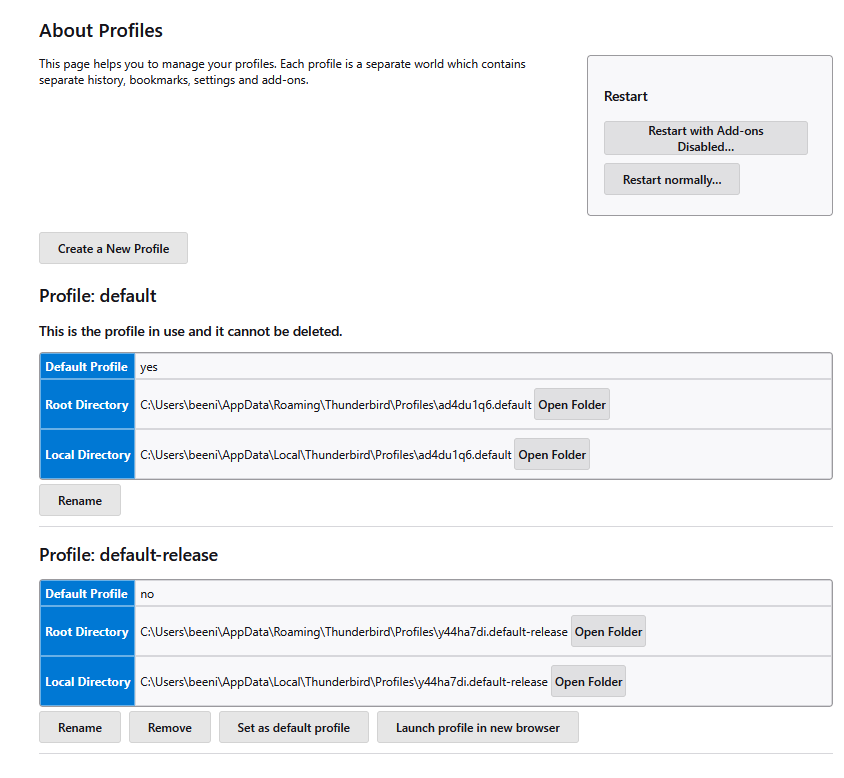
I went looking in the profile section inside thunderbird. Two profiles were present.
I launched the profile as you suggested and all the folders & emails came tumbling in. I have now set this as the default profile.
interestingly I now have 4 folder profiles when looking in win explorer.
If I can trouble you with one more question; what went wrong and I should I delete the profile I'm not using from inside thunderbird?
Thank you again for your help
Dave

I am so pleased that all is well. I was happy to assist. Yes, the profiles that are not used may be safely removed. Thunderbird cannot use more than one. Question to you: did you need to locate/delete a compatibility.ini file, or was that step not needed?
hi David,
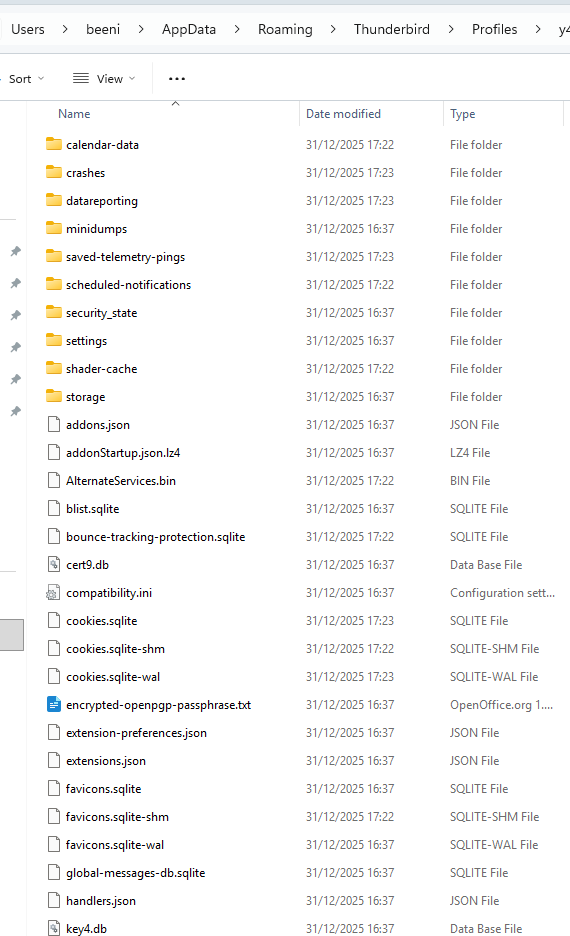
I didn't get as far as looking for the compatability.ini file so not sure if it was there before I looked at the profiles. This file is now in the profile folder.
Thank you again
Dave