


Color choices are all "white" in options

The homepage appears different this week and when I go to try to change the colors back to the black screen with white writing, all of the color selections in the Options tab appear to be white. I am legally blind and depend on using the color palette to be able to use the internet. It was working fine before the last change for the look on the home page. How can I get this fixed?
Wšykne wótegrona (2)
Sorry, could you try this:
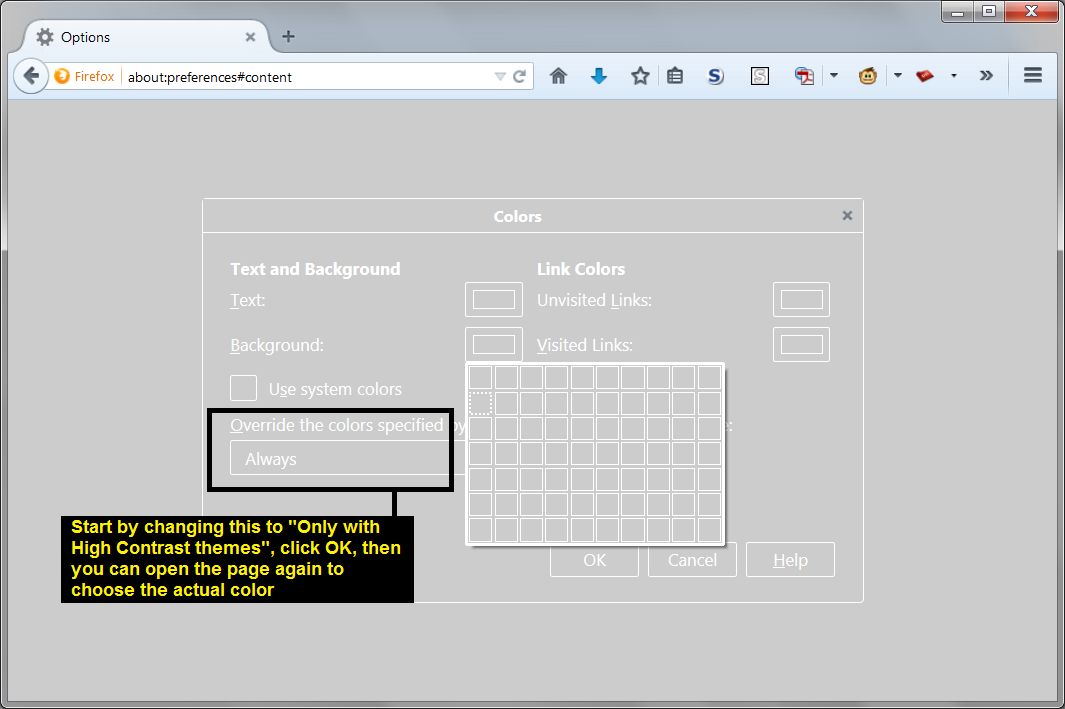
In the "Colors" settings, change the control that says "Always" (or "Only with High Contrast themes") to "Never" and OK that.
Then return to the "Colors" page and normal colors should be shown in the selector.
Then after choosing your colors, you can change that selector back to the earlier setting to apply them.
I think this is related to some changes to better support "high contrast" themes in Windows.
Alternately, you can switch back to the old "pop-up" style Options dialog instead of the in-tab Options. Here are the steps for that:
(1) In a new tab, type or paste about:config in the address bar and press Enter/Return. Click the button promising to be careful.
(2) In the search box above the list, type or paste pref and pause while the list is filtered
(3) Double-click the browser.preferences.inContent preference to switch it from true to false
(You can close that tab after making the change.)
Solved the problem for me as well. Thanks!