


Find my old bookmarks
I have had lots of problems with my pc and this morning when I was trying to get it started I was offered a "Refresh your Pc"option which I did, My Mozilla Firefox browser seems to have disappeared since then since then and I was offered to open a Firefox account which I did thinking that would get my bookmarks(or Favourites) back but it hasn't. I think this new account does not recognise me. I don't have any bookmarks or favourites on any other browser. Is it possible to retrieve my oroginal Mozilla Firefox account which has got dozens of Bookmarks on it for me ? Thank you.
Ausgewählte Lösung
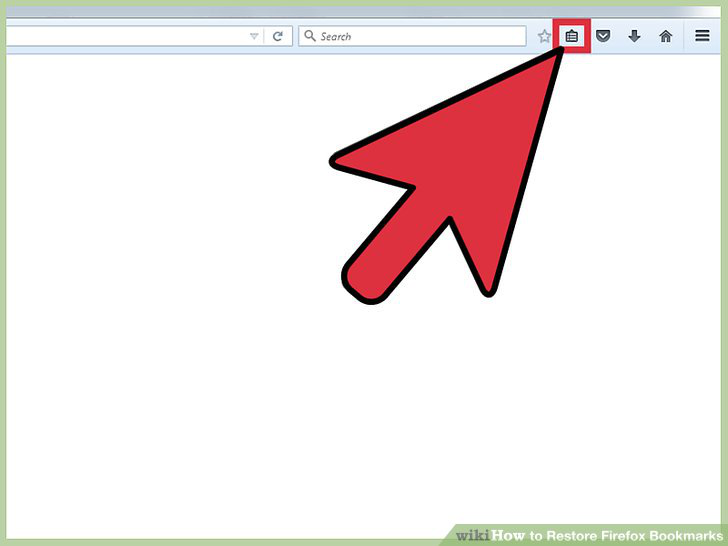
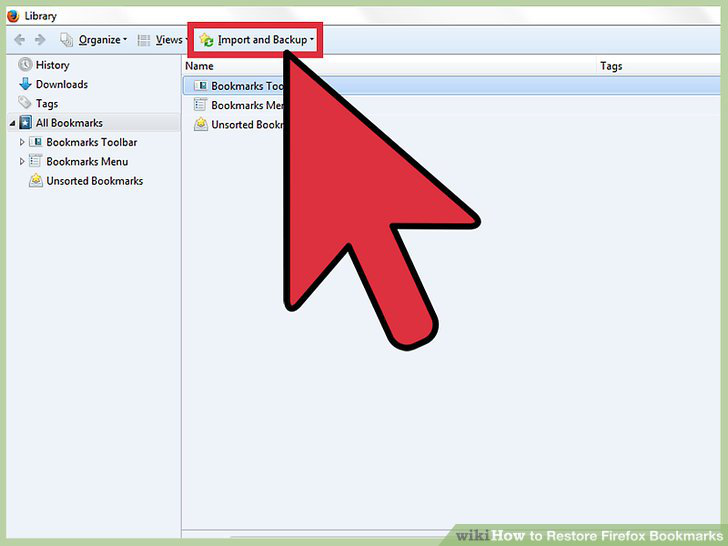
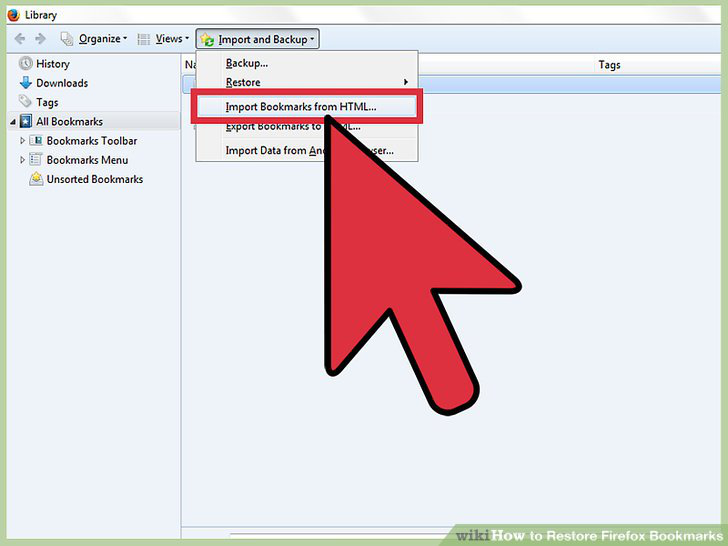
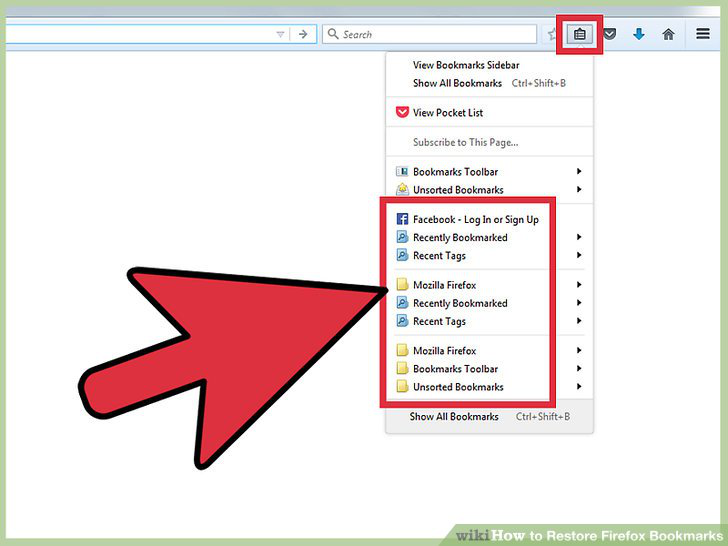
1.Open Firefox and click on Bookmarks in the tool bar. 2.Click on Show All Bookmarks. 3.Click on Import and Backup. 4.Click on Import Bookmarks from HTML. It will take you to your computer.
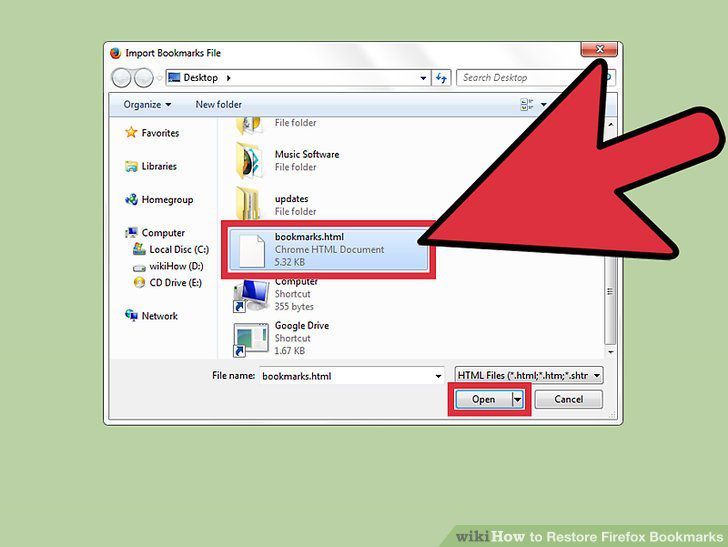
~Suppose your bookmarks' backup file is called "bookmarksnew" (or "bookmarks"). It's usually located in "Documents" folder.
5.Locate this file, highlight it and click on Open button. 6.Click on "Bookmarks" on your Firefox tool bar to make sure your bookmarks are restored.
Diese Antwort im Kontext lesen 👍 0Alle Antworten (6)
[[Knowledge Base Article|https://www.wikihow.com/Restore-Firefox-Bookmarks]]
* Open Firefox and click on Bookmarks in the tool bar.
- Click on Show All Bookmarks
- Click on Import and Backup
- Click on Import Bookmarks from HTML
- Locate this file, highlight it and click on Open button.
- Click on "Bookmarks" on your Firefox tool bar to make sure your bookmarks are restored
Hi Pibear1, did you have a Firefox Account and Sync set up before? If it's a brand new account, it's not going to have your old data.
Did your Windows 8 Refresh create this folder:
C:\Windows.old
If you see that folder, before exploring further, please turn on viewing of hidden files and folders:
https://support.microsoft.com/en-us/help/14201/windows-show-hidden-files
Then try to find:
C:\Windows.old\Users\your-user-name\AppData\Roaming\Mozilla\Firefox\Profiles
Do you have anything there?
Note: when experimenting, always copy/paste and don't move the old files.
Check each folder under Profiles, and inside that folder, look in the bookmarkbackups folder. Can you find any files with recent dates in the names?
If you find a fresh backup, this article describes how to restore it: Restore bookmarks from backup or move them to another computer.
Thank you both so much. Hopefully I will get some time tomorrow to concentrate on your advice and try to get things soted.
I didn't have an account beore now although I was using Mozilla. I have looked everywhere and it seems I have lost the bookmarks so I will gradually add them back in. Thanks very much for your assistance.
Ausgewählte Lösung
1.Open Firefox and click on Bookmarks in the tool bar. 2.Click on Show All Bookmarks. 3.Click on Import and Backup. 4.Click on Import Bookmarks from HTML. It will take you to your computer.
~Suppose your bookmarks' backup file is called "bookmarksnew" (or "bookmarks"). It's usually located in "Documents" folder.
5.Locate this file, highlight it and click on Open button. 6.Click on "Bookmarks" on your Firefox tool bar to make sure your bookmarks are restored.

Geändert am von Senali Madawala
Thanks so much for all your help.I have taken a note of your suggestions for future reference. As it so happens that pc is completely Kaput now.I'm told it needs a new hard drive so I have bought a new one and I am adding my Bookmarks gradually. I had way too many anyway and they needed a good clear out.