


Disable Lightweight Theme for Private Browsing

Just updated to 53 on Mac and now my Lightweight theme carries over to Private Browsing. I don't want this, as I used the lack of theme as a easy visual cue to know I was in the right window.
Any way to disable this or to change the theme for private browsing?
Ausgewählte Lösung
You might need to use a custom style rule to modify the appearance of the toolbar area or, if you prefer, just the tabs bar, or maybe just the very top of it.
For example:
To turn the tabs bar background dark purple on a private window in a regular session:
#main-window[privatebrowsingmode="temporary"] #TabsToolbar {
  background-color: #303 !important;
}
or the whole toolbar area:
#main-window[privatebrowsingmode="temporary"] #navigator-toolbox {
  background-color: #303 !important;
}
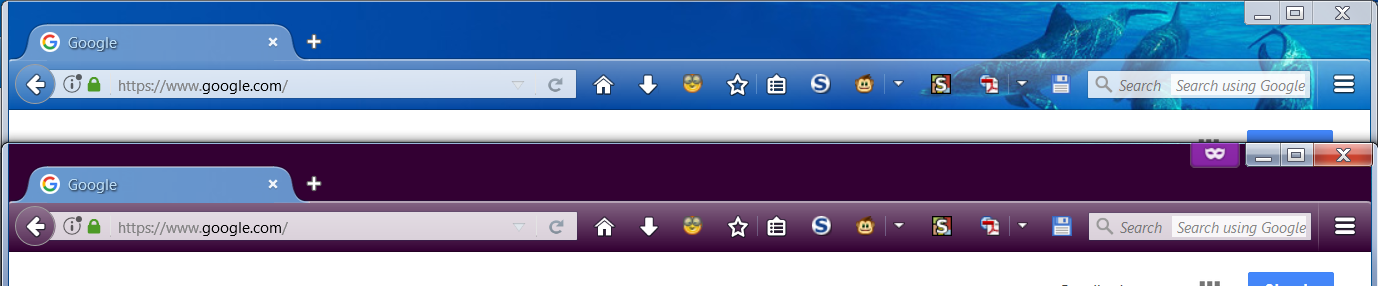
Screenshot comparison attached. The best colors will vary depending on your lightweight theme.
Custom style rules can be applied to Firefox's interface area using either the Stylish extension or a userChrome.css file. Someone can provide details if you don't find a more convenient solution.
Diese Antwort im Kontext lesen 👍 1Alle Antworten (4)
This is "as designed" See bug https://bugzilla.mozilla.org/show_bug.cgi?id=854126
You can use an extension to get Private Browsing mode support per tab.
Private Browsing mode tabs get a dashed underline You can toggle Private Browsing mode on/off via the right-click context menu of a tab You will also see a purple mask on the Tab bar.
Ausgewählte Lösung
You might need to use a custom style rule to modify the appearance of the toolbar area or, if you prefer, just the tabs bar, or maybe just the very top of it.
For example:
To turn the tabs bar background dark purple on a private window in a regular session:
#main-window[privatebrowsingmode="temporary"] #TabsToolbar {
  background-color: #303 !important;
}
or the whole toolbar area:
#main-window[privatebrowsingmode="temporary"] #navigator-toolbox {
  background-color: #303 !important;
}
Screenshot comparison attached. The best colors will vary depending on your lightweight theme.
Custom style rules can be applied to Firefox's interface area using either the Stylish extension or a userChrome.css file. Someone can provide details if you don't find a more convenient solution.
jscher2000 said
You might need to use a custom style rule to modify the appearance of the toolbar area or, if you prefer, just the tabs bar, or maybe just the very top of it. For example: To turn the tabs bar background dark purple on a private window in a regular session:#main-window[privatebrowsingmode="temporary"] #TabsToolbar { background-color: #303 !important; }or the whole toolbar area:
#main-window[privatebrowsingmode="temporary"] #navigator-toolbox {
  background-color: #303 !important;
}
Screenshot comparison attached. The best colors will vary depending on your lightweight theme.
Custom style rules can be applied to Firefox's interface area using either the Stylish extension or a userChrome.css file. Someone can provide details if you don't find a more convenient solution.
This works great. I couldn't get the second option to work, but the first worked passably enough.