


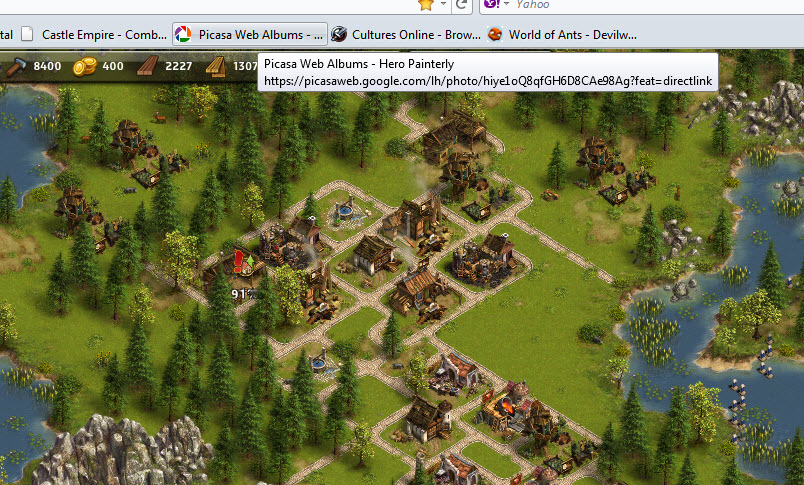
Stop white address block from showing.

How do get rid of the white block address from showing on screen ??
Can't post a pic to show it, that sucks too.
Buck
Odabrano rješenje
You would need to disable tooltips altogether to block tab bar tooltips.
You can set the Boolean pref browser.chrome.toolbar_tips to false on the about:config page.
To open the about:config page, type about:config in the location (address) bar and press the "Enter" key, just like you type the url of a website to open a website.
If you see a warning then you can confirm that you want to access that page.
- Use the Filter bar at to top of the about:config page to locate a preference more easily.
- Preferences that have been modified show as bold (user set).
- Preferences can be reset to the default via the right-click context menu if they are user set
- Preferences can be changed via the right-click context menu: Modify (String or Integer) or Toggle (Boolean)
All Replies (4)
You can't attach a screenshot to the first post that starts a thread, but you can do that in additional posts.
So please post another reply and attach a screenshot to show your problem.
Start Firefox in Use Troubleshoot Mode in Firefox to check if one of the extensions or if hardware acceleration is causing the problem (switch to the DEFAULT theme: Firefox (Tools) > Add-ons > Appearance/Themes).
- Don't make any changes on the Safe mode start window.
- https://support.mozilla.com/kb/Safe+Mode
Here's a Pic. The white block.
Odabrano rješenje
You would need to disable tooltips altogether to block tab bar tooltips.
You can set the Boolean pref browser.chrome.toolbar_tips to false on the about:config page.
To open the about:config page, type about:config in the location (address) bar and press the "Enter" key, just like you type the url of a website to open a website.
If you see a warning then you can confirm that you want to access that page.
- Use the Filter bar at to top of the about:config page to locate a preference more easily.
- Preferences that have been modified show as bold (user set).
- Preferences can be reset to the default via the right-click context menu if they are user set
- Preferences can be changed via the right-click context menu: Modify (String or Integer) or Toggle (Boolean)
Thank You !! That was driving me crazy.
Buck