


Cannot get Mozilla Thunderbird to load. "Not responding".

I cannot get Thunderbird to launch. It acts like it is stuck on perhaps one account and circles keep spinning as if it never can get a few of my tabbed emails open. It keeps saying it "isn't responding." Since this began happening a few days ago, I've stopped the Thunderbird task through Task Manager, I've shutdown and restarted my whole system multiple times, I've updated to the latest Windows platform and made sure my drivers were all up to date... I can't update my thunderbird (if required) because I can't get in in the first place. I have hundreds of emails in multiple accounts under my current Thunderbird. I can't afford to lose all that history. I don't know which version I'm using because, again, I can't get the desktop app to launch. What do I do?
Izmjenjeno od strane Wayne Mery
All Replies (3)
Do you have a habit to open many messages and PDF attachments in new tabs, without closing them (or most of them) upon quitting Thunderbird?
Izmjenjeno od strane Mapenzi
yes And they try to open when I open Tbird
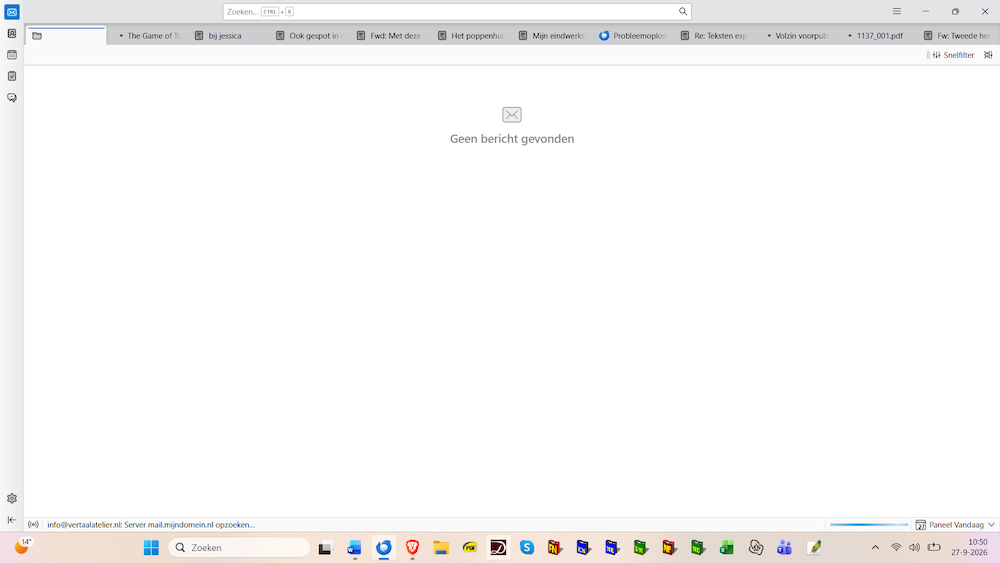
Does the Thunderbird main window on startup ressemble to the one shown in my screen shot? If this is the case and Thunderbird is not responding ("freezing") the cause might be https://bugzilla.mozilla.org/show_bug.cgi?id=2071951 "Thunderbird hangs on startup when restoring session.json"
Until this bug gets fixed in a future update the only solution I know to recover a reactive Thunderbird is to delete the file session.json in the profile folder: be sure that Thunderbird is closed, then get to your profile by pressing the Windows Key key and start typing: %APPDATA%\Thunderbird\Profiles\ The folder "Profiles" will be opened in an Explorer window, it may contain one or several profile folders xxxxxxx,default or yyyyyyyy.default-release or similar name. If there is only one folder in Profiles, open it and delete the file session.json. If there are several folders in Profiles you need to verify the modification dates to identify which is the active profile, then delete the session.json file.
Close the Explorer and restart Thunderbird which should now run fluently without freezing. The tabs you let open at the end of the last session will be all closed now. At the end of each Thunderbird session do not forget to close most of your open message tabs, in particular tabs displaying the contents of PDF attachments.
Izmjenjeno od strane Mapenzi