


Displayed font size in composition window

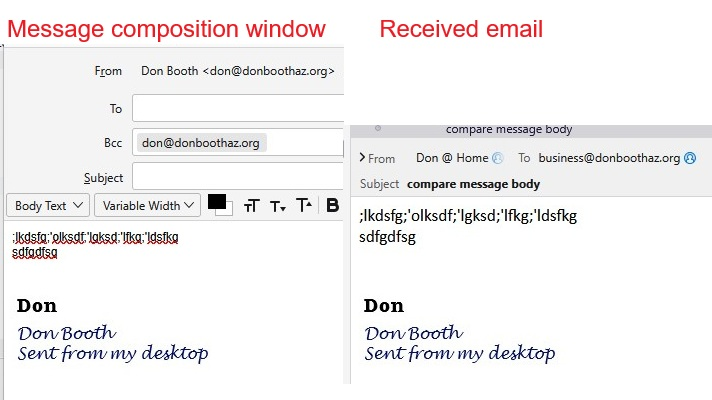
[DESKTOP VERSION] The font display size in the email composition window is at least 2 'clicks' smaller that what is actually displayed in the received email. When writing an email I need to do a double Ctrl+"+" in order for the text to be easy to ready. When I read the sent email (sometimes I need to send emails between accounts - I have 14 between my business domain and my personal domain), the text that I entered is the proper size. I can easily see this because of the graphic image in my signature, which is the same size in the composition window as it is in the received email. See attached composite graphic.
Izabrano rješenje
This didn't immediately get me where I needed to end up, but it told me where to look and what to change. After a couple of passes at setting both font types and sizes, and especially the "Settings > General > Language & Fonts > Fonts > click 'Advanced' button" where I discovered the "Other Writing Systems," I was able to adjust some settings to make thing a lot better. (Some things are now too large, but I know how to tweak now). Thanks a bunch for the clear guidance.
Pročitajte ovaj odgovor sa objašnjenjem 👍 0All Replies (2)

This is how to adjust the fonts for viewing and composing messages:
- go to TB menu > Settings > General > Language & Fonts > Fonts > click 'Advanced' button
- at the top, set 'Fonts for:' to Latin if it isn't already
- change Proportional and Monospace fonts/sizes to your liking
- set Minimum font size to 14
- at the top, change set 'Fonts for:' to Other Writing Systems
- repeat the process of changing fonts/sizes
- at the bottom, make sure 'Allow messages to use other fonts' is disabled if desired > OK > close the popup
Odabrano rješenje
This didn't immediately get me where I needed to end up, but it told me where to look and what to change. After a couple of passes at setting both font types and sizes, and especially the "Settings > General > Language & Fonts > Fonts > click 'Advanced' button" where I discovered the "Other Writing Systems," I was able to adjust some settings to make thing a lot better. (Some things are now too large, but I know how to tweak now). Thanks a bunch for the clear guidance.