


Duplicate downloads

Although I have checked "Always Ask" to specify my download location, duplicates are still being saved in "Downloads". I recently "upgraded" to Windows 11 but do not know if it is connected. FF version 138.0.3 (64-bit). How can I prevent this please?
所有回覆 (5)
Why is this still happening? Help please.
由 simon.c.lord 於 修改
Hello,
Please check the way you save files. Does downloading start immediately, or the file opens first and then you have to press an additional button to download it?
Thanks Denys, appreciate your time and help. I receive the download dialogue, but no matter what I choose, Firefox is still saving it in Downloads - screencaps attached.
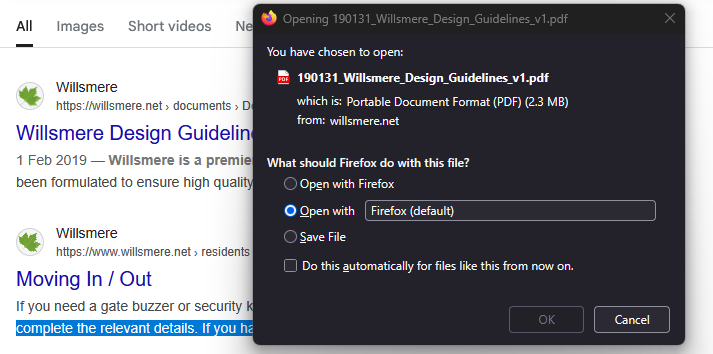
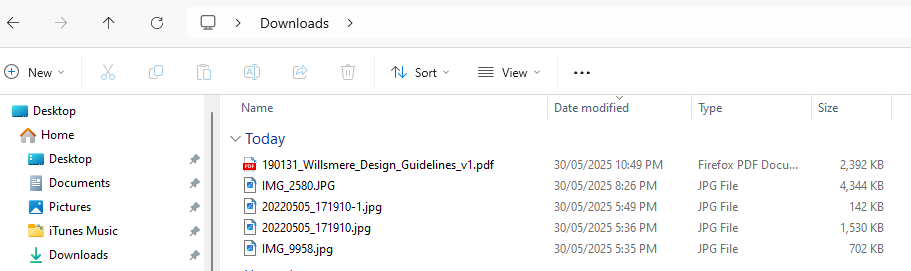
When choosing one of the first two options ("Open with Firefox" or "Open with..."), it is intended that Firefox first saves the file to your default download folder in order to open it.
What about the third option ("Save File"), Firefox obviously is not supposed to create a copy of the file in Downloads, if "Always ask you where to save files" is checked. Does Firefox ask you to specify download location when choosing this option?
由 Denys 於 修改

I know what you mean — that can be confusing. The “Always Ask” option in Firefox only controls where a copy of the file is saved, but Firefox still first writes a temporary copy into your system’s default Downloads folder. On Windows 11 this can feel like it’s duplicating every file.
A few things you can try:
Change the default download folder in Firefox
Go to Menu → Settings → General → Files and Applications → Downloads.
Set the default location to a folder you actually want to use (for example, Desktop or a custom folder).
Even if “Always Ask” is enabled, this ensures the temporary copy goes to your chosen folder instead of Downloads.
Disable “Always Ask” and just use a custom folder
If you always want to be prompted, unfortunately Firefox still uses the default path for the first write. By switching to one consistent custom folder, you’ll avoid the extra file in Downloads.
Workaround
Some users work around this by setting Downloads to a “dummy” folder (like C:\TempFirefox) so the duplicate copy doesn’t clutter their actual Downloads.
This isn’t caused by Windows 11 — it’s a Firefox design choice that’s been around for a while. The upgrade just made you notice it more.