


Change Display Fonts and size

How to change the display fonts and size?
How to change the font and size that you see in the left side that lists all your folders and also the font showing the Subject, Correspondents, Date etc ?
被選擇的解決方法
Here is a fix called UI scaling: Adjust font sizes for window that has Subject - Correspondents etc and also the left sidebar that has the Inbox - Sent - etc. This basically zooms in. Message list Folder list
Thunderbird> Preferences> Config Editor Open the config editor. Click on Show All. Search for: layout.css.devPixelsPerPx You will see -1.0
Change to 1.2 as an example. Once you click on he save 'check' button it will change right away. I have mine at 1.1 I am using a 32" monitor and use 2560 x 1440 screen resolution and the text size looks good now.
If too big or small just change till you like what you see.
從原來的回覆中察看解決方案 👍 0所有回覆 (6)
First, you need to specify that external modifications via CSS are to be allowed. To do that, change toolkit.legacyUserProfileCustomizations.stylesheets to true in config editor.
Second, create a folder named chrome in your profile.
Third, create a text file named userChrome.css with this content:
See later post. The CSS was not being properly formatted here.
由 david 於 修改
First, you need to specify that external modifications via CSS are to be allowed. To do that, change toolkit.legacyUserProfileCustomizations.stylesheets to true in config editor.
Second, create a folder named chrome in your profile.
Third, create a text file named userChrome.css with this content: (see attached image)
(change font size to your preference. To see changes, TB must be closed and restarted.)
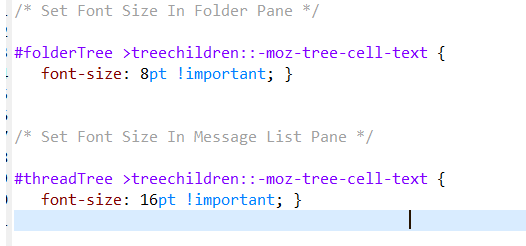
Thanks for the code. BTW I used SnagIt screen capture to capture the text in the image you provided. It made it easier to put the text in my userChrome file : )
I tried both pt and px. I like px. The line where it says -- threadTree treechildren: :-moz-tree-column had a space between the : : and it would not work till I used ::
The code I had used before is here: http://davidswebsite.com/Firefox_tabs/firefox_tabs.html The other css code you see adds lines to separate the messages.
Question. How to change the display font for either?
This is a way to add the font you want. You can also use the code above from 4:16am and add in the line for the font. You can change the color and size and the font. Making the text Bold is not working so far.... I did try font-weight: bold; See attached image for the css.
I tried the following in the userChrome.css file.
"Open Sans" "Trebuchet MS" "Times New Roman" "Bookman Old Style" Verdana "Segoe UI" Calibri "Noto Sans" Arial
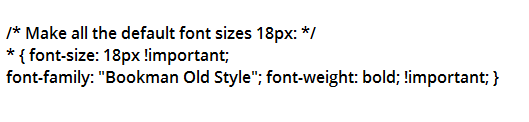
To change the font-family for the Threads or Folder Pane, a setting in Preferences has to be enabled:
https://support.mozilla.org/en-US/questions/1360794#answer-1465754
選擇的解決方法
Here is a fix called UI scaling: Adjust font sizes for window that has Subject - Correspondents etc and also the left sidebar that has the Inbox - Sent - etc. This basically zooms in. Message list Folder list
Thunderbird> Preferences> Config Editor Open the config editor. Click on Show All. Search for: layout.css.devPixelsPerPx You will see -1.0
Change to 1.2 as an example. Once you click on he save 'check' button it will change right away. I have mine at 1.1 I am using a 32" monitor and use 2560 x 1440 screen resolution and the text size looks good now.
If too big or small just change till you like what you see.