how can i migrate thunderbird from ubuntu to windows 7

I am not bad with computer stuff but I am having difficulty in migrating my Thunderbird profiles from Linux Mint back to Windows 7. I have looked at many forums but the advice is either non comprehendable or just not what I am looking for. Can you help me please. Thus far, I have copied everything to do with Thunderbird, including profiles and .ini stuff from Linux to a flash drive but don't know what to do next.
Thank you
John Chilver
被選擇的解決方法
Win7 machine: Install Thunderbird and run for the first time to create a Profile but do not create any mail accounts.
Make hidden folder and files visible.
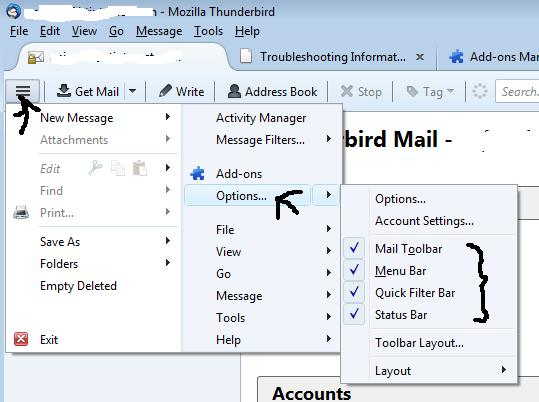
At this point I would suggest that you enable all the toolbars as most help refers to them and not all tools are accessible via the 3bar menu icon. Note you do not have to do this as it is up to you, but it is more convenient. see image below.
- 3bar menu icon > Options
select:
- Menu Bar
- Mail Toolbar
- Status Bar
- Quick filter bar
Now access Profile folder:
- Help > Troubleshooting Information
- clickon 'show folder' button
a new window opens showing your new Profile Folder contents.
- Close Thunderbird now - this is important.
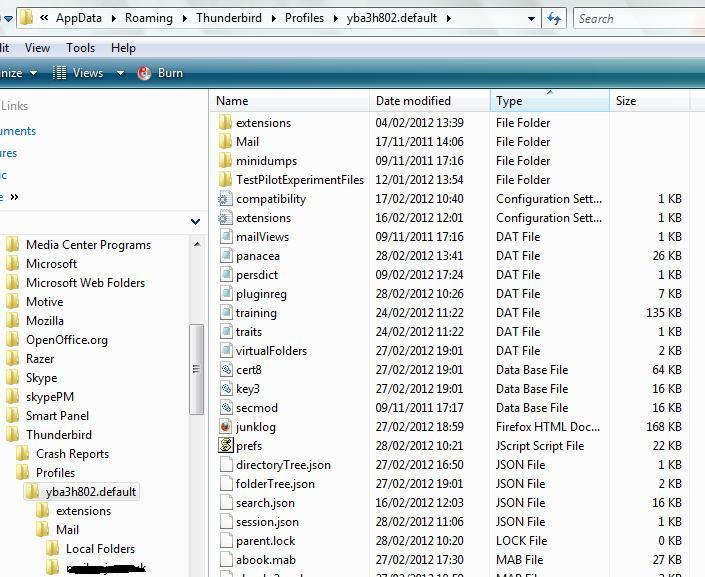
The new Profile folder name will be called something like this: xxxxxxxx.default, where the x's are letters and numbers. it will look similar to the second image below.
- Delete the contents of the new profile name folder that you just created, so that you have an empty xxxxxxxx.default folder.
- Locate your Linux Mint backup of your Profile folder. Copy.paste the contents of the old profile folder (all its files and subfolders - not the actual Profile name folder) into the new, empty profile name folder.
- Restart Thunderbird.
If all looks ok then you are up and running.
More info here:
從原來的回覆中察看解決方案 👍 4所有回覆 (1)
選擇的解決方法
Win7 machine: Install Thunderbird and run for the first time to create a Profile but do not create any mail accounts.
Make hidden folder and files visible.
At this point I would suggest that you enable all the toolbars as most help refers to them and not all tools are accessible via the 3bar menu icon. Note you do not have to do this as it is up to you, but it is more convenient. see image below.
- 3bar menu icon > Options
select:
- Menu Bar
- Mail Toolbar
- Status Bar
- Quick filter bar
Now access Profile folder:
- Help > Troubleshooting Information
- clickon 'show folder' button
a new window opens showing your new Profile Folder contents.
- Close Thunderbird now - this is important.
The new Profile folder name will be called something like this: xxxxxxxx.default, where the x's are letters and numbers. it will look similar to the second image below.
- Delete the contents of the new profile name folder that you just created, so that you have an empty xxxxxxxx.default folder.
- Locate your Linux Mint backup of your Profile folder. Copy.paste the contents of the old profile folder (all its files and subfolders - not the actual Profile name folder) into the new, empty profile name folder.
- Restart Thunderbird.
If all looks ok then you are up and running.
More info here: