


Unable to send email on primary address.

Unable to send emails from my primary address [redacted]@btinternet.com. I have installed the update to try and sort the problem, but the problem still exists. It won`t accept my email for sending, but still receives mail.
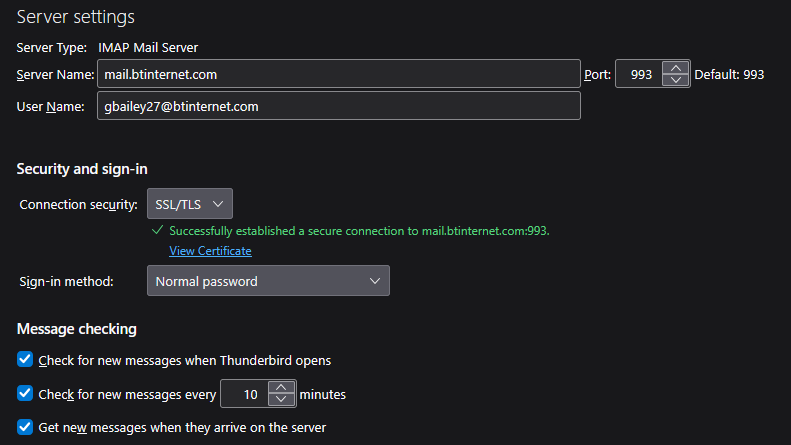
I have uploaded a screenshot of my account settings.
Ti ṣàtúnṣe nípa christ1
Ọ̀nà àbáyọ Tí a Yàn
> Can find nowhere on Thunderbird that shows different in and out settings.
Incoming is here: Account Settings > Server Settings for the account
I can see you are using an IMAP Mail Server For BT you would use: Incoming
- Server name: mail.btinternet.com
- Port : 993
- User name = full bt email address
- Connection Security: SSL/TLS
- Authentication Method: Normal Password
Outgoing SMTP is here:
- In Account Settings
- Left Pane - scroll to bottom and look below 'Local Folders'
- You will see 'Outgoing Server (SMTP)' - click on it
- On the right you will now see a list of all your outgoing smtp servers.
- Select the one which has username= email address of account
- Click on 'Edit'
BT SMTP server settings: Outgoing SMTP
- Description: Type BT email address, so not to confuse with any other account
- Server name: mail.btinternet.com
- Port : 465
- Connection Security: SSL/TLS
- Authentication Method: Normal Password
- User name = full bt email address
click on 'OK
In 'Account Settings'
- select name of account in left pane
- Look bottom right for 'Outgoing Server (SMTP)' this should be pointing specifically to the BT outgoing server for the account. This is you see how useful it was to enter the SMTP 'Description' as BT email address, because if it does not show what you typed then you may be using the wrong SMTP.
- So if wrong - click on the drop down and select correct smtp.
- DO NOT click on the 'Edit SMTP_Server' button because that is only used if you are absolutely certain you are using correct smtp server and it's very rare you should need to edit a correct server.
You might want to keep a copy of this info just in case you ever need it.
Ti ṣàtúnṣe nípa Toad-Hall
All Replies (4)
Comment: You posted server info for incoming, not outgoing. sharing complete text of error message lets viewers here see the issue better. I, personally, don't know btinternet; I'm responding because you haven't provided any details. Thank you
Thanks David, Not sure what you wanted to see. I clicked on Server Settings and showed what I was seeing. Can find nowhere on Thunderbird that shows different in and out settings. Search on Google gave me a port of 465. However, I was able to send but not receive. Changed port back to 993 and VOILA...everything is working fine.
Fingers crossed that it stays this way. Thanks for your interest. Glynn
Ọ̀nà àbáyọ Tí a Yàn
> Can find nowhere on Thunderbird that shows different in and out settings.
Incoming is here: Account Settings > Server Settings for the account
I can see you are using an IMAP Mail Server For BT you would use: Incoming
- Server name: mail.btinternet.com
- Port : 993
- User name = full bt email address
- Connection Security: SSL/TLS
- Authentication Method: Normal Password
Outgoing SMTP is here:
- In Account Settings
- Left Pane - scroll to bottom and look below 'Local Folders'
- You will see 'Outgoing Server (SMTP)' - click on it
- On the right you will now see a list of all your outgoing smtp servers.
- Select the one which has username= email address of account
- Click on 'Edit'
BT SMTP server settings: Outgoing SMTP
- Description: Type BT email address, so not to confuse with any other account
- Server name: mail.btinternet.com
- Port : 465
- Connection Security: SSL/TLS
- Authentication Method: Normal Password
- User name = full bt email address
click on 'OK
In 'Account Settings'
- select name of account in left pane
- Look bottom right for 'Outgoing Server (SMTP)' this should be pointing specifically to the BT outgoing server for the account. This is you see how useful it was to enter the SMTP 'Description' as BT email address, because if it does not show what you typed then you may be using the wrong SMTP.
- So if wrong - click on the drop down and select correct smtp.
- DO NOT click on the 'Edit SMTP_Server' button because that is only used if you are absolutely certain you are using correct smtp server and it's very rare you should need to edit a correct server.
You might want to keep a copy of this info just in case you ever need it.
Ti ṣàtúnṣe nípa Toad-Hall
Thank you very much Mr Toad Hall. I will keep this answer safe.