


How to create a simple backup of the entire Thunderbird folder?
I'm asking this question so I can post some helpful information for people wanting to create a backup of their profile.
If you are using Windows OS and you got your download from the official website: https://www.thunderbird.net/en-US/thunderbird/all/
How do you locate the correct folder to backup? The backup must contain everything, profiles, mail accounts, emails, address books, calendar, preferences - the lot. The backup can be used to transfer between computers.
All Replies (7)
Chosen Solution
Exit Thunderbird - this is important.
- In windows search type: %Appdata% - see image below as a guide
- Select the %Appdata% File folder
- Select the 'Roaming' folder
- Copy the 'Thunderbird' folder
Paste the 'Thunderbird' folder in a suitable location to act as backup eg: another drive, an external drive, a USB, but make sure there is enough space.
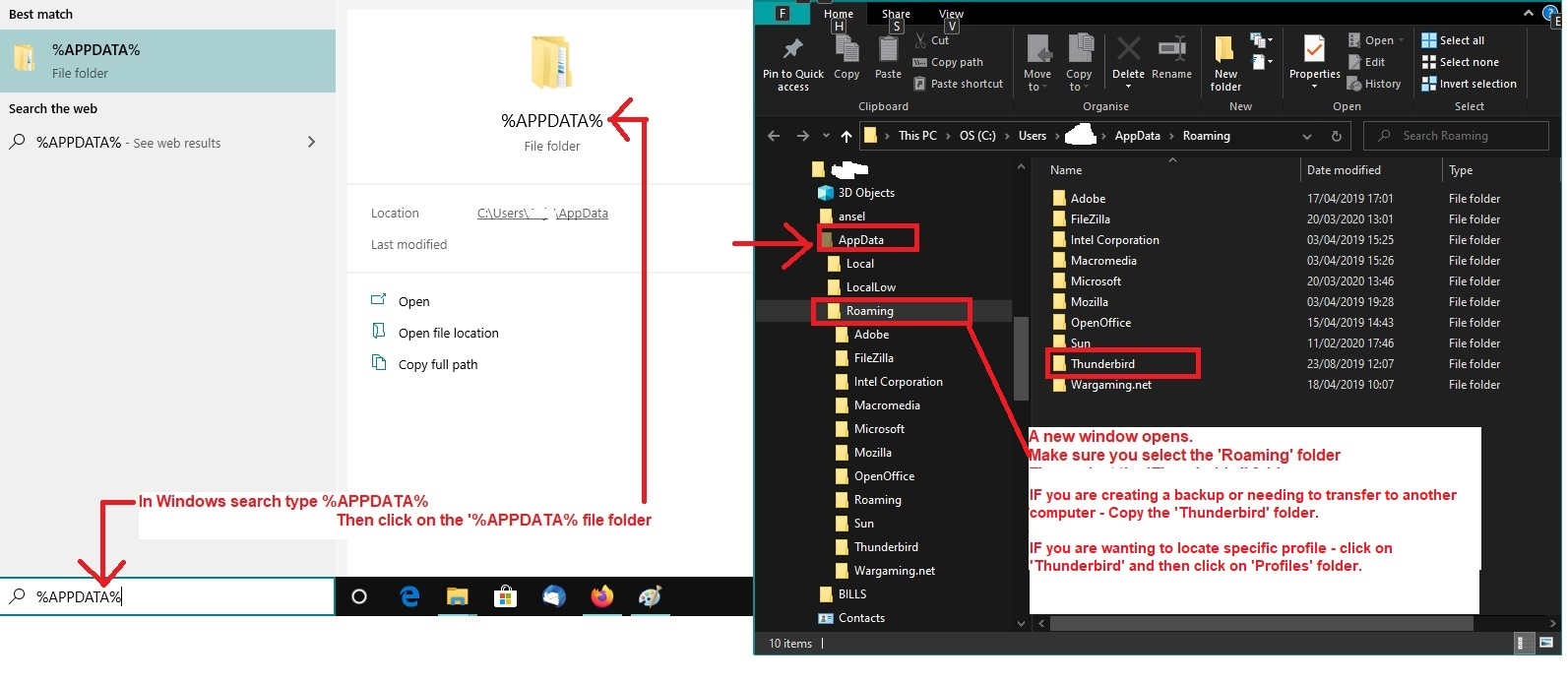
But what happens if you got the Thunderbird program download from the 'Windows App Store'?
Just to confuse the issue, Microsoft decided to use it's own location for the profile, which is very confusing for many people because it means all the information you may locate on Thunderbird and Profiles does not seem to apply.
If you downloaded the Thunderbird app from the 'Windows app Store' then your profile will be in this location: C:\Users\username\AppData\Local\packages\MozillaThunderbird.MZLA_h5892qc0xkpca\LocalCache\Roaming\Thunderbird\
So do this: Exit Thunderbird - this is important.
- In windows search type: %Appdata%
- Select the %Appdata% File folder
There is a difference to the path, so do this...
- select 'Local' folder
- select 'packages' folder
- select 'MozillaThunderbird.MZLA_h5892qc0xkpca' folder
- Select 'LocalCache' folder
- finally you can now select the 'Roaming' folder to see the 'Thunderbird' folder.
- Copy the 'Thunderbird' folder
Paste the 'Thunderbird' folder in a suitable location to act as backup eg: another drive, an external drive, a USB, but make sure there is enough space.
Modified by Toad-Hall
Thanks Toad-Hall for sharing your knowledge with an ignorant. Now, do you get a notification from the forum robot?

You can back up your entire Thunderbird profile by copying the complete Profiles folder from your system, which preserves emails, accounts, address books, calendars, and all settings for easy restoration or transfer.

If you are looking for a solution to create a simple backup of the entire Thunderbird folder, using a dedicated offline utiltiy like SysTools Email Backup Wizard is one of the ideal choice for fast and accurate results.
Harsh Sharma said
You can back up your entire Thunderbird profile by copying the complete Profiles folder from your system, which preserves emails, accounts, address books, calendars, and all settings for easy restoration or transfer.
True, that will backup all the 'profile name' folders contained in the 'Profiles' folder, but it does not backup your 'profiles.ini' file which is located in the 'Thunderbird folder.
mathew0406 said
If you are looking for a solution to create a simple backup of the entire Thunderbird folder, using a dedicated offline utiltiy like SysTools Email Backup Wizard is one of the ideal choice for fast and accurate results.
This forum does not endorse programs other than Thunderbird. Nor can we advise on how to use them to perform a backup or use them to reinstall should it be required. You use them at your own risk.
There is a Thunderbird add-on extension which can backup accounts and folders in various formats: ImportExporttools NG. https://services.addons.thunderbird.net/en-Gb/thunderbird/addon/importexporttools-ng/
In addition, if your current profile is smaller than 2GB, in Thunderbird you can 'Tools' > 'Export' option. This exports accounts, messages, address books and settings to a zip file.
The best option to perform a complete backup is the 'Chosen Solution' as it requires no additional programs nor add-ons. A complete backup of the Thunderbird folder can also be used to migrate to other computers and other OS.