Profiles not showing correctly and cannot edit

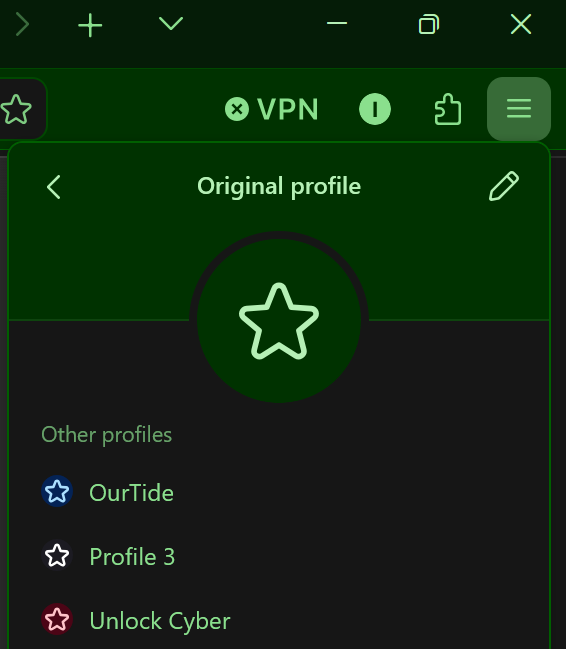
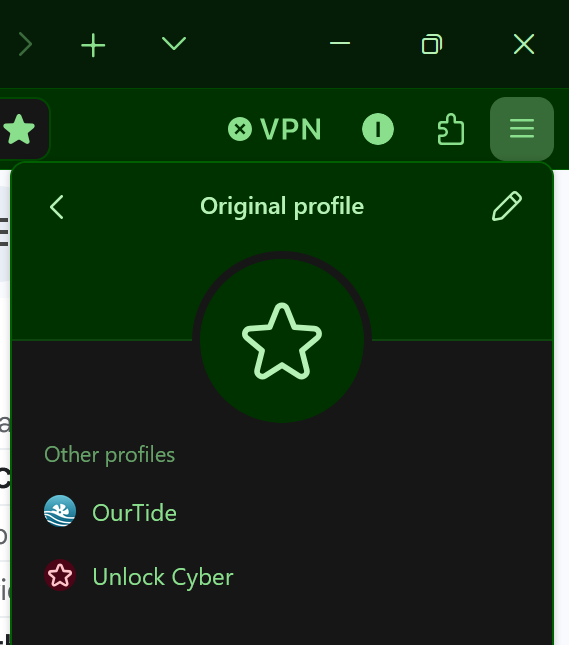
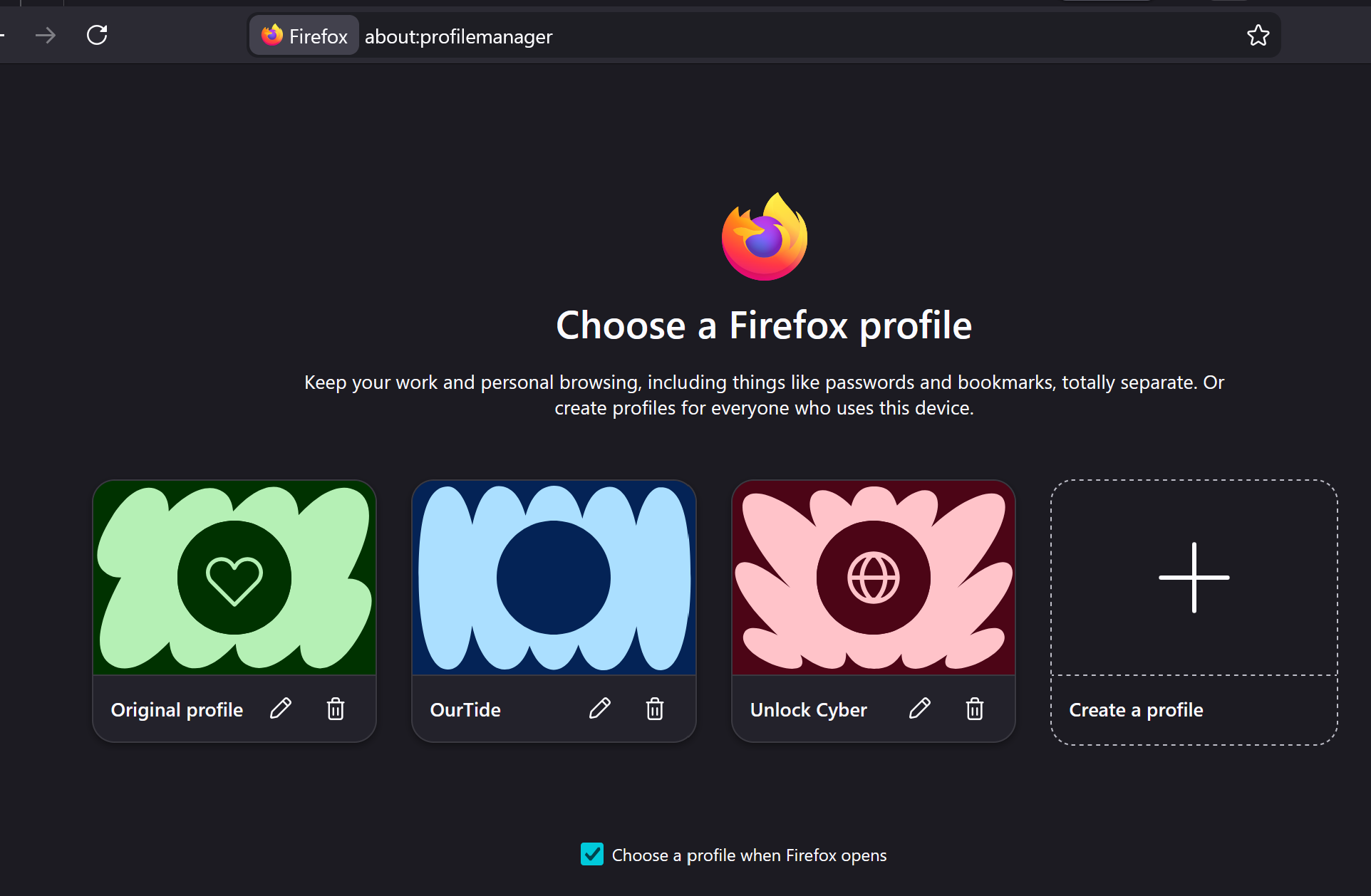
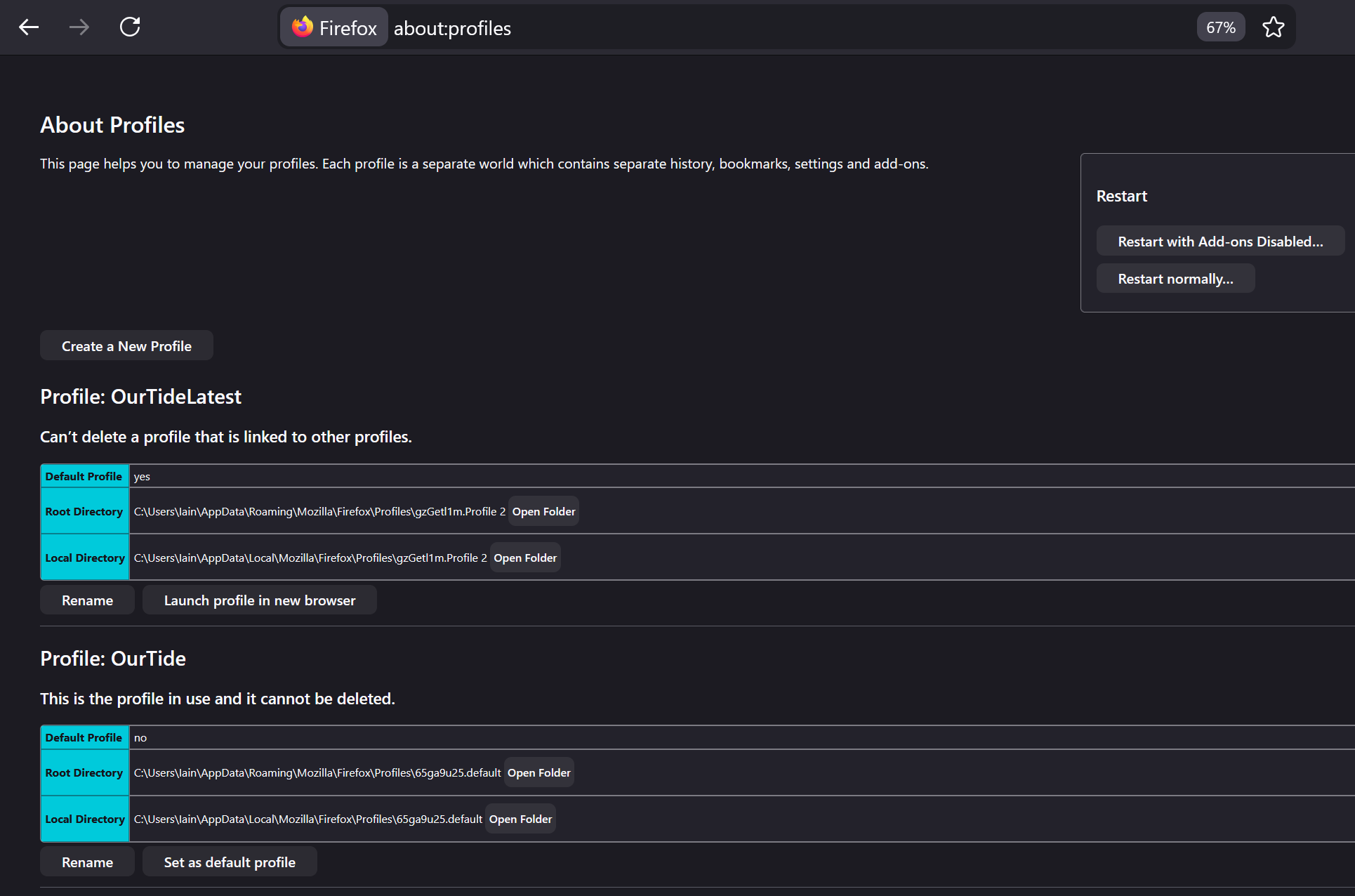
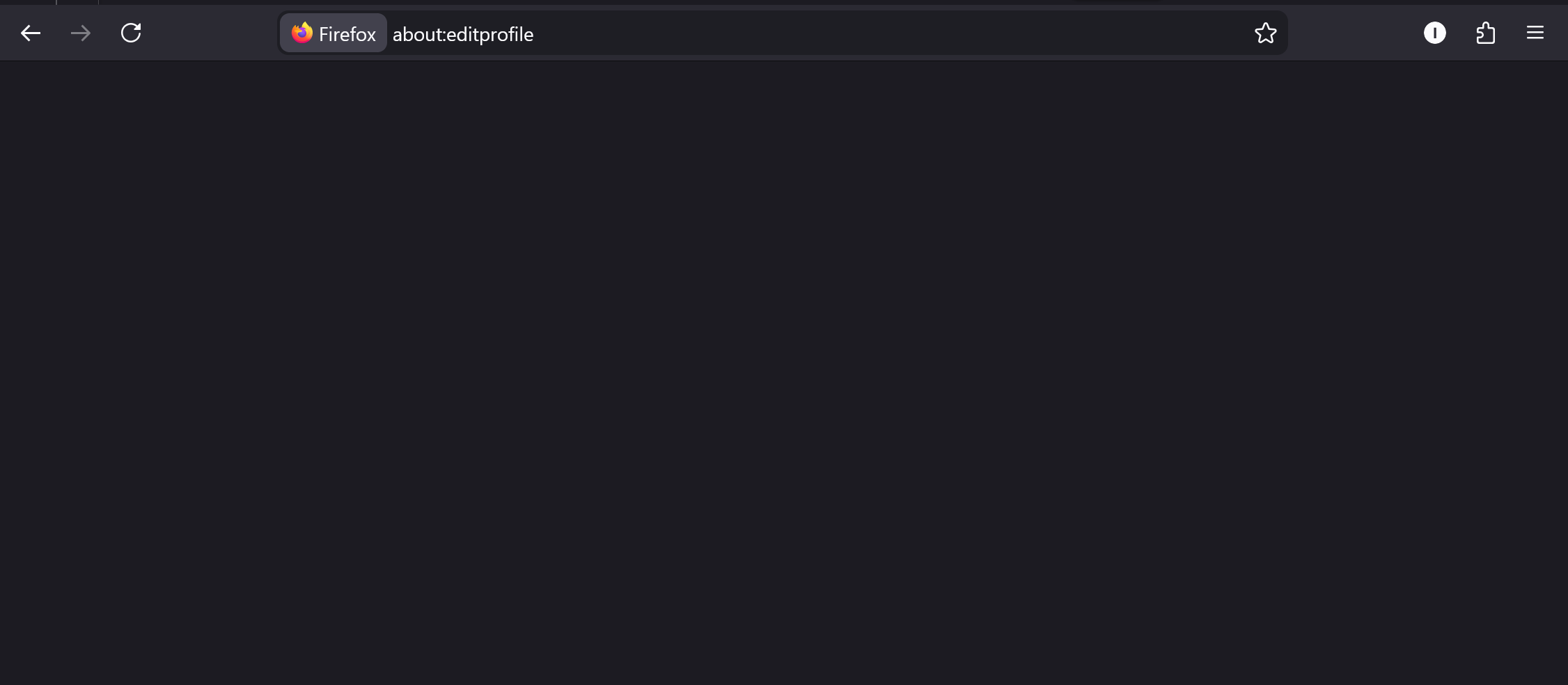
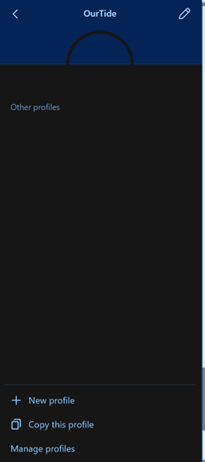
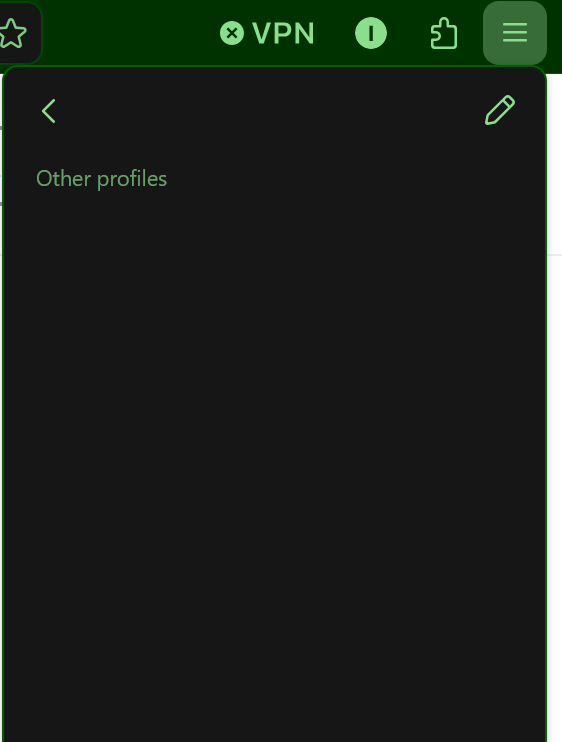
Hi, I'm running FF 149.0 (64-bit) on Windows 11. I've used profiles for a while now and on several occassions I've "lost profiles". Currently I have three profiles which I set up and edited the icon and colour associated with each. When I launch FF I see the Profile Manager and can select any of the three and I can create a new profile which shows here. However, once in any one of the FF profiles I don't see the others - by which I mean that when I go via the hamburger lines top right and click on the current profile, the 'other profiles' section is blank. I also cannot edit the profile from using the edit pencil top right (after clicking the hamburger lines and clicking on the current profile), it takes me to about:editprofile but the page is completely blank. Confusingly, if I go to about:profiles I see two profiles, neither of which shows up in the Profile Manager! I'm going round in circles trying to understand where to edit my exisitng profiles and make sense of the five profiles that don't all show up in the same place!
Chosen solution
Hey again Iain,
Thanks very much for the detailed logs and screenshots! You've helped uncover a serious bug (https://bugzilla.mozilla.org/show_bug.cgi?id=2028725) in the multiple profiles feature in Firefox.
Briefly summarizing the bug: when a user creates a custom avatar, we store that avatar in a cross-profile location that is unintentionally difficult to guess. This situation would be OK, except we don't fail gracefully if the user moves their profile but not the custom avatar. The profiles-related UI becomes seriously broken.
I've been able to reproduce the bug on my personal machine by changing the names of my custom avatar files.
I'll need to get a proper fix landed in Firefox for this, but for tonight, we can work around the bug by temporarily resetting all your profiles to use one of the built-in SVG avatars. Since the bug breaks the edit page, we'll have to do it in the console.
So, please launch one of the profiles in your profile group, open the Browser Toolbox to the Console tab, and run the following two-liner:
let profiles = await SelectableProfileService.getAllProfiles(); profiles.forEach(async p => { await p.setAvatar("star"); await p.saveUpdatesToDB(); })
Then restart the running profile. The profiles menu and the about:editprofile page should then work correctly in all of the profiles in the profile group.
Please let me know if this works for you or if you run into any additional errors.
Thanks again - Jared
Read this answer in context 👍 1All Replies (19)
Hey there - I'm sorry you're having problems with your profiles. I'm familiar with the profiles code and hopefully I can help you figure out what's going on.
First, while it's a bit confusing, note that the new multiple profiles feature is not really designed to be managed using about:profiles. So, don't worry about the about:profiles listing for now.
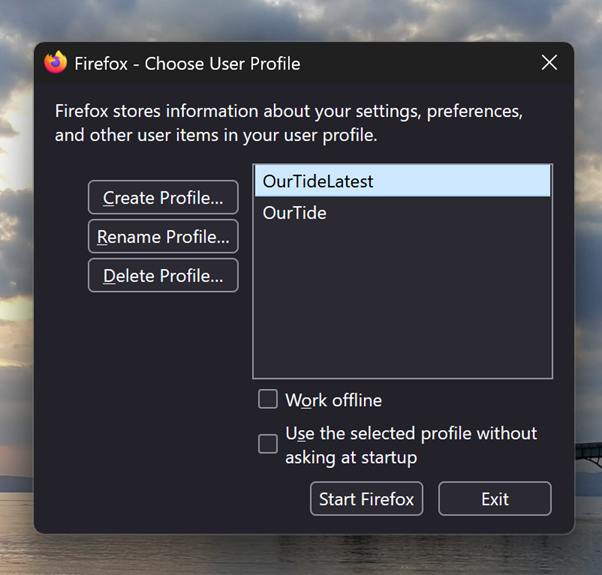
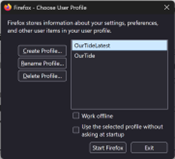
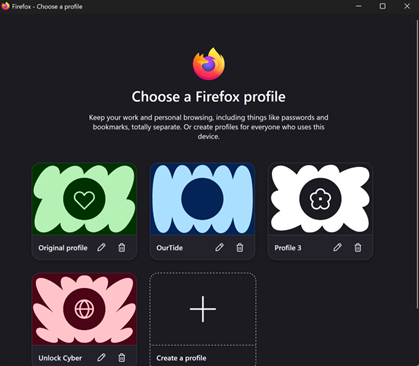
Also, just to narrow down what's going on - have you recently manually moved/migrated any of the three profiles (original profile, ourtide, unlock cyber) shown in the first screenshot? Or, have you recently edited profiles.ini by hand? (Edited to add: have you recently migrated your user account to a new device?)
Are you able to actually launch all three of those profiles successfully from the profile selector window shown in the first screenshot? For whichever profiles you can launch, if you go to about:config, what is the value in each profile of the `toolkit.profiles.storeID` pref?
Modified by Jared Hirsch
Hi Jared, many thanks for your very quick reply. This response is in haste as I'm about to go out, but I'll reply more fully within 12 hours from now.
I will ignore about:profiles!
I did, at one stage, but not within the last few weeks, migrate the profiles manually in order to bring them back when I lost them completely. And yes, I can access all three profiles via the profile manager, but I cannot switch between them via the hamburger, and I cannot edit them at all (e.g. add the logo that was on the OurTide profile back in as it has been lost).
As I say I'll add more later, and again thanks for helping so quickly! Iain
Hello
About, toolkit.profiles.storeID
about:editprofile, about:deleteprofile
I had the same problem and solved.
Take a look at https://bugzilla.mozilla.org/show_bug.cgi?id=2000125#c4
Similar question https://support.mozilla.org/en-US/questions/1572094
Hi again Jared,
sorry for the delay. To further answer your questions:
have you recently manually moved/migrated any of the three profiles (original profile, ourtide, unlock cyber) shown in the first screenshot?
I have migrated them as I said previously, but not for a couple of months or so.
Or, have you recently edited profiles.ini by hand? I'm unclear now but I think I did this when I tried to reconstruct my profiles a couple of months back.
(Edited to add: have you recently migrated your user account to a new device?) No, this is one thing I haven't done! The profiles were created on my laptop, which is where I'm working now.
Are you able to actually launch all three of those profiles successfully from the profile selector window shown in the first screenshot? Yes.
For whichever profiles you can launch, if you go to about:config, what is the value in each profile of the `toolkit.profiles.storeID` pref? Sorry but I'm unclear where to find toolkit.profiles.storeID? Having tried to search for "toolkit.profiles.storeID" online I think that it should be in my profiles.ini? There's nothing there about storeID. Here is the full contents of my profiles.ini file:
[Install308046B0AF4A39CB] Default=Profiles/gzGetl1m.Profile 2 Locked=1
[Profile1] Name=OurTide IsRelative=1 Path=Profiles/l1HYRiTQ.Profile 1 StoreID=b6f4bbc1 ShowSelector=1
[Profile0] Name=OurTideLatest IsRelative=1 Path=Profiles/gzGetl1m.Profile 2 Default=1 StoreID=b6f4bbc1 ShowSelector=1
[General] Version=2
[BackgroundTasksProfiles] MozillaBackgroundTask-308046B0AF4A39CB-defaultagent=x1cvwgxc.MozillaBackgroundTask-308046B0AF4A39CB-defaultagent MozillaBackgroundTask-308046B0AF4A39CB-backgroundupdate=p2hxuoew.MozillaBackgroundTask-308046B0AF4A39CB-backgroundupdate
Thanks also to Agent virtuel but I didn't follow what was on that page.
Hi toolkit.profiles.storeID is about a pref stored in about:config. If the value stored in the pref isn't matching the storeID stored in profiles.ini, then you won't see these profiles in the new Profile Manager, but you still see them in about:profiles.
You can open about:config via the location/address bar. On the warning page, click "Accept the Risk and Continue" to open about:config.
Hi cor-el,
many thanks!
Original: c1902b0e OurTide: b6f4bbc1 Unlock Cyber: b6f4bbc1
profiles.ini: b6f4bbc1
So, can I simply edit the value held in about:config viewed from the Original profile?
Ok, I decided to try my fix. I have now set all three to b6f4bbc1 but this is what I see: From OurTide - if I click on the Profile OurTide under the hamburger I see no other profiles From Unlock Cyber - if I click on the Profile Unlock Cyber under the hamburger I see the OurTide profile From Original - I can't click on Profile under the hamburger, it isn't there.
Hi folks, I've not been able to move forwards on this. Please can I check, is there more to it than simply making all the toolkit.profiles.storeID values match the value for storeID stored in profiles.ini? Also, please can I ask if there is somewhere that I can read up about what a profile must contain, and what it may contain (e.g. how to link to an image file for the logo to appear with the profile)? Many thanks in advance!
Hi info.ryanmax, your reply appears to be a truncated version of what Jared Hirsch posted and which I've answered already in this thread (mainly in my 3/29/26, 12:18 post)? My storeID values are in my 3/29/26 12:40 post. Apologies if I'm missing something here?
Hey Iain,
Thanks for the info. I've done some testing locally and came up with some steps to manually reconstruct your profile group.
(I'll use the terms "managed profile" to mean a profile with an entry in profiles.ini, and "unmanaged profile" to mean a profile stored anywhere on disk, but not listed in profiles.ini.)
One-time setup in the Main Profile
First, launch whichever managed profile you want to be your main profile. I'll just assume its name is "Main Profile" here.
- Launch Firefox using your main profile (firefox -P "Main Profile")
- Go to about:config, search for toolkit.profiles.storeid, and write down the 8-character value associated with it, we'll need this later.
- Also, go into the app menu, then the Profiles submenu, and click the "New Profile" menu item. (You can keep or delete the newly-created profile, it doesn't matter; we just need to do this once to ensure the profiles code has initialized the cross-profile storage.)
With that out of the way, here's how you can add any unmanaged profile to a profile group connected to "Main Profile". Let's call the profile "Profile 2".
Adding an unmanaged profile to a profile group
- Launch Firefox using Profile 2 using the command-line argument "firefox -profile path/to/profile 2" (of course, substituting the path on disk to Profile 2)
- Go to about:config, search for toolkit.profiles.storeid, and replace the value with the Main Profile storeID
- Exit Firefox
- Re-launch Firefox using "firefox -profile path/to/profile 2"
- Now you'll need to enable the browser toolbox following the instructions here: https://firefox-source-docs.mozilla.org/devtools-user/browser_toolbox/index.html
- In the browser toolbox, open the Console, then copy in the following two lines and hit Return:
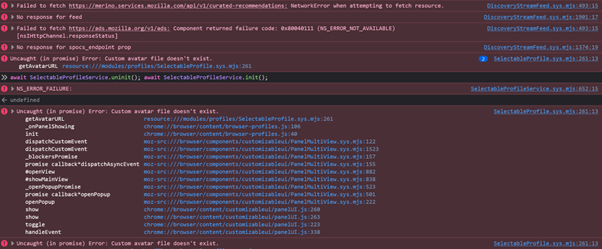
await SelectableProfileService.uninit(); await SelectableProfileService.init();
- After this is done, if you look in the app menu under Profiles, you should see Main Profile also listed. This means "Profile 2" and "Main Profile" are now part of the same profile group.
Adding a managed profile to a profile group
For managed profiles, as a first step we need to remove the profile's entry from profiles.ini, and then we'll just go through the steps above for an unmanaged profile.
The most reliable way to do this is to use the profile manager dialog shown when you run `firefox -P` at the command line.
Here let's say the example profile is named Profile 3, and we want to pull it into the same profile group with Main Profile.
- Make sure you've done one-time setup steps in Main Profile mentioned further above. (You only need to do them once per main profile - initing the profiles storage and writing down the storeID.)
- Launch Firefox using `firefox -P`
- When the Profile Manager dialog appears, find Profile 3 and click the Delete Profile button
- IMPORTANT: in the confirmation dialog, choose "Don't Delete Files". We need those files.
- Hit Exit to close the dialog.
Now your Profile 3 is still on disk, but it's an unmanaged profile - it no longer has an entry in profiles.ini. Go through the unmanaged profile steps above to add Profile 3 to the group including Main Profile.
I'm sorry this is such a complex set of steps; hopefully we will have a simplified solution landed in Firefox soon.
In the meantime, please give this a try and let me know how it goes.
Hey again Iain,
Sorry, I had left my draft open for a few days and didn't realize some new replies had come in.
I think my answer above should clarify what you need to do other than change the value of the pref.
Now, to address your other question:
> Also, please can I ask if there is somewhere that I can read up about what a profile must contain, and what it may contain (e.g. how to link to an image file for the logo to appear with the profile)?
We have some docs on profiles here on SUMO:
- General profile info - https://support.mozilla.org/en-US/kb/profiles-where-firefox-stores-user-data
- New multiple profiles feature - https://support.mozilla.org/en-US/kb/profile-management
- More technical docs - https://firefox-source-docs.mozilla.org/toolkit/profile/
To add a custom image to a profile (it must already be in a profile group):
- Launch the profile
- Go to about:editprofile
- Click the Edit button under the large avatar shown in that page
- A little panel will pop up with "Icon" and "Custom" tabs
- Click the "Custom" tab in the panel to toggle an image file upload form
iain.major said
Hi info.ryanmax, your reply appears to be a truncated version of what Jared Hirsch posted and which I've answered already in this thread (mainly in my 3/29/26, 12:18 post)? My storeID values are in my 3/29/26 12:40 post. Apologies if I'm missing something here?
Hi,
FYI, that answer has been marked as spam, and the related account has been deactivated.
Hi Jared,
Many thanks for the comprehensive reply and the follow on with my additional question. I've not looked at the latter yet...
I've had a good go at working through your instructions and I've annotated them here with screenshots to show what I see. I'd be glad to hear from you again!
Thanks for the info. I've done some testing locally and came up with some steps to manually reconstruct your profile group. (I'll use the terms "managed profile" to mean a profile with an entry in profiles.ini, and "unmanaged profile" to mean a profile stored anywhere on disk, but not listed in profiles.ini.) One-time setup in the Main Profile First, launch whichever managed profile you want to be your main profile. I'll just assume its name is "Main Profile" here. 1. Launch Firefox using your main profile (firefox -P "Main Profile") Done 2. Go to about:config, search for toolkit.profiles.storeid, and write down the 8-character value associated with it, we'll need this later. b6f4bbc1 3. Also, go into the app menu, then the Profiles submenu, and click the "New Profile" menu item. (You can keep or delete the newly-created profile, it doesn't matter; we just need to do this once to ensure the profiles code has initialized the cross-profile storage.) done, new profile also had toolkit.profiles.storeid as b6f4bbc1
With that out of the way, here's how you can add any unmanaged profile to a profile group connected to "Main Profile". Let's call the profile "Profile 2". Adding an unmanaged profile to a profile group 1. Launch Firefox using Profile 2 using the command-line argument "firefox -profile path/to/profile 2" (of course, substituting the path on disk to Profile 2) I needed to add ‘start’ to give e.g. start firefox -profile “C:/Users/Iain/AppData/Roaming/Mozilla/Firefox/Profiles/l1HYRiTQ.Profile 1” (I found that I had to Run as Administrator)
2. Go to about:config, search for toolkit.profiles.storeid, and replace the value with the Main Profile storeID Value is already set to b6f4bbc1 3. Exit Firefox Done 4. Re-launch Firefox using "firefox -profile path/to/profile 2" Done 5. Now you'll need to enable the browser toolbox following the instructions here: https://firefox-source-docs.mozilla.org/devtools-user/browser_toolbox/index.html Done
6. In the browser toolbox, open the Console, then copy in the following two lines and hit Return: await SelectableProfileService.uninit(); await SelectableProfileService.init(); Done but errors present before hand and after: https://assets-prod.sumo.prod.webservices.mozgcp.net/media/uploads/images/2026-04-01-06-40-22-6c8516.png 1. After this is done, if you look in the app menu under Profiles, you should see Main Profile also listed. This means "Profile 2" and "Main Profile" are now part of the same profile group. Attempted before restart – not seeing the other profile from profile 2: https://assets-prod.sumo.prod.webservices.mozgcp.net/media/uploads/images/2026-04-01-06-40-57-1fc384.png This remains the same after restarting Firefox from the command line again.
Adding a managed profile to a profile group For managed profiles, as a first step we need to remove the profile's entry from profiles.ini, and then we'll just go through the steps above for an unmanaged profile. The most reliable way to do this is to use the profile manager dialog shown when you run `firefox -P` at the command line. OK, I had to insert ‘start’ to give ‘start firefox -p’ (running cmd as admin again). This gave me this dialogue: https://assets-prod.sumo.prod.webservices.mozgcp.net/media/uploads/images/2026-04-01-06-43-08-5dd42f.png
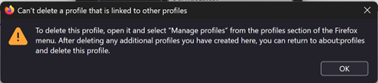
On trying to delete either of these profiles (neither of which is in the main group, I can’t seem to see them to remove them) I get this error:https://assets-prod.sumo.prod.webservices.mozgcp.net/media/uploads/images/2026-04-01-06-44-10-e65ad8.png
So, I’m not clear how to proceed. On then trying to restart Firefox from my toolbar shortcut I now see the above menu and not the menu I had previously with my 3 (now 4 after adding one in the very first step) profiles as below:https://assets-prod.sumo.prod.webservices.mozgcp.net/media/uploads/images/2026-04-01-06-44-34-4892bc.png
============At this point I've paused to get further advice.============ Here let's say the example profile is named Profile 3, and we want to pull it into the same profile group with Main Profile. 1. Make sure you've done one-time setup steps in Main Profile mentioned further above. (You only need to do them once per main profile - initing the profiles storage and writing down the storeID.) 2. Launch Firefox using `firefox -P` 3. When the Profile Manager dialog appears, find Profile 3 and click the Delete Profile button 4. IMPORTANT: in the confirmation dialog, choose "Don't Delete Files". We need those files. 5. Hit Exit to close the dialog. Now your Profile 3 is still on disk, but it's an unmanaged profile - it no longer has an entry in profiles.ini. Go through the unmanaged profile steps above to add Profile 3 to the group including Main Profile. I'm sorry this is such a complex set of steps; hopefully we will have a simplified solution landed in Firefox soon. In the meantime, please give this a try and let me know how it goes.
Chosen Solution
Hey again Iain,
Thanks very much for the detailed logs and screenshots! You've helped uncover a serious bug (https://bugzilla.mozilla.org/show_bug.cgi?id=2028725) in the multiple profiles feature in Firefox.
Briefly summarizing the bug: when a user creates a custom avatar, we store that avatar in a cross-profile location that is unintentionally difficult to guess. This situation would be OK, except we don't fail gracefully if the user moves their profile but not the custom avatar. The profiles-related UI becomes seriously broken.
I've been able to reproduce the bug on my personal machine by changing the names of my custom avatar files.
I'll need to get a proper fix landed in Firefox for this, but for tonight, we can work around the bug by temporarily resetting all your profiles to use one of the built-in SVG avatars. Since the bug breaks the edit page, we'll have to do it in the console.
So, please launch one of the profiles in your profile group, open the Browser Toolbox to the Console tab, and run the following two-liner:
let profiles = await SelectableProfileService.getAllProfiles(); profiles.forEach(async p => { await p.setAvatar("star"); await p.saveUpdatesToDB(); })
Then restart the running profile. The profiles menu and the about:editprofile page should then work correctly in all of the profiles in the profile group.
Please let me know if this works for you or if you run into any additional errors.
Thanks again - Jared
Hi Jared, I'm delighted to hear that my detailed logs and screenshots have helped uncover a bug! I've implemented your temporary fix, with some success. Here are the details:
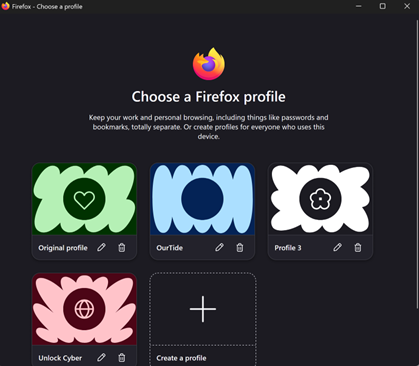
I can't access my 'original profile' by using my Toolbar shortcut to Firefox as it still launches not as I had it originally:
but instead like this: https://assets-prod.sumo.prod.webservices.mozgcp.net/media/uploads/images/2026-04-02-03-01-15-5dd42f.png
and neither of these is the original (main) profile. However, I can get into both of the other main group profiles (though see below as they are misnamed!)
I then found that I cannot access the Browser Toolbox except from the single profile OurTide (but I guess that's how it was set up when I added it).
Having run the two lines you asked from the console I got the message 'undefined' which I thought might be a problem https://assets-prod.sumo.prod.webservices.mozgcp.net/media/uploads/images/2026-04-02-03-06-00-6e7c78.png
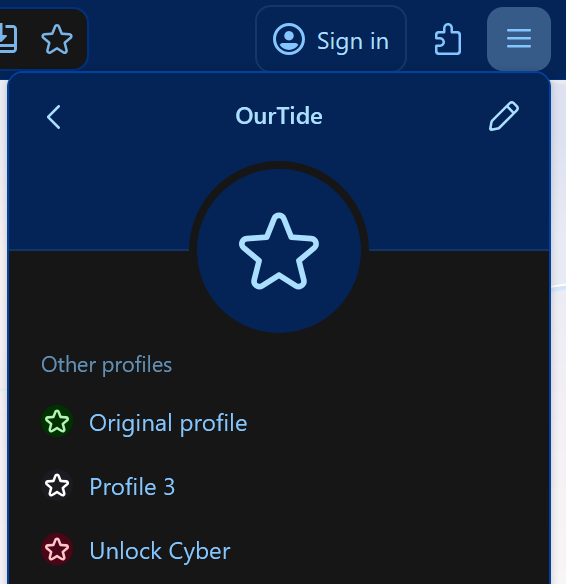
but the fix did reset the icons: https://assets-prod.sumo.prod.webservices.mozgcp.net/media/uploads/images/2026-04-02-03-08-41-15b67d.png
And I can also change profiles from the profile menu here. At first I thought this was a perfect fix (other than the toolbar shortcut to Firefox which doesn't allow me to lauch the original profile) but the profiles on the 'wrong' profile selector are misnamed as the 'OurTideLatest' listed actually points to the OurTide profile, and the 'OurTide' listed points to the Unlock Cyber profile, which is confusing!
Also, there is another issue, while I can swap between the profiles once I've gone via the OurTide profile where I applied your fix, if I go into Firefox via the notification link, I can't see the updates applied - the profiles selector isn't showing at all, but is there if I click where it should be listed: https://assets-prod.sumo.prod.webservices.mozgcp.net/media/uploads/images/2026-04-02-03-14-26-0aef9e.png
but when it opens, no other profiles are showing: https://assets-prod.sumo.prod.webservices.mozgcp.net/media/uploads/images/2026-04-02-03-14-53-c8701e.png
All of the above persist after restarting Firefox. Looking at this further I find that although the background colour on the profile that opens from the notification shortcut is green (like my Original profile in the main group) this is infact another profile. I'm not sure how to fix this? I'm using Gmail to open the email with the notification and have pinned a shortcut to Gmail to my toolbar which actually opens a browser window, which I guess is linked to the wrong profile (i.e. not the Original profile). Should I simply delete the shortcut and recreate from the Original profile perhaps?
However, once I've gone into the main group OurTide or Unlock Cyber profiles I can then navigate to the Orignal profile, where I do see the reset icons applied and from here all works well.
To be honest, this is pretty much working now, but I would like to reset the profile selector I see from the toolbar shortcut to allow me navigate to the correct profiles and use them as I would expect. If you are able to help me fix these final hurdles to be able to navigate between the main group profiles I'd be even more grateful than I already am!
Finally I assume that the fix for the bug you uncovered will simply be bundled into an updated release but please can I be informed when it is released so I know I will be able to update icons away from the 'standard' ones?
Many thanks Iain
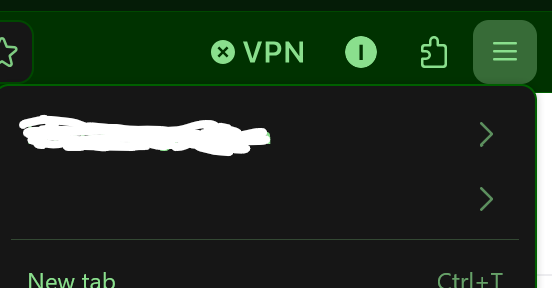
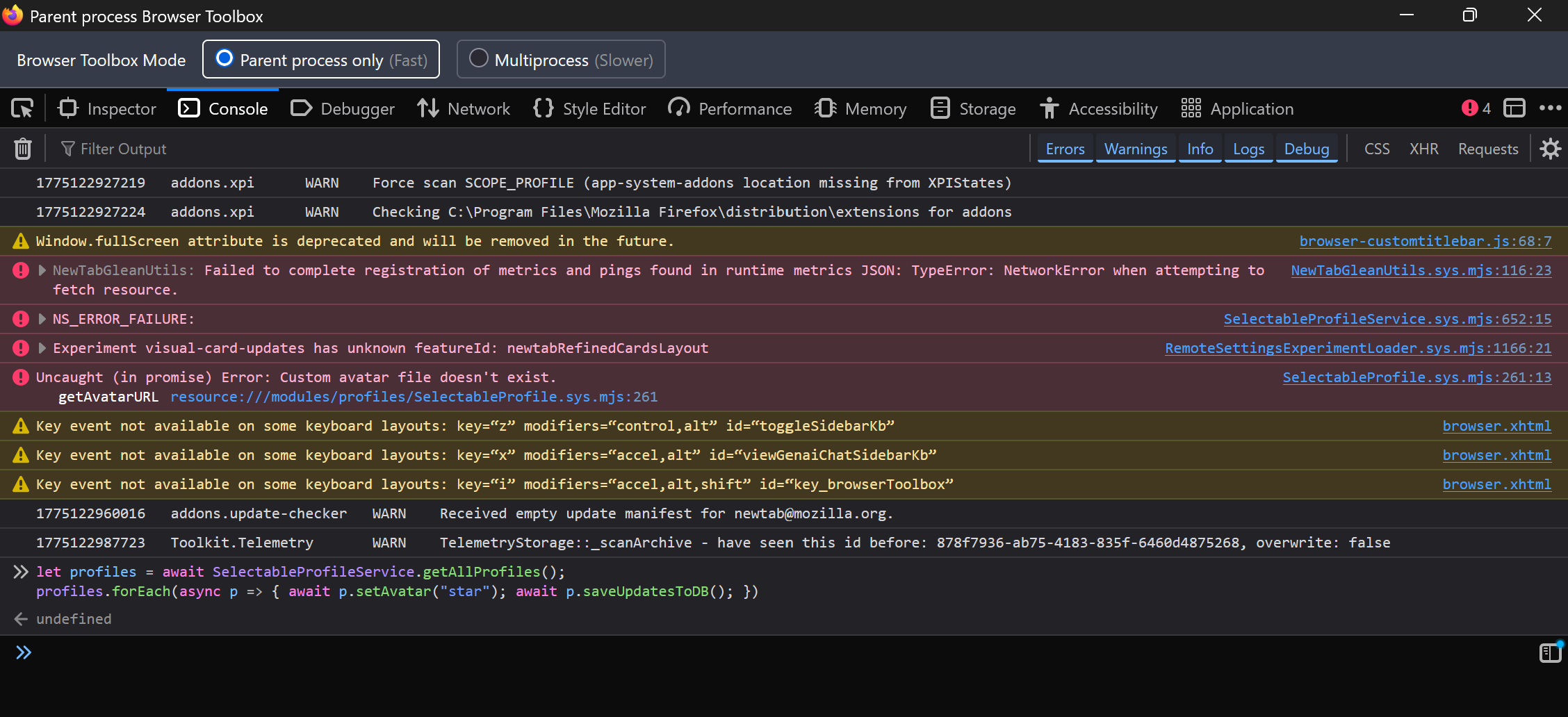
Note that seeing undefined when running code in the console is usually no need to worry, this merely means that the code you did run doesn't return a result exit code and Firefox has nothing to show (test: 3+2; prompt(3+2); alert(3+2););.
Hey Iain,
I'm glad that we're making some progress! I think we can pretty easily handle the last remaining issues:
> At first I thought this was a perfect fix (other than the toolbar shortcut to Firefox which doesn't allow me to lauch the original profile) but the profiles on the 'wrong' profile selector are misnamed as the 'OurTideLatest' listed actually points to the OurTide profile, and the 'OurTide' listed points to the Unlock Cyber profile, which is confusing!
You can fix this by simply selecting each profile in turn, then hitting the "Rename Profile..." button on the left side of the Profile Manager dialog window.
However I should mention that, if both those profiles are in the same profile group, only one should show up in the 'wrong' Profile Manager window. I would choose one of them to make the default (more on that below), and delete the other one--being very careful to click the "Don't Delete Files" button.
> I can't access my 'original profile' by using my Toolbar shortcut to Firefox as it still launches not as I had it originally:
This is a known bug. If you mark one of the profiles in the Profile Manager window as the default by checking the "Use the selected profile without asking at startup" checkbox before starting Firefox, on future Firefox launches you should start up into the newer Profile Selector window.
> Should I simply delete the shortcut and recreate from the Original profile perhaps?
Hm, I'm not sure how the taskbar tab should work in this case, but it shouldn't hurt anything to try creating a new shortcut.
> Finally I assume that the fix for the bug you uncovered will simply be bundled into an updated release but please can I be informed when it is released so I know I will be able to update icons away from the 'standard' ones?
You can safely use custom avatars now, but you will run into this bug again if you move the profiles without also moving the Profile Groups directory, which contains the avatar files. On your system, these are stored in the "C:/Users/Iain/AppData/Roaming/Mozilla/Firefox/Profile Groups/avatars" directory. Unfortunately the file names inside the "avatars" directory are just UUIDs without the ".png" extension, so it's not easy to tell that those are, in fact, image files.
But yes, the bug fix will likely ship in 151. It's a bit late to get the fix into 150 but I might try, since it's a pretty serious bug.
Let me know if you're able to get the last few pieces in place or have any further problems.
Cheers,
Jared
Hi Jared, Ok, I've worked through some of your instructions (details are below) and have a working system once more, many thanks!!
I'm glad that we're making some progress! I think we can pretty easily handle the last remaining issues:
> At first I thought this was a perfect fix (other than the toolbar shortcut to Firefox which doesn't allow me to lauch the original profile) but the profiles on the 'wrong' profile selector are misnamed as the 'OurTideLatest' listed actually points to the OurTide profile, and the 'OurTide' listed points to the Unlock Cyber profile, which is confusing!
You can fix this by simply selecting each profile in turn, then hitting the "Rename Profile..." button on the left side of the Profile Manager dialog window. When I tried to do this the profiles that are in the main group already had their correct names.
However I should mention that, if both those profiles are in the same profile group, only one should show up in the 'wrong' Profile Manager window. ... Yes, only one did show in the 'wrong' Profile Manager, the Original profile, but it showed up in the 'wrong' Profile Manager as OurTide Latest??
...I would choose one of them to make the default (more on that below), and delete the other one--being very careful to click the "Don't Delete Files" button. It wasn't clear to me how to do this since when I selected the OurTide Latest to be the default profile there was no 'save' option, and if I moved to the other profile it still appeared as if selected for being default. However, I took the decision to simply delete this other profile, which wasn't in the main group and that worked. It both reset to the 'correct' Profile Manager and also showed all four profiles in the main group (the original 3 plus the one I created in an earlier step. Great stuff!
> I can't access my 'original profile' by using my Toolbar shortcut to Firefox as it still launches not as I had it originally:
This is a known bug. If you mark one of the profiles in the Profile Manager window as the default by checking the "Use the selected profile without asking at startup" checkbox before starting Firefox, on future Firefox launches you should start up into the newer Profile Selector window. I've covered what I did in my previous comment in this post for anyone following along!
> Should I simply delete the shortcut and recreate from the Original profile perhaps?
Hm, I'm not sure how the taskbar tab should work in this case, but it shouldn't hurt anything to try creating a new shortcut. I'm going to try this later but it's not a deal breaker.
> Finally I assume that the fix for the bug you uncovered will simply be bundled into an updated release but please can I be informed when it is released so I know I will be able to update icons away from the 'standard' ones?
You can safely use custom avatars now, but you will run into this bug again if you move the profiles without also moving the Profile Groups directory, which contains the avatar files. On your system, these are stored in the "C:/Users/Iain/AppData/Roaming/Mozilla/Firefox/Profile Groups/avatars" directory. Unfortunately the file names inside the "avatars" directory are just UUIDs without the ".png" extension, so it's not easy to tell that those are, in fact, image files. Thanks Jared, as you can see from the image below I've successfully changed the profile image for OurTide profile and I'm going to avoid moving profiles if I can possibly help it!
But yes, the bug fix will likely ship in 151. It's a bit late to get the fix into 150 but I might try, since it's a pretty serious bug. Cool, I assume there is a way to look up which bugs are fixed in the new release to see if it is in there?
Let me know if you're able to get the last few pieces in place or have any further problems.
Cheers,
Jared Absolutely, all is now as I want it to be, for which I'm incredibly grateful! I've actually enjoyed working through this with your help and guidance and it has reaffirmed why I use Firefox as my browser of choice! Thank-you!!
Cheers, Iain