


Massively oversized font

I came on to this site earlier for info about how to reduce the size of the Message Filter screen to show the Allow button. I followed the advice to change the value in layout.css.pixel from the default to something less. I chose .9 and now have a massively oversized font of which I can only see a fraction of the page. I have re-installed Thunderbird from scratch but the version of Version 160 downloaded retains the same problem. I want to go on using T-bird but unless I can fix this I will be forced to change to something else. Help please?
วิธีแก้ปัญหาที่เลือก
Ok, whenever you post a problem, please do not shorthand anything. I wasted time because I believed what you wrote. you can get to the prefs.js this way:
- in search box on tool bar, enter %appdata% and press enter
- that should open file explorer at appdata\roaming folder
- click the thunderbird folder and then the profiles folder
- your profile is here. If there are multiple entries, it is likely the one ending in 'default-release
- open that folder and open the prefs.js file with notepad
- search for layout.css.dev. you can overtype it. here is example using 1.8 ("layout.css.devPixelsPerPx", "1.8");
I do not know exactly what you entered, but 1.8 increases all fonts slightly. The 1.8 should work ok when restarting thunderbird. For further tweaks, you can repeat your initial steps by going to settings>general and then to the config editor at advanced settings. Good luck. :)
การตอบกลับทั้งหมด (10)
Incorrect entry
เปลี่ยนแปลงโดย david เมื่อ
'# first make a copy of prefs.js, just in case you have problems.
- open prefs.js with a texteditor, such as notepad
- locate the layout.css entry and overtype with a smaller number, such as 1.8, save and restart and see if that lets the screen be usable
OOPS! STOP. I was thinking of the layout.css.devPixelsPerPx entry, but you mentioned a different one. One option might be to delete it from prefs.js and restart
Thank you for responding. The entry you mentioned was the one I changed. I was just shortening it for convenience. But how do I get to prefs.js when all I can see is a huge email address. Also forgive my ignorance but in what way is 1.8 smaller than the .9 I entered?
วิธีแก้ปัญหาที่เลือก
Ok, whenever you post a problem, please do not shorthand anything. I wasted time because I believed what you wrote. you can get to the prefs.js this way:
- in search box on tool bar, enter %appdata% and press enter
- that should open file explorer at appdata\roaming folder
- click the thunderbird folder and then the profiles folder
- your profile is here. If there are multiple entries, it is likely the one ending in 'default-release
- open that folder and open the prefs.js file with notepad
- search for layout.css.dev. you can overtype it. here is example using 1.8 ("layout.css.devPixelsPerPx", "1.8");
I do not know exactly what you entered, but 1.8 increases all fonts slightly. The 1.8 should work ok when restarting thunderbird. For further tweaks, you can repeat your initial steps by going to settings>general and then to the config editor at advanced settings. Good luck. :)
Hello David: Sorry to have misled you earlier. I have followed your instructions down to Step 5 and am presented with the attached error message. Any ideas? John
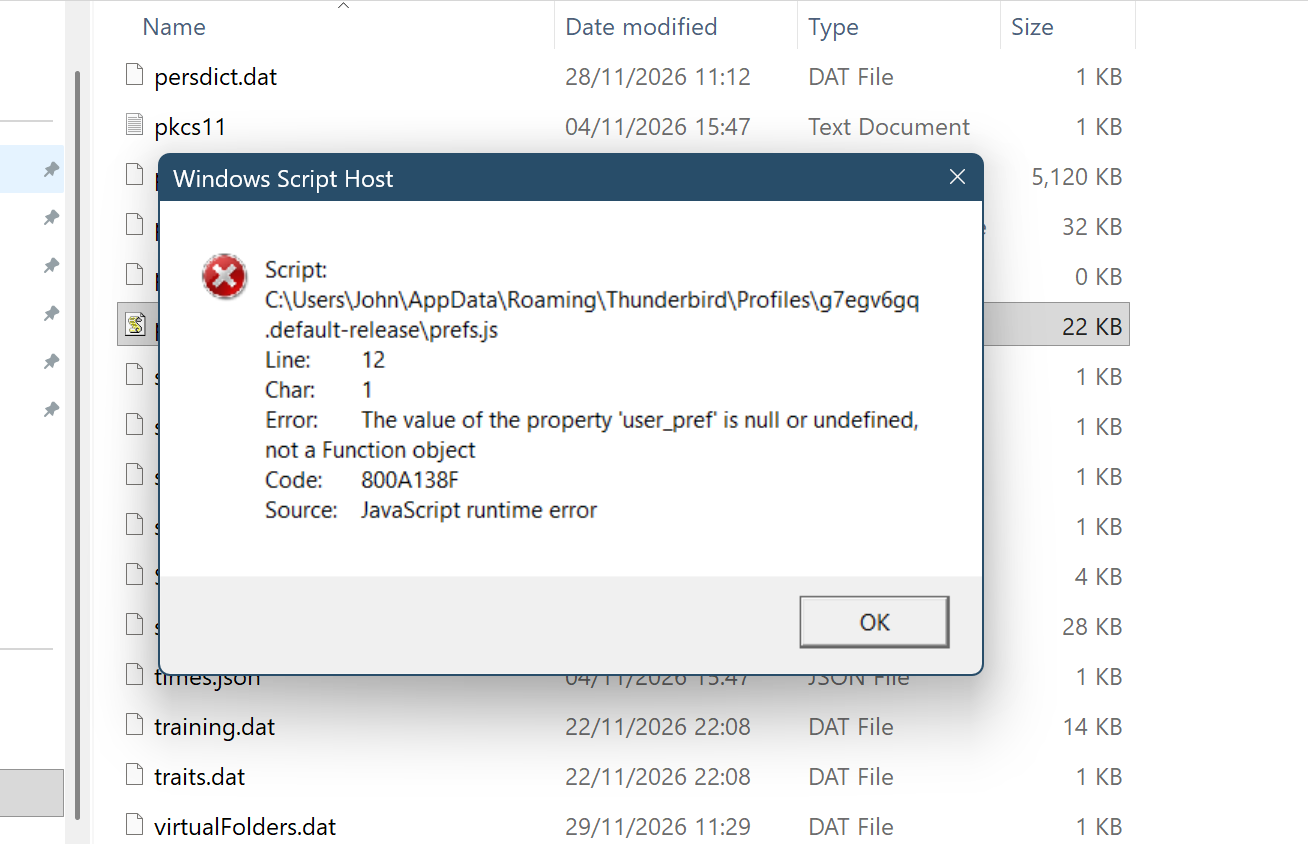
David: Further to sending my last, which I encountered on trying to open the file, I spotted the option to Edit with Notepad, which enabled me to find the required entry, which I then changed to 1.8 as per your suggestion. Thunderbird now operates in its former legible format. I am most grateful for your help. Thank you John
It was a pleasure to assist. You aren't the first person to step in that rabbithole... :)
Perhaps fixing my original issue of too large a Message Filter screen might be a good idea? You should always see the whole screen when setting something like that up. By the way, I couldn't see an Advanced option under Settings/General. Another example of Big Screen Blockout?
Unfortunately (in my opinion) the developers sometimes change names of items, forgetting years of documentation for prior spellings. The 'advanced' term is in the monthly release but not yet in the ESR release. Yes, this causes confusion.
Thanks to you I have a clearer idea of how best to deal with any future similar occurrence. And if I run into further problems, there's always this site.