


Re-installing Thunderbird on Windows 11

Thunderbird and Firefox removed when Windows reinstalled. Looking for old mail etc.
All Replies (12)
If Windows was a fresh install, wiping and reloading, then all data on PC is lost. If you have a backup, we can assist in restoring it. If Thunderbird has not yet been reinstalled, you can verify absence of data with these steps:
- enter %appdata% in search box on windows tool bar and press enter key
- that should open FIle Explorer in the appdata\roaming folder
- if there is a Thunderbird folder, let us know and we will assist, I doubt it is there if full Windows reinstall, but I show the option to check anyway.
Tip: If the account was IMAP, you have lost nothing. Just reinstall thunderbird and set the account up again.
Thanks for your prompt reply. I did reinstall Thunderbird and found that I had retained the contents of the Inbox (plus some emails from last year which had been in an archive file). My archived files also show up as folders but none of them have any contents except for the one named 2008; some of them as sub-folders of the Archives folder but some not. However I do have a file on an external hard drive called Thunderbird Profile from 2025. Can I use that file?

If you did not format the disk when reinstalling there is a chance your profile was saved in c:\windows.old.
Thanks but unfortunately it doesn't show up there.
Assuming a folder named Thunderbird, and assuming it isn't corrupted, try this:
- install thunderbird from thunderbird.net.
- start once and then exit
- enter %appdata% in serch window and press enter
- window should open at appdata\roaming
- delete the thunderbird folder and then replace with your backup thunderbird folder
- start thunderbird
Didn't work but thanks just the same.
If you explain what didn't work, we may be able to help salvage whatever is there. any error message? can you do a screenshot of what your thunderbird folder contains in File Explorer?
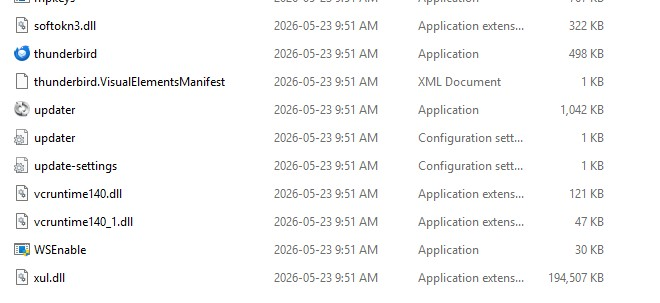
Thanks for your interest. As it stands now, here are the contents of my Thunderbird folder and of the Backup Profile folder from the external hard drive. Hope you can make sense of all this. jz
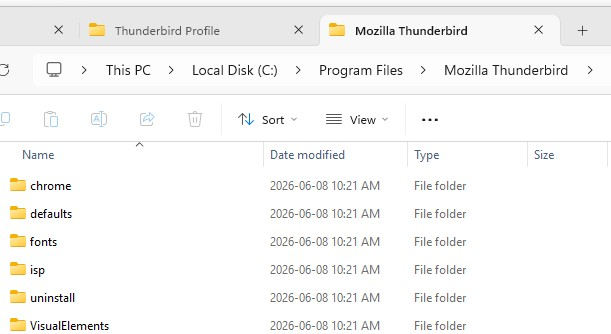
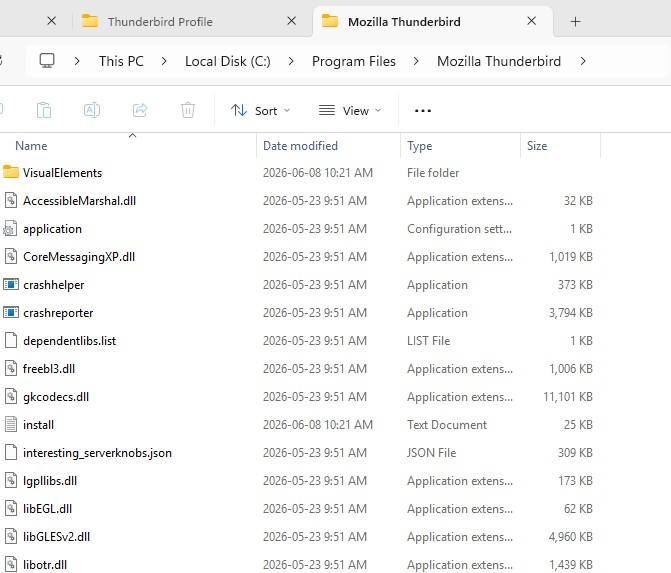
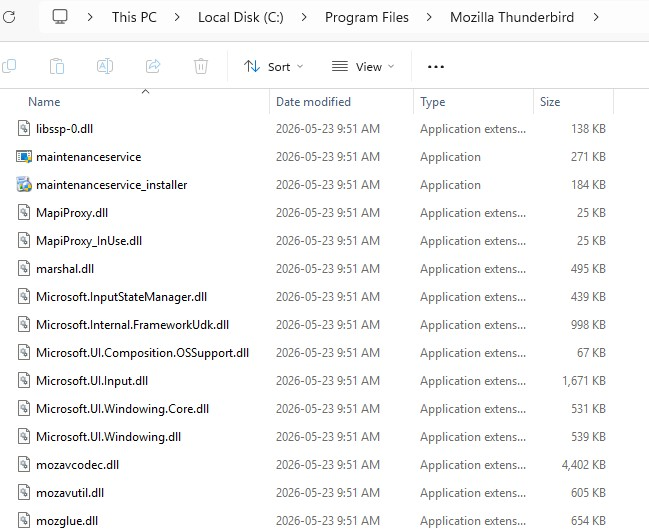
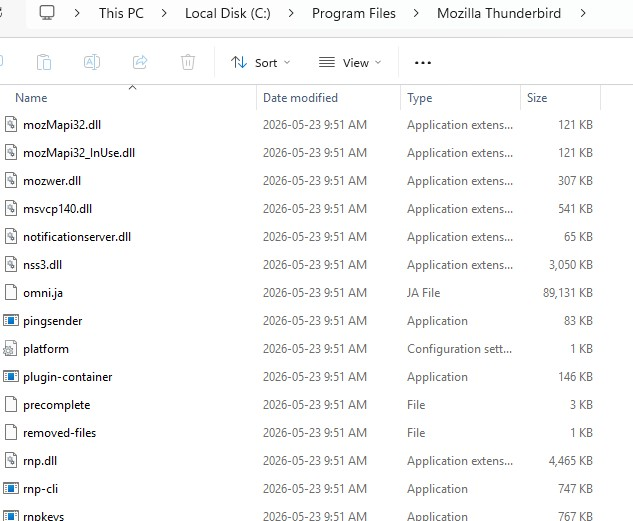
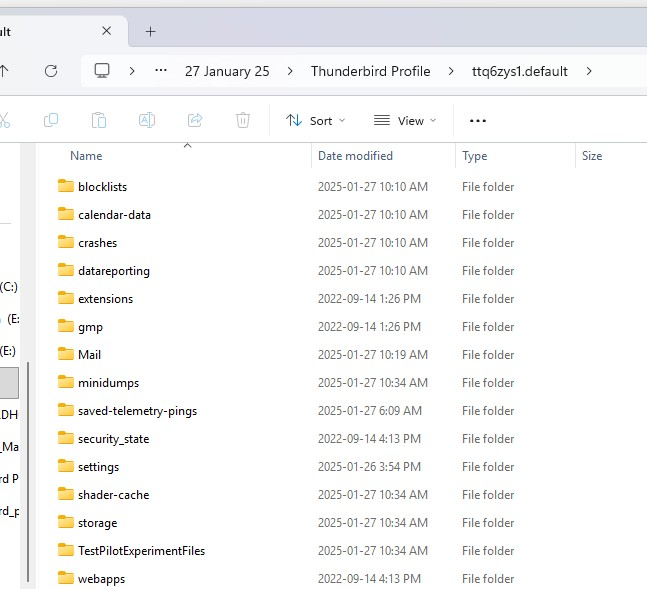
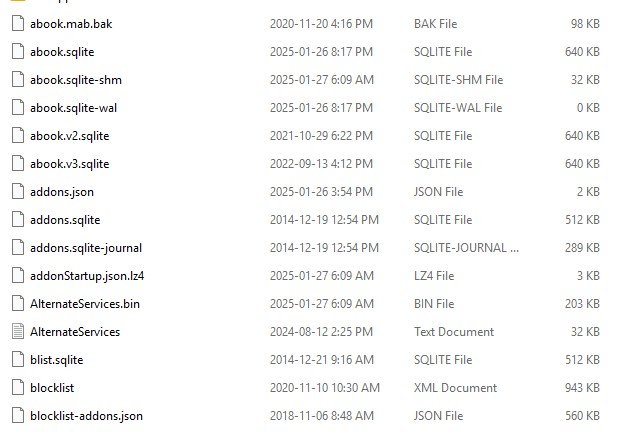
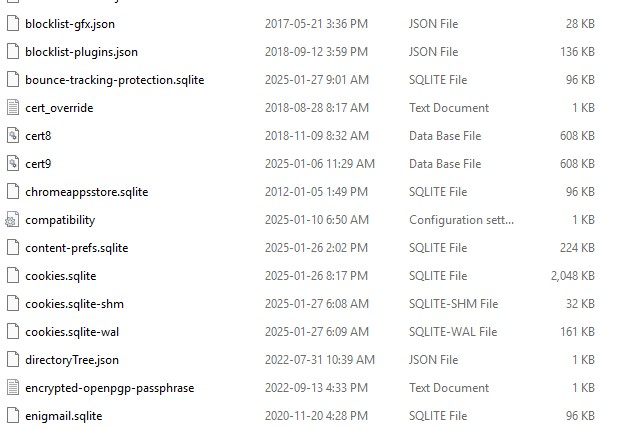
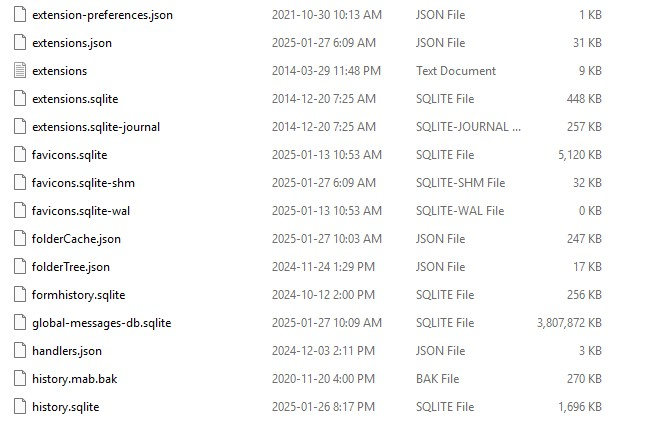
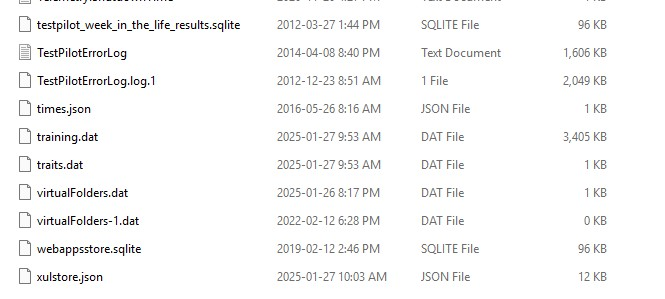
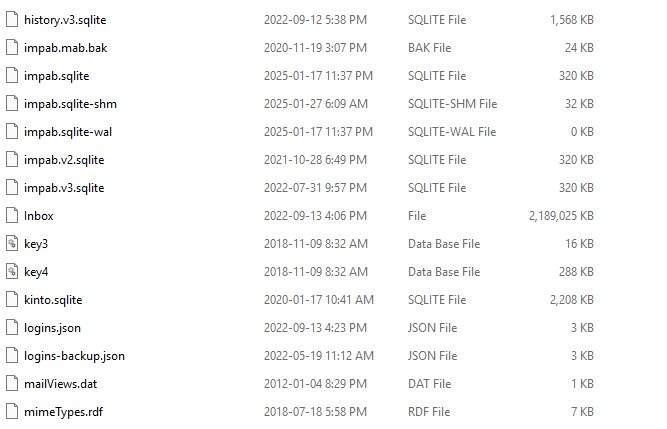
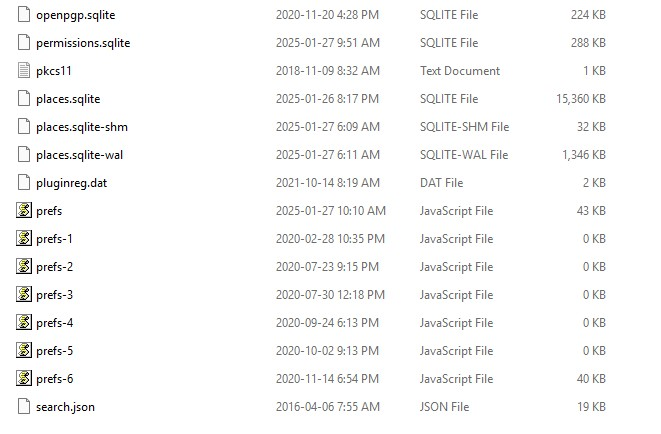
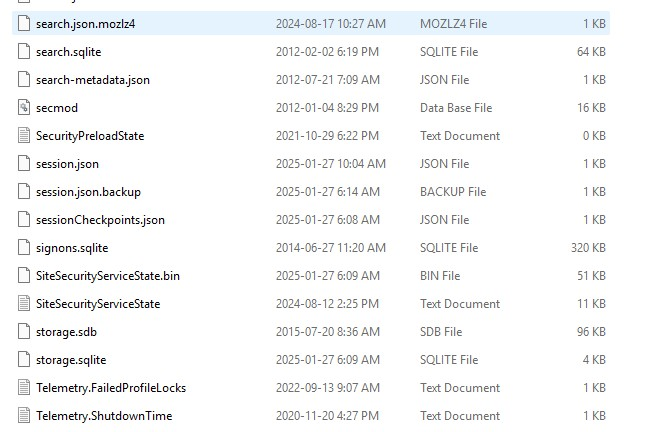
The attached screenshot is the place to focus. That folder of 'Thunderbird Profile' is where your data are. The screenshot is of part of one profile (begins with ttq6zys1.default), but there may be others is the 'Thunderbird Profile' folder. Look there to see if there are other profiles. If so, look at the dates of each to see which is the most current. Also, in that 'Thunderbird Profile' folder there may be a file called profiles.ini. If so, it is a simple text file you can open with Notepad. It will have a PATH statement that identifies the active profile.
Now, just to be sure, click the Mail folder in that profile and you should see a folder that has the name of your POP account.
Post a screenshot of the contents of that profile.
Next, do these steps:
- start thunderbird (install if not already done)
- click 'help>troubleshootinginformation
- scroll to 'profile folder' and click 'open folder'
- exit thunderbird
- you are now in the profile. DELETE everything here
- now, paste the full content of that backup profile here
- restart thunderbird and let me know.
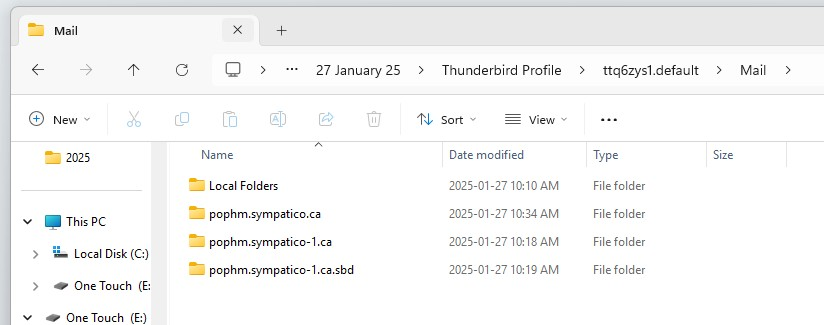
Thanks again for your help. I didn't find any other profiles in the Thunderbird Profile folder, however the mail folder did have the names of my POP accounts (below). Regarding your seven steps, can you tell me how I would get to the place to click 'help>troubleshootinginformation? When I delete the current profile, will I lose my current Inbox and Sent contents? Where would I paste the contents of that backup profile?
Also, although I am told that when I reinstalled Windows I lost all my apps, including MozBackup, I see some of those files on my C: drive (below). Do you know if there is anything useful there?
Sorry but this is all a bit above my pay grade.
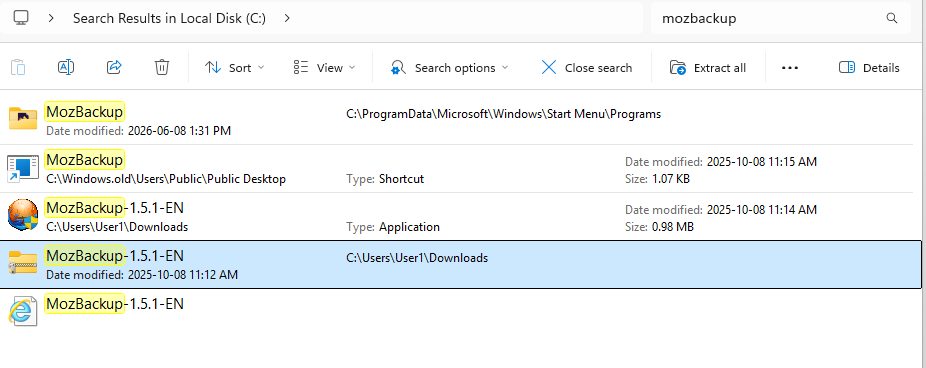
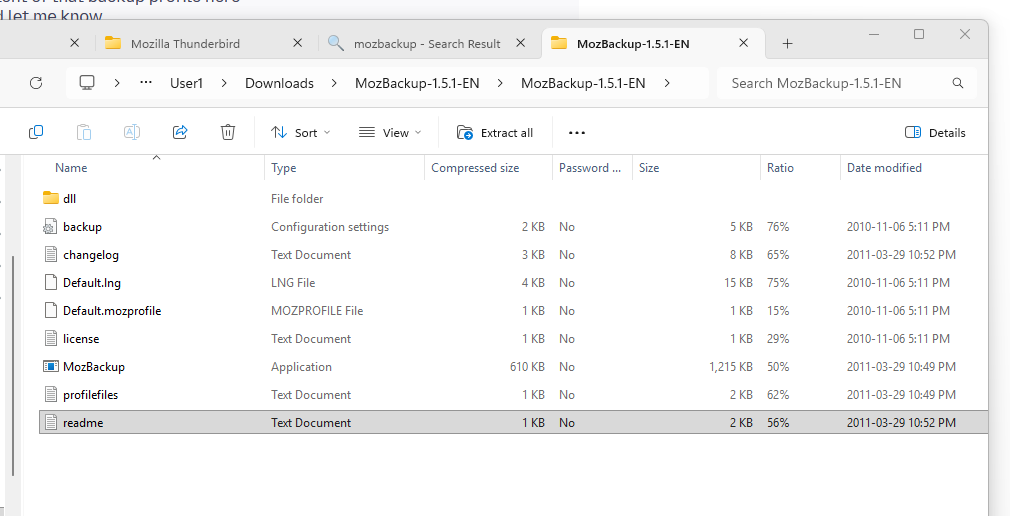
First, mozbackup is not a thunderbird tool and has caused many problems. I think it was updated a couple of years ago, but I would not trust it. Since the files are dated from 2011, my guess is they should not be used. Second, if your version of thunderbird was old, there may not have been an abook.sqlite or history.sqlite. In that case, the older files were abook.mab and history.mab. FInd those and import the same way.
Yes, I had assumed you had not accounts set up. Since you have, then my suggested steps should be avoided. It appears there are a few copies of a Mail folder, but you would need to click into the folders to see if there are any message folders with recent dates. Message folders come as a pair, such as inbox, inbox.msf, sent, sent.msf. If you find such pairs and the dates are recent, they represent email folders. Report back with what you find.
In the mail folder for one email address I see the following from January 2025: Inbox 282,217 kB and Inbox.msf 1601 kB; Archives: 162 kB and Archives.msf 5kB; and Sent 5,347,408 kB and Sent.msf 10,281 kB; and even two Trash files.
The second email account, my wife's, is set up differently with a number of separately named folders, plus: Inbox 8,139,479 kB and Inbox.msf 27,974 kB; Sent 700,131 kB and Sent.msf 3,072 kB. Also from January 2025.
If I had to delete current mail messages, they are ion my ISP's website, from where they appear to have been magically brought over when I re-installed Thunderbird.
Hope that's useful info.