


Websearch on Firefox blocked by Norton security.

I'm using Windows 10 on a PC. Norton Security app is preventing web browsing by Firefox. The message I get is: "We prevented your connection to ful.hartonly.com because it is a dangerous webpage. Threat category: URL:Blacklist" I can still web browse using Google Chrome without any problem. What is ful.hartonly.com and how do I clear it?
Všetky odpovede (4)

Try to Remove Extensions and Plugins:
Click the Menu button (three horizontal lines) in the top-right corner of Firefox and choose Extensions & Themes (or press Ctrl + Shift + A). Carefully inspect the list under the Extensions category. Look for anything resembling "Hartonly", "Safe Search", or any utility you do not explicitly remember installing. Click the three dots next to the rogue extension and select Remove.
I deleted Norton Safe Search from Extentions but the problem of "ful.hartonly.com" URL:Blacklist is still displayed.
Norton support should be able to help you identify the source of this domain block if they added it to their lists — to potentially help you track down a malicious addon or a site you have in your older tabs or even something on your homepage if you use a custom one.
You can try starting Firefox while holding the Shift key which would avoid loading your extensions, in case it makes any difference.
Try Firefox Troubleshoot Mode to see if the problem goes away. Firefox Troubleshoot Mode (previously known as Firefox Safe Mode) is a special diagnostic mode that temporarily turns off hardware acceleration, disables add-ons (extensions and themes) and resets some settings. See the Use Troubleshoot Mode in Firefox article for details.
If Firefox is open, you can restart in Firefox Troubleshoot Mode from the Help menu:
- Click the menu button
 , click Help, select Troubleshoot Mode and click Restart in the "Restart Firefox in Troubleshoot Mode?" dialog that opens.
If Firefox is not running, you can start Firefox in Troubleshoot Mode as follows:
- On Windows: Hold the Shift key when you open the Firefox desktop or Start menu shortcut.
When the Firefox Troubleshoot Mode window appears, select "Open".
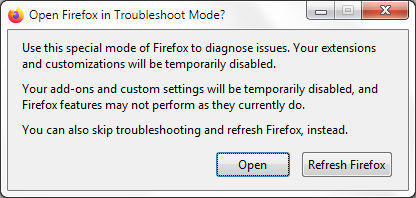
If the issue is not present in Firefox Troubleshoot Mode, your problem is probably caused by an extension, theme or hardware acceleration. Please follow the steps in the Troubleshoot extensions, themes and hardware acceleration issues to solve common Firefox problems article to find the cause.
To exit Firefox Troubleshoot Mode, just close Firefox and wait a few seconds before opening Firefox for normal use again. (If you can't exit Firefox Troubleshoot Mode, please see Firefox is stuck in Troubleshoot Mode).