


Firefox on Windows 10 PC is giving me Error Messages
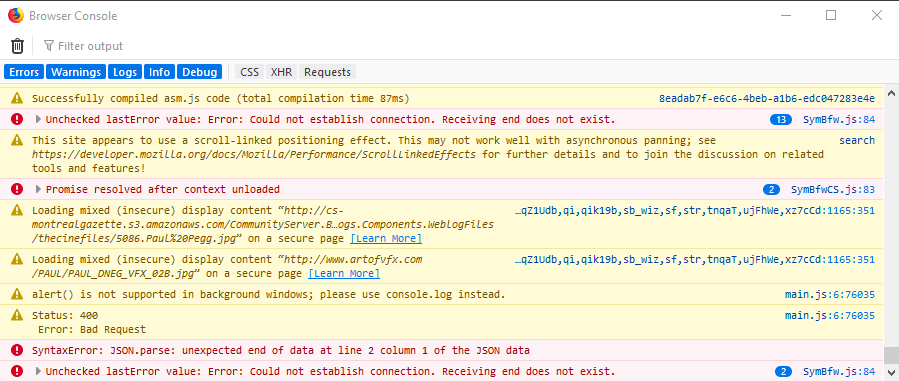
I've been using Firefox for a few months now but, within the last three days, it has been giving me Error messages like the attached.
It has slowed down as well and, occasionally, freezes. I've tried disabling the very few Add-Ons that I have but no change. I've used Chrome and Edge to access the same Websites and they work fine.
Please advise me what I can do to fix these issues.
Many thanks.
Všetky odpovede (3)

Start Firefox in Safe Mode {web link}
A small dialog should appear. Click Start In Safe Mode (not Refresh). Is the problem still there?
Vybrané riešenie
Thank you FredMcD, I've followed your instructions and Firefox appears to be working correctly.
It could be the work of one of your add-ons, or it could be Hardware Acceleration. How to disable Hardware Acceleration {web link}
Type about:addons<enter> in the address bar to open your Add-ons Manager. Hot key; <Control> (Mac=<Command>) <Shift> A)
In the Add-ons Manager, on the left, select Extensions. Disable a few add-ons, then Restart Firefox.
Some added toolbar and anti-virus add-ons are known to cause Firefox issues. Disable All Of them.
If the problem continues, disable some more (restarting FF). Continue until the problem is gone. After, you know what group is causing the issue. Re-enable the last group ONE AT A TIME (restarting FF) until the problem returns.
Once you think you found the problem, disable that and re-enable all the others, then restart again. Let us know who the suspect is, detective.