


I have problems with my Orcon emails and they say it is Thunderbird.

On Saturday morning 27 June 2026 I tried to login my Orcon email account via Thunderbird (which I have been using for a long time). But my login didn't work, I got a message saying "login to POP3.orcon.net.nz with username habitation failed." On 30th June 2026 I reported the problem to Orcon.
Orcon gave me the following settings for Thunderbird. I have done that and even made a new account: Incoming Server Type: IMAP Mail Server: imap.orcon.net.nz Port: 143 SSL: Off Authentication: On (username and password required)
Outgoing SMTP Server: Mail Server: smtp.orcon.net.nz Port: 25 SSL: Off Authentication: Off
Since then I have spent many hours and going around in circles with Orcon's Technical Support to resolve this, but no luck. They blame Thunderbird. I used Thunderbird Troubleshoot Mode. The message that comes up reads: login to server mail orcon.net.nz with username habitation failed. Please can you check that your server settings above are correct? And if there is a bug? Irma
Все ответы (65)
Hi Ed No luck. See screenshots Also it is so weird: when I click on my Thunderbird Icon then I get this window and I can't close it. I have to force it. see screenshot 2b. Yesterday I got the email page where I could see the settings. ??? Irma
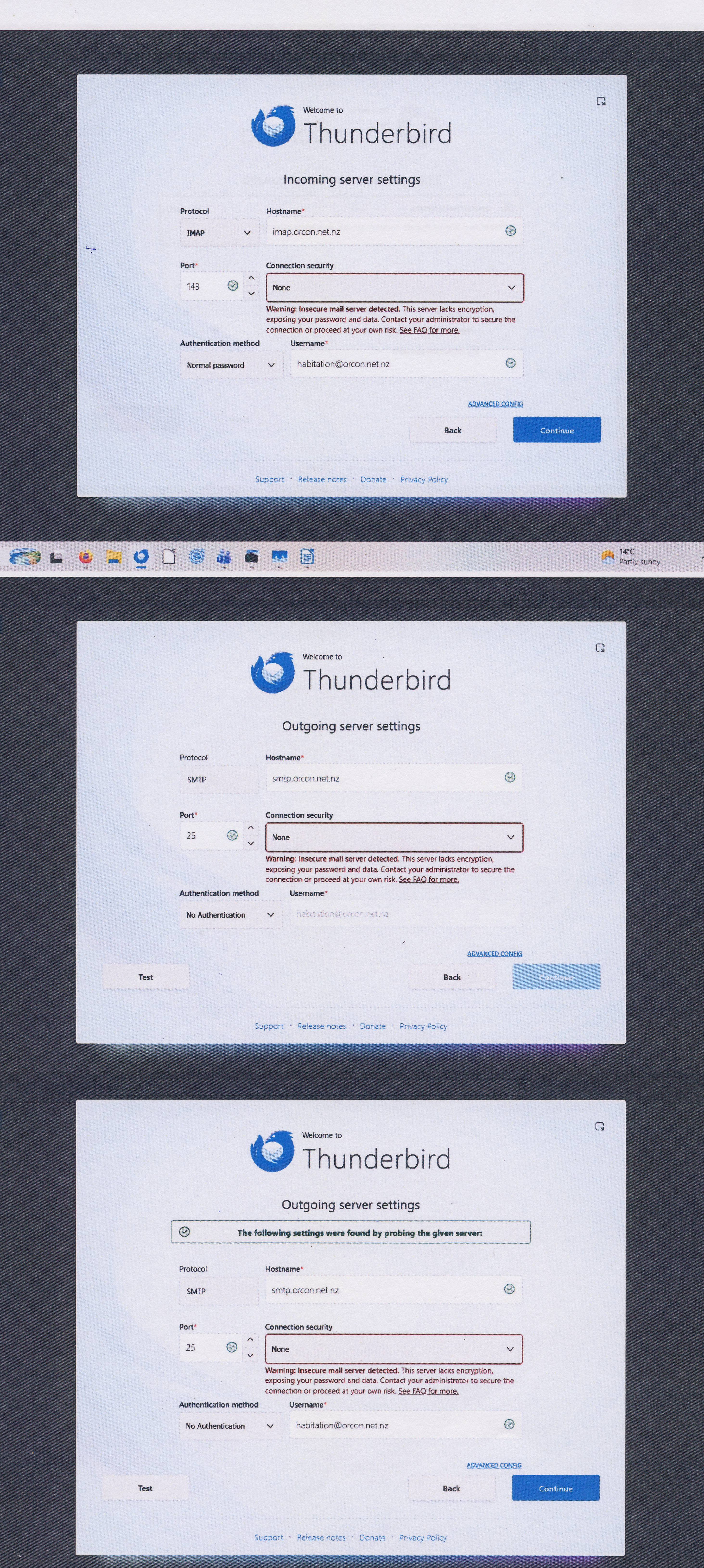
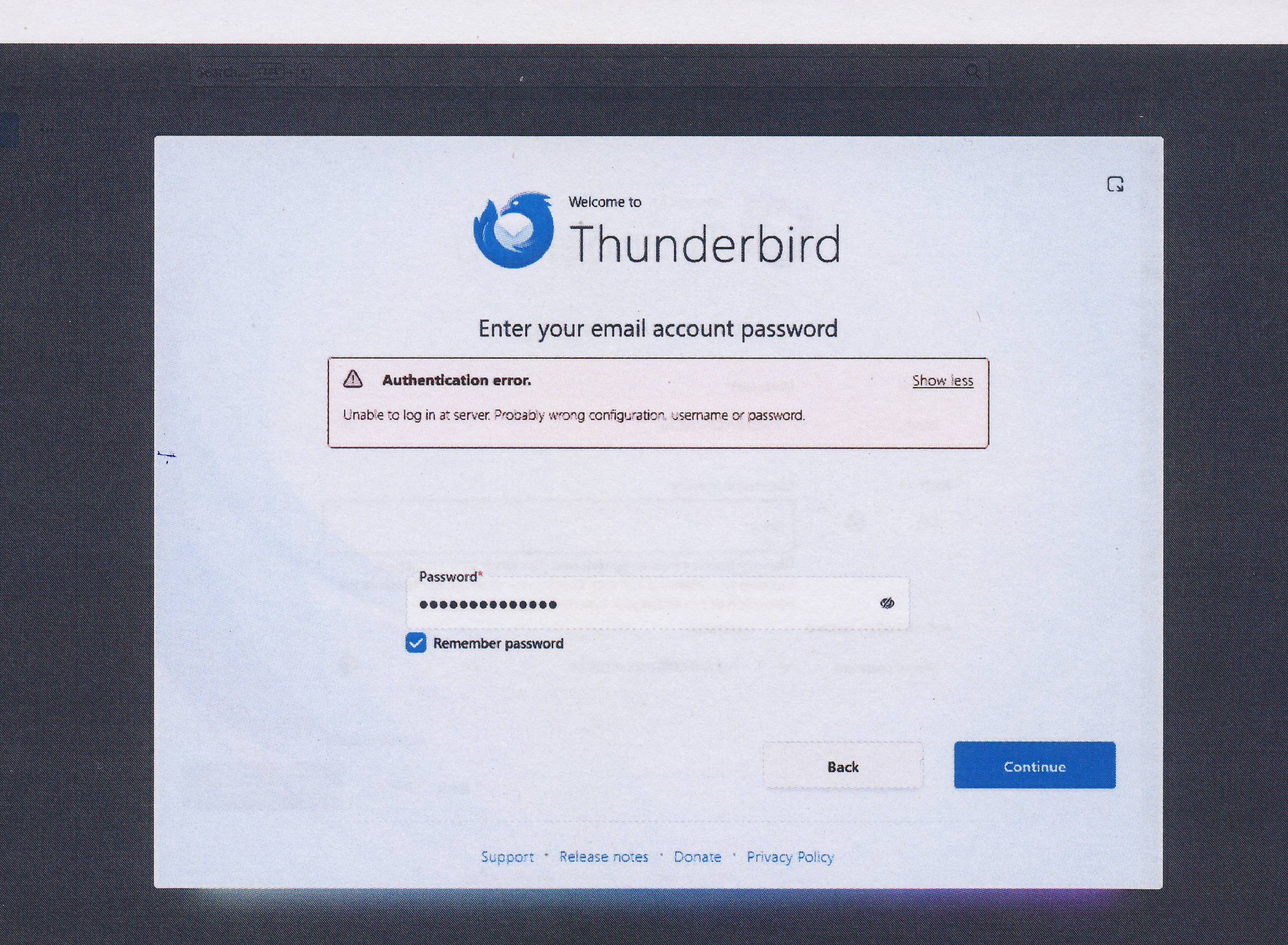
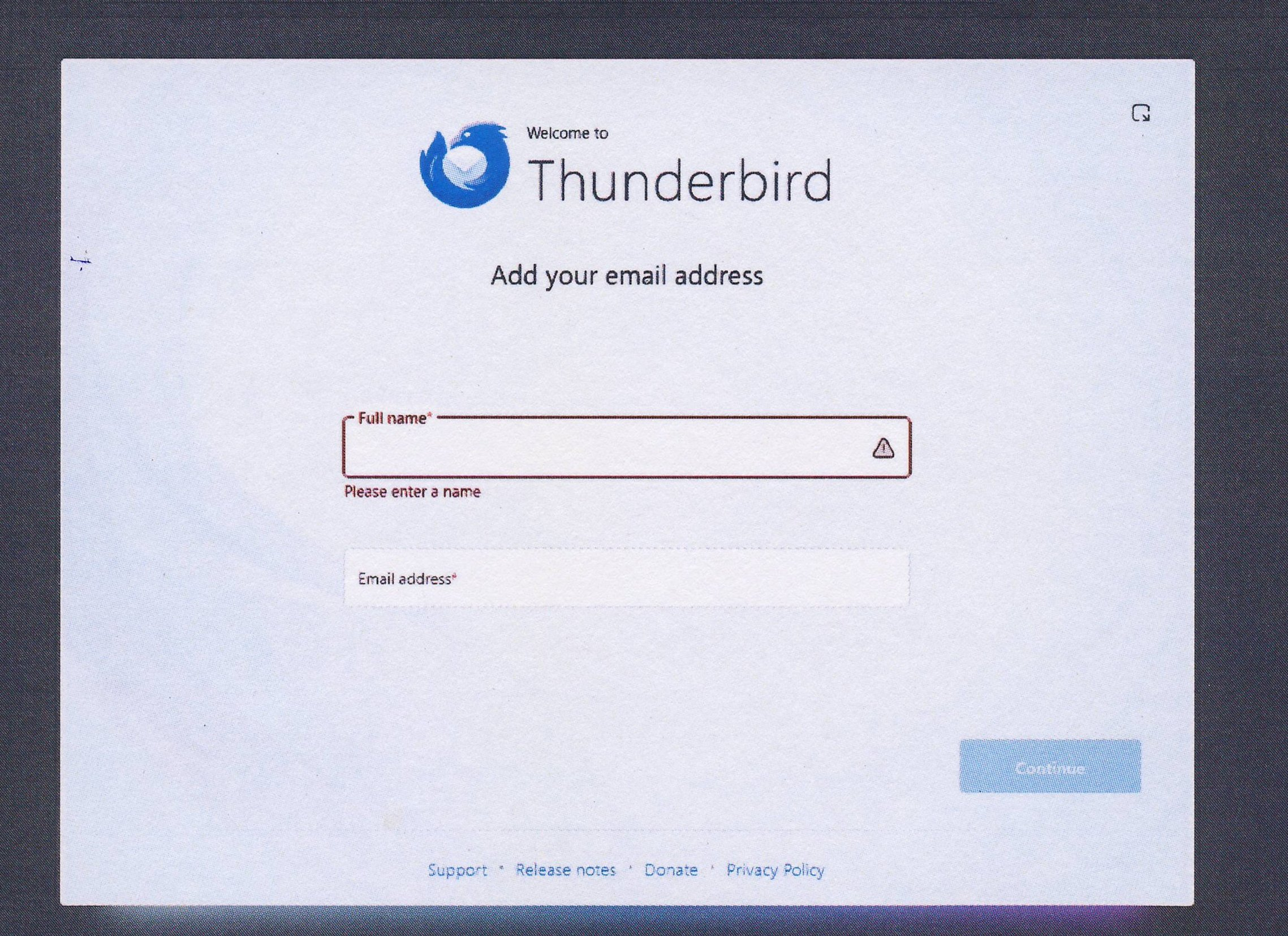

Irma van der Linden said
Hi Ed No luck. See screenshots Also it is so weird: when I click on my Thunderbird Icon then I get this window and I can't close it. I have to force it. see screenshot 2b. Yesterday I got the email page where I could see the settings. ??? Irma
On that screen, you have to do what it says: enter name and PW. Then the setup will proceed.
Unfortunately, it now appears that both what the Orcon tech told you and Orcon documentation are both wrong. There must be missing link somewhere; suggest you contact tech support again.
ETA: looking around the web, there are similar problems. Someone said Orcon has been changing some things lately.
Изменено Ed
Hi Ed you say: On that screen, you have to do what it says: enter name and PW. Then the setup will proceed. I have done that as you can see from the screenshots (I saw a typo and corrected it but it didn't help) but then I can't close that screen which says Welcome. I need to do a right click on the Thunderbird Icon at the bottom of my screen to close the window.
I'll go back to Orcon and can I tell them that it is not Thunderbird? Irma
Irma van der Linden said
Hi Ed you say: On that screen, you have to do what it says: enter name and PW. Then the setup will proceed. I have done that as you can see from the screenshots (I saw a typo and corrected it but it didn't help) but then I can't close that screen which says Welcome. I need to do a right click on the Thunderbird Icon at the bottom of my screen to close the window. I'll go back to Orcon and can I tell them that it is not Thunderbird? Irma
Sorry - I meant name and email address, not name and PW. On the Welcome screen.
I also noticed that I can't login my Orcon MailGuard. It won't take my password! I'll again contact Orcon tomorrow.
Thanks heaps Ed for your patience and trying to help me. Irma
Irma van der Linden said
I also noticed that I can't login my Orcon MailGuard. It won't take my password! I'll again contact Orcon tomorrow. Thanks heaps Ed for your patience and trying to help me. Irma
You're welcome :-) Can you still get into webmail?
Yes, thank goodness, I can.
I have a Online Administration Business so I need email. But not having Thunderbird feels like I am lost or a bit blind. :-) Irma
Irma van der Linden said
Hi Ed No luck. See screenshots Also it is so weird: when I click on my Thunderbird Icon then I get this window and I can't close it. I have to force it. see screenshot 2b. Yesterday I got the email page where I could see the settings. ??? Irma
It's not obvious, but if I remember correctly, escape key will close the Account Hub dialog.

Irma, would you be willing to start fresh? There is a good probability that the problem is just one of settings. It seems clear to me that the right combination of settings have not been tried yet.
First, before changing anything else: do you want an IMAP account or a POP account?
If you are not sure, you can learn about IMAP here: https://support.mozilla.org/en-US/kb/imap-synchronization
I cannot find a similar article about POP. You could search the Web for "POP or IMAP" and do your own research.
Hi Rick Yes please, I would like to give it another try. I know I had POP. But I don't care if it is POP or IMAP, as long as it works. Please be specific what I need to do/change. Irma
Irma, the account type is an important decision. Are you sure that you don't care? IMAP and POP work quite differently. I would feel better if I knew that you had made an informed decision before we proceeded. We don't want you to end up with an account type that you do not like and that you will try to change later. Changing account types is somewhat complicated.
Here is some information from Microsoft. Which type of account would work best for you?
IMAP IMAP allows you to access your email wherever you are, from any device. When you read an email message using IMAP, you aren't actually downloading or storing it on your computer; instead, you're reading it from the email service. As a result, you can check your email from different devices, anywhere in the world: your phone, a computer, a friend's computer.
IMAP only downloads a message when you click on it, and attachments aren't automatically downloaded. This way you're able to check your messages a lot more quickly than POP.
POP POP works by contacting your email service and downloading all of your new messages from it. Once they are downloaded onto your PC or Mac, they are deleted from the email service. This means that after the email is downloaded, it can only be accessed using the same computer. If you try to access your email from a different device, the messages that have been previously downloaded won't be available to you.
Sent mail is stored locally on your PC or Mac, not on the email server.
Hi Rick Thank you for your explanation Let's use IMAP.
OK. Here we go.
We're going to remove all traces of your account and re-create it using what should be the right settings. Irma, let's go one step at a time and make sure that we stay together.
Here's the first step:
- Click on the ≡ button at top right of screen, then "Account settings".
- Confirm that the left pane shows your Orcon account, a local folders account, and "Outoing server (SMTP)".
- Click on the name of your Orcon account (probably your e-mail address) in the left pane.
- At top right, click on the "Delete" button. Confirm deletion.
If anything went wrong in those steps, please stop here and tell me. If everything succeeded, please continue.
- Click on "Outoing server (SMTP)" in the left pane.
- Does an outoing server appear in the list in the right pane? If it does, click on it, then click on the "Remove" button on the right, and confirm removal. If it doesn't, skip to the next block of instructions.
- If there is more than one outgoing server in the list in the right pane, repeat that removal step for the others.
If anything went wrong in those steps, please stop here and tell me. If everything succeeded, please continue.
- At bottom left, click on "Thunderbird Settings".
- In the left pane, "General" should be selected. Select it if it is not.
- In the first section on the right, called "General", find the settings for the account hub. If "create accounts in the account hub" is checked, uncheck it.
Please report on how all that went.
Thanks. I'll do it right now.
Mmmm, I already start with a problem: First step: (4) I can't delete it. see screenshot
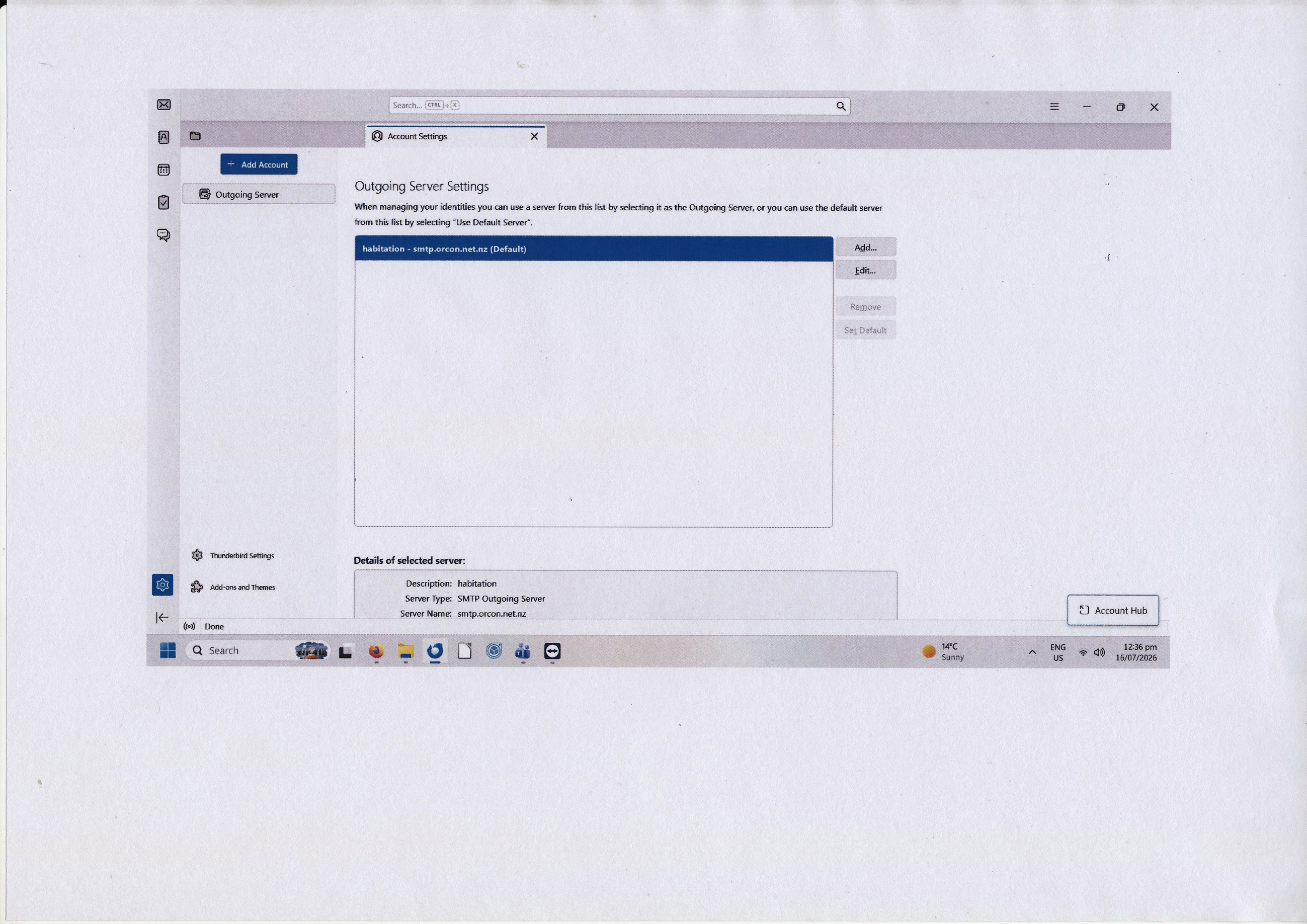
Irma van der Linden said
Mmmm, I already start with a problem: First step: (4) I can't delete it. see screenshot
OK. Then edit it.
Make sure that it has these settings:
Server name: mail.orcon.net.nz Port: 465 Connection security: TLS or SSL/TLS
Done it and now? see screenshot.
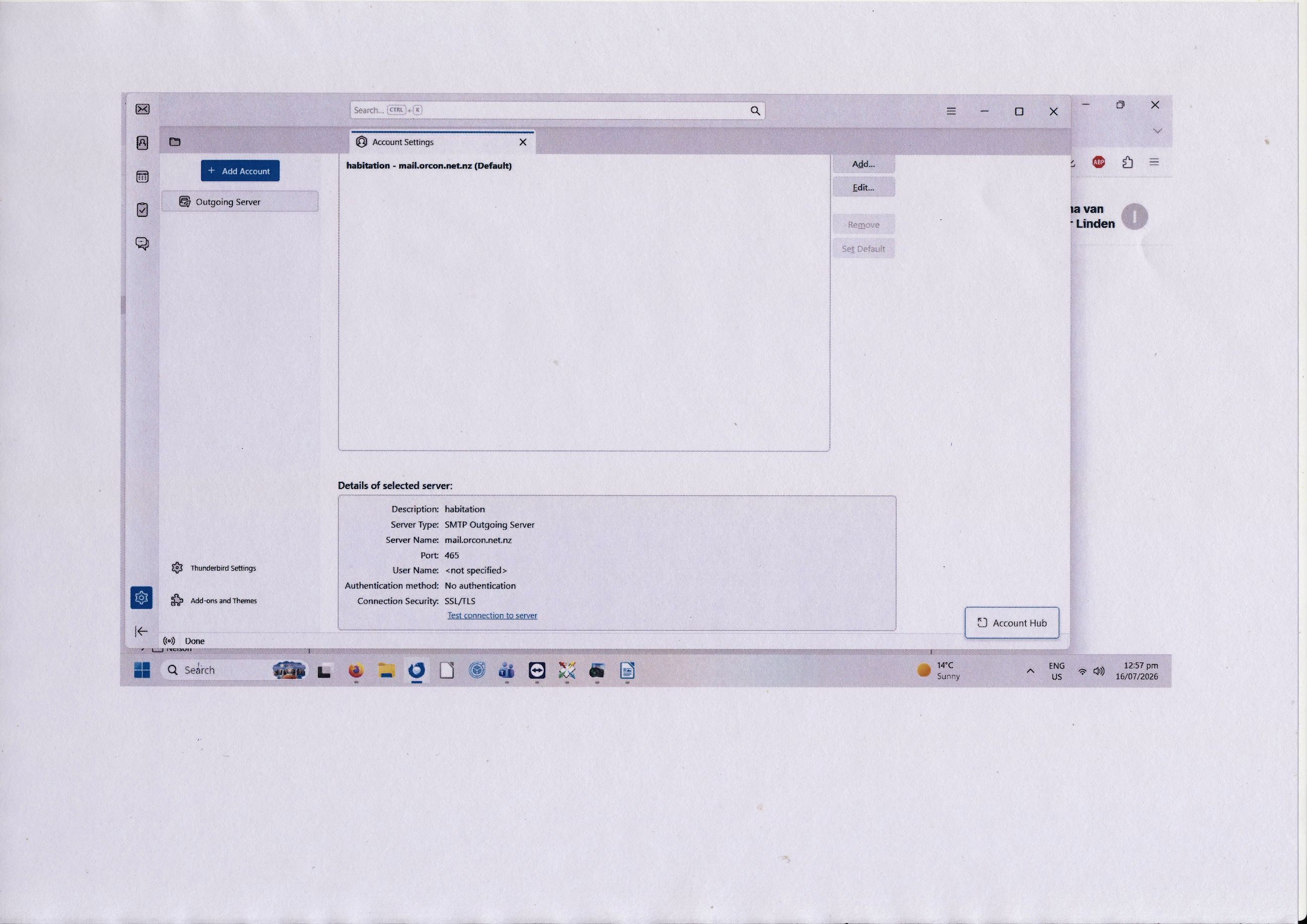
Good. And good that you shared the screen image. Please keep doing that.
You must enter your username. It is your full e-mail address.
You must also enter an authentication method. I cannot find that information. Let's assume "normal password".
Please edit, make those changes, and post another screen image.
Done, see screenshot
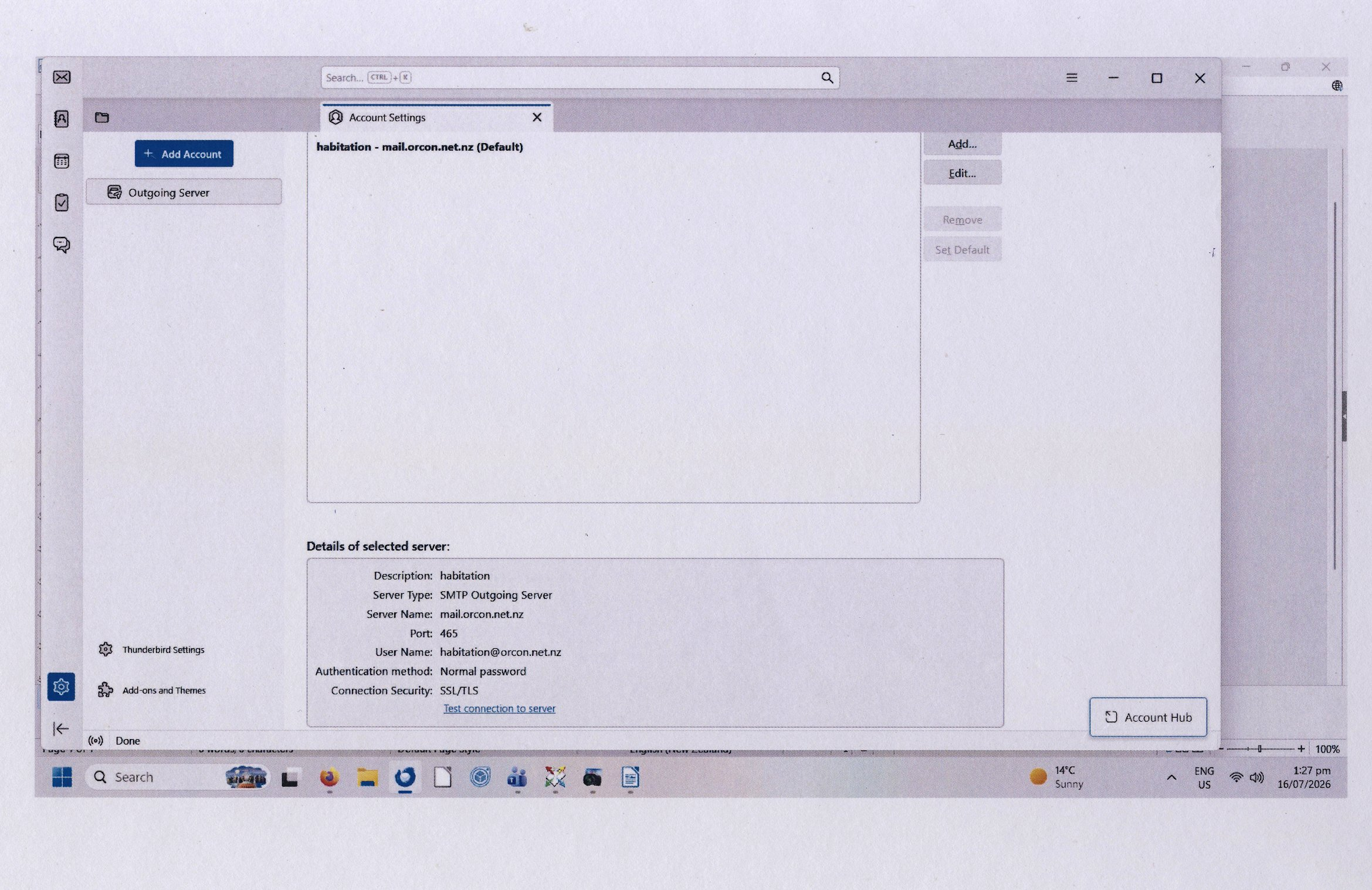
Good work. The next part may be more difficult. Let's keep going a step at a time together.
We're going to set up your account again. Thunderbird may or may not find the right settings. So we want to let it find settings, check the settings that it found, and override them if necessary.
I have a different version of Thunderbird, so I may not see exactly what you see. Screen images will keep being useful.
- At the bottom right, click on "Account hub".
- You should be asked for your name and e-mail address. Enter them.
- Give Thunderbird time to find Orcon's settings.
- Please share a screen image.