


Email folders not transferred when Thunderbird account set up

I set up a Thunderbird account to transfer all my past emails from my ISP. I get current email in Thunderbird but no folders with saved emails transferred
Все ответы (20)
Please don't give up on me. I have great difficulty understanding exactly what you are asking me to do as I am not used to doing any of it. Just performing a screen shot is a major task. Anyway I reread your requests and have included two more screen shots of each account. Just figuring out how to isolate each account took 15 minutes. I know you are spending way more time on me than you likely care to but I do appreciate it.
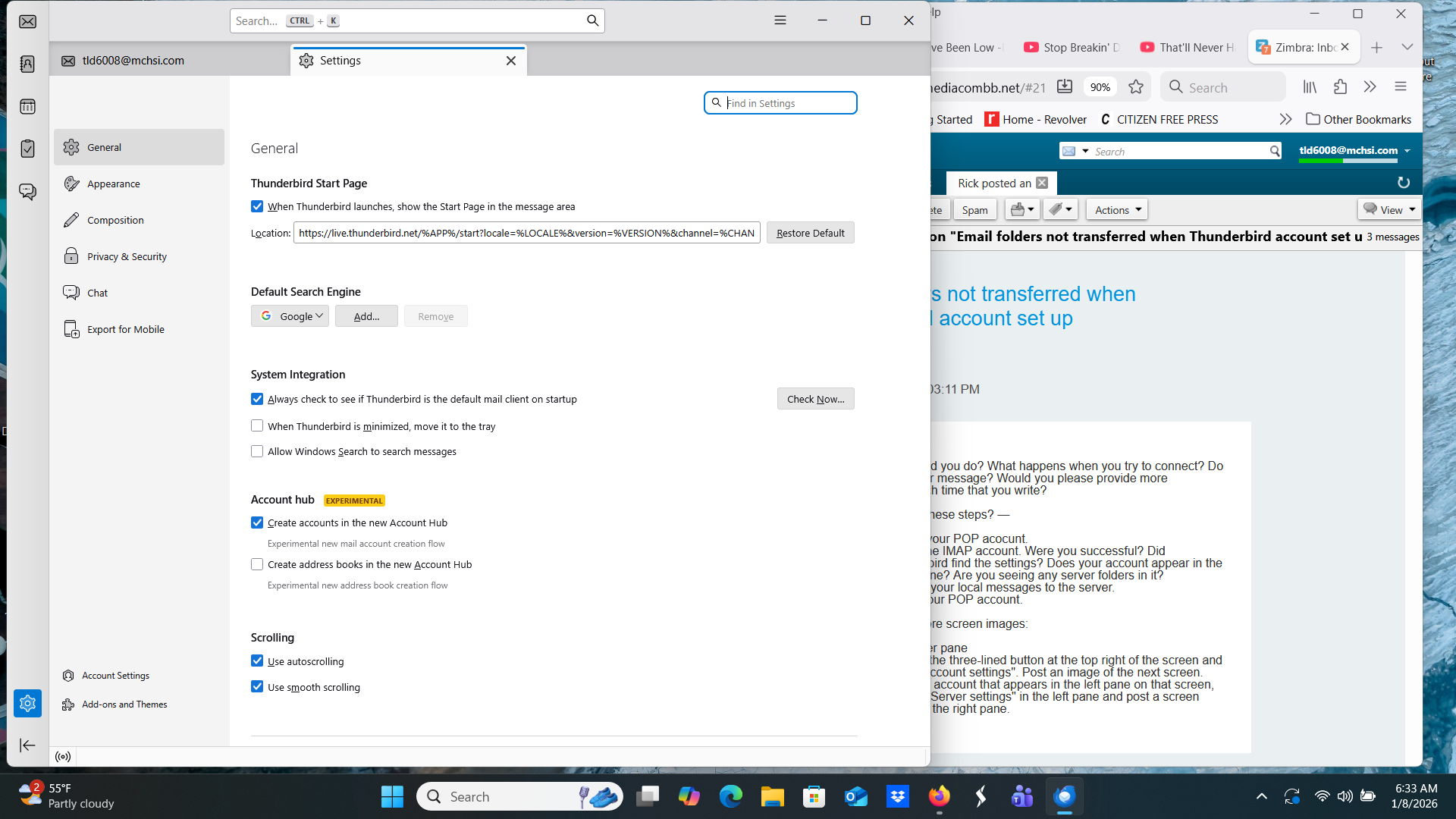
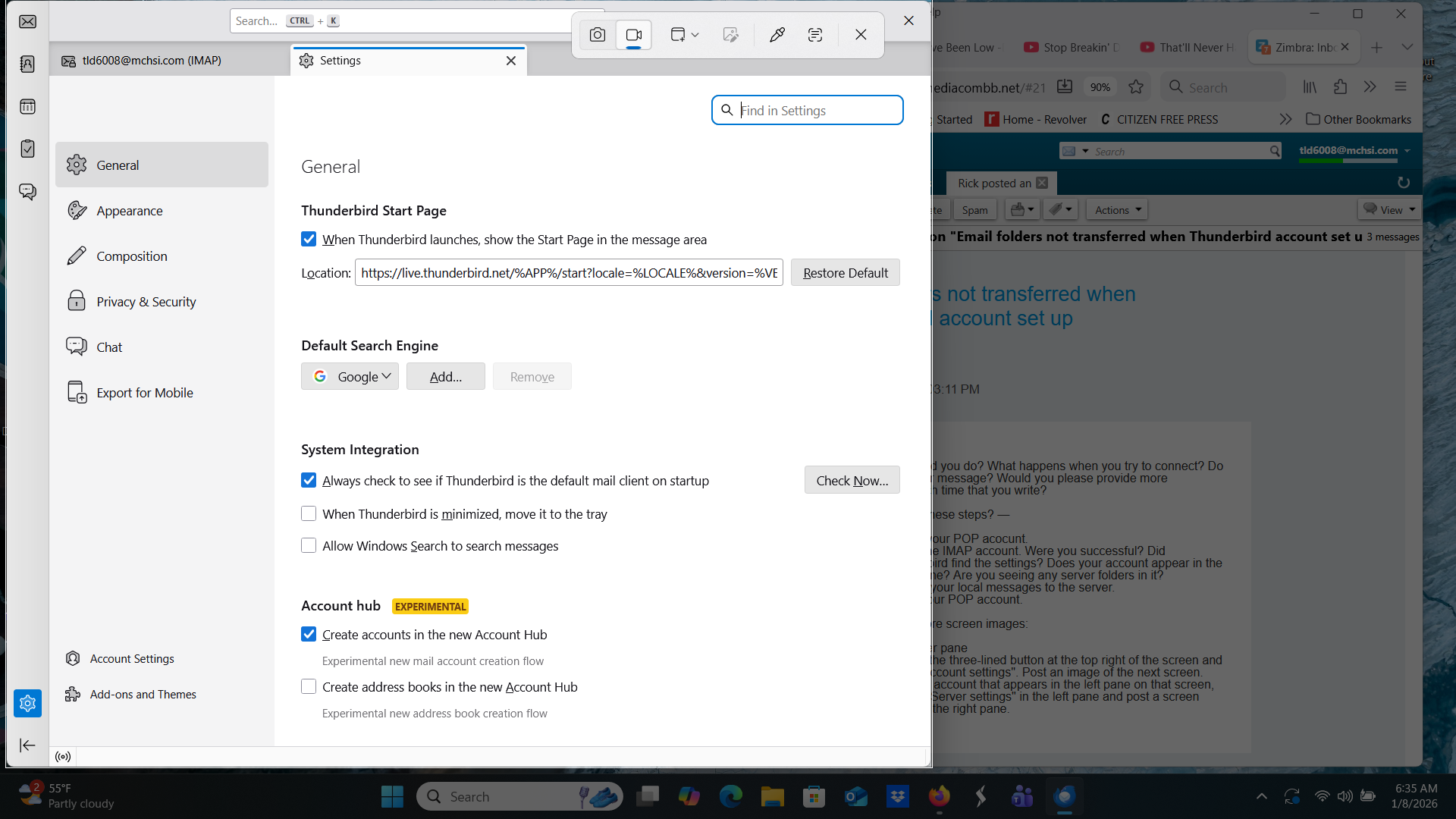

OK. I hear you. I'm sorry that it's difficult and frustrating. I'll do my best. You hang in there too. If you're having much difficulty with something or you don't understand something from me, it's OK to say so and ask for more detailed instructions. I don't want you to spend fifteen minutes looking for something or trying to figure something out.
There are two levels of settings in Thunderbird. One is for all of Thunderbird. The other is for accounts. The last screen images that you shared are from the Thunderbird level. I was interested in the account level. But it's good that you shared those images because they show one thing that we want to change. Please go back to the general Thunderbird settings by clicking on the three-line button and selecting "Settings". On the left, click on "General" if it is not already selected. On the right, find "Account hub". Uncheck it.
Now, on the same screen, look at the bottom left. Click on "Account settings". Now we're at the account level. On the next screen, you will see a two-pane window. In the left pane are accounts and categories of settings within accounts. On the right are the settings themselves. Note that you have three accounts. Two of them have names that you gave them. The third is called "Local folders". In the left pane, under each of the accounts that you named, there is a category of settings called "Server settings".
Locate the first account that you named. Click on "server settings" in its block of settings. Take a screen image. Locate the second account that you named. Click on "server settings" in its block of settings. Take a screen image.
Please post those two screen images here.
You said at the start that you are getting "current e-mail" in Thunderbird. That was when you seemed to have a POP account. Then you tried to create an IMAP account and you left your first account in place. Please go to the folder pane, click on the inbox in that new account, and send yourself a message. Does the message get sent? If it does, right click on the name of the account and select "Get messages". Is the message received?
We'll get you what you need. :)
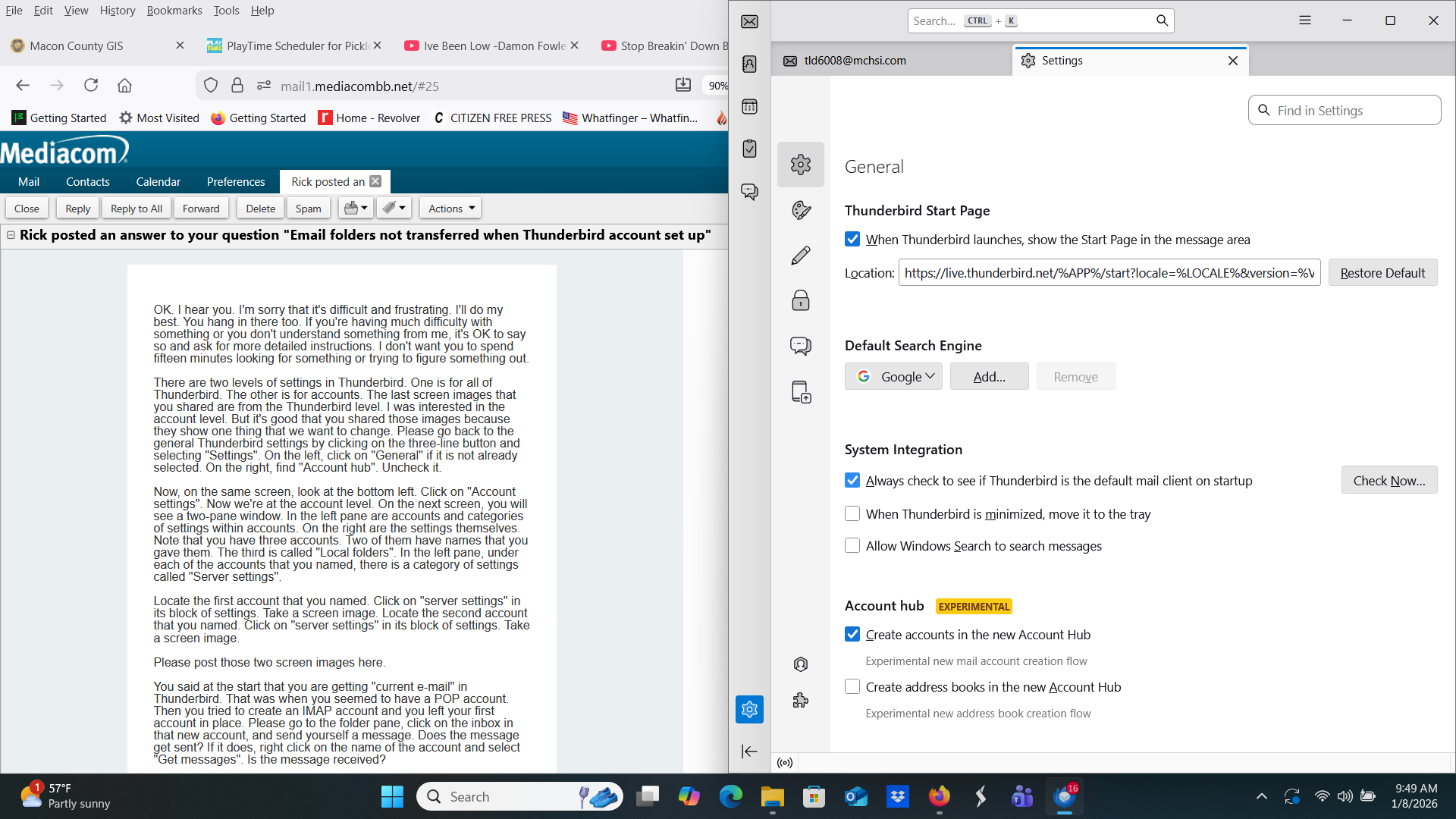
Just want to clarify before I screw up, I am working on the first paragraph of your instructions and have a screenshot (attached) of what I see. So are you saying I should unselect the item checked under the Account Hub heading? As you can see this is not on the right side. And the next paragraph says to look at bottom left and select Account Settings is that the gear shape?
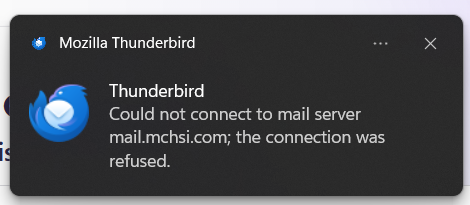
Also I notice I am getting mail delivered now into my IMAP version of Thunderbird. And the trash folder and 2 others have content although when I open them I get a message that Thunderbird's attempt to connect was refused
tld6008 said
Just want to clarify before I screw up, I am working on the first paragraph of your instructions and have a screenshot (attached) of what I see. So are you saying I should unselect the item checked under the Account Hub heading? As you can see this is not on the right side. And the next paragraph says to look at bottom left and select Account Settings is that the gear shape? Also I notice I am getting mail delivered now into my IMAP version of Thunderbird. And the trash folder and 2 others have content although when I open them I get a message that Thunderbird's attempt to connect was refused
Ah, this screen image is very helpful. You would see a left and right pane if your Thunderbird window were wider. On your system, Thunderbird has replaced text with images because of limited space. Yes, that is the place to uncheck the account hub. Yes, the gear icon represents account settings.
OK, we're making progress on your IMAP account. Do you get any more information about the refused connection?
OK I will continue on with your instructions and attached is the message Thunderbird displays when I select the mail folder. It's like it is trying to get new mail each time I select it as there is a progress bar visible before the message is displayed
Here are the screen shots of the server settings Also I sent an email from the New (IMAP) account and a window showing saving message to sent folder opened and it eventually stopped working but the message was delivered to both of my accounts
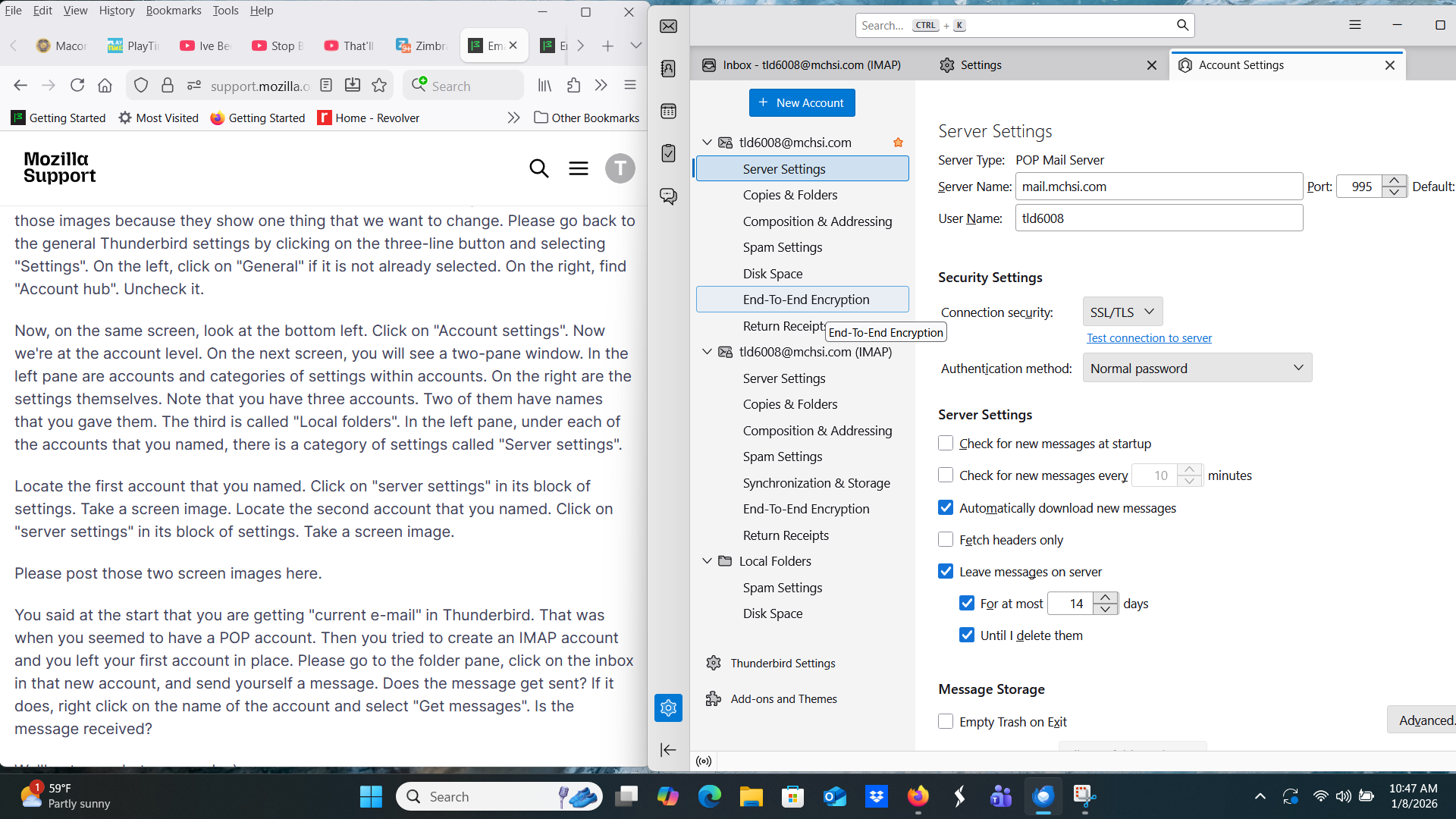
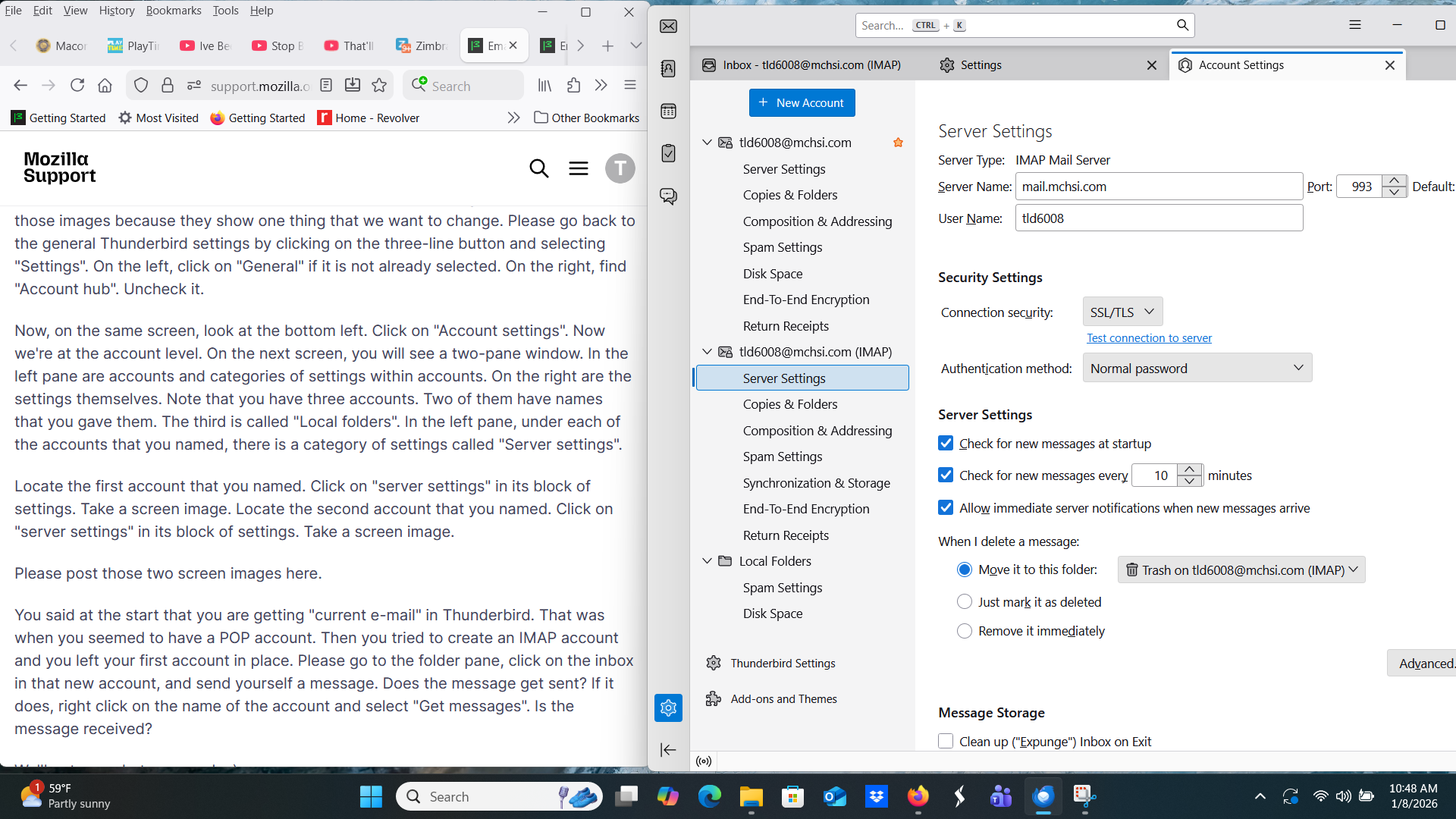
Good. This is helpful. Thanks.
Now, before we continue, let's make a back-up copy of your profile so we have something to fall back on if we need it. Here's the most simple way. You may want or need to use a different method if you have zillions of messages when we are done.
- Click on that ol' three-line button again and select "Tools" then "Export".
- Click on the "Export" button.
- Pick a location for the export file and press "Save".
__________
Then, let's get rid of that POP account that you don't need.
Compare the messages in your POP account inbox (your first account) with the messages in your IMAP account inbox. Are they the same? If so, you can return to account settings (three-line button, "account settings"), click on that first (POP) account at top left of the screen, and click on the "Delete" button at top right.
If the messages are not the same in both inboxes, I suggest that you copy the message in the POP account's inbox to a local folder and deal with them later:
- Return to the main mail screen that shows the folder pane and your messages.
- Right click on "Local Folders" in the folder pane. In the drop-down folder, select "New folder". Name your new folder "POP mail" and save it.
- Click on your POP account's inbox.
- Press <control>+<a> on the keyboard to select all messages in the inbox.
- Right click on the messages. In the drop-down menu, copy them to "Local Folders" - "POP mail".
Wait for the messages to be copied. If your status toolbar is turned on, you can monitor progress at the bottom of the window. You can also compare message counts in the two folders.
When all the messages have been copied, you can return to account settings (three-line button, "account settings"), click on that first (POP) account at top left of the screen, and click on the "Delete" button at top right.
Let's stop there. Let me know how it goes. Ask when something is not clear.
Good.
Now we have to get your IMAP account right. You should not be getting error messages about connecting when you try to view messages.
Thunderbird is set to fetch your mail from mail.mchsi.com. My Web search indicates that you should be using mediacombb.net. Where did you get mail.mchsi.com? Did you enter it or did Thunderbird?
Try this:
- Click on that three-line button and select "Account settings".
- In the left pane, below your account name (e-mail address), click on "Server settings".
- In the right pane, replace "mail.mchsi.com" with "mediacombb.net".
- Return to the main mail screen.
- Right click on your account name in the folder pane and select "Get messages".
What happens? Error message? New mail arrives? New folders appear? Nothing?
The server timed out, I tried it twice. I know there were two different addresses for mediacom webmail and I believe they used different port numbers but I don't know what they were, if that would make a difference.
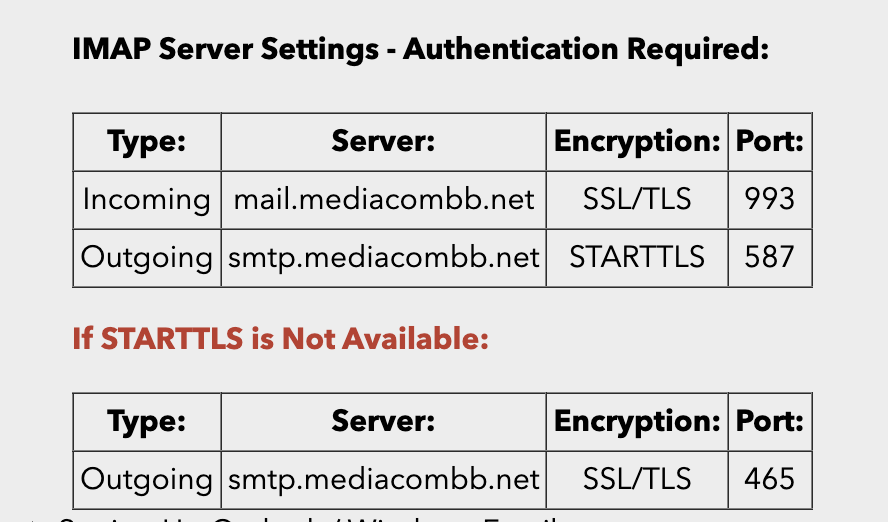
The attached screen image shows you what I found on Mediacom's site.
Your username has to be your whole e-mail address. Try that with mail.mediacombb.net. Just to be precise:
- Three-line button > Account settings
- Click on "server settings" on the left.
- On the right, change your username to be your whole e-mail address.
Then check and fix your outgoing server settings.
- Three-line button > Account settings
- Click on account name on the left.
- Click on "Edit SMTP server" on the right.
- Change the server name to smtp.mediacombb.net.
- Change your username to your whole e-mail address.
- Make sure that connection security is set to STARTTLS.
- Make sure that the port is 587.
- I don't know what authentication method should be. What is it now? Again, where did your current settings come from? I assume that "encrypted password" is best.
Send yourself a test message. If not everything works, please tell me in detail what is happening.
Before I do this I want you to know that I have had this Mediacom account for as long as they have been in existence, i.e.over 15 years. My username has always been tld6008@mchsi.com as well as my email address. All my contacts that I communicate with have used that email address. I know I will not have that address after the end of this month and all I want is to preserve the archived emails and addresses I have accumulated over the years by moving them out of Mediacom's reach.
tld6008 said
Before I do this I want you to know that I have had this Mediacom account for as long as they have been in existence, i.e.over 15 years. My username has always been tld6008@mchsi.com as well as my email address. All my contacts that I communicate with have used that email address. I know I will not have that address after the end of this month and all I want is to preserve the archived emails and addresses I have accumulated over the years by moving them out of Mediacom's reach.
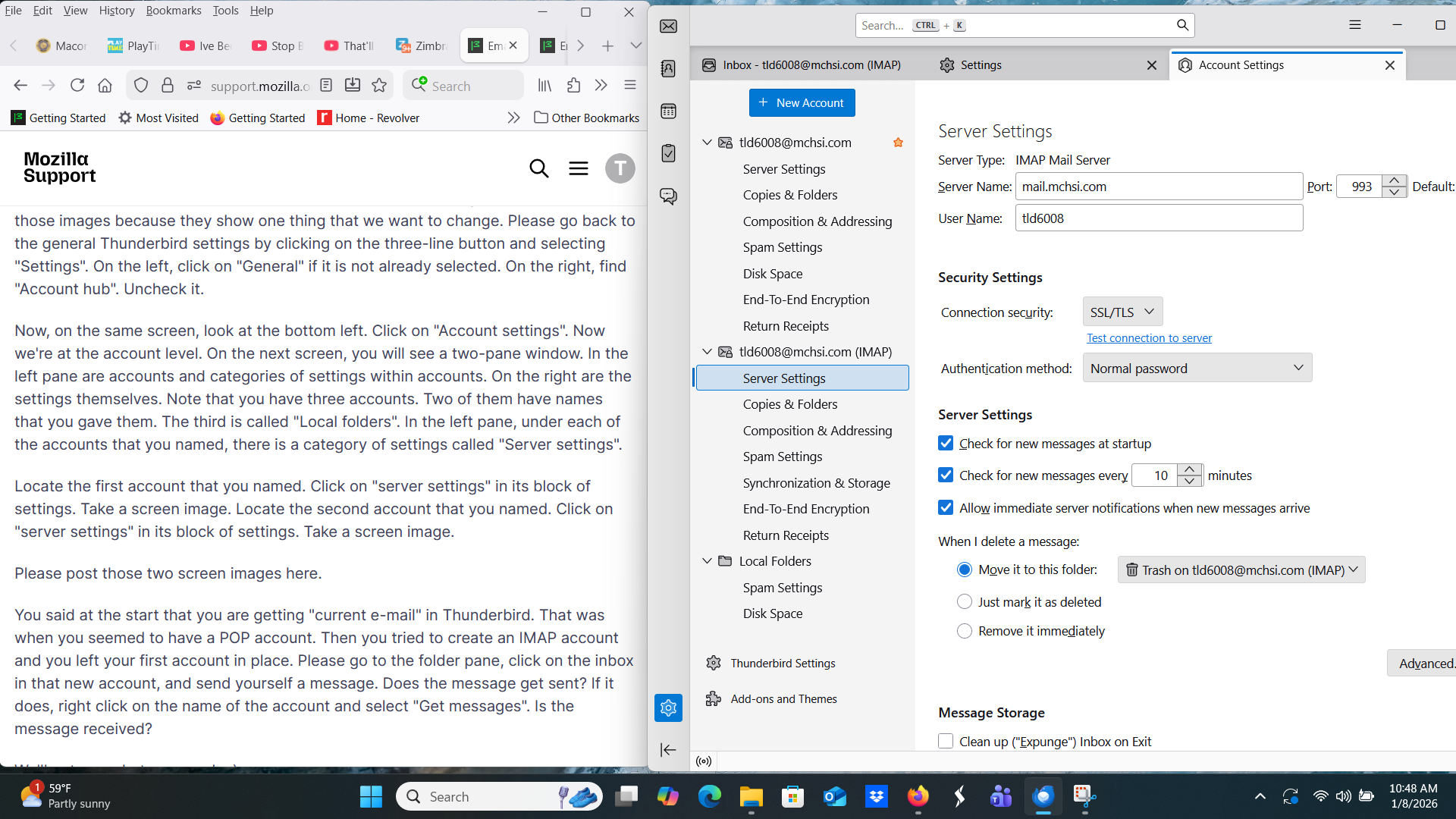
Understood. But when you set up your Mediacom account in Thunderbird, you did not use that username. You used only the first part of it. See the attached image. That is probably why your connection is not working.
After Thunderbird is communicating properly with your Mediacom account, it will download all your messages, which you will then be able to move to local folders for safe keeping.
Yes I saw that I had not completed my username. Anyway I completed all the changes you advised and the message was sitting there being sent for over 10 minutes. I checked my Mediacom email and it went through there but has not shown up on Thunderbird and the send action has stopped.
I just reread your previous instructions and I am confused about exactly what you wanted me to change my username to which would be the same as my email address. Currently it is tld6008@mchsi.com for both my email and username
tld6008 said
Yes I saw that I had not completed my username. Anyway I completed all the changes you advised and the message was sitting there being sent for over 10 minutes. I checked my Mediacom email and it went through there but has not shown up on Thunderbird and the send action has stopped.
So you were able to send a message, though it took a long time to send. And you received the message in webmail, but it is still not showing up in Thunderbird. Is that right?
I will ask again: where did you get your settings (for the incoming and outgoing servers)? Did Thunderbird find them during the set-up process? Did you get them from Mediacom? Did you have them in another e-mail client? Did you make some guesses?
All I know is what I found on Mediacom's website. But I did not find whether you should use "normal password" or "encrypted password". Do you know? I suggested that you use "encrypted password". You might try "normal password" in two locations:
- Three-line button > account settings > server settings > authentication method
- Three-line button > account settings > click on account name > Edit SMTP server > authentication method
See if those changes make a difference. Send yourself another test message and let me know what happens.
I just reread your previous instructions and I am confused about exactly what you wanted me to change my username to which would be the same as my email address. Currently it is tld6008@mchsi.com for both my email and username
I suggested that you change your username to your whole e-mail address in two locations. Your username was "tld6008". Your whole e-mail address is "tld6008@mchsi.com". Did you make that change in two locations?
Let's verify your settings. Please go back to the incoming server settings:
- Three-line button > account settings > server settings
And report here:
server name port user name connection security authentication method (should be set now to "normal password")
Then go back to the outgoing server settings:
- Three-line button > account settings > click on account name > Edit SMTP server
And report here:
server name port user name connection security authentication method (should be set now to "normal password")
If your settings are what Mediacom says they should be and sending is still very slow and you do not receive messages, I do not know what the problem is. Are you using anti-virus software? Is your network functioning well?
I am curious about one other thing. Would you please go back to the main mail window and tell me if you see any of the folders that you created on the server? If you created them as sub-folders of your inbox, you may have to click on a little triangle-like symbol to expand the list.
If you don't see them, please click on the name of your account in the folder pane, select "Subscribe" in the drop-down menu, and tell me if you see the names of the folders that you created on the server to store your messages.
EDIT: In the last paragraph, right click on the name of your account in the folder pane.
Изменено Rick
yes no message to myself received in Thunderbird, in fact there has been no message received since 1150 this afternoon
The server settings had to be selected by Thunderbird as I have no knowledge of what to input. I tried to get information from mediacom initially regarding how to move all of my current emails etc. but they claimed to not know anything about third party email providers.
I did not use the encrypted password since I have never used something like that so I used the password I have had for the last few months and I can remember it
I changed all the usernames (2 places) to my email address tld6008@mchsi.com
And report here:
server name- Mediacombb.net port- 993 user name- tld6008@mchsi.com connection security- SSL/TLS authentication method (should be set now to "normal password")- Yes
Then go back to the outgoing server settings:
Three-line button > account settings > click on account name > Edit SMTP server
And report here:
server name- smtp.mediacombb.net port- 587 user name- tld6008@mchsi.com connection security- STARTTLS authentication method (should be set now to "normal password")- Yes
I have a virus program called Total Defense that mediacom uses they recommended I use that as I have problems logging onto their email server periodically. I guess my network is ok as I have no other problem that I know of
All of the folders I created are still there under the Local Folders heading, all empty though I opened up that dropdown menu and for the first time saw "subscribe" I clicked on it but just got a server timeout message after 30 secs or so One confusing thing is that under my inbox are folders that transferred from my mediacom account with content but only 3... Trash, Healey and Read Mail. These are three of 19 that I created under the local folder tab but non of the Local folder ones have content
I have to go to bed Thanks
Incoming server name should be mail.mediacombb.net. Can you change it?
Then “get messages” and see if mail arrives.