


Error Creating Account

I installed Thunderbird on a new (used) computer running Windows 11 Pro using the old computer's mail account and password. Thunderbird seemed to connect automatically to the webmail. However, when I click on the email button the program makes me enter my name and password (already entered). Then when I click on next I get - Error Creating Account. What do I do now? Thanks.
Regards,
Dave [edited from public] @centurytel.net
Изменено James
Выбранное решение
11-14-25
Thank you for your help! I finally got the account created, but it was not easy. Here is my report:
I followed your steps, above. I use ESET antivirus: there were no blocked or allowed programs. Nevertheless, I entered Thunderbird in the firewall as an allowed program. I successfully logged into my webmail account. My version of ESET doesn't seem to have a VPN. I unchecked "Create accounts in the new Account Hub".
I repeatedly created a new account, but each time I got an "Account already exists error". I eventually came to realize that I needed to delete the existing account before I could create a new one. This was time consuming, searching the internet and Thunderbird help, trying to figure out how to delete the existing account, but finally I managed that. I then entered the settings above repeatedly, using manual configuration, all to no avail. Finally, I looked for and found the account settings for Outlook on my older computer, and copied them, although even this took several attempts. They are: Account: POP3; Incoming Server: pop.centurytel.net; Port: 995; Security: SSL (SSL/TLS in Thunderbird); Authentication: Normal Password;
                          User Name: full email address
                          Outgoing Server: smtp.centurytel.net; Port: 587; Security: TLS (STARTTLS in Thunderbird); Authentication: Normal Password;
                          User Name: full email address
Notice that the servers are at centurytel.net, NOT centurylink.net, as shown in the recommended settings, above.
I have spent lots of time trying to import my Outlook 2007 email files into Thunderbird without success. I plan to ask about that as a separate Thunderbird Support question. Again, thank you for your help.
Regards, Dave
Прочитайте этот ответ в контексте 👍 0Все ответы (2)
UPDATED - Firewall This might be the default one on computer or it might be controlled by an Anti-Virus product you installed. Access the Firewall and make sure Thunderbird has been set up as an allowed program. Then you know it will not block anything.
- Confirm you have set up Thundrebird as allowed program.
Password: This is the password you use to access mail in the webmail account accessed via a browser. Please logon to your webmail account now as it's vital to ensure you get access on the new computer as it may have different IP etc.
- Confirm the password got you access to your webmail account
VPN: Please check the computer to see if a VPN has been enabled. Some Anti-Virus products now include VPN. Most servers do not like VPN as it hides your IP and server might think you are attempting to hack the account. Switch off any VPN.
- Confirm - VPN not enabled.
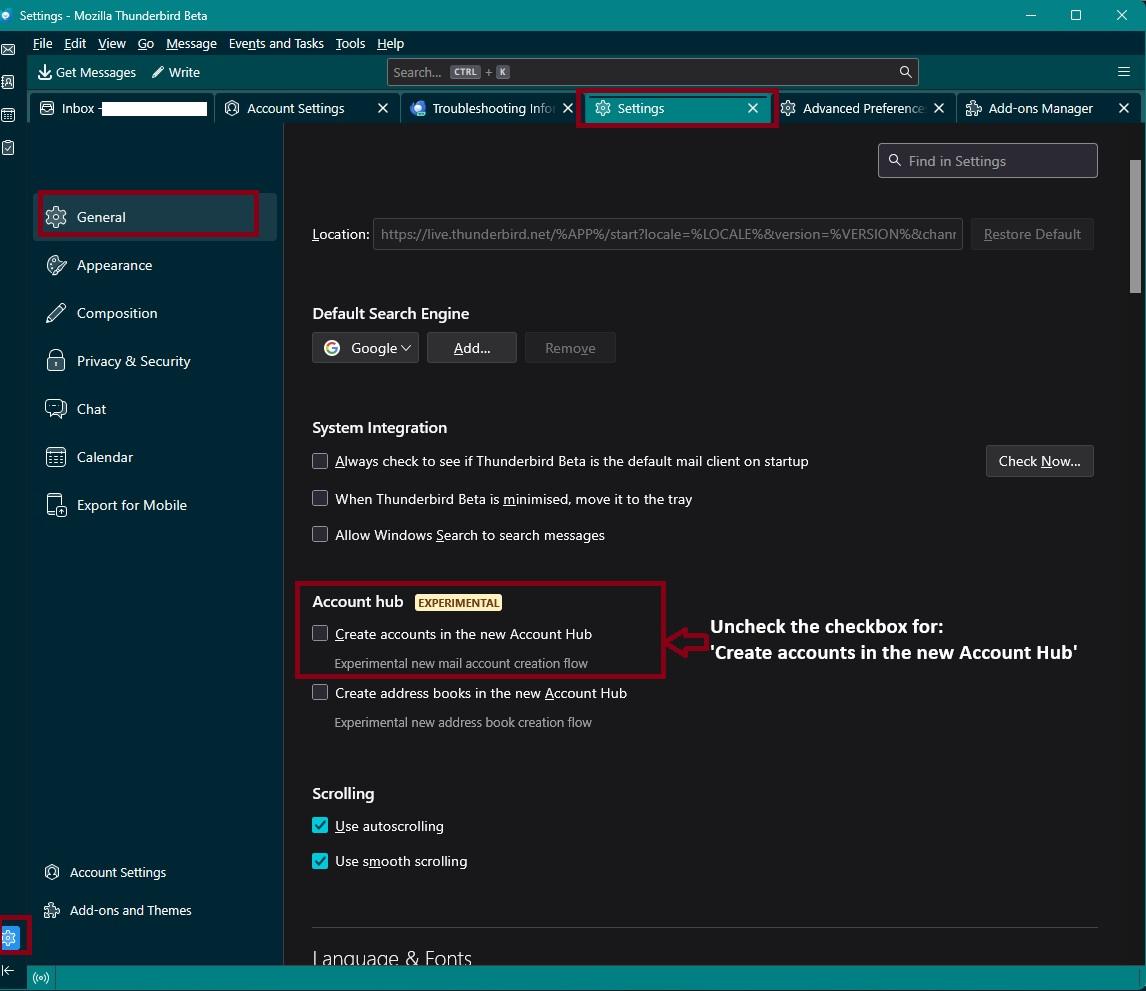
Are you in the process of creating a new mail account ? Advise - disable the 'Account Hub' option - see image below
- Settings > General
- uncheck this checkbox: 'Create accounts in the new Account Hub'
Now create mail account:
- Menu app icon (3 lines) > New Account > Email
- Enter name, email address, password
- make sure the checkbox to remember password is selected.
- Click on 'Continue'
Thunderbird should attempt to locate server settings.
By default Thunderbird usually looks for IMAP Check the settings are correct: IMAP:
- server name: mail.centurylink.net
- Port: 993
- Connection Security: SSL/TLS
- Authentication Method: Normal Password
- Username: full email address
POP:
- server name: pop.centurylink.net
- Port: 995
- Connection Security: SSL/TLS
- Authentication Method: Normal Password
- Username: full email address
Outgoing Server SMTP:
- server name: smtp.centurylink.net
- Port: 587
- Connection Security: STARTTLS
- Authentication Method: Normal Password
- Username: full email address
Click on 'Done'
Please report back on results.
Изменено Toad-Hall
Выбранное решение
11-14-25
Thank you for your help! I finally got the account created, but it was not easy. Here is my report:
I followed your steps, above. I use ESET antivirus: there were no blocked or allowed programs. Nevertheless, I entered Thunderbird in the firewall as an allowed program. I successfully logged into my webmail account. My version of ESET doesn't seem to have a VPN. I unchecked "Create accounts in the new Account Hub".
I repeatedly created a new account, but each time I got an "Account already exists error". I eventually came to realize that I needed to delete the existing account before I could create a new one. This was time consuming, searching the internet and Thunderbird help, trying to figure out how to delete the existing account, but finally I managed that. I then entered the settings above repeatedly, using manual configuration, all to no avail. Finally, I looked for and found the account settings for Outlook on my older computer, and copied them, although even this took several attempts. They are: Account: POP3; Incoming Server: pop.centurytel.net; Port: 995; Security: SSL (SSL/TLS in Thunderbird); Authentication: Normal Password;
                          User Name: full email address
                          Outgoing Server: smtp.centurytel.net; Port: 587; Security: TLS (STARTTLS in Thunderbird); Authentication: Normal Password;
                          User Name: full email address
Notice that the servers are at centurytel.net, NOT centurylink.net, as shown in the recommended settings, above.
I have spent lots of time trying to import my Outlook 2007 email files into Thunderbird without success. I plan to ask about that as a separate Thunderbird Support question. Again, thank you for your help.
Regards, Dave